Why Is My Monitor Not Detected Through a Docking Station?
If a monitor works directly but not through a docking station, the dock path is the most likely place to check: monitor input, cable, port capability, driver/software, or display bandwidth. A practical first test is to run one display at 60 Hz. If you skip that, you may chase the wrong fix or replace hardware that is not the problem. This guide walks through the checks in a clear order so you can isolate the fault.
What you’ll need
- Laptop power adapter and dock power
- A known-good HDMI or DisplayPort cable
- The monitor model label or input labels on its menu
- Access to display settings, Device Manager, and updates
- If the dock uses software-based display output, the DisplayLink driver package
Dock detection decision table

| Symptom | Likely fault domain | Fastest verification step | Next action |
|---|---|---|---|
| No signal on the monitor | Monitor input, cable, or dock video path | Set the monitor to the exact HDMI or DisplayPort input | Reseat the cable, then test the monitor directly on the laptop |
| Black screen with backlight on | Input selection or resolution/refresh mismatch | Open the monitor menu and switch input manually | Set the display to 60 Hz and reconnect |
| One of two monitors is missing | Display bandwidth or dock limit | Set both displays to 60 Hz | Lower one display resolution or use a different dock |
| Works direct but not through the dock | Dock fault, port capability, or driver issue | Connect the monitor straight to the laptop | Check whether the laptop port supports video output |
| Only mirrors on Mac | Dock/software mode mismatch | Check whether the dock uses DisplayLink or another software path | Use the dock’s required driver and permissions, if applicable |
| Flickers after sleep | Handshake issue, firmware, or driver problem | Wake the laptop, then unplug and reconnect the dock once | Update dock firmware and graphics drivers |
| Fails after update | Driver or OS change | Check whether the issue started right after a Windows or macOS update | Update or reinstall the dock software and GPU driver |
| Works only at 60 Hz | Bandwidth ceiling | Set the display to 60 Hz in system settings | Keep 60 Hz, or reduce resolution |
| Charging works, display does not | USB-C port may not support video | Check laptop specs for video support on that port | Use a port that supports video output |
| Only one external display appears | Port capability, dock capability, or display mode setting | Confirm the specific USB-C port supports video output | Set Windows display mode to Extend and check Device Manager for warnings |
Why your monitor fails through a dock
Start with the symptom. If the monitor works directly, the panel itself is less likely to be the problem. The more useful checks are whether the monitor is set to the right input, whether the laptop port can carry video, whether the dock needs software support, and whether the chosen resolution or refresh rate exceeds what the setup can handle.
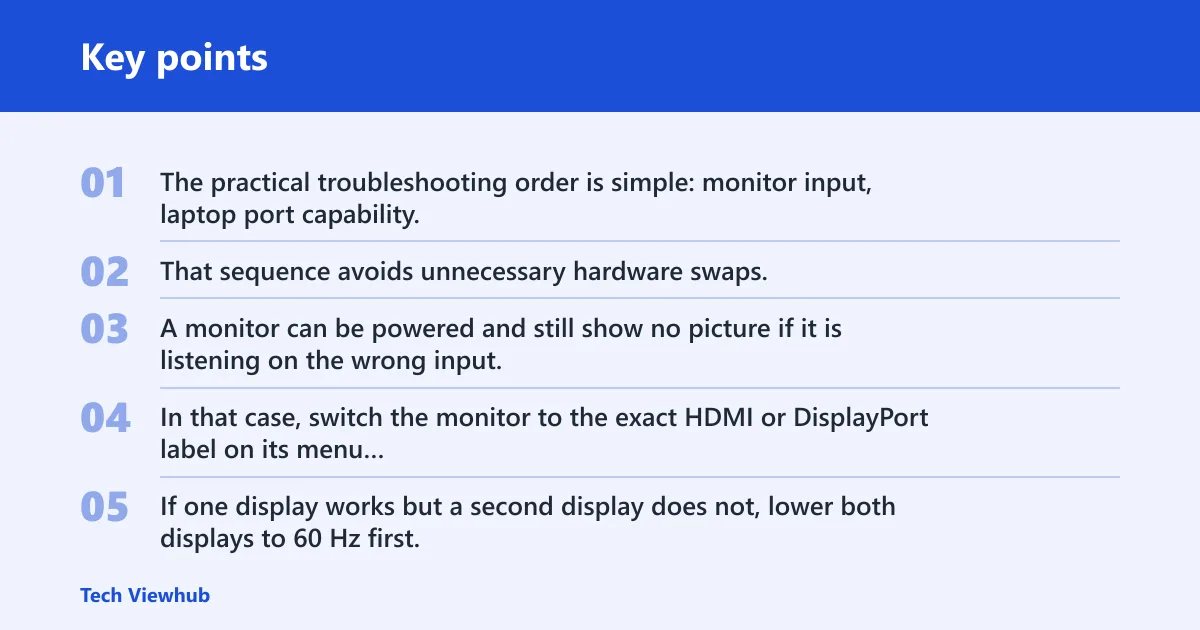
The practical troubleshooting order is simple: monitor input, laptop port capability, dock software or driver needs, then bandwidth. That sequence avoids unnecessary hardware swaps.
What one symptom usually means
A monitor can be powered and still show no picture if it is listening on the wrong input. In that case, switch the monitor to the exact HDMI or DisplayPort label on its menu before changing anything else.
If one display works but a second display does not, lower both displays to 60 Hz first. If that helps, the setup may be hitting a bandwidth limit. If it does not help, move on to the port and dock checks.
Is your laptop USB-C port video-capable?
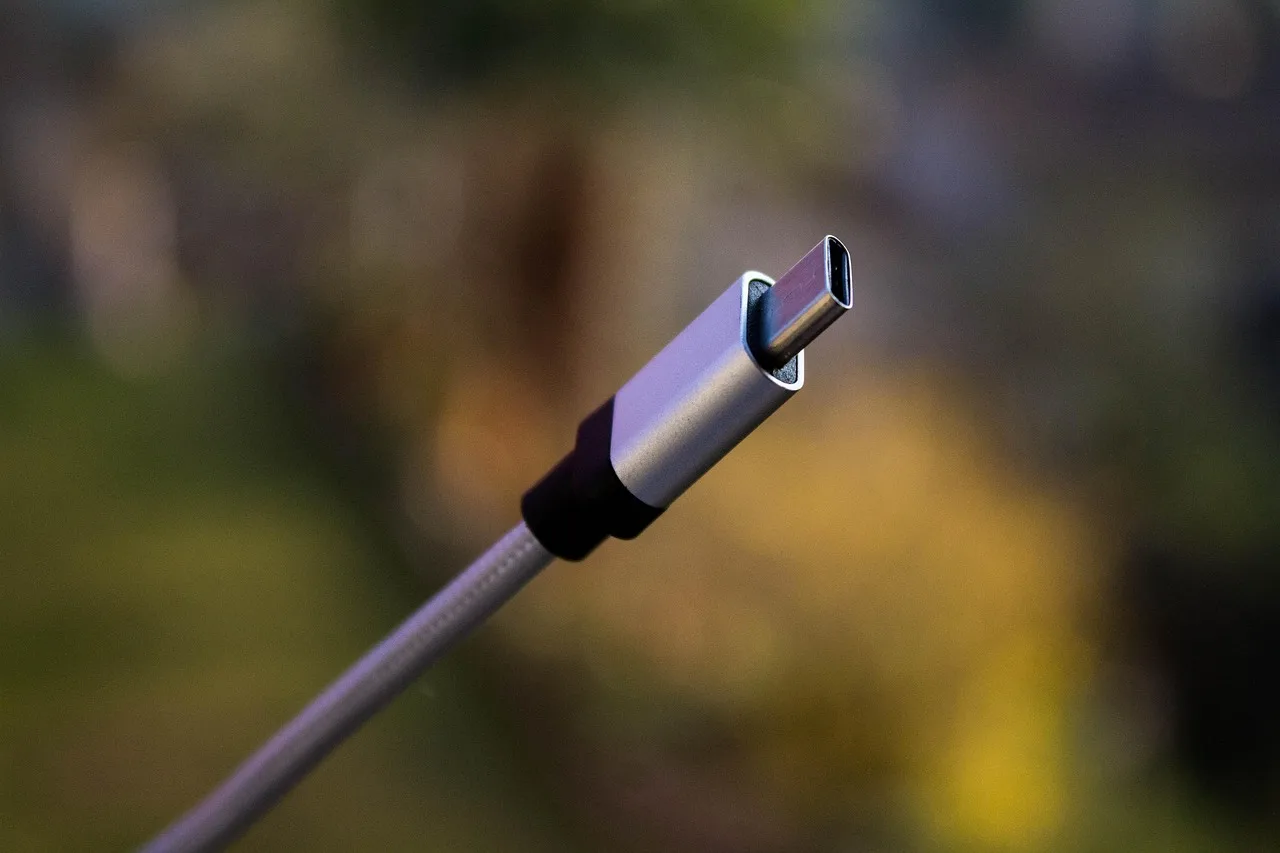
A USB-C connector does not guarantee video output. The port must support video over USB-C, such as DisplayPort Alt Mode or Thunderbolt, for native display output. Some USB-C ports provide charging and data only.
Check the laptop spec, not the port shape
Look for “DisplayPort Alt Mode,” “Thunderbolt 3/4/5,” or “video out” in the laptop manual or spec sheet. If the port is not listed for video, the dock may still charge the laptop while the monitor stays dark.
- Open the laptop manual or support page.
- Find the exact USB-C port label on the chassis.
- Confirm it lists DisplayPort Alt Mode or Thunderbolt.
- If the port is not listed for video, move the dock to a different USB-C port.
What type of dock are you using?
Dock behavior depends on the technology inside it. Some docks pass video directly over USB-C, some rely on Thunderbolt, and some depend on software such as DisplayLink. If the dock and laptop do not match, the display may not appear even though power and data still work.
Native USB-C Alt Mode
These docks require a laptop USB-C port that supports video output. If the laptop port is charge-only or data-only, the dock may still charge the laptop but not display video.
Thunderbolt
Thunderbolt docks require a laptop port that supports Thunderbolt. If the laptop only has standard USB-C, the dock may not drive displays correctly.
DisplayLink
DisplayLink docks depend on their driver. On a Windows PC, that means the driver must be installed and working. On a Mac, the dock may also need the appropriate privacy permission in system settings.
MST and macOS limits
Some docks use MST to split one connection across multiple displays. On platforms that do not support the dock’s display method the way the dock expects, such as Base M1/M2 MacBooks, one monitor may mirror instead of extending. If that happens, use the dock type and software path that matches your laptop.
Follow these checks
The order matters. Start with the monitor itself, then the dock link, then software, then bandwidth. Each step removes one possible cause.
-
Test the monitor directly on the laptop.
Use the same cable and the same monitor input. If it works direct, the monitor is less likely to be the problem. -
Set the correct monitor input.
Open the monitor menu and choose HDMI or DisplayPort manually. -
Power-cycle the dock and laptop.
Shut down the laptop, unplug dock power for about 30 seconds, then reconnect and start the laptop again. -
Update firmware, drivers, and the operating system.
Check the dock vendor utility, graphics drivers, and any dock-specific software. If the issue started after a recent update, reinstall the dock software and the GPU driver. -
Reduce resolution or refresh rate.
Set the problem display to 60 Hz first. If both monitors come alive, the dock is likely hitting bandwidth limits.
Common mistake: assuming every USB-C port carries video. Another mistake is changing several settings at once, which makes it hard to tell which change actually fixed the problem.
If a laptop has more than one USB-C port, one port may support video while another does not. Move the dock to the other port before replacing hardware.
Common mistakes
- Leaving the monitor on the wrong input after switching from a direct connection to a dock connection.
- Assuming a charge-capable USB-C port also supports video output.
- Using a dock type that does not match the laptop’s supported connection type.
- Ignoring bandwidth on dual-monitor setups, especially when one or both displays run above 60 Hz.
- Changing too many settings at once instead of testing one fix at a time.
If that didn’t work, try this next
If the direct test, input check, power cycle, and 60 Hz setting did not change anything, move to the next likely cause: software, permissions, or port compatibility.
- Check the dock label and confirm whether it is USB-C video, Thunderbolt, MST, or DisplayLink.
- On Windows, open Settings > System > Display and set the display mode to Extend; then open Device Manager and look for warning icons.
- On Mac, open System Settings > Privacy & Security and approve DisplayLink screen-recording permission if the dock uses DisplayLink.
- If the dock relies on Thunderbolt, confirm the laptop port supports Thunderbolt, not just USB-C.
- If the problem began after an update, install the latest dock firmware and GPU driver, then restart.
When to replace the dock
Replace the dock when the laptop port is confirmed to support video, the monitor works directly, the correct input is selected, firmware and drivers are current, and the dock still does not drive the display properly. If the dock type does not match the laptop connection type, replacement may be the simplest fix.
If two monitors only work when both are set to 60 Hz, the dock may not provide enough display bandwidth for that setup. In that case, a different dock with higher display capacity may be the better choice.
Frequently asked questions
Why is my monitor not working with my docking station?
Start with the monitor input, then confirm the laptop port supports video output. If the monitor works directly but not through the dock, set the display to 60 Hz, check whether the dock needs software, and confirm the dock type matches the laptop.
Why is my Dell not detecting my second monitor through a docking station?
Check whether the specific USB-C port on the laptop supports video output. Then open Settings > System > Display and set Extend. If the second display still does not appear, check for driver warnings in Device Manager.
Do I need a driver for my docking station to detect displays?
Some docks do, especially software-based docks such as DisplayLink. If the dock uses DisplayLink, install the driver and, on Mac, approve the requested privacy permission in System Settings > Privacy & Security.
Can a USB-C port charge but not support video output?
Yes. A USB-C port can carry power and data without supporting display output. Check the laptop specs for video support before assuming the port can drive a monitor. If the spec does not list video, move the dock to a different port.
How do I know if my dock is DisplayLink, Thunderbolt, or Alt Mode?
Read the dock label and vendor page. Thunderbolt docks usually mention Thunderbolt. DisplayLink docks mention DisplayLink or require a driver. USB-C video docks usually advertise video over USB-C without a separate display driver.
Why does one monitor work but not the second through my dock?
That pattern usually points to bandwidth or a dock limit. Try both displays at 60 Hz first. If the second screen still fails, check the dock type, the laptop port capability, and the current driver setup before swapping hardware.