Budget Laptops: How to Choose the Right One
For many budget laptops, a common starting point is about $400 to $600, and it is usually wise to avoid anything below 8GB RAM, a 256GB SSD, and a Core i3/Ryzen 3 or better; spend extra first on the feature you cannot add later. Choose badly, and everyday work slows down fast: tabs reload, updates drag, the battery runs out early, the screen looks washed out, and the laptop can feel dated before the warranty ends. This guide maps the right compromises across Windows, ChromeOS, and 2-in-1s, plus minimum specs for school, work, and light creative tasks.
The key is to rank the parts that age badly when they are too weak. RAM, storage type, screen quality, battery capacity, and cooling matter more than a shiny CPU badge on the palm rest. RAM or storage may be upgradeable on some models. The screen, battery fit, and many soldered parts usually are not.
Everyday browsing, office work, school tasks, and light creative apps do not need the same floor. A minimum viable laptop can open documents and stream video. A laptop you still like after two years needs enough memory for many tabs, a usable display for long sessions, and a battery that does not collapse halfway through the day.
What should your budget actually buy?
Budget ranges matter because the weak points change with price. Entry-level laptops under $500 handle basic tasks like web browsing and streaming, but this is also where 4GB RAM, eMMC storage, dim screens, and tiny batteries appear. The $500 to $1,000 range covers solid productivity machines and is where fewer painful compromises show up.
Entry tier: acceptable, but only with guardrails
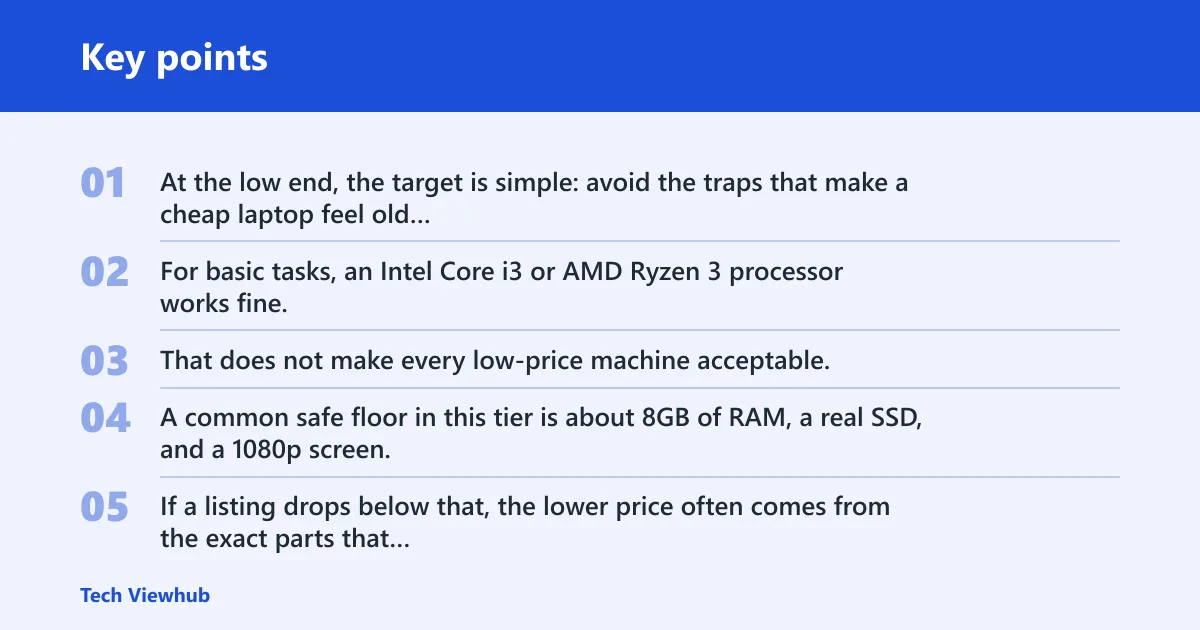
At the low end, the target is simple: avoid the traps that make a cheap laptop feel old on day one. For basic tasks, an Intel Core i3 or AMD Ryzen 3 processor works fine. That does not make every low-price machine acceptable, because many pair an okay processor with weak memory, storage, or display parts.
A common safe floor in this tier is about 8GB of RAM, a real SSD, and a 1080p screen. If a listing drops below that, the lower price often comes from the exact parts that hurt everyday use most.
A common first-timer mistake is choosing the model with the newest-looking CPU name and ignoring the rest. If that laptop has 4GB RAM and eMMC storage, browser tabs reload, video calls stutter, and Windows updates feel heavier every month.
Mainstream budget tier: the real value zone
This is where budget buying starts to make sense. An Intel Core i5 or AMD Ryzen 5 provides enough power for general use, and 8GB RAM becomes easier to find without giving up an SSD or a Full HD display.
This tier often adds the things that matter for daily comfort: better keyboards, less flex in the chassis, brighter screens, and batteries more likely to reach a workday target. It is also the first range where upgradeable memory or a second storage slot may appear.
Upper budget tier: buy quality, not excess specs
Past the lower mainstream range, extra money should usually go to the screen, battery, build quality, and RAM headroom before chasing a high CPU tier. A Ryzen 7 or Core i7 can help certain workloads, but a dim panel, weak cooling, or soldered 8GB memory can still make the whole machine a poor long-term buy.
For many buyers, this is also where 16GB becomes realistic, which matters more than an i7 badge if the laptop will run many tabs, office apps, messaging, cloud drives, and occasional photo work at the same time.
Which specs matter most in a budget laptop?
The order is straightforward: protect RAM, storage type, screen quality, and battery before worrying about thin bezels, metal panels, or headline CPU branding. Usually safe cuts are weight, case materials, fingerprint readers, or touchscreen extras. The worst cuts are 4GB RAM, eMMC or hard drives, 1366×768 screens, dim panels, and tiny batteries.
Protect these first
- RAM: Most users need at least 8GB of RAM in 2025. Below that, modern browsers and office apps hit limits fast.
- Storage type: An SSD matters more than a bigger but slower drive. A 256GB SSD works for light users.
- Screen: A 1080p screen provides sharp text and images for most users. Low resolution and low brightness both hurt comfort.
- Battery: Battery life matters for work, with a target of at least 8 hours.
Usually safe compromises
If the budget is tight, it is often safer to accept a heavier 15-inch notebook instead of a thin 13-inch machine. Plastic is fine if the hinge is stable and the keyboard deck does not flex badly. Giving up a touchscreen is usually painless for buyers who mostly type and click.
Portability usually costs extra. Smaller, lighter systems often give up ports, cooling headroom, upgrade access, or battery size to hit a thinner shape and lower carry weight. That is not always a bad deal, but it should be a conscious one.
The wrong compromises
Some savings look harmless on a spec sheet and age badly. Soldered 4GB RAM is the clearest example. So are 64GB storage configurations, slow eMMC drives, weak cooling that drops speed under load, and dim panels that look acceptable under store lighting but strain the eyes at home or near a window.
Suppose two 15-inch laptops cost nearly the same. One has a Core i5 label, 4GB RAM, and a 1366×768 display. The other has a Ryzen 3, 8GB RAM, and 1080p. The second machine is usually the smarter buy because its weak points show up later and hurt less.
When should you expect a budget laptop to wear out?
Budget laptops usually last long enough for everyday school, browsing, and office work, but their useful life depends on battery wear, storage size, cooling, and how demanding the software becomes over time. The supporting guide on budget laptop lifespan breaks down the typical range you can expect, what usually fails first, and which usage patterns shorten a cheap laptop’s life the most.
That matters because lifespan affects total cost, not just the sticker price. If you know when a low-cost laptop is likely to feel slow, need a battery replacement, or become unreliable, you can choose a model that fits your timeline and avoid upgrading too early.
How much should you expect to pay for a budget laptop?
Most budget laptops fall in the $250 to $600 range, but the value changes quickly as you move up the ladder. At the low end, you’re usually looking at basic web browsing, email, and schoolwork; closer to $400 to $600, you’re more likely to get a better display, more storage, and a smoother everyday experience with fewer compromises.
This is worth knowing because buying too cheap often means living with slow storage, shorter battery life, and a screen that makes long sessions tiring. For a clearer breakdown of what each price tier usually includes and when a low-cost laptop stops making sense, see budget laptop pricing.
How do you choose the right CPU and RAM?
For low-cost buying, CPU choice sets the floor while RAM decides how usable the laptop stays during real multitasking. Core i3 and Ryzen 3 are fine for basic tasks, while Core i5 and Ryzen 5 are the better target for school and office use. Protect 8GB first, then look for upgradeable memory, then consider higher CPU tiers.

CPU tiers that make sense at budget prices
Intel Core i3/i5/i7/i9 and AMD Ryzen 3/5/7/9 are broad performance families, not equal products across all generations. In budget shopping, the useful split is simpler.
- Core i3 / Ryzen 3: Good for web use, documents, streaming, and light school tasks.
- Core i5 / Ryzen 5: The safest target for multitasking, office work, heavier browser use, and longer useful life.
- Core i7 / Ryzen 7: Worth considering only when the rest of the laptop is also strong enough, especially RAM, cooling, and battery.
- Core i9 / Ryzen 9: Rarely sensible for budget buyers and often attached to heavier, hotter, more expensive machines.
A cheap laptop with a better processor can still feel worse than a slower one if the memory is limited or the cooling cannot hold speed during sustained use. That matters in long video calls, spreadsheet sessions, and browser-heavy school work.
RAM rules that prevent regret
Most users need at least 8GB of RAM in 2025. That is the practical sweet spot for general work, school, and home use. It leaves enough room for a browser, office apps, messaging, PDF files, and cloud sync without constant slowdowns.
16GB RAM is recommended for content creators, developers, and gamers. It also makes sense for buyers who keep many tabs open, run light photo or video apps, or want the machine to stay comfortable longer.
4GB is a bare minimum, not a recommendation. It can still boot an operating system and run simple tasks, but it is the first thing that turns a low-cost laptop into a frustrating one.
Soldered memory and upgrade paths
Upgradeability matters because memory is often the first real limit. A laptop with 8GB soldered and no empty SODIMM slot may age faster than one with a slightly slower processor but accessible RAM.
When a budget forces a compromise, accepting a Core i3 or Ryzen 3 with upgradeable memory is often safer than taking a Core i5 or Ryzen 5 locked to 8GB forever. The same logic applies to single-channel memory, which can hold back some integrated graphics and multitasking performance.
How much storage should you get?
Choose storage by type first and size second. A real SSD keeps the system responsive, while hard drives and eMMC make cheap laptops feel slow even during simple tasks. Start at 256GB, treat 512GB as the comfort zone, and move to 1TB or external storage only when your files genuinely require it.
SSD, HDD, and eMMC
An SSD is the default choice. Apps open faster, updates finish sooner, and the whole system feels less hesitant. A hard drive may offer more capacity for the money, but in a cheap laptop it often drags down the experience too much.
eMMC is worse than a proper SSD for most buyers. It appears in very low-cost machines and can be acceptable only for a narrow use case such as light web access on a secondary device. For a main laptop, it is usually a skip.
How much space is enough?
A 256GB SSD works for light users. That covers documents, web apps, school files, and moderate local storage if most media lives in the cloud.
512GB or 1TB provides more breathing room for applications, games, and media files. For many buyers, 512GB is the safer middle ground because storage fills over time with updates, cached files, offline folders, and app installs.
If large video libraries or game installs are the issue, external storage can be smarter than overpaying for internal capacity in a low-end chassis.
When local storage limits matter most
Chromebooks often rely more on cloud workflows, so small local drives can be less painful there, but app and file limits still matter. Windows laptops need more care because full local storage can affect updates, app installs, and general housekeeping.
What screen size and battery target make sense?
For work and school, the best size depends on where the laptop will live. Screen sizes typically range from 13 to 17 inches. A 13-inch or 14-inch model favors portability, 15-inch usually offers the best value, and 17-inch fits desk-first use. Aim for 1080p and at least 8 hours of battery life.

Size: portability versus comfort
Smaller laptops travel better, fit lecture hall desks more easily, and weigh less in a backpack. The tradeoff is tighter cooling, fewer ports, and sometimes smaller batteries.
15-inch notebooks often hit the best balance for budget buyers. They are easier to type on for long sessions, usually cheaper than thin premium designs, and have more room for cooling and ports.
17-inch systems are best treated as portable desktops. They can be useful for large spreadsheets or side-by-side windows, but they are less friendly for commuting.
Resolution, panel type, and brightness
A 1080p screen provides sharp text and images for most users. At budget prices, that should be the target, not a luxury. A low-resolution screen can make long reading sessions, spreadsheets, and split-window work feel cramped and rough.
1440p and 4K options exist, but they are usually unrealistic priorities in this segment. Money is better spent on a brighter 1080p panel with better viewing angles than on extra pixels in an otherwise weak machine.
Panel type matters too. A poor display is the wrong place to save money for school or work because you look at it every minute. Dim screens can be annoying even indoors, especially near windows. Budget listings often mention resolution but hide brightness, so reviews and full spec sheets matter here.
Battery targets in the real world
Battery life matters for work, with a target of at least 8 hours. That is the right starting point for school, office use, and general mobility. Creative apps, higher screen brightness, larger displays, and more powerful components usually reduce runtime.
Picture a 14-inch laptop used for classes, note-taking, browser research, and a long afternoon on campus. If the battery target starts too low, the whole machine becomes charger-dependent, which defeats the point of paying extra for portability.
Should you buy Windows, a chromebook, or a 2-in-1?
Choose the operating system before chasing deals because app support can overrule every other spec. Windows fits the widest range of school and work software. Chromebooks often cost less than other laptops, often under $400, but they fail if your classes or job need Windows-only apps. A 2-in-1 makes sense only if touch or pen use is central.
Windows laptops
Windows has the broadest app compatibility and the widest spread of prices, sizes, and categories. It is the default pick for buyers who need desktop office software, school portals with stricter requirements, printer support, local file workflows, or niche work tools.
The catch is that Windows also appears on many badly balanced cheap machines. On this platform especially, 8GB RAM and a real SSD should be treated as the minimum practical floor.
Chromebooks
Chromebooks are best for browser-first users, younger students with school systems built around web tools, and buyers who mainly stream, email, write, and join video calls. They can be a strong value when the software fit is right.
They are the wrong choice when local storage, offline workflows, specialty apps, or certain school and work programs are required. A Chromebook that cannot run the needed software is not a bargain at any price.
2-in-1s, ultrabooks, traditional notebooks, and gaming laptops
A 2-in-1 convertible is worth paying for only if tablet mode, pen input, or tent mode will be used often. Otherwise, the hinge complexity and added cost may buy less RAM or a weaker battery.
Ultrabooks focus on thin, light portability, but at low prices they often cut ports or upgrade options. Traditional notebooks usually offer the clearest value. Budget gaming laptops are rarely the default answer for normal buyers because they bring weight, fan noise, larger chargers, and weaker battery life even when the GPU seems like a bonus.
macOS is outside normal budget shopping unless the search includes used or discounted entry MacBook options. In that case, app needs, battery condition, and remaining support life matter more than the logo.
What build quality checks prevent buyer’s remorse?
Cheap laptops fail in physical ways long before the spec sheet explains why. Check hinge stability, keyboard flex, trackpad quality, ports, charging method, webcam placement, and wireless basics. Then check cooling, because a laptop that slows down under longer workloads can feel worse than its processor class suggests.
Hinges, keyboard, and trackpad
The hinge should hold the screen steady without wobbling at every tap. The keyboard deck should not sink under normal typing pressure, and the trackpad should click evenly without rattling or dead corners.
Build quality does not mean metal only. A solid plastic chassis is better than thin metal wrapped around a weak hinge.
Ports, charging, webcam, and speakers
Port selection matters more on budget systems because adapters add cost fast. Check for the ports already needed for classes, office desks, external displays, or USB drives. Also look at whether the laptop charges by USB-C or needs a proprietary barrel charger, since replacement convenience can matter later.
Webcam placement still varies, and a bad angle is annoying for video calls. Speakers on cheap laptops are often thin, so buyers who watch lectures or meetings without headphones should not ignore that line item.
Cooling and sustained performance
Cooling is one of the least discussed low-end failure points. A processor that looks fine on paper can slow down during long calls, document exports, or many-tab browser sessions if the thermal design is weak.
This is why a modest CPU in a better-cooled notebook can be the smarter purchase. Sustained performance matters more than a brief peak number for the workloads budget buyers usually run.
Budget laptops decision matrix
| Buyer profile | Minimum CPU | RAM | Storage | Screen target | Battery target | First feature to compromise if budget is tight |
|---|---|---|---|---|---|---|
| Student | Core i3 or Ryzen 3 | 8GB minimum | 256GB SSD | 13-inch to 15-inch, 1080p | At least 8 hours | Chassis material or touchscreen before RAM, SSD, or screen resolution |
| Office worker | Core i5 or Ryzen 5 | 8GB minimum, upgradeable preferred | 256GB SSD minimum, 512GB preferred | 14-inch or 15-inch, 1080p, decent brightness | At least 8 hours | Weight first; accept a heavier notebook before accepting dim display or 4GB RAM |
| Casual home user | Core i3 or Ryzen 3 | 8GB minimum | 256GB SSD | 15-inch, 1080p | Good enough for room-to-room use | Processor tier before storage type or display resolution |
| Light creator | Core i5 or Ryzen 5 | 16GB | 512GB SSD minimum | 15-inch, 1080p with better panel quality | Useful unplugged, but less important than cooling | Portability first; accept more weight before cutting RAM, SSD, or cooling headroom |
Budget laptops checklist
- Deal-breakers: 4GB RAM, eMMC, 1366×768.
- School with many tabs and video calls: Core i3/Ryzen 3 minimum, 8GB RAM, 256GB SSD, at least 8 hours, decent webcam. Deal-breakers: tiny battery, dim display.
- Deal-breakers: poor keyboard, weak cooling, no useful ports.
- Light photo or creative work: Core i5/Ryzen 5, 16GB RAM, 512GB SSD, better screen. Deal-breakers: soldered low RAM, weak thermals, poor panel quality.
- Frequent travel: 13-inch or 14-inch, at least 8 hours, USB-C charging if possible. Deal-breakers: heavy chassis paired with small battery.
Frequently asked questions
How to choose a laptop to buy
Start with the heaviest task the laptop must handle every week, then set the minimum specs around that task. For most buyers, that means 8GB RAM, a 256GB SSD, and a Core i3/Ryzen 3 or better, then protecting the screen and battery before paying for extras.
When buying laptop what should I budget?
Below that, many systems cut the exact parts that age badly, such as memory, storage type, screen quality, and battery size.
What specs matter most in a budget laptop
RAM, storage type, screen quality, and battery matter most because they affect every minute of use and are often hard or impossible to fix later. CPU tier matters too, but a balanced Core i3 or Ryzen 3 system can outlast a badly configured machine with a higher chip badge.
Should I buy a Chromebook or Windows laptop?
Buy a Chromebook if almost everything happens in the browser and school or work software is fully web-based. Buy Windows if there is any doubt about app compatibility, local file workflows, printers, or specialty programs. The lower Chromebook price only helps when the software fit is right.
How much RAM do I need in a budget laptop?
Most buyers should treat 8GB as the floor. It is enough for web work, office tasks, school use, and normal multitasking. Move to 16GB for content creation, development, gaming, or long-term comfort. Avoid 4GB unless the use case is extremely narrow and the expectations are very low.
What size laptop is best for work and school
For portability, 13-inch to 14-inch is the easiest to carry and use in class or meetings. For value, 15-inch is usually the sweet spot because it gives more screen area, ports, and cooling room for the money. Choose 17-inch only if the laptop will stay on a desk most of the time.