Wi‑Fi 6 Routers: How to Choose the Right One
Choose a Wi‑Fi 6 router by matching three factors: internet speed, floor plan, and device count; as a rule, buy for 25 to 50 percent more bandwidth than your current plan and devices need. Miss that match, and you either pay for speed you cannot use or end up with dead zones, congestion, and weak wired options. This guide maps router class, bands, ports, and mesh versus single-router setups to apartments, family homes, and device-heavy households.
The usual buying mistake is not choosing a “bad” router. It is choosing a router for the wrong bottleneck. A small apartment on a sub-300Mbps plan often does not need an AX5400-class upgrade, while a long two-story house with dense walls can overwhelm a less capable single router even if the internet plan is modest.
Wi‑Fi 6 is 802.11ax, and it remains backward compatible with Wi‑Fi 5 devices on 802.11ac and Wi‑Fi 4 devices on 802.11n. That matters because most homes keep mixed clients for years. The router has to fit the devices you own now, not the spec sheet you hope to need later.
Start with the limits that actually shape your choice

Your internet plan sets the ceiling
A router cannot deliver more internet speed than the WAN connection feeding it. Wi‑Fi 6 has enough wireless capacity for gigabit-class internet and, under ideal conditions with compatible clients, can outpace Wi‑Fi 5 by a wide margin, but those gains appear only when the ISP plan, local interference, and client devices leave room for them.
If the home plan is below 300Mbps, a premium class router often buys capacity and features rather than obvious internet speed gains. That can still be worth it in a crowded home, but it is a different reason to spend more.
Your floor plan decides single router versus mesh
Square footage alone is too crude. Layout matters more. An open 1,700-square-foot condo may work well with one strong router near the center, while a 1,400-square-foot house with a long hallway, brick interior walls, and a back bedroom office may need two mesh nodes.
Mesh Wi‑Fi systems reduce dead zones by placing multiple nodes around the home under one network name, so devices can stay connected across rooms, floors, and outbuildings without relying on one faraway router. They work best when the problem is distance, floor separation, awkward room placement, or a detached work area.
Your active device load matters more than total devices owned
Count the devices that are busy at the same time, not every dormant smart plug on the network map. Four people on video calls, two 4K streams, a console download, cloud camera uploads, and background phone traffic strain a router far more than a home with forty mostly idle devices.
Wi‑Fi 6 can allow twice as many simultaneous users to get steady connections. That is where the upgrade pays off: busy evenings, mixed traffic, and many short bursts of data.
Your wired needs can outweigh wireless specs
Many buyers fixate on AX labels and skip the ports. That is backwards if the home has gaming PCs, consoles, TVs, a NAS, or wired backhaul for mesh. A router with weak port selection can force an extra switch purchase or cap a faster internet plan at the WAN port.
Picture a home office with a desktop, a dock, and a networked backup drive. A router with only basic gigabit ports may be fine on a 500Mbps plan, but if the home is moving to multi-gig internet, the lack of a multi-gig WAN or LAN port becomes the real limit.
What does Wi‑Fi 6 actually change?
Wi‑Fi 6 changes capacity and efficiency more than it changes the basic shopping logic. It runs on 2.4GHz and 5GHz, keeps support for older Wi‑Fi 5 and Wi‑Fi 4 clients, adds WPA3 security, and uses features such as OFDMA, MU‑MIMO, beamforming, and 1024‑QAM to help handle crowded networks better.

Generation naming and backward compatibility
Wi‑Fi 6 is the newer name for 802.11ax. Wi‑Fi 5 is 802.11ac, and Wi‑Fi 4 is 802.11n. That naming matters because product pages often mix both systems, and you need to know that a Wi‑Fi 6 router still supports older phones, laptops, TVs, and smart-home gear.
Backward compatibility does not mean old devices gain all Wi‑Fi 6 benefits. A Wi‑Fi 5 laptop still connects as a Wi‑Fi 5 client. The router can manage the network better overall, but the client’s radio sets part of the ceiling.
How OFDMA helps busy homes
OFDMA is one of the technologies linked to lower latency in Wi‑Fi 6. Its practical value shows up when the network handles many small packets at once: messaging apps, smart-home pings, cloud sync, voice assistants, and background mobile traffic.
That is why Wi‑Fi 6 often feels more stable under load even when a speed test does not jump much. The gain is efficiency during congestion, not only peak throughput.
Where MU‑MIMO, beamforming, and 1024‑QAM fit
MU‑MIMO is cited as helping multiple users stream at once. It matters most when several clients are active together, not when one device sits near the router chasing top benchmark numbers. In a family home, it helps smooth out multi-user demand.
Beamforming directs signal toward connected devices rather than radiating evenly in all directions, which can help usable performance at the edges of coverage. 1024‑QAM is a modulation improvement that can raise throughput under strong signal conditions. Both are useful, but both are secondary buying signals. Coverage, placement, client mix, and port needs decide more purchases than either feature label.
Do you need dual-band, tri-band, or Wi‑Fi 6E?
Most buyers should start with dual-band Wi‑Fi 6 because it covers the needs of typical apartments and family homes without paying extra for a third radio, then move to tri-band only when many devices compete for 5GHz capacity or when a mesh system needs extra wireless backhaul headroom. Wi‑Fi 6E adds 6GHz, but it only helps devices that support 6GHz and it does not improve wall penetration.
What 2.4GHz is still good
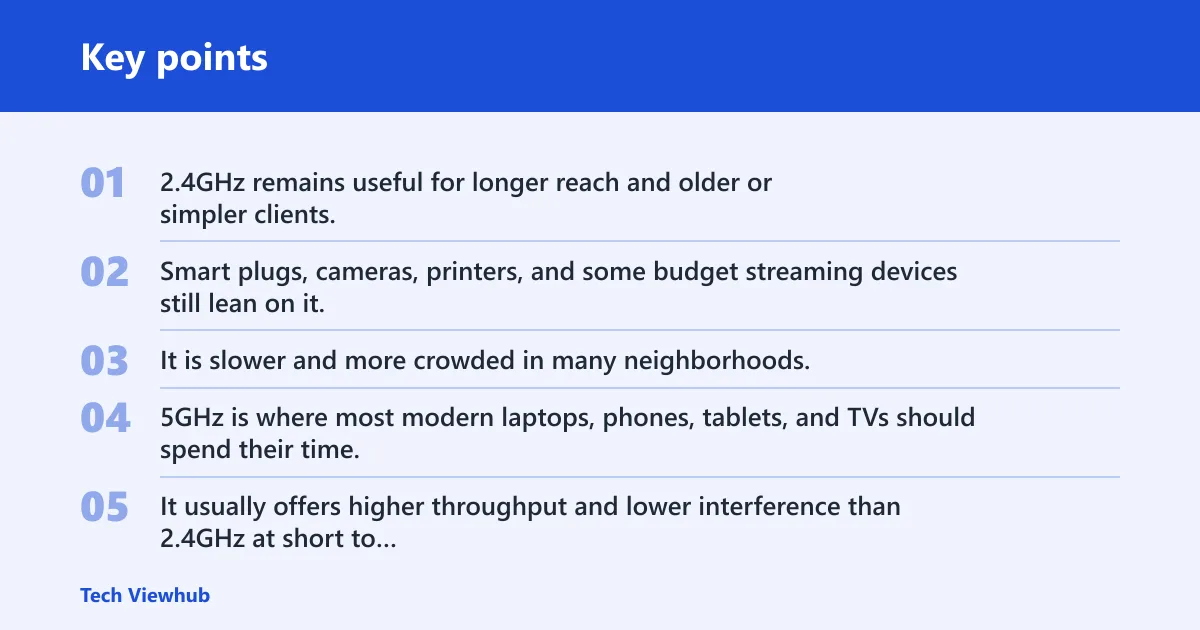
2.4GHz remains useful for longer reach and older or simpler clients. Smart plugs, cameras, printers, and some budget streaming devices still lean on it. It is slower and more crowded in many neighborhoods, but it is often the band that reaches the garage corner or backyard sensor.
When 5GHz carries most of the workload
5GHz is where most modern laptops, phones, tablets, and TVs should spend their time. It usually offers higher throughput and lower interference than 2.4GHz at short to medium range. For many homes, 5GHz does the heavy lifting while 2.4GHz catches edge devices and legacy gear.
When tri-band capacity is worth paying
Tri-band matters when one extra radio solves actual contention. In a dense home with many active devices, or in wireless mesh where one band may be used for node-to-node traffic, the added capacity can keep client performance from collapsing during busy periods.
A common first-timer mistake is buying tri-band for a small apartment with six active devices and a 300Mbps plan. In that case, the extra radio often sits underused, while a better-placed dual-band router would perform the same.
Who should buy 6E for 6GHz and who should skip it?
Wi‑Fi 6E adds 6GHz to the 2.4GHz and 5GHz options used by regular Wi‑Fi 6. That can mean cleaner spectrum and less congestion, but only for 6GHz-capable clients. If the home lacks 6E phones, laptops, or PCs, paying more for 6E may not change much.
For a concrete example, PCMag’s top overall pick for most people is the TP-Link Archer AXE75, which PCMag describes as a Wi‑Fi 6E router under $200. It is an AXE5400 model. That makes sense as a value option when the home already has 6GHz clients or is buying them soon; otherwise, its 6E feature can be underused.
How do you read AX1800, AX3000, and AX5400 labels?
Treat AX1800, AX3000, AX5400, and AXE5400 as rough capacity tiers, not as promised device speeds. Higher classes usually mean more total radio capacity, better multi-device handling, and sometimes stronger hardware or more features, but client limits, signal quality, and internet speed still decide real results.
Why router class is a rough capacity tier, not a speed promise
The AX number is an aggregate class label across bands. It is useful for sorting entry, midrange, and upper-midrange hardware, but it does not mean a single device will see that exact throughput. Manufacturers advertise peak combined capacity, not a guaranteed outcome in your living room.
That is why buying thresholds work better than chasing the biggest number. If the household load fits AX3000, jumping to AX5400 may add headroom, but it will not rewrite a weak floor plan or a 300Mbps WAN limit.
A practical read on AX1800, AX3000, AX5400, and AXE5400
AX1800 is the practical entry point for smaller homes, lighter loads, and sub-300Mbps to 500Mbps internet when placement is good.
AX3000 is the safer default for many buyers because it leaves room for family traffic, better 5GHz capacity, and moderate growth.
AX5400 fits larger or busier homes that still use a single router, or homes where the internet plan reaches into the 500Mbps to 1Gbps range and several devices are active at once.
AXE5400 belongs in the same general capacity tier as AX5400, but adds 6GHz for Wi‑Fi 6E clients.
How many antenna streams do you need in a Wi‑Fi 6 router?
Stream counts matter, but less than many product pages suggest. More streams usually track with a higher router class and more capacity for multiple clients, yet many phones and budget laptops cannot use large stream counts fully. Use streams as a tie-breaker after checking class, layout, and WAN speed.
Say your home has two Wi‑Fi 6 phones, a Wi‑Fi 5 TV, an older Wi‑Fi 4 printer, and a 500Mbps plan. Chasing a high stream-count flagship is less useful than getting solid AX3000 or AX5400 class hardware with good placement and the right ports.
Router class decision table
| Home and layout | Active devices at peak | Internet plan | Minimum class to target | Move up if… | Don’t buy this if… |
|---|---|---|---|---|---|
| Apartment or small open condo | 1-8 | Sub-300Mbps | AX1800 dual-band | Walls are dense or many nearby networks create congestion; then consider AX3000 | You are eyeing AX5400 or 6E with mostly Wi‑Fi 5 and Wi‑Fi 4 clients |
| Apartment or townhouse with several rooms | 8-15 | 300-500Mbps | AX3000 dual-band | Many simultaneous streams, gaming, or a far office; then consider AX5400 | You pick a weak entry router because the floor area looks small on paper |
| Single-story family home with average walls | 12-20 | 300-500Mbps | AX3000 dual-band | Long hallway plan or heavy evening load; then consider AX5400 or mesh | You buy tri-band for a light-load home with no congestion problem |
| Two-story home or long multi-room layout | 15-25 | 500Mbps-1Gbps | AX5400 dual-band or mesh | Router cannot sit centrally, or signal must cross floors; then choose mesh | You expect one bargain router to cover distant bedrooms through dense walls |
| Large home with dead zones or detached office | 20+ | 500Mbps-1Gbps | Mesh Wi‑Fi 6, ideally with wired backhaul | Wireless backhaul is weak; then run Ethernet between nodes if possible | You spend on a single high-class router instead of fixing the coverage shape |
| Device-heavy home with newer 6GHz clients | 20+ | 500Mbps-1Gbps | AXE5400 tri-band or mesh 6E | 6GHz-capable laptops and phones are active together in the same area | You have no 6GHz clients and expect 6GHz to improve range through walls |
| Any home on multi-gig internet | Varies | Multi-gig | Wi‑Fi 6 or 6E with multi-gig WAN, and possibly multi-gig LAN | Fast wired PC, NAS, or backhaul also needs more than gigabit | You buy a router with only 1Gbps WAN and assume Wi‑Fi class alone fixes that |
Can one router cover your home, or do you need mesh?
One strong router is the smarter buy when the home is compact, the router can sit near the center, and the main issue is capacity rather than reach. Mesh is the better call when the layout breaks coverage with floors, long runs, dense walls, or outbuildings that one router cannot cover reliably.
When a strong single router is the smarter buy
Single-router setups cost less, add less complexity, and often deliver higher performance close to the main unit. If the home is an apartment, a small house, or an open-plan condo, a better router in the right location usually beats a cheap mesh kit.
That is especially true when most heavy traffic happens near the router anyway, such as a living room and adjacent office.
Layouts where mesh is the only sensible option
Mesh becomes the practical answer when rooms are spread out in a line, when the house has two floors with the fiber jack in a corner, when interior walls are dense, or when there is a detached office or studio. In those homes, coverage shape defeats brute-force router class.
Suppose a 2,200-square-foot two-story house has the modem in the front downstairs corner and the work-from-home room upstairs at the rear. Upgrading from AX3000 to AX5400 may add some margin, but it may not solve the geometry. A two-node or three-node mesh system likely will.
Why wired backhaul changes mesh performance
Mesh is strongest when nodes can use Ethernet backhaul. That keeps node-to-node traffic off the air and preserves more wireless capacity for clients. If Ethernet runs already exist, mesh value rises because you get better coverage without paying the full performance penalty of wireless backhaul.
If Ethernet does not exist, tri-band mesh can help by dedicating more radio capacity to the backhaul path. That is a real reason to pay for tri-band. It is far better than buying tri-band on hope alone.
What ports and security features should you insist on?
Insist on enough Ethernet for the wired devices you actually use, plus a WAN port that matches your internet plan. For security, WPA3 should be on the list, followed by guest network controls, parental controls if needed, and a clear record of firmware updates from the brand.
Gigabit versus multi-gig WAN and LAN
For plans up to 1Gbps, 1Gbps WAN and LAN ports are usually enough. For multi-gig internet, a router needs a multi-gig WAN port or it bottlenecks the connection before Wi‑Fi even starts. Multi-gig LAN matters if a fast desktop, NAS, or wired backhaul also needs more than gigabit.
PCMag says the Archer AXE75 has four 1Gbps LAN ports and one 1Gbps WAN port. That is fine for many households, but it also shows why buyers on multi-gig service must read the port line before the Wi‑Fi line.
USB ports and the wired devices that justify them
A USB port is optional, not mandatory. It matters if the router will share a printer or storage drive, and it can be useful for simple local file access. The Archer AXE75 includes a single USB 3.0 port, which is a good example of a practical extra that is useful only if you have a use for it.
WPA3, guest networks, parental controls, and update support
WPA3 is included in Wi‑Fi 6 for stronger security. That should be the baseline. Guest networks help isolate visitors and some smart-home gear. Parental controls vary widely in depth, so only pay for them if the home needs scheduling, filtering, or profile-based limits.
Firmware support matters because routers age in software as much as in hardware. A slightly less flashy router from a brand with consistent updates can outlast a bigger-spec model that sees little post-sale support.
How much should you spend, and when should you skip the upgrade?
Spend according to bottleneck, not badge size. Skip the upgrade if the real problem is ISP speed, placement, or old clients.
Budget matched to use case
For a small apartment or condo on a modest plan, start with AX1800 and only move up if congestion or room separation justifies it. For a family home, AX3000 is the safe baseline. For heavier use, awkward layouts, or near-gigabit plans, AX5400 or mesh is easier to justify.
If the home genuinely needs Wi‑Fi 6 at the low end, there are budget options. NETGEAR’s RAX5 Wi‑Fi 6 router is priced at $49.99 on the page cited here. That kind of pricing can make sense for a small, light-load setup, but low price does not change layout physics or port limits.
Signs a router upgrade will not fix the problem
- The ISP plan is already the bottleneck.
- The router sits in a poor location, such as a corner cabinet or basement utility room.
- Most important devices are still Wi‑Fi 5 or Wi‑Fi 4, so advanced Wi‑Fi 6 gains stay limited.
- The real issue is dead-zone geometry that calls for mesh, not a stronger single router.
- The home needs more Ethernet ports or wired backhaul more than it needs a higher AX class.
Wi fi 6 routers checklist
- Write down the internet plan tier: sub-300Mbps, 300-500Mbps, 500Mbps-1Gbps, or multi-gig.
- Count active peak devices, not total devices owned.
- Map the layout: apartment, two-story, long hallway, dense walls, or detached office.
- Decide whether one central router is realistic; if not, move straight to mesh.
- Check ports for WAN speed, LAN count, and any need for USB or wired backhaul.
- Only pay for 6E if 6GHz clients are present or arriving soon.
- Use AX1800, AX3000, AX5400, and AXE5400 as class tiers, not speed guarantees.
Frequently asked questions
How do I choose the right Wi‑Fi 6 router?
Choose by matching router class, coverage shape, and port mix to the home you actually have. Start with the internet plan, then count active devices, then decide whether one central router can cover the layout. After that, compare AX class, bands, WAN/LAN ports, and security features such as WPA3.
What Wi‑Fi 6 router features matter most?
The biggest buying signals are coverage architecture, router class, and ports. OFDMA helps busy homes by improving small-packet efficiency and latency, while MU‑MIMO helps multiple users stream at once. Beamforming, 1024‑QAM, and stream counts matter, but they should come after floor plan, active load, and WAN speed.
Do I need dual-band or tri-band Wi‑Fi 6?
Dual-band fits most apartments and average households. Tri-band is worth the money when many active devices fight for 5GHz capacity or when mesh nodes need stronger wireless backhaul support. Paying extra for tri-band in a small, light-load home usually brings less value than better placement or a higher-quality dual-band router.
What speed class should I buy for my internet plan?
For multi-gig internet, the port spec matters as much as class because a 1Gbps WAN port will cap the connection.
Should I buy Wi‑Fi 6 or Wi‑Fi 6E instead?
Buy Wi‑Fi 6E only if the home has, or soon will have, 6GHz-capable clients. The 6GHz band can offer cleaner air and less congestion, but it does not improve wall penetration, and older clients cannot use it. Without 6GHz devices, a good Wi‑Fi 6 router often gives the better value.
Do I need mesh instead of a single Wi‑Fi 6 router?
Mesh is the right call when distance, floors, dense walls, or detached spaces create dead zones that one router cannot cover. A single router is still the better buy for compact layouts with a central placement option. Wired backhaul makes mesh much stronger, especially in larger homes with heavy traffic.