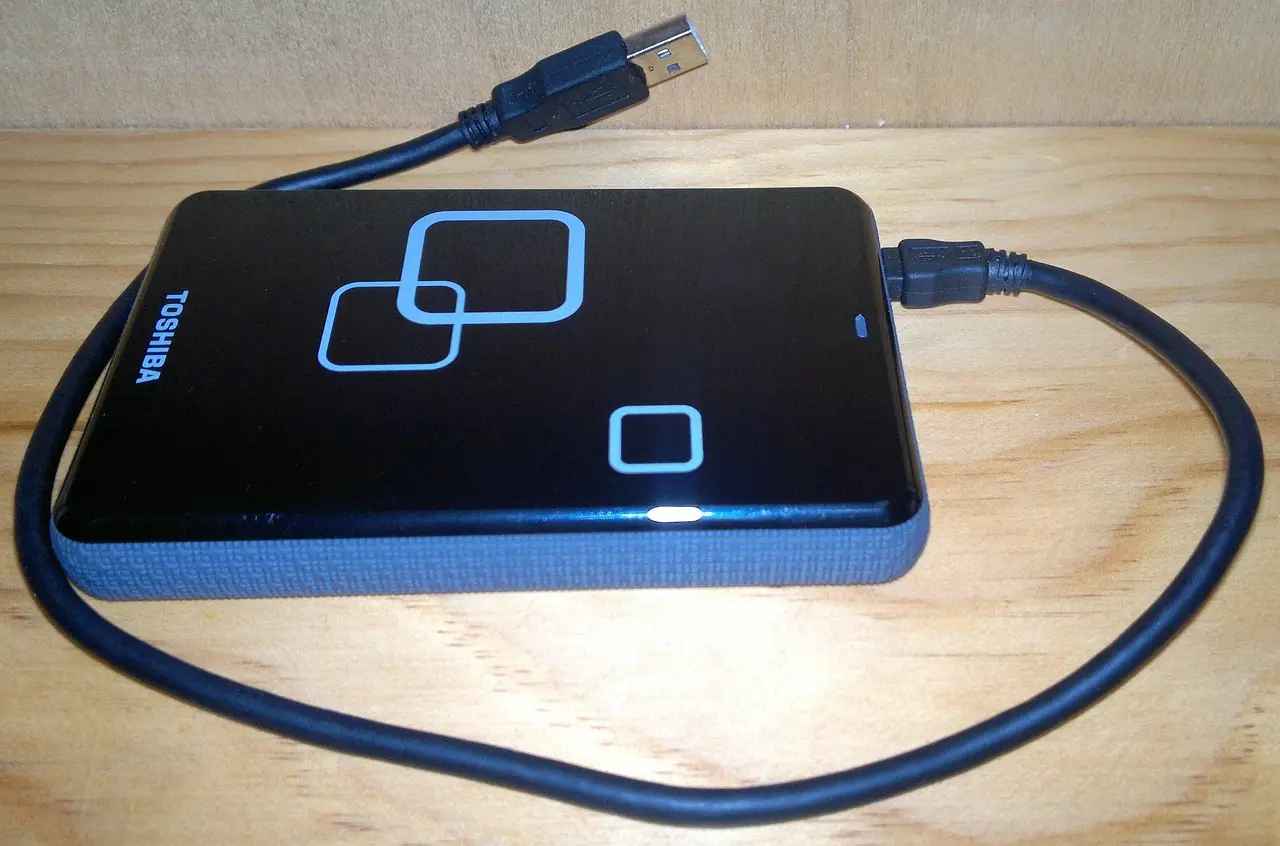
External SSD: How to Choose, Use and Troubleshoot
Choose an external SSD by your device’s port speed first, then your workload: 1,000 MB/s is enough for backups, while 2,000 MB/s suits 4K editing. Miss that match and you can pay for speed your device cannot use, run into format or compatibility limits, or blame the drive when the real fault is the cable or port. This guide matches SSDs to PCs, Macs, consoles, and mobile devices, then covers setup and symptom-based fixes for slow speeds, detection failures, and disconnects.
The common buying mistake is simple: judging the drive by the label on the box instead of the slowest link in the chain. Real performance depends on five links working together: the host port, the cable, any adapter or dock, the enclosure and controller inside the external drive, and the file system or software path handling the data.
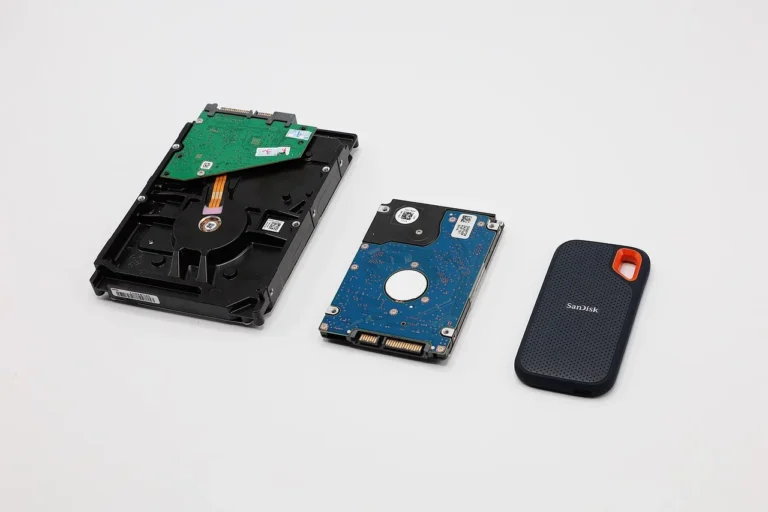
A portable SSD makes sense if you copy large folders every week, carry the drive in a bag, or open projects straight from external storage. It uses flash storage, has no moving parts, stays small and light, and fits active project work better than a mechanical external HDD. External HDDs still make sense for backup archives and large media collections where cost per terabyte matters more than transfer speed.
Start with the bottleneck, not the brand

The five links that set real performance
Check the full path before you buy. A fast portable SSD plugged into a slow port, a poor cable, or a USB dock with limited bandwidth will perform like a slower drive, even if the SSD itself can do much more.
The five links are easy to check:
- Host port: confirm whether the computer, console, tablet, or phone actually supports the speed tier you want.
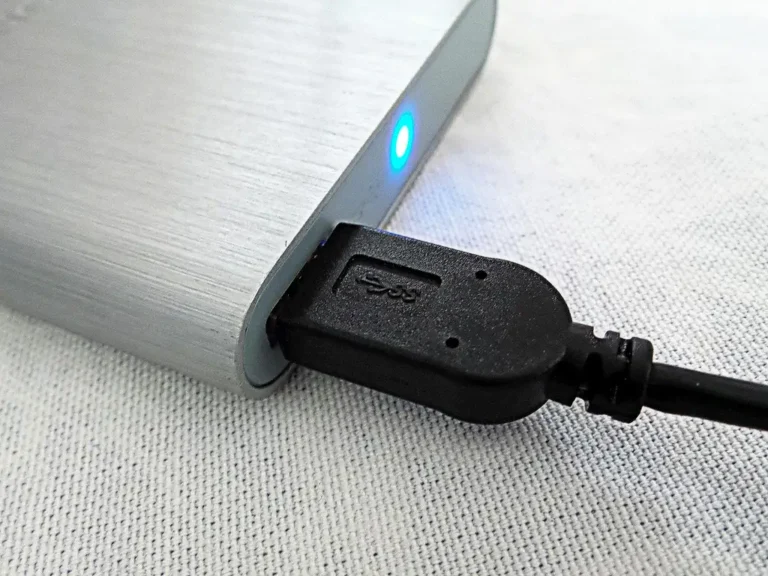
- Cable: many USB-C cables charge devices well but carry data poorly, or at lower speed tiers.
- Adapter or dock: hubs and dongles often add the next bottleneck.
- Enclosure and controller: the SSD inside may be faster than the USB bridge around it.
- File system and software: cross-platform formats, encryption, indexing, and background sync can cut into transfer speed or block access.
Why the slowest link decides transfer speed
USB 2.0 is the clearest example. It is a legacy port tier that is too slow to let an external SSD show its normal advantage, so the SSD ends up stuck behind the wrong interface. By contrast, USB 3.2 10Gbps-class is often the mainstream target for people who want strong external SSD performance without moving into higher-end USB4 or Thunderbolt gear.
For context, an average external HDD is around 100MB/s for reads and writes, while external SSDs can easily reach 500MB/s or above. That gap matters most when you copy large projects, keep active files on the drive, or launch supported games from external storage.
Connector shape versus actual interface support
USB-C is only the connector shape. It does not confirm speed by itself. A USB-C port might expose basic USB data, USB 3.2 10Gbps class, USB4, charging only, or a mix that changes when you use a dock or adapter.
Suppose a laptop has two USB-C ports, but only one supports the faster data path and the other is mainly for charging. Plug the same SSD into the wrong side, and your copy speed drops or the drive disconnects under load even though the connector looks identical.
How do you choose the right external SSD?
Choose by matching the drive to the job, then confirming the port path can use that speed tier. For backups or casual transfers, a 1,000 MB/s-class drive is generally enough. For sustained media work, heavier gaming libraries, or frequent travel use, step up capacity, cooling, and interface support before paying for top-end speed claims.

Pick the drive by workload
Backup, active files, editing, gaming, and travel use do not stress a drive the same way. Backup is mostly about capacity and occasional long writes. Laptop expansion is daily mixed use. Editing is sustained write-heavy work that can expose cache limits. Gaming storage is more read-heavy, where game loading and asset reads matter more than hours-long write speed.
That is why advertised peak numbers can mislead. A drive that looks great on a product page may slow during long writes once its fast cache is exhausted. That matters for 4K video ingest and export far more than it does for storing a game library or a document archive.
Match capacity at 1TB, 2TB, and 4TB plus
At 1TB, a portable SSD is often the cleanest choice for active use. The size advantage is real: external SSDs are lighter and smaller because they have no moving parts, and that helps if you carry the drive in a bag or backpack. They also use less power than traditional hard drives, which matters on laptops, tablets, and some phones.
At 2TB, the decision gets closer. One listed comparison makes the tradeoff concrete: a 1TB Samsung T9 Portable SSD was listed at around $232, while a 2TB Seagate Portable Hard Drive was listed at around $130. That does not prove one product is better than another, but it shows how HDD value can stretch capacity much further for cold storage.
At 4TB and above, HDD value usually improves again if the drive is mostly an archive or backup target. External HDDs are still the stronger fit when you want more storage for the money. For daily active work, though, SSD responsiveness often justifies the premium.
Check host port support before paying for a faster tier
If your device tops out at older USB speeds, paying extra for a USB4 or Thunderbolt-class portable SSD usually buys little. Start with the hardware you already own. Look up the exact port spec in the laptop, desktop motherboard, console, tablet, or phone documentation, then buy a drive that matches that ceiling.
For many buyers, USB 3.2 10Gbps class is the sweet spot. It is fast enough for mainstream file work and many editing tasks, common on current PCs, and less demanding than USB4 or Thunderbolt for cable and dock quality.
Choose the right enclosure and cable path
The enclosure matters because some external drives are built around SATA SSDs bridged over USB, while others use faster NVMe-based hardware inside. You do not need to memorize controller names. You do need to confirm whether the full enclosure is designed for the speed tier printed on the box.
A common first-timer mistake is buying a fast SSD, then using a spare USB-C charging cable from a drawer. The drive mounts, so it looks fine at first. Then a 200GB video transfer crawls, and the bottleneck turns out to be the cable, not the drive.
SSD decision matrix
| Use case | Required speed tier | Recommended capacity | Port/interface to verify | Common failure symptom | What to check first |
|---|---|---|---|---|---|
| Backup | About 1,000 MB/s class is enough | 2TB or 4TB+ if the backup set is large | USB 3.x support on the host; avoid falling back to USB 2.0 | Long backup window or very slow first copy | Connect directly to a known fast port and verify the cable is rated for data, not charging only |
| Laptop expansion | 1,000 MB/s class for daily file access | 1TB or 2TB | Bus-powered USB-C or USB 3.2 10Gbps class support | Stutter when opening large files or random disconnects on battery | Check power draw, heat, and whether the laptop port can supply stable bus power |
| Photo/video editing | 2,000 MB/s class preferred for 4K work | 2TB minimum for active projects | USB 3.2 10Gbps class at minimum; USB4 for higher-end portable use | Fast start, then big slowdown during long writes | Check for cache exhaustion, direct-port use, and whether the dock or cable is capping throughput |
| Gaming storage | 1,000 MB/s class is usually enough for read-heavy use | 1TB or 2TB | Platform support for external game storage and launch behavior | Titles install but cannot launch, or loading feels unchanged | Confirm the platform allows that game type to run from external USB storage |
| Mac/Windows cross-use | Depends on workload; compatibility matters first | 1TB or 2TB | exFAT support on both systems; direct connection during setup | Drive mounts on one system but is read-only or prompts for reformat on the other | Check the file system first, then permissions and safe-eject history |
| Phone/tablet use | Moderate speed is fine; power and compatibility matter more | 512GB or 1TB | USB-C data support, power delivery limits, and app file access rules | Drive is not detected or disconnects during copy | Check power draw, the cable, and whether the mobile device supports external storage in that app |
Which port and interface do you actually need?
Most people should start by verifying whether the host can deliver USB 3.2 10Gbps class performance. USB 2.0 is generally a hard limit for external SSD speed. USB4 matters when you are buying a faster portable SSD and already own matching ports. Thunderbolt 5 is a premium tier for top-end portable performance, not a default requirement.
Why USB 2.0 is a hard stop
If a drive drops to USB 2.0 anywhere in the chain, the SSD cannot show the speed advantage that makes it worth buying for active work. The drive may still function for small copies or emergency access, but it will feel limited from the start.
When USB 3.2 10Gbps class is the sensible target
This is the practical mainstream tier. It is usually enough for daily transfers, photo libraries, many game libraries, and moderate editing jobs. It also keeps cost and compatibility in better balance than buying a top-tier interface your current machine cannot use.
Who should consider USB4?
USB4 makes sense for higher-end portable SSDs, especially when the same drive will move between newer laptops and docks that genuinely support it. It is less about bragging rights and more about avoiding a bus bottleneck when the workflow includes larger project files or repeated offloads.
When Thunderbolt 5 makes sense
Thunderbolt 5 sits in the top tier for portable external storage. If the host, cable, and enclosure all support it, it can make sense for advanced media workflows and premium portable SSDs. If even one link does not support that level, the extra spend is harder to justify.
Market guides increasingly split portable SSDs by category rather than naming one winner for everyone, including separate USB4 SSD and Thunderbolt 5 groups, along with cross-platform picks. That is the right way to shop because interface class now changes the answer as much as capacity does.
Is an external SSD or external HDD the better buy?
An external SSD is the better buy for active use, frequent transfers, travel, and working from the drive itself. An external HDD is usually the better buy for cold storage, larger backup sets, and capacity-first budgets. The right answer changes at 1TB, 2TB, and especially 4TB plus, where cost per gigabyte often outweighs speed.
Active work versus cold storage
Portable SSDs are much faster than external HDDs for moving files. They also have no moving parts, which makes them easier to toss in a laptop sleeve or backpack without the same concern about a spinning mechanism. For active project work, that difference is practical.
External HDDs still fit well when the drive mostly sits on a desk as an archive target. They have spinning platters and a mechanical head, which makes them noisier, and the mechanical design also makes them more fragile during travel. Those limits matter less in stationary backup roles.
Cost per gigabyte and mixed strategies
The simple split is this: use SSD for what you touch often, and HDD for what you keep. A mixed strategy often beats choosing only one. Keep current projects, transfer sets, and a travel backup on SSD, then mirror older material to a larger HDD for lower cost.
Power, noise, and travel use
External SSDs use less power than traditional hard drives and stay physically smaller. That helps on ultraportables and mobile devices where bus power margins are tighter. HDDs remain useful, but they are less suited to a daily-carry role.
What speed do different workloads need?
Backups and general transfers usually do well with a 1,000 MB/s class external SSD. Daily laptop expansion also fits there. Photo and video editing, especially 4K timelines and long writes, benefits from a 2,000 MB/s class drive and a matching port. Gaming is more read-heavy, so compatibility and capacity often matter more than chasing the highest peak number.
Backup and archive transfers
Backup writes can be large but are often scheduled, occasional, and not latency-sensitive. That is why a 1,000 MB/s class SSD is enough for many people, while a large HDD may still win if the priority is storing more data for less money.
Laptop expansion and daily file access
If the external drive will act like overflow storage for photos, documents, downloads, and some applications, responsiveness matters more than top-end throughput. A stable mid-tier SSD connected directly to a capable port is usually the best fit.
Photo and video editing with sustained writes
Editing is where buyers most often overread the headline speed. Video work can be write-heavy and cache-sensitive. A drive may hit a strong peak for short bursts, then slow during long imports, proxies, or exports once its fast write area fills.
Picture a 2TB portable SSD attached through a dock during a long 4K media offload. The first minutes look fine. Then the copy rate drops and stays there. Change only one variable by moving the same drive to a direct host port. If performance recovers, the dock or cable path was the bottleneck.
Gaming storage and read-heavy loads
External SSDs work well for storing and launching supported titles on platforms that allow it. Gaming is usually more read-heavy than media export, so sustained write behavior matters less after the initial install. Still, platform rules matter. Some systems allow storage externally but require internal storage or platform-specific expansion for certain newer titles.
How do you set up and format an external SSD?
Set up the drive by connecting it directly to a known-good high-speed port, confirming it appears in the operating system’s disk tools, and choosing the file system based on where it will be used. exFAT makes sense for Windows and Mac sharing. A native file system is usually better when the drive stays on one platform.
First connection checks on Windows and macOS
Start simple. Use the included cable if it is specified for data. Connect directly, not through a dock. If the drive appears but is not usable, open the system disk management tool to see whether it needs initialization, partitioning, or a different format.
When to use exFAT for cross-use
exFAT is the practical choice when the same drive will move between Windows and Mac often. It avoids the common problem where the drive works on one system but is read-only or asks to be reformatted on the other.
When a native file system is the better choice
If the drive will stay mostly on one OS, a native file system is often the better pick for permissions, system integration, and fewer compatibility edge cases. That is especially true when the drive is part of a regular backup routine tied to one platform.
Phone and tablet support limits to verify first
Mobile support depends on more than the connector. Check whether the device can power the drive, whether the file manager or media app can read external storage, and whether the cable is built for data transfer. USB-C on the phone does not guarantee all of that.
Why is an external SSD slow?
An external SSD is usually slow because one link is limiting it: the port, cable, adapter or dock, enclosure, file system, background software, or the drive’s own sustained-write behavior. Start with the simple path first, then isolate one variable at a time. That mirrors good display troubleshooting on Windows: restart, update drivers, check cables and ports, then test on another system.

Port, cable, adapter, and dock bottlenecks
These are the first checks because they fail most often and are easiest to fix. Plug directly into the fastest confirmed port on the host. Swap the cable. Remove the hub or dock. If speed returns, you found the bottleneck.
Cache limits, heat, and long-transfer slowdowns
Some slowdowns are normal under heavy sustained writing. That is not the same as a fault. If performance starts high and then falls during very long transfers, the drive may be exhausting its write cache or throttling to manage heat. Editing users should care about this much more than casual backup users.
File system, encryption, and background task effects
Cross-platform formats can trade some efficiency for compatibility. If the drive is only slow on one machine, software load is worth checking before assuming hardware failure.
A quick isolation sequence
- Restart the computer or mobile device.
- Reconnect the SSD with the simplest direct path.
- Try a different data-rated cable.
- Move to another confirmed fast port.
- Bypass docks and adapters.
- Update storage, USB, and chipset drivers where relevant.
- Test the drive on another system to separate host issues from drive issues.
What should you do if the drive is not detected or keeps disconnecting?
If the drive is not detected or keeps disconnecting, simplify the connection first: restart, use a direct port, and swap the cable. Then check power limits, system disk tools, and driver updates. If the problem follows the drive to another system, suspect the enclosure, bridge hardware, or the drive itself rather than the host.
Restart and reconnect in the simplest path possible
This fixes more cases than people expect. A fresh attach after reboot can clear USB negotiation problems, especially after sleep, hibernation, or hot-swapping through a dock.
Check power, direct ports, and cable quality
Bus-powered drives can disconnect when a weak port, long cable, or hub cannot keep the link stable. Small SSDs usually draw less power than HDDs, but mobile devices and low-power ports can still be picky.
Update drivers, then retest
On Windows systems, storage, chipset, and USB controller drivers can all affect detection and stability. Follow the same logic used when a display is flaky: restart, update the relevant drivers, check cables and ports, then move the device to another system to isolate the cause.
Use another system to separate drive failure from host issues
If the SSD behaves normally elsewhere, the host side is the likely problem. If it fails the same way everywhere, the enclosure, USB bridge, or flash storage is more suspect. At that point, prioritize data recovery over repeated reformat attempts if important files are still on the drive.
Frequently asked questions
How do I choose the right external SSD for my laptop?
Check the laptop’s actual port capability before anything else, then buy for workload and daily carry. A bus-powered, compact portable SSD is ideal for travel and file work, but only if the laptop can use its interface tier and the cable supports full data speed.
What speed do I need from an external SSD?
For backups, document libraries, and general transfers, a 1,000 MB/s class drive is enough. For 4K editing and heavier sustained media work, a 2,000 MB/s class drive makes more sense. Gaming usually needs capacity and platform support first, not the top advertised peak number.
Is an external SSD better than an external HDD for backup?
For active backup sets that are updated often, yes, because SSDs are faster and easier to carry. For large cold archives, often no, because HDDs still offer more storage for the money. A mixed setup works well: SSD for current copies, HDD for long-term bulk retention.
Can I use an external SSD for gaming or editing video?
Yes, but the demands differ. Gaming is mostly read-heavy and works well from external SSD storage on supported platforms. Video editing depends more on sustained writes, cache behavior, and direct high-speed ports, so interface tier and enclosure quality matter more there.
Why is my external SSD so slow?
Most slowdowns come from a bottleneck outside the SSD: a USB 2.0 fallback, a weak cable, a dock, or background software. Long writes can also expose cache limits. Test directly on a known fast port, swap cables, remove adapters, and compare behavior on another system.
How do I format and use an external SSD across Windows and Mac?
Use exFAT if the drive will move between both systems often, because it avoids common read-only and reformat prompts. If the drive will stay on one platform, a native file system is usually better. During setup, connect directly and confirm the drive appears correctly in disk tools first.