External SSD: How to Choose, Use and Troubleshoot
Pick an external SSD by port speed and workload, then fix common issues like slow transfers, disconnects, formatting snags, and detection failures.
Portable SSDs and drives compared, plus simple ways to back up your files.
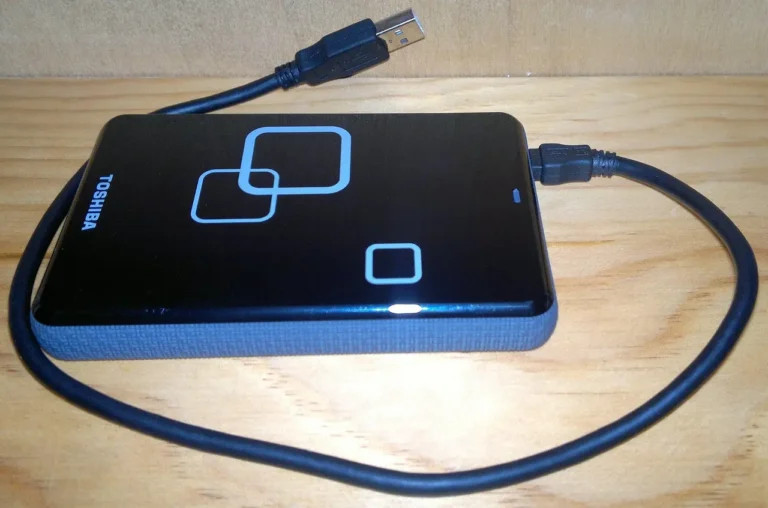
Pick an external SSD by port speed and workload, then fix common issues like slow transfers, disconnects, formatting snags, and detection failures.

Start with Disk Management. If the SSD appears there, assign a drive letter, bring it online, or create a partition; if not, move to Device Manager, BIOS, and cabling checks.
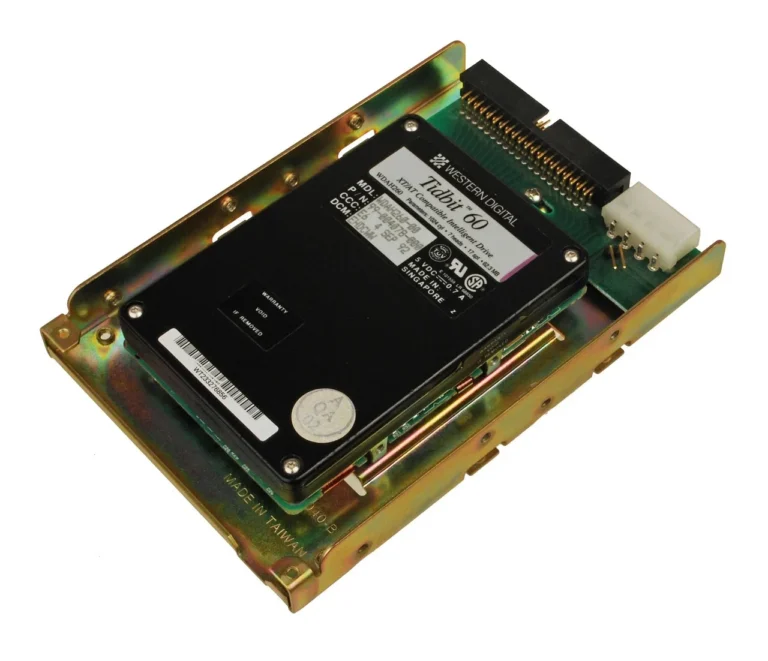
An SSD not showing up in Disk Management usually means a cable, BIOS/UEFI, driver, partition-table, or power issue. Use the exact status to pick the right fix.

Use a backup drive for file copies you can restore later; use a recovery drive to boot Windows repair tools after startup fails. Includes a comparison table.

If your SSD appears in BIOS but not boot priority, the usual cause is a missing bootloader or boot entry.
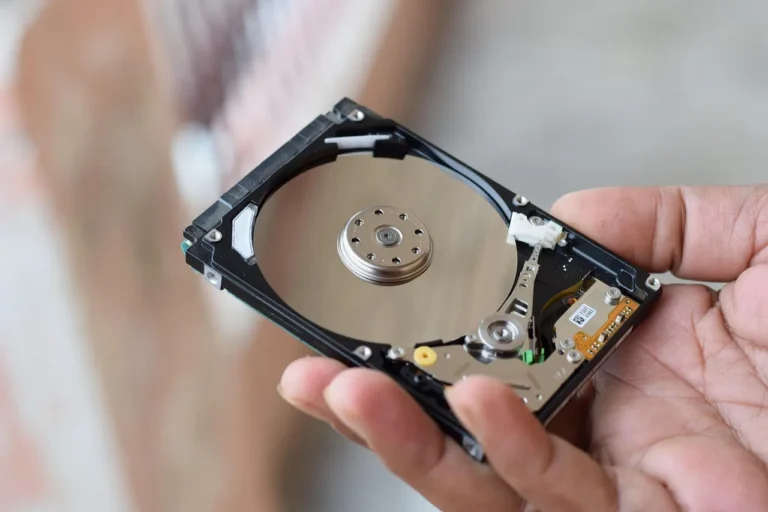
SSD for daily backups and quick restores; HDD for weekly or monthly archives and lowest cost per terabyte. Includes a comparison table.
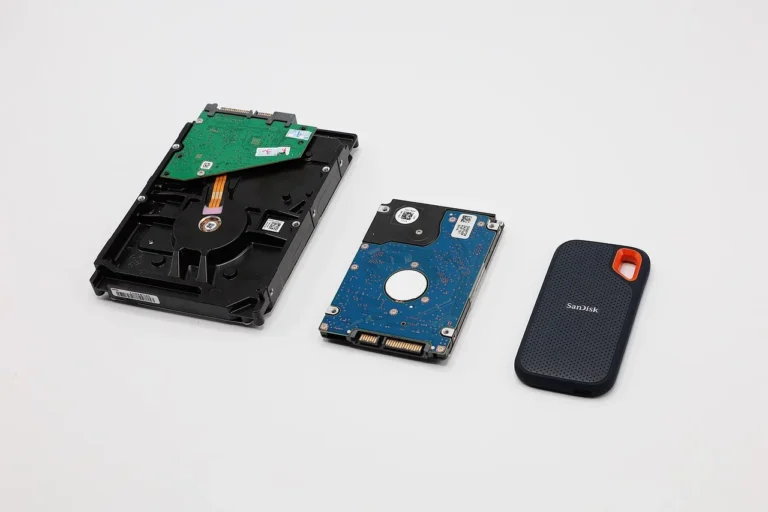
Use a USB flash drive for small transfers; choose an external SSD for large files, game installs, or backups.
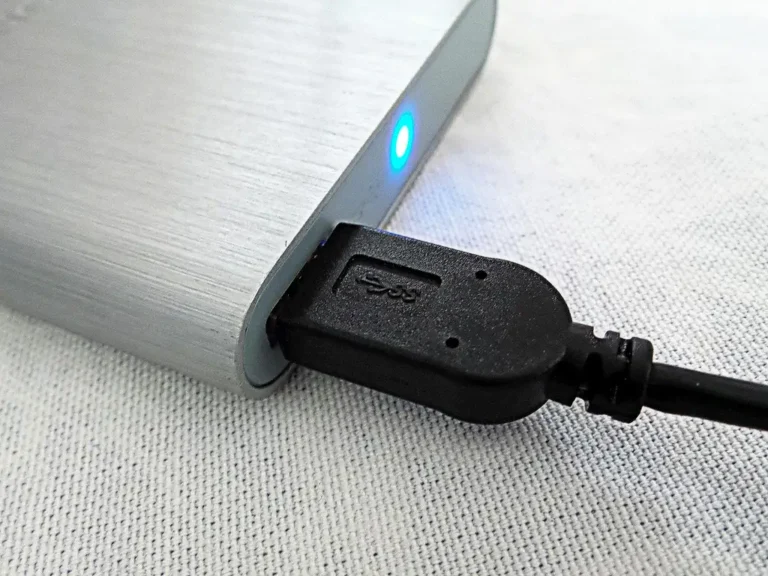
Use a backup drive at least 2× your used data, or 3× for version history and growth room. A simple formula turns used space and growth into one drive size.
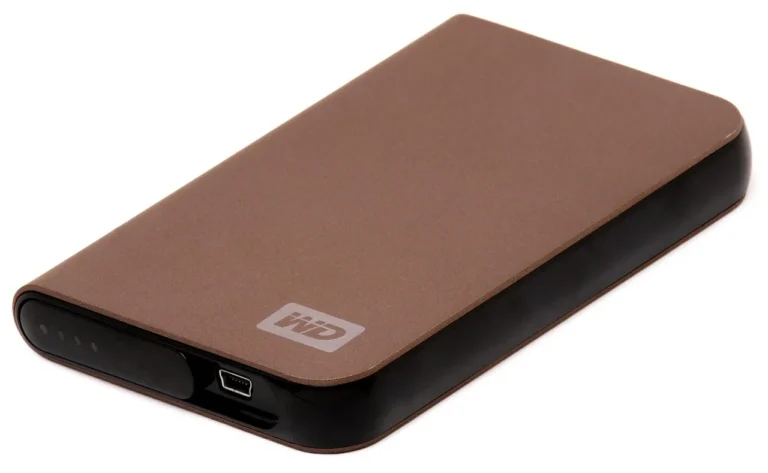
External SSDs and internal SSDs may use similar NAND, but USB and PCIe/NVMe connections create very different speed ceilings and trade-offs.