
Dual Monitors vs One Large Monitor: Which Should You Buy?
Choose Dual monitors if you regularly compare two windows side by side, split work between apps, or want one screen dedicated to email and chat; choose one large monitor if you prefer a single continuous workspace and your software handles snapping well. The wrong setup eats desk space, pushes your neck into extra turns, and forces constant window shuffling. This guide compares both options by task, desk size, and app behavior, then points to the best fit and close alternatives.
| Decision factor | Dual monitors | One large monitor | Winner |
|---|---|---|---|
| App separation | Two physical screens make it easy to keep chat, reference material, and active work separate. | A large panel gives one continuous canvas, but windows still share the same screen space. | Dual monitors |
| Desk space and cables | Two displays take more width and add more cables, mounts, and power leads. | Usually tidier, with fewer cables and less width to manage. | One large monitor |
| Window management | Windows Snap works best on dual monitors. | Snap can feel less natural on ultrawide-style layouts, and a big screen depends more on custom window placement. | Dual monitors |
| Creative preview and editing | Works well if you want a separate preview screen or tools screen. | A 4K large display can keep image or video work on one dense panel. | Tie |
| Setup simplicity | More parts to align, wire, and configure. | Fewer cables and less initial setup. | One large monitor |
How your workflow affects the choice
Dual monitors fit work that depends on separation. One large monitor fits work that benefits from a single wide canvas and a cleaner desk. If your day is mostly one main app with occasional reference windows, a large screen is often enough; if you keep two or more apps active at once, two displays usually feel better.
What changes in daily workflow
Two screens help when the work rhythm is “compare, copy, return.” You can keep a source document on one side and an active file on the other, or leave communication tools parked on a secondary display. A large monitor reduces the mental split between screens, which can help when you want fewer boundaries and fewer cables.
Where the screen split matters
Physical separation is the main advantage of dual monitors. A second screen makes it easier to keep a browser, terminal, spreadsheet, or chat window from crowding the main task. On one large monitor, you can create similar zones, but they still share the same panel and the same visual field.
When one display feels enough
If your work is mostly one primary app with a few side windows, one large monitor is often the cleaner answer. It also makes sense when you want a simple desk, fewer cables, and less setup time. That matters more on compact desks than on wide office tables.
Monitor setup comparison table
This table matches common buyer profiles to the setup that fits the task pattern, not just the budget. It also notes how much desk width the choice tends to demand, how window tools behave, and one failure point to watch.
| Buyer profile | Recommended setup | Desk-width impact | Window-management fit | One risk to watch |
|---|---|---|---|---|
| Writer | One large monitor | Lower width burden; easier on a narrow desk | Good if you use one document and one reference window | Too many open panes can turn the “single canvas” into clutter |
| Coder | Dual monitors | Higher width demand, especially with side-by-side screens | Strong fit for editor plus terminal or browser; Windows Snap works best on dual monitors | Head turning can become tiring if both screens sit too far apart |
| Spreadsheet user | Dual monitors | Moderate to high width demand | Good for workbook on one screen and source data on the other | Mixed resolutions can make text size and mouse travel feel uneven |
| Video editor | Dual monitors | Higher width demand, but layout flexibility helps | Strong for full-screen preview plus timeline or tools | A single large display may not leave enough room for full preview and controls |
| Gamer | One large monitor | Usually simpler on the desk | Better when the game fills one centered screen | Not every game supports ultrawide mode, so format support matters |
| Small-desk laptop user | One large monitor | Lower clutter and fewer cables | Good if you mainly need a larger external screen plus the laptop panel | Two screens can crowd the desk and leave little room for keyboard placement |
Which setup fits your work pattern?
Dual monitors fit work that moves between reference material and active output all day. One large monitor fits work that stays mostly in one app and only occasionally needs a second window. The right answer comes from how often you actually split attention, not from a generic multitasking slogan.
Writer and editor workflows
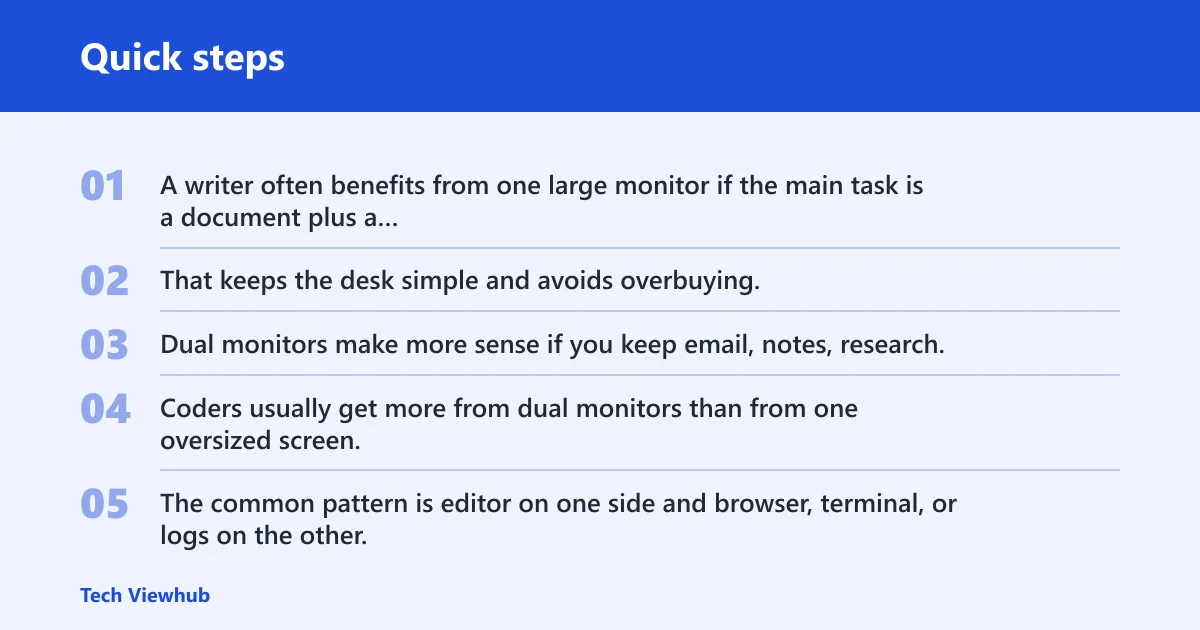
A writer often benefits from one large monitor if the main task is a document plus a slim reference window. That keeps the desk simple and avoids overbuying. Dual monitors make more sense if you keep email, notes, research, and the draft all open at once, because the separation keeps the draft from being squeezed into one corner.
Coder and terminal-plus-browser workflows
Coders usually get more from dual monitors than from one oversized screen. The common pattern is editor on one side and browser, terminal, or logs on the other. Windows Snap works best on dual monitors, so the built-in layout tool supports that split with less fuss.
Spreadsheet-heavy work
Spreadsheet users often need a workbook, a source table, and perhaps a chat or report window at the same time. Dual monitors help because one screen can stay fixed on the main sheet while the other holds supporting data. One large monitor can work, but the same spreadsheet can crowd the rest of the workspace faster.
Video editing and preview windows
For video work, two displays often make the workflow easier: one for full-screen preview, one for timeline, bins, or effects. A 4K monitor pair can also deliver an effective resolution of 7680×2160, which gives a lot of room for both preview and controls. One large monitor is still viable when you want one dense panel, especially if the software layout stays tidy.
How much desk space and cable management do you need?
One large monitor is usually the better pick when desk width is tight or cable clutter matters. Dual monitors ask for more width and more routing work, but they pay back with clearer task separation. The desk, not the spec sheet, often decides the winner.
Small desk and laptop-only setups
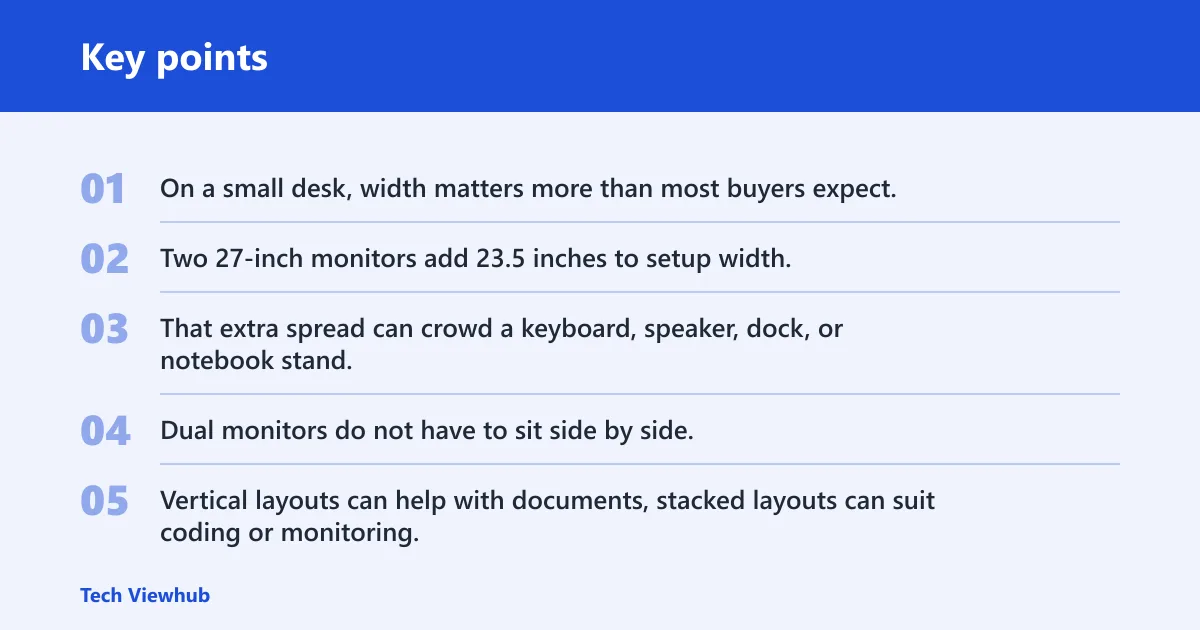
On a small desk, width matters more than most buyers expect. Two 27-inch monitors add 23.5 inches to setup width, which makes dual 27-inch monitors about 15.5 inches wider than a 34-inch ultrawide. That extra spread can crowd a keyboard, speaker, dock, or notebook stand.
Dual monitors with different layouts
Dual monitors do not have to sit side by side. Vertical layouts can help with documents, stacked layouts can suit coding or monitoring, and mixed-size layouts can keep a main display large while the second screen handles support tasks. The flexibility is real, but so is the cable load.
Single large monitor and cable simplicity
A single screen usually brings a cleaner desk and simpler power and video routing. That matters if you dock and undock a laptop each day or if the monitor arm, dock, and charger all compete for space. Fewer cables also make the setup easier to move or rework later.
Mixed-size and mixed-resolution trade-offs
Mixed-size dual setups can be useful, and a mixed-resolution pair can work well if the operating system scaling is handled properly. The downside is consistency: window borders, text size, and drag behavior may feel uneven across screens. A common first-time mistake is pairing a high-resolution main display with a low-density secondary screen and then wondering why windows feel different from one side to the other.
Is an ultrawide the better middle ground?
An ultrawide can sit between the two extremes, especially if you want one continuous canvas without the bezel split of two displays. A 34-inch ultrawide is the most common size mentioned, and it is nearly identical to a 27-inch widescreen monitor in height. The trade-off is that some layout tools behave less naturally than they do on dual monitors.
Ultrawide versus dual monitors
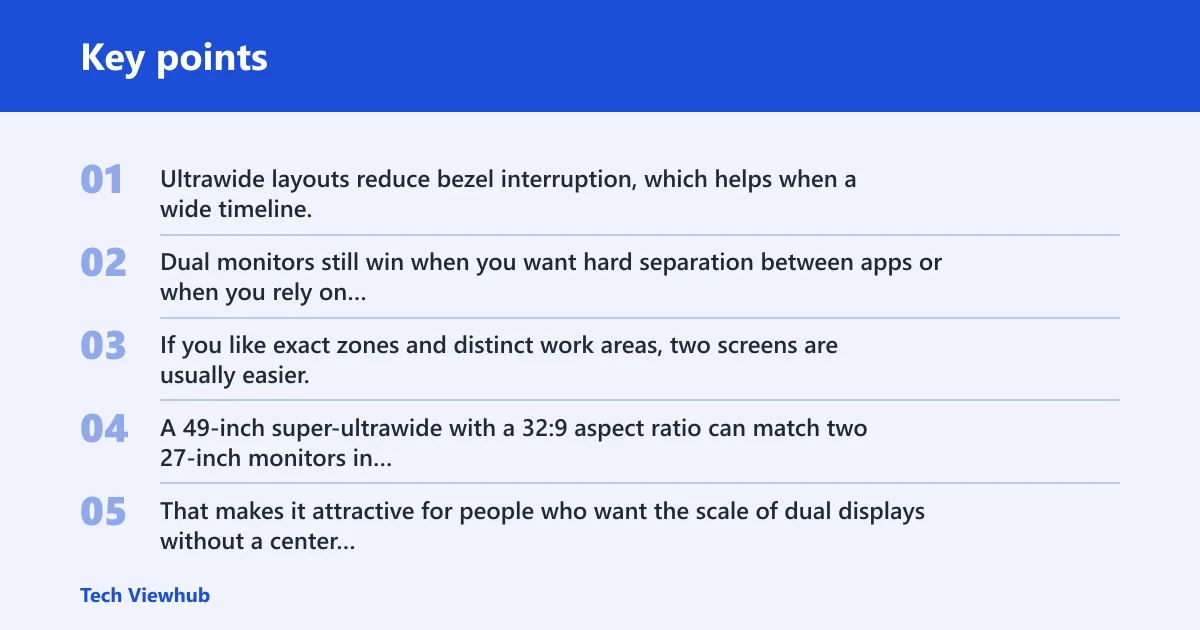
Ultrawide layouts reduce bezel interruption, which helps when a wide timeline, long spreadsheet, or side-by-side browser view needs to feel continuous. Dual monitors still win when you want hard separation between apps or when you rely on Windows Snap, which works best on dual monitors. If you like exact zones and distinct work areas, two screens are usually easier.
Super-ultrawide width and price trade-offs
A 49-inch super-ultrawide with a 32:9 aspect ratio can match two 27-inch monitors in width. That makes it attractive for people who want the scale of dual displays without a center gap. The catch is price; these panels are typically more expensive than standard wide monitors.
Windows Snap and fancyZones
Windows Snap is built into Windows and is the simplest window tool here, but it works best on dual monitors. On an ultrawide, Snap can feel awkward because the screen is so wide that the built-in zones may not match the way you work. Microsoft PowerToys’ FancyZones is better for advanced multitasking because it lets you build custom window zones that fit the task instead of the panel.
Two 4K monitors versus one large display
That can compare well with a large high-end panel for editors, analysts, and developers. CNN notes that dual 27-inch LG UltraFine 4K displays can cost about the same as a large-screen monitor pick, so value depends on whether you want separation or one huge canvas.
Picture a laptop user with a 24-inch desk depth, a dock on the left, and a keyboard centered. Two monitors would crowd the setup fast. A single 32-inch-class display, or even a 34-inch ultrawide, keeps the laptop workflow usable without forcing the keyboard into a corner.
Choose Dual monitors if… / Choose one large monitor if…
Choose Dual monitors if you split time between a main app and a reference app all day, want Windows Snap to behave well, or need one screen to stay fixed on email, chat, logs, or preview. It also fits coders, spreadsheet-heavy work, and editors who want clear task separation.
Choose one large monitor if you want fewer cables, less desk clutter, a simpler setup, or you work mostly inside one application with occasional side windows. It also fits smaller desks, laptop users, and many gaming setups where a single centered view feels better than two panels.
If your work is creative and you want both density and width, a 4K monitor pair can beat a single big display for total usable space. If your priority is one clean desktop and a simpler install, one large monitor is the safer pick.
Frequently asked questions
Should I buy dual monitors or one large monitor?
Buy dual monitors if you regularly move between two active apps and want hard separation between them. Buy one large monitor if you want a simpler desk and your software already handles windows well. The better choice is the one that matches how often you split attention, not how impressive the screen looks.
Is one ultrawide better than two monitors for work?
One ultrawide is better if you want a single continuous workspace with no bezel in the middle. Two monitors are better if you want cleaner app separation and stronger support from Windows Snap. If you rely on custom window zones, FancyZones can narrow the gap.
Do dual monitors give you more screen space than an ultrawide?
They can, depending on the sizes you compare. A 49-inch super-ultrawide with a 32:9 aspect ratio can match two 27-inch monitors in width, while two 4K monitors can provide a very large effective workspace. The real difference is whether you want one canvas or two separate screens.
Are dual monitors better for multitasking than a single large screen?
Usually yes, if multitasking means running separate apps at the same time and keeping them visually distinct. A single large screen can still multitask well, but windows share the same panel and can feel more crowded. Dual monitors are the clearer fit when app separation matters most.
Which setup is better for coding, spreadsheets, or video editing?
Dual monitors are usually the stronger pick for coding and spreadsheet work because they let you keep source material and active work apart. Video editing can go either way, but a dual setup often works better for preview plus tools. A 4K monitor pair is especially appealing when high pixel density matters.
Can I mix different monitor sizes and resolutions in a dual setup?
Yes. Dual monitors can be mixed across brands, sizes, or resolutions, and that flexibility can help you fit the setup to the desk and the budget. The trade-off is consistency, since scaling and cursor travel may feel different from one screen to the other.