How to Fix a Monitor Not Detected on Windows 11
To fix a monitor not detected on Windows 11, check power, input, cable, GPU port, drivers, then dock bandwidth in that order. If Windows 11 does not see the monitor, the fault is usually in the monitor, the connection path, or the graphics stack. This article gives a Windows 11 decision tree that helps you isolate the fault fast.
What you’ll need
- A known-good cable, or a spare cable of the same type
- Access to the monitor buttons or on-screen menu
- The Windows 11 PC, laptop, dock, or adapter chain in front of you
- Optional: a second monitor or another PC for a quick swap test
📊 wikiHow says the issue affects Windows 10 and 11 users. Source: Wikihow.
Why Windows 11 misses a monitor?
Windows 11 usually misses an external display because one link in the chain is wrong: monitor power, input source, cable quality, the GPU output, driver state, dock bandwidth, or a refresh mode the display cannot accept. A screen can also be detected but still stay black, which is a different problem from never appearing in Display settings.
Windows Central points to AC power, input sources such as HDMI or DisplayPort, and driver issues as common causes (reported by windowscentral.com). That split matters. A monitor with “No signal” needs a different check than one that appears in Settings > System > Display but shows only a blank image.
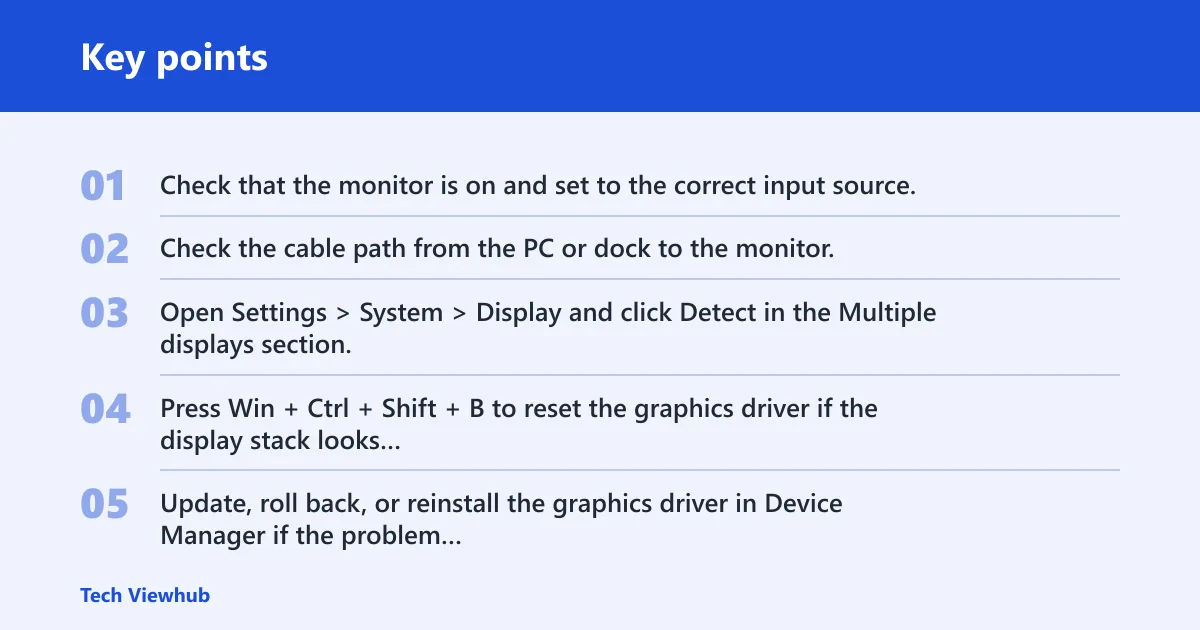
- Check that the monitor is on and set to the correct input source.
- Check the cable path from the PC or dock to the monitor, including adapter or port changes.
- Open Settings > System > Display and click Detect in the Multiple displays section.
- Press Win + Ctrl + Shift + B to reset the graphics driver if the display stack looks stuck.
- Update, roll back, or reinstall the graphics driver in Device Manager if the problem started after a driver or Windows update.
Monitor diagnostic table
| Symptom | Most likely cause | Next single best test |
|---|---|---|
| No signal on the monitor | Wrong input source or inactive cable path | Open the monitor menu and switch to the exact port in use, such as HDMI 1, HDMI 2, or DisplayPort |
| Black screen, but Windows still sounds normal | Unsupported mode, refresh-rate mismatch, or projection mode issue | Press Win + Ctrl + Shift + B, then check Settings > System > Display |
| Monitor missing in Display settings | Port, cable, or GPU output failure | Move the cable to a different GPU port or try another known-good cable |
| Dock-connected monitor not detected | Dock bandwidth, dock port hop, or dock driver issue | Connect the monitor directly to the PC to separate the dock from the display path |
| HDMI works on one monitor but not another | Wrong HDMI input on the monitor or a bad HDMI cable | Change the monitor input to HDMI 1 or HDMI 2 to match the physical port |
| USB-C display not detected | USB-C port does not support display output or the dock path is blocked | Test the same monitor with a direct USB-C to display connection on another compatible port |
| Second monitor works after restart only | Driver state or boot timing issue | Use Win + Ctrl + Shift + B after sign-in, then test a cold boot with the monitor already connected |
| Third monitor not detected | MST limit, dock limit, or port-sharing limit | Remove one external display, then add the third display back on a different output path |
| Monitor appears in Windows but stays dark | Projection mode or refresh-rate mismatch | Open Settings > System > Display > Multiple displays and switch to Extend |
| Display appears after unplugging and reconnecting | Loose cable or inactive handshake | Reseat both ends and try a different port on the PC or monitor |
| Detection failed after a Windows update | Driver conflict or rollback needed | Open Device Manager and roll back the display adapter driver |
| Monitor flashes once, then goes away | Unsupported refresh rate or signal mode | Set the display to 60 Hz in advanced display settings |
How do you force Windows 11 to detect it?
If the monitor is on and cabled correctly, the fastest Windows 11 check is Settings > System > Display > Multiple displays > Detect. That command can help when the screen is physically connected but not listed. If the stack feels frozen, Win + Ctrl + Shift + B resets the graphics driver and often restores a stuck display path. (Wikihow)
- Open Settings > System > Display.
- Scroll to Multiple displays and click Detect.
- Set the display mode to Extend or Duplicate if the monitor appears but stays blank.
- Press Win + Ctrl + Shift + B and wait for the brief black screen and audio beep.
- Restart the PC with the monitor already connected if detection only happens after boot.
Suppose a 27-inch monitor shows “No signal” on HDMI 2, but the same cable works on HDMI 1. That points to the monitor input or port, not Windows 11. Change only one variable at a time so you can tell whether the fault follows the cable, the port, or the PC.
How to fix second monitor not detected
Start with the direct connection before you touch driver settings. Windows Central says the cable should be secure and connected to a working graphics output, and How-To Geek notes that the wrong display output is a common miss (reported by windowscentral.com). Use the exact port match on both ends, then check the monitor input source.
- Confirm the monitor has AC power and is turned on.
- Match the monitor input source to the physical port in use, such as HDMI 1, HDMI 2, or DisplayPort.
- Reseat the cable on both ends and test another port on the PC or monitor.
- Try another cable type if the hardware supports it, such as HDMI, DisplayPort, USB-C, DVI, or VGA.
- Test the monitor on another computer, or test another monitor on the same PC, to separate monitor-side failure from PC-side failure.
Picture a laptop connected through a USB-C dock with two external displays. If the first monitor appears and the second does not, the issue may be dock bandwidth or a port-sharing limit, not the cable itself. Move one monitor to a direct laptop port if the hardware supports it.
Fix drivers, docks, and refresh rate
If the monitor is powered, on the right input, and still missing, move into the software layer. Windows Central names NVIDIA, AMD, and Intel as graphics-driver sources, and How-To Geek points readers to Display Settings and Detect (reported by windowscentral.com). Use Device Manager for update, rollback, or uninstall, then check refresh rate.
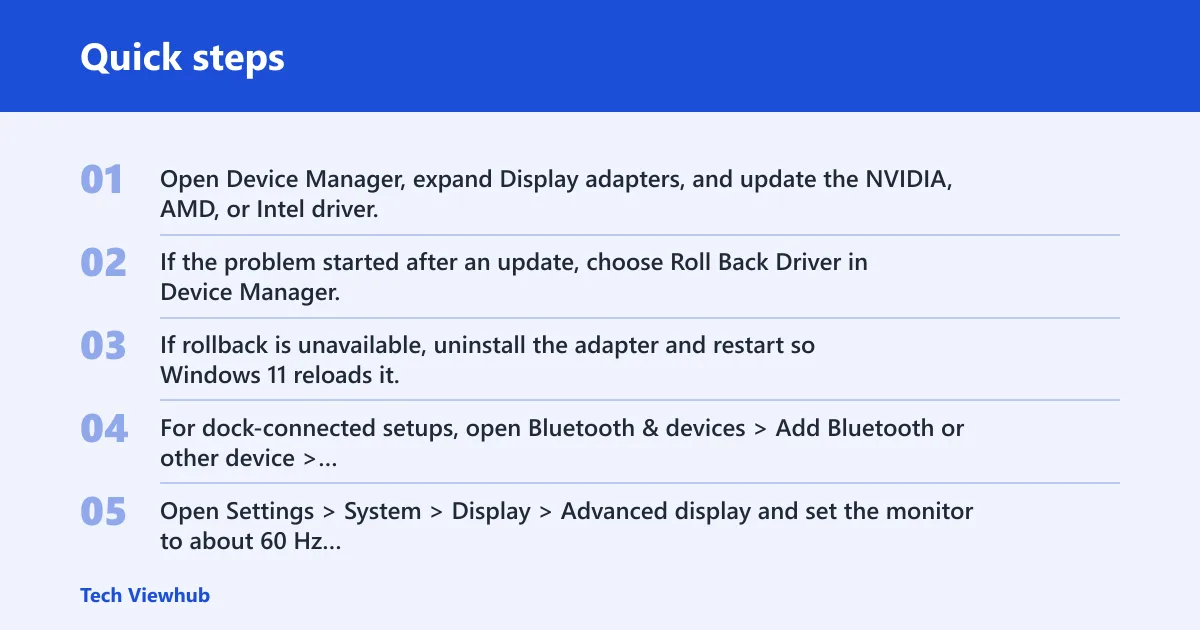
- Open Device Manager, expand Display adapters, and update the NVIDIA, AMD, or Intel driver.
- If the problem started after an update, choose Roll Back Driver in Device Manager.
- If rollback is unavailable, uninstall the adapter and restart so Windows 11 reloads it.
- For dock-connected setups, open Bluetooth & devices > Add Bluetooth or other device > Wireless display or dock when the display uses wireless projection or a docked wireless path.
- Open Settings > System > Display > Advanced display and set the monitor to about 60 Hz as a baseline.
- If needed, raise the refresh rate step by step and stop when the image drops again.
That 60 Hz baseline matters because a display can go blank when the chosen mode exceeds what the monitor or adapter accepts. If the monitor works at about 60 Hz but fails at a higher refresh rate, the hardware path is likely okay. The mode is the problem, not the cable.
Common mistakes
Do not force a display mode before you confirm the monitor input. Do not change drivers before a direct cable test. Do not ignore adapter limits, dock limits, or USB-C Alt Mode support. And if the failure began after Windows Update, do not skip the driver rollback step.
- Changing projection mode before checking the physical input source
- Assuming HDMI, DisplayPort, and USB-C behave the same on every port
- Using a dock port that cannot carry the needed signal bandwidth
- Forgetting that a third monitor can fail from MST or port-sharing limits
- Skipping Device Manager rollback when the issue began right after an update
Frequently asked questions
How to fix second monitor not detected on Windows 11
Open Settings > System > Display, click Detect, then verify the monitor input source and cable path. If the screen still does not appear, roll back or reinstall the display adapter in Device Manager and try a direct connection instead of a dock. That sequence isolates the most common Windows 11 failure points first.
How do I force Windows 11 to detect my monitor?
Go to Settings > System > Display > Multiple displays and click Detect. If the monitor still does not appear, press Win + Ctrl + Shift + B to reset the graphics driver, then restart with the display already connected. That combination covers the stuck-display case and the boot-timing case.
Why is my monitor not detected after a Windows update?
A Windows update can disturb the graphics driver or its handoff to the display. Open Device Manager, expand Display adapters, and use Roll Back Driver if it is available. If rollback is not available, uninstall the adapter and restart, then test the same monitor with a direct cable path.
How do I fix a monitor not detected with HDMI on Windows 11?
Match the monitor’s input to the exact HDMI port in use, such as HDMI 1 or HDMI 2, then reseat the cable at both ends. If the monitor still shows no signal, try another HDMI cable or another GPU HDMI port. That separates input mismatch from port or cable failure.
How do I reset graphics detection on Windows 11?
Press Win + Ctrl + Shift + B. The screen should briefly go black, then you should hear an audio beep as Windows resets the graphics stack. If that does not restore the monitor, open Settings > System > Display and use Detect, then check Device Manager for the adapter state.
Why does my laptop detect the monitor only after a restart?
That pattern usually points to driver state, a dock handshake, or a port wake-up problem. Connect the monitor before boot, then use Settings > System > Display > Detect after sign-in. If the monitor still appears only after a reboot, test a direct connection and update or roll back the graphics driver.


