Why Is Windows Update Not Downloading Updates?
Windows Update usually stops downloading because one of a few things may be blocking it: a paused or metered connection, a stopped update service, a policy restriction, or a damaged update cache. Ignore it, and security fixes and bug fixes stay stuck. This guide shows how to separate “available” from “blocked” and check each cause in order.
This guide is part of our Windows Update: how to fix common update problems series.
What should you check first when Windows Update won’t download?
Start with the symptom, not the repair tool. If updates are visible but the download never starts, focus on service state, connection type, policy, and security software. If the download starts and then fails, move your attention to the install phase, component-store repair, and file integrity.
Available updates versus active downloads
If Windows lists updates but the progress bar stays at zero, the package has not moved into the download phase. If it downloads and then fails later, that is a different problem and usually points to install corruption, file integrity issues, or special-case compatibility problems.
Picture a laptop on a hotel Wi-Fi portal. Windows shows a feature update as available, but the sign-in page has not been completed, so the download never starts. The fix is not a reset first; it is to clear the network block and confirm normal internet access.
What the symptom usually points
These symptoms usually map to a small set of causes: the Windows Update service is stopped, the connection is metered, a proxy or DNS setting blocks the path to Microsoft, endpoint protection interferes, or the local update cache is damaged. Managed devices add policy controls on top of that.
📊 Microsoft Support documents a Windows 10 Technical Preview issue tied to compression. Source: Microsoft.
How do you tell whether Windows Update is blocked, stalled, or broken?
Use the symptom path below to narrow the issue before you reset anything. “Available but not downloading” usually means a block; “stuck at 0%” usually means the download never started; and a later failure usually means the install phase or system files need repair. Managed PCs and metered connections deserve their own checks because they commonly change behavior without showing an obvious error.
Windows Update decision table
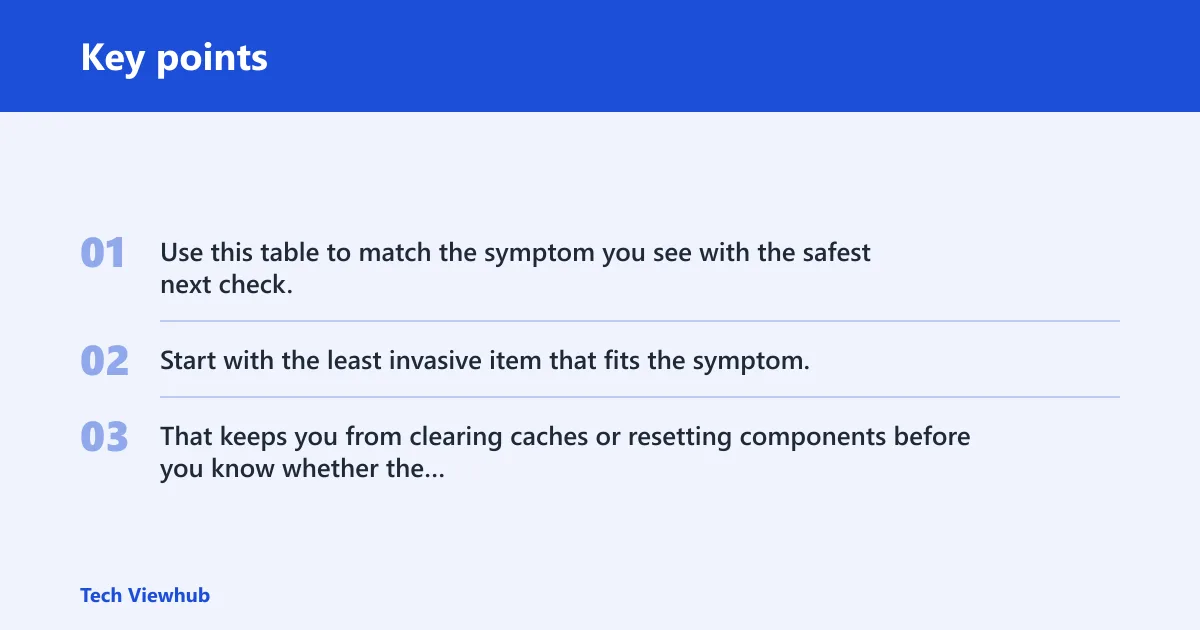
Use this table to match the symptom you see with the safest next check. Start with the least invasive item that fits the symptom. That keeps you from clearing caches or resetting components before you know whether the block is really network, service, policy, or corruption.
| Symptom | Likely cause | First check | Safe fix | Escalation path |
|---|---|---|---|---|
| Updates are visible, but download never begins | Windows Update service stopped or disabled | Open Services and check Windows Update status | Start or restart the Windows Update service | Use the Windows Update troubleshooter, then check cache files |
| Update stays at 0% on a home network | Metered connection, proxy, DNS, or captive portal | Check Wi-Fi or Ethernet connection settings and sign-in pages | Disable metered mode, clear proxy settings, renew DNS, complete portal sign-in | Test on another network before deeper repair |
| Download starts on a managed PC, then stops again | Group Policy or Windows Update for Business control | Confirm the device is managed by work or school policy | Ask the admin to review update deferrals and deployment rings | Check policy refresh, then review local update logs if allowed |
| Downloads fail after security software is active | Third-party antivirus or endpoint protection interference | Check whether protection has web, script, or download filtering | Temporarily disable or remove the product if policy allows | Use a clean boot or vendor support if the block returns |
| Update worked before, then stalled after repeated retries | SoftwareDistribution corruption | Confirm the download folder is not filling with partial files | Stop update-related services and reset the SoftwareDistribution folder | Use DISM and SFC if the reset does not help |
| Updates fail on a device with recent registry edits | Corrupted or modified registry keys | Review recent cleanup tools, policy changes, or registry edits | Reset Windows Update registry keys if the configuration is broken | Repair system files, then consider restore or reinstall |
| Updates are available but install fails on some SSD systems | System compression compatibility issue | Check whether system compression is enabled on the boot volume | Use the supported Microsoft guidance for that system state | Escalate to OS repair if the issue repeats after the compatibility fix |
| Windows Update says it is working on updates, but nothing changes | Download phase stalled or install phase blocked | Tell whether the percent value is changing at all | Separate download troubleshooting from install troubleshooting | Use the troubleshooter, then DISM and SFC if files are damaged |
How do you use the Windows Update troubleshooter?
The troubleshooter is most useful when it can confirm whether Windows Update services, networking, or local cache components are failing. Run it before you manually reset update files. If it points to a service or network problem, fix that first; if it points to cache corruption, reset the cache next. On Windows 10 and Windows 11, the path to the tool is slightly different.
How to run it in Windows 10
Open Settings > Update & Security > Troubleshoot > Additional troubleshooters > Windows Update > Run the troubleshooter. Let it finish, then review what it reports before closing the window.
How to run it in Windows 11
Open Settings > System > Troubleshoot > Other troubleshooters > Windows Update > Run. Windows 11 reorganized the settings path, but the goal is the same: identify whether the update stack, network, or cache needs repair.
What the results mean
If the troubleshooter reports a Windows Update service problem, check Services and restart Windows Update, Windows Update Medic Service, and related update components if they are stopped. If it reports a network issue, confirm that the device is not on a metered connection, behind a captive portal, or blocked by proxy settings. If it reports cache corruption, reset the update cache instead of repeatedly retrying the same download.
What to do next if it reports a service, network, or cache issue
For service failures, verify Windows Update is not disabled and check whether Background Intelligent Transfer Service is running. For network failures, clear the metered setting and test access to Microsoft services. For cache issues, reset the SoftwareDistribution folder and try again. If the troubleshooter does not find anything but the symptom remains, move to DISM and SFC.
Is Windows Update service running?
The Windows Update service needs to be running for Microsoft to manage the background update download and install flow. If it is stopped, disabled, or repeatedly crashing, updates can stay visible in Settings without ever moving into the download phase. Restarting it is one of the first safe fixes.
How to check the service state in Services
Open Services, then find Windows Update. The status should not be blank if the service is supposed to be active. If it is stopped, start it. If it is already running, restart it once to clear a hung state.
- Press Win + R, type
services.msc, and open Services. - Find Windows Update in the list.
- Check whether the status says Running.
- If it is stopped, start it.
- If it is running, restart it once and try Windows Update again.
When restarting the service is the first fix
A stopped Windows Update service is a leading cause of download failure. That is why restarting it comes before deeper repair steps. It is low risk, reversible, and often enough when the update client has simply stalled.
What to do if the service is disabled or keeps stopping
If the service is disabled, another setting, policy, or security tool may be controlling it. On a personal PC, re-enable it and retest. On a managed device, do not fight the policy locally; ask the administrator whether update control is coming from Group Policy or Windows Update for Business.
Why updates do not download
Updates that never download often fail before Windows even reaches Microsoft’s update servers. The usual reasons are network restrictions, management policy, or security software. On Windows 10 and Windows 11, the same symptom can point to different controls, so the first check should be the connection and device type.
Metered connections and bandwidth limits
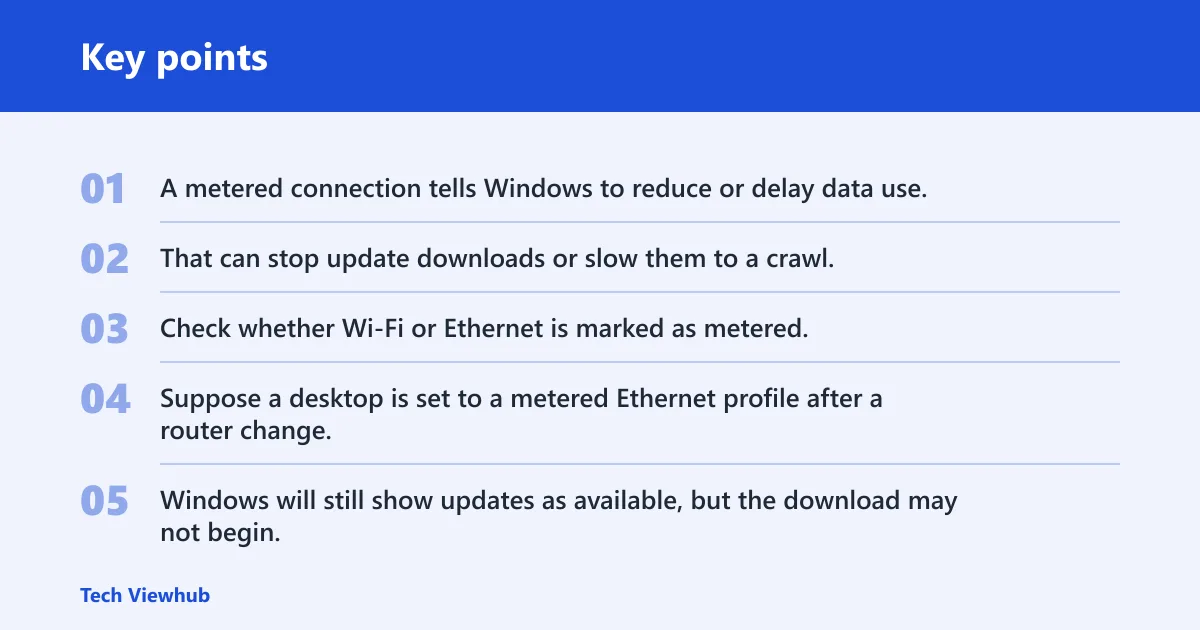
A metered connection tells Windows to reduce or delay data use. That can stop update downloads or slow them to a crawl. Check whether Wi-Fi or Ethernet is marked as metered, and turn that off if this is a normal home connection.
Suppose a desktop is set to a metered Ethernet profile after a router change. Windows will still show updates as available, but the download may not begin. Changing that setting back to an unmetered profile is safer than resetting update components first.
Proxy, DNS, and captive portal problems
A proxy can send update traffic to the wrong place. Bad DNS can keep Windows from resolving Microsoft endpoints. Captive portals can block all traffic until you sign in. If a browser cannot reach ordinary sites without first landing on a login page, fix that network state before touching Windows Update itself.
Managed-PC policy blocks
On work or school PCs, update behavior can be set by policy. Group Policy and Windows Update for Business controls may delay, pause, or target updates to specific rings. If the device is managed, the symptom may be policy, not corruption.
Third-party antivirus or endpoint controls
Third-party antivirus is a possible blocker. Some products inspect downloads, filter web traffic, or hold files during scanning. If updates fail only when that software is active, temporarily disable it if policy allows, or remove it briefly to test the download path.
How do Windows 10 and Windows 11 settings paths differ for update fixes?
They differ enough that it helps to follow the right path instead of relying on a generic “Settings” instruction. Windows 10 keeps Windows Update under Update & Security, while Windows 11 places most repair and troubleshooting entry points under System. The service names and update components are the same, but the settings menus are not.
Reset Windows Update files
If service and network checks do not explain the block, the next safest step is to reset local update files. The SoftwareDistribution folder stores temporary update files, and corruption there can stop downloads even when the network and service both look normal. (Microsoft Learn)
What to stop before clearing update files
Before clearing the update cache, stop the related services so Windows is not writing into the folder while you work. That reduces the chance of partial files being locked in place and lets the reset finish cleanly.
- Stop Windows Update-related services.
- Rename or clear the SoftwareDistribution folder.
- Start the services again.
- Check for updates one more time.
When a cache reset is enough
A cache reset is often enough when downloads stall after repeated retries, or when Windows has old partial files that no longer match the current update package. If the next check starts downloading normally, the problem was local cache corruption rather than a deeper OS fault.
When the reset points to deeper corruption
If the reset does nothing, the issue may extend beyond temporary files. That is when registry changes, component store corruption, or system file damage become more likely. At that point, move to repair commands instead of repeating the same cache reset.
How do you repair Windows files when updates still fail?
Use repair commands when Windows Update still fails after the service, network, and cache checks. DISM repairs the component store, and SFC checks system file integrity. Together, they are the right next step when corrupted files prevent updates from downloading or preparing correctly.
When to run DISM first
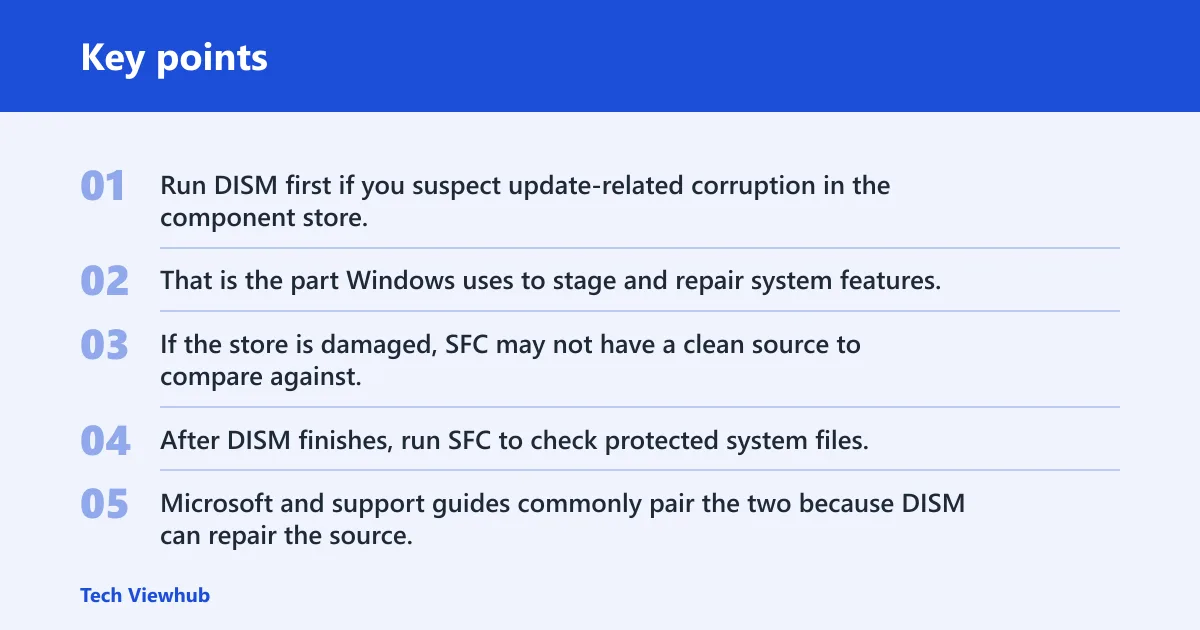
Run DISM first if you suspect update-related corruption in the component store. That is the part Windows uses to stage and repair system features. If the store is damaged, SFC may not have a clean source to compare against.
When to run SFC after DISM
After DISM finishes, run SFC to check protected system files. Microsoft and support guides commonly pair the two because DISM can repair the source, while SFC checks the files that Windows actually uses day to day. Use both when update files and system files may both be involved.
Registry changes that can block updates
Registry keys can be corrupted or modified and break Windows Update. That includes keys changed by cleanup tools, policy scripts, or manual edits. If the update path fails after a registry tweak, resetting Windows Update registry keys may be part of the repair path.
System compression as a special case
Microsoft Support has documented a Windows 10 Technical Preview issue tied to compression, and Microsoft says system compression can be enabled automatically on SSD boot volumes. If a device has that special case, updates may fail for reasons that look unrelated to the download itself. This is a compatibility check, not a general cleanup step. (Microsoft Support)
A common first-timer mistake is to run SFC alone and stop there. If the component store is damaged, SFC may not fix the real source of the problem. In that case, DISM first, then SFC, gives a better repair sequence.
Checklist: what to verify before resetting Windows Update
Work through this checklist before you clear folders or run deeper repairs. It separates the most common download blockers from more advanced corruption, which saves time and avoids unnecessary resets.
- Windows Update service is running, not disabled.
- Windows Update Medic Service and BITS are not stopped.
- The device is not on a metered connection.
- Proxy, DNS, or captive portal issues are cleared.
- The PC is not restricted by work or school policy.
- Antivirus or endpoint protection is not filtering updates.
- The Windows Update troubleshooter has been run.
- SoftwareDistribution has been reset only after the checks above.
Frequently asked questions
Why is Windows Update not downloading?
Windows Update usually is not downloading because the service is stopped, the connection is metered or blocked, a policy is in place, or the temporary update cache is damaged. Start with the Windows Update service and the network state, then move to cache and file repair if the symptom persists.
Why is my Windows Update not updating?
If Windows shows updates but nothing changes, separate download failure from install failure first. A stalled download points to service, network, policy, or cache problems. A completed download that fails later points more often to component-store corruption, system files, or special compatibility issues.
Why my update is not downloading?
The most common reasons are a blocked connection, a disabled update service, endpoint protection interference, or a corrupted SoftwareDistribution folder. On managed PCs, policy can also hold the update back even when the device looks ready from the user side.
Why does Windows Update say updates available but not downloading?
That message usually means Windows can see the update catalog but cannot begin transfer. Check whether the Windows Update service is running, whether the network is metered or behind a captive portal, and whether security software or policy is blocking the download path.
What do I do if Windows Update is stuck on working on updates?
First, tell whether the percentage is moving. If it is not, treat it like a stalled download or a stopped service. If it moved earlier and then froze, clear the SoftwareDistribution folder, then use DISM and SFC if the stall continues.
Could antivirus or registry changes block Windows Update downloads?
Yes. Third-party antivirus can block downloads, and registry changes can break update behavior by altering service or policy settings. If the problem started after security software or registry edits changed, revert those changes carefully and retest before moving to deeper repair steps.
Sources
- Microsoft Support: Troubleshoot problems updating Windows
- Microsoft Support: Manage metered connections in Windows
- Microsoft Learn: Manage Windows updates with Windows Update for Business
- Microsoft Learn: DISM command-line options
- Microsoft Learn: SFC command-line reference
- Microsoft Learn: Windows Update troubleshooting
- Microsoft Support: Compression-related Windows Update issue