How to Log in to Your Router Setup Page
To log in to your router setup page, open a browser, type the router’s management IP from the label or your device’s gateway field, and sign in with the admin password. Common private router addresses are 192.168.1.1, 192.168.0.1, and 10.0.0.1, but the exact address depends on the model. If you use the wrong address, you can waste time on the wrong device, trigger failed logins, or lose access during a network fault. This guide shows the shortest login path and a quick troubleshooting decision tree for IP, password, and connection failures.
What the admin page
The router admin interface is the local web settings page for Wi-Fi, security, and network changes. It is separate from the Wi-Fi password prompt, and separate from your internet provider’s account page. If your model uses an app for management, the browser method will not reach the full admin page.
On a standalone router, the page usually sits at a private IP on your home network. On an ISP gateway, the device may combine modem and router functions, and the login address can differ from a separate router. Mesh systems add another layer, since some settings move to a controller app while others still open in a browser.
Admin page vs Wi-Fi password screen
The Wi-Fi password screen asks for the wireless passphrase so a phone or laptop can join the network. The admin page asks for the router admin username and password so you can change settings. Those are different credentials, even if the label lists both.
A router label may show the SSID, Wi-Fi password, default admin login, and a management IP. The browser page is for device settings. The Wi-Fi prompt is for network access.
When a browser is required and when an app is used
Many routers still open in a browser at the local gateway IP. Some newer models, especially mesh systems and ISP gateways, route management through an app or provider portal. If the manual or label points you to an app, the browser path may never reach the full admin page.
Connect to the router first
To reach the admin page, the device must be on the same local network as the router. Connect by Wi-Fi or Ethernet, avoid guest networks, and stay away from public hotspots. If a captive portal, VPN, or security filter sits between your device and the router, the login page may not load at all.
Same local network matters
A connected device can be a PC, phone, or tablet, but it has to be on the home network the router manages. A guest network often blocks local access. A cellular data connection does too.
Suppose a tablet joins the guest SSID in a 2.4 GHz-only house. The tablet may browse the internet, yet the router page still fails because guest clients are isolated from the admin interface.
Check for portals and VPNs
Airport-style captive portals and some ISP sign-in screens can intercept local traffic. Turn off VPN software before trying the router address. If the browser shows a provider sign-in or Wi-Fi portal instead of the router page, the network path is the problem, not the password.
Find your router IP address
You can find the router IP from the router label, the manual, or the device’s default gateway listing. The most common private addresses are 192.168.0.1, 192.168.1.1, and 10.0.0.1, but brands and ISP gateways vary. Type the address into a browser address bar, not a search engine.
If the label lists an IP, that is the first address to try. If it does not, check the connected device’s gateway setting. The gateway is the address your device uses to reach the router.
Check the router label or manual
The router label is usually on the underside or back of the device. It often includes the default login credentials, Wi-Fi name, Wi-Fi password, and sometimes the admin IP address. The manual may list the same data or give the provider’s address for gateway models.
Find the default gateway on Windows
On Windows, open Command Prompt and run ipconfig. Look for Default Gateway under the active network adapter. That address is the one to enter in the browser.
Find the default gateway on macOS
On macOS, open System Settings, choose Network, select the active connection, and view the router or gateway address. You can also check the network details panel for the current local gateway. Enter that address in the browser address bar.
Find the default gateway on iPhone
On iPhone, open Wi-Fi settings, tap the connected network, and read the Router field. That number is the gateway IP. It is often the fastest path when the label is missing.
Find the default gateway on Android
On Android, open Wi-Fi settings, tap the connected network, and open its details. Look for Gateway, Router, or IP settings depending on the device. That local address is what the browser should load.
Find the default gateway on Linux
On Linux, check the network details in the desktop settings, or run a route command such as ip route and look for the default route. The listed gateway is the router address. Use that local IP in the browser bar.
| Device | Where to look | Result to enter |
|---|---|---|
| Windows | Command Prompt with ipconfig | Default Gateway address |
| macOS | Network details in System Settings | Router or gateway address |
| iPhone | Wi-Fi network details | Router field |
| Android | Wi-Fi network details | Gateway or router field |
| Linux | Network details or ip route | Default route gateway |
Use common addresses only as a starting point
192.168.0.1, 192.168.1.1, and 10.0.0.1 are common, but they are not universal. Some internet provider gateways use a different local address or redirect to a provider portal. If one common address fails, check the gateway on the device instead of guessing more numbers.
Router login checklist
Follow this checklist in order. It starts with the device you are using, then branches by symptom. That keeps the problem from being blamed on the password when the real issue is the network or the IP address.
| Step | Check | Likely fix |
|---|---|---|
| 1 | Connected device on the same local network? | Join the home Wi-Fi or plug in Ethernet; leave guest and public networks |
| 2 | Correct router IP from label or gateway lookup? | Use the device’s default gateway or the label’s management address |
| 3 | Entered in the browser address bar? | Type the IP directly into the address bar, not into search |
| 4 | Username and password match the admin login? | Check the label, manual, or saved credentials; remember case matters |
| 5 | Still blocked after the checks above? | Use a reset only after confirming the device, network, and login path |
- Confirm the phone, tablet, or computer is on the router’s own network.
- Find the gateway IP from the device or router label.
- Open a browser and type the IP in the address bar.
- Enter the admin username and password exactly as listed or saved.
- If the page still fails, move to the symptom-specific checks below.
Why won’t the login page load?
If the page will not load, the usual causes are a wrong network, a blocked local route, the wrong address, or a browser problem. Check the connection first, then the browser, then whether the router is using a different login method. A direct hit on the gateway should open the admin page on the local network.
Confirm the device is on the correct network
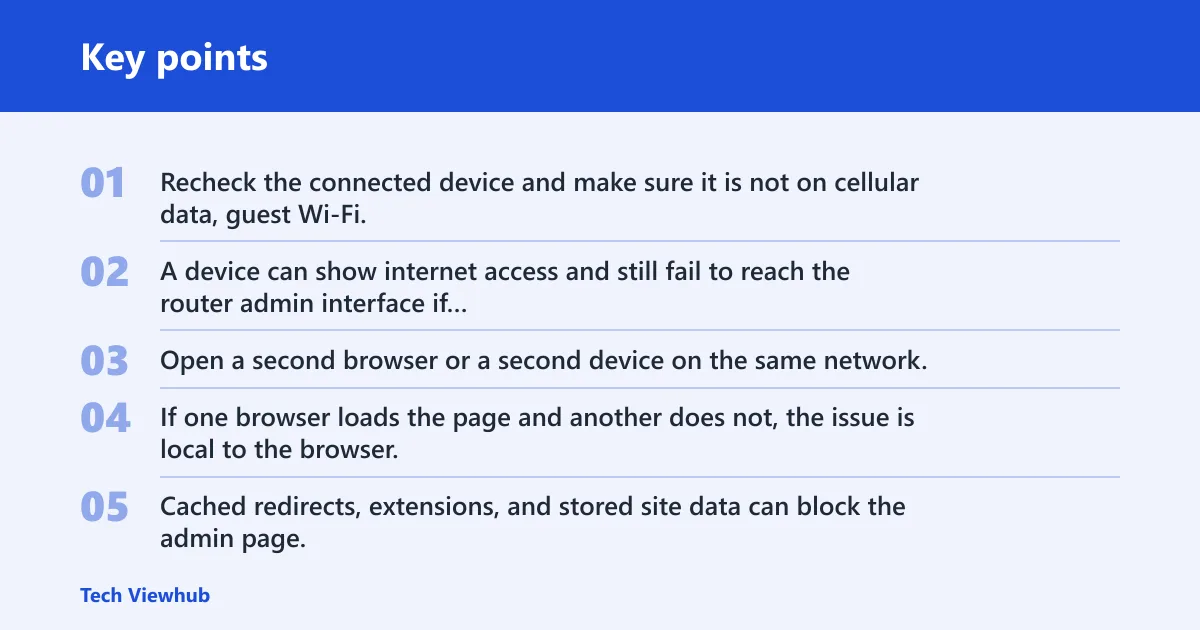
Recheck the connected device and make sure it is not on cellular data, guest Wi-Fi, or a different band with isolation rules. A device can show internet access and still fail to reach the router admin interface if local access is blocked.
Try another browser or device
Open a second browser or a second device on the same network. If one browser loads the page and another does not, the issue is local to the browser. Cached redirects, extensions, and stored site data can block the admin page.
Clear cache and disable VPN or security filters
Clear browser cache and site data for the router address. Turn off VPN software and any web filter or privacy tool that changes local traffic. If the page starts loading after that, the security layer was the cause.
Check whether the router uses a different address or app
Some ISP gateways do not answer on the standard 192.168.1.1 or 192.168.0.1 addresses. Some mesh systems also prefer an app. If the manual or label points to a different route, follow that instead of forcing a browser login that the device does not support.
Why is the password rejected?
Password rejections usually come from case sensitivity, mixing up the Wi-Fi password with the admin password, or using credentials that were changed after setup. If the router now expects new admin details, the default label may no longer work. A reset is the last step, not the first.
Check case and keyboard layout
Router admin passwords are commonly reported as case-sensitive. A stray capital letter, number row mismatch, or keyboard layout issue can cause a failed sign-in. Re-enter the password slowly and verify each character.
Distinguish admin credentials from Wi-Fi credentials
The password that joins the wireless network is not always the password that opens the settings page. The label may print both. If the router login fails but Wi-Fi access works, the admin credential is likely different.
Use the label, manual, or provider portal if defaults changed
If the router was set up by an ISP, the current admin login may be in the provider portal or on a service sticker. Some providers change the default admin username and password during installation. If the login has been customized, only the current admin pair will work.
Reset the router only if the credentials are lost
A factory reset restores default admin credentials and settings. It usually requires holding the reset pinhole button for several seconds with a paper clip or similar tool. After that, Wi-Fi name, Wi-Fi password, custom ports, parental controls, and other saved settings may revert to defaults, so note them first if possible.
Say your router has a custom guest network, port forwarding rule, and a changed admin password. A factory reset will clear all three. That is why reset should come after the label, manual, and provider checks have failed.
How do I access my router’s configuration page?
To access the configuration page, connect to the router on the same local network, find the gateway IP, and enter it in a browser address bar. Then sign in with the router admin username and password. If the page redirects to a provider portal or app, that model is using a different management path.
If you can reach the page but only see limited options, the device may be an ISP gateway or a mesh controller with reduced browser access. In that case, the full settings may live in the provider app or a separate admin portal.
How do I access a router’s settings page?
Access the settings page by opening the router’s local IP on a device that is already connected to the same network. Use the browser path for standalone routers and many gateways, but check the manual if your model is app-managed. If the login works but menus are missing, the router may be showing a provider-limited view.
Some mesh systems split control between the main app and the local browser page. If Wi-Fi or security options seem absent, the browser session may be partial by design. Look for the provider’s app instructions before assuming something is broken.
How do I find my router login page?
Find the login page by identifying the router’s gateway address, then typing that address into the browser bar on a connected device. The login page is local, so search engines will not lead you there reliably. If one address fails, confirm the gateway from the device and try again.
A common first-timer mistake is entering 192.168.1.1 into a search box and clicking a search result. That sends you to the web, not the router. The browser address bar is typically the right place for the local IP.
How do I open the router setup page on my phone or PC?
On a phone or PC, connect to the router network, open a browser, enter the gateway IP, and sign in with the admin credentials. Phones and tablets work the same way as computers as long as they are on the correct local network. If your model is app-based, open the app instead.
A phone is often the quickest way to find the router field in Wi-Fi details. A PC is often better when you need to inspect the address, clear the browser cache, or use Ethernet.
What is my router IP address?
Your router IP address is the local gateway your device uses to reach the admin interface. Common examples include 192.168.0.1, 192.168.1.1, and 10.0.0.1, though the actual value can vary by router brand, ISP gateway, or mesh system. The device’s gateway setting is the most dependable source.
If the router label lists a management address, that is usually the fastest answer. If it does not, check the connected device’s network details and use the gateway listed there.
What username and password do I use for router login?
Use the router admin username and password, not the Wi-Fi password. Many devices print the default login on the router label or in the manual, and some ISP gateways replace those defaults during setup. If the credentials were changed, only the current admin pair will open the page.
Look for a label on the underside or back of the device. If there is no label or the defaults fail, the provider portal or a factory reset may be the only remaining paths.
Why can’t I get into my router settings?
You usually cannot get in because the device is on the wrong network, the IP address is wrong, the browser is blocking the page, or the admin password has changed. Different hardware adds different obstacles: a standalone router, ISP gateway, or mesh controller may each use a different login flow. Start with the network, then the gateway, then the credentials.
If the page opens but redirects to a provider screen, the login is probably controlled by the ISP. If the password is rejected after a reset-worthy search, check case sensitivity and whether you are using Wi-Fi credentials by mistake.
Frequently asked questions
How do I sign into my router setup page?
Connect to the router’s network, open a browser, type the gateway IP into the address bar, and enter the admin username and password. If the router label lists the details, start there. If not, find the gateway on the connected device and try that address first.
How do I access your router’s configuration page?
Use a device on the same local network, enter the router’s IP in a browser, and sign in with the admin credentials. If the page does not appear, check for a VPN, captive portal, or an app-based management system. The browser path only works when the model supports local web access.
What if the router setup page won’t load?
Check the network connection, then the browser, then the address. Try another browser or device, clear cache, and turn off VPN or security filters. If the router still does not answer, it may use a different address or an app instead of a web page.