How to Fix Wi-Fi Not Working on a Desktop PC
Start by checking whether the desktop has Wi‑Fi hardware, then whether Windows sees the adapter, then whether the router path is broken. That split points you to the right fix fast. Skip it, and you can waste time resetting drivers while the real problem is missing hardware or a dead network path. This guide walks through those checks, then the exact fixes for each branch on a Windows desktop PC.
What you’ll need
- A known-good Ethernet cable for isolation testing
- Access to Windows Device Manager
- Your router name and Wi‑Fi password
- A second device that can still reach the network
Desktop Wi‑Fi triage table
| Symptom | Most likely cause | First two checks |
|---|---|---|
| Wi‑Fi missing entirely | No adapter, disabled adapter, or driver failure | Open Device Manager > Network adapters; check for a Wi‑Fi card or USB adapter, warning icon, or disabled state |
| Wi‑Fi visible but no connection | Password, WPA2/WPA3 mismatch, or antenna/adapter issue | Forget the network and reconnect; verify the security setting and password on the router |
| Connected but no internet | DHCP, DNS, router, or ISP path problem | Test with Ethernet; check whether other devices still reach the internet |
| Works on Ethernet only | Wireless adapter, driver, or Wi‑Fi signal problem | Check the adapter in Device Manager; inspect rear antennas or USB seating |
| Only this desktop fails while other devices work | Desktop-specific hardware, driver, or saved-network issue | Restart the desktop and run a driver check; try Network reset if the adapter is present |
Why is my desktop PC not connecting to Wi‑Fi?
The fastest answer is that the fault usually sits in one of three places: missing or broken Wi‑Fi hardware, a driver problem, or a network-path problem after the adapter connects. On a desktop computer, that split matters because a tower may use an internal PCIe card, a rear antenna pair, or a USB adapter, and each fails differently.
1. Decide which branch fits
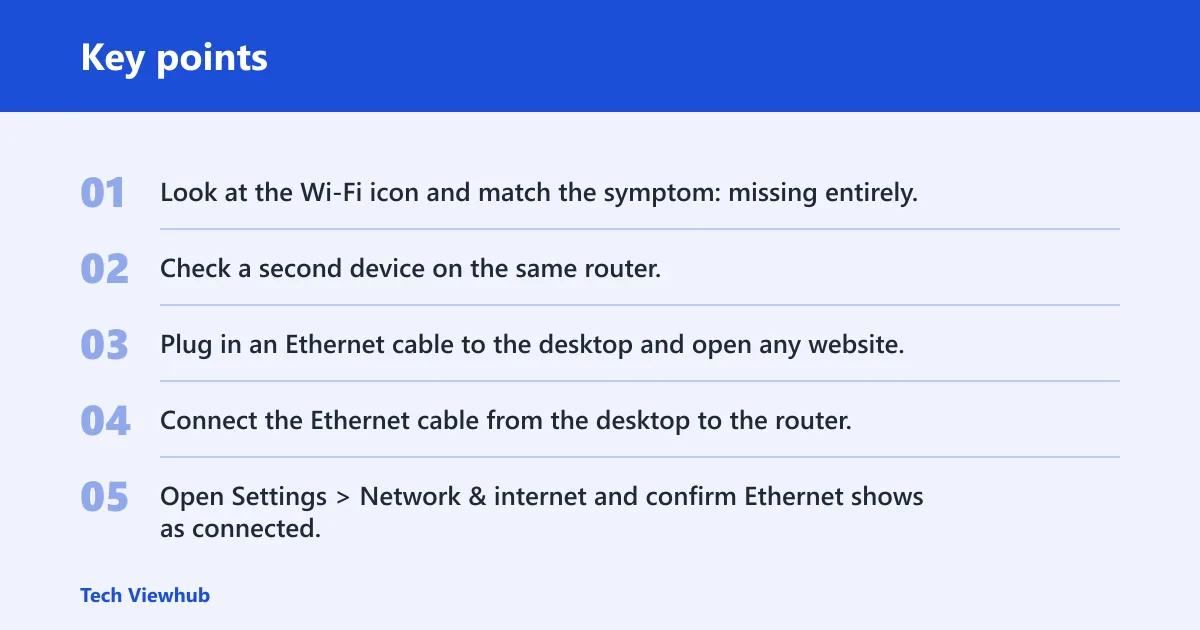
- Look at the Wi‑Fi icon and match the symptom: missing entirely, visible but unable to connect, or connected with no internet.
- Check a second device on the same router; AVG notes that other connected devices help separate a PC issue from a wider outage.
- Plug in an Ethernet cable to the desktop and open any website; AVG recommends this to test the internet path without Wi‑Fi.
2. Test the router path with Ethernet
- Connect the Ethernet cable from the desktop to the router.
- Open Settings > Network & internet and confirm Ethernet shows as connected.
- If Ethernet works, the router and ISP path are likely fine and the wireless path is the problem.
3. Restart the router and retry
- Turn off the router.
- Wait 30 seconds, then turn it back on.
- Check the router lights and try Wi‑Fi again after the router finishes starting.
Say your desktop is a tower with rear antennas and the Ethernet cable works, but Wi‑Fi never appears. That points away from the internet provider and toward the desktop’s own wireless hardware, driver, or antenna connection.
How do you tell if the adapter is missing?
If Windows cannot see a Wi‑Fi adapter at all, the problem is usually hardware detection, a disabled device, or a driver that failed to load. Desktop PCs often use an internal PCIe card or a USB adapter, so you need to check both the software list and the physical connection.

1. Open Device Manager and check Network adapters
- Right-click the Start button and open Device Manager.
- Expand Network adapters.
- Look for a wireless adapter name, such as one containing Wi‑Fi, Wireless, or a chipset brand.
2. Look for warning icons or disabled state
- Check whether the adapter has a down-arrow, yellow warning symbol, or error text.
- If it is disabled, right-click it and choose Enable device.
- Open Properties and check Device status for a code that points to a driver or hardware fault.
3. Confirm the physical connection
- For an internal PCIe card, power down the desktop and check the rear antenna leads.
- For a USB adapter, unplug it and reconnect it to a different USB port.
- If the adapter still disappears, reseat or replace the hardware.
4. Reinstall or update the driver
- In Device Manager > Network adapters, right-click the wireless adapter.
- Choose Uninstall device, then restart the PC or use Action > Scan for hardware changes.
- If Windows keeps the adapter but it still fails, open Properties > Driver and use Update driver.
Suppose a USB Wi‑Fi adapter works for a day, then vanishes after a reboot. That often means Windows loaded a bad driver or the port is unstable, so the quickest test is a different USB port before you change router settings.
How do you fix a visible but dead connection?
If Windows sees the Wi‑Fi network but the desktop will not connect, the issue usually sits in authentication, IP address assignment, or the saved network profile. That is different from a missing adapter, and the fix order matters.
1. Forget the network and reconnect
- Open Settings > Network & internet > Wi‑Fi > Manage known networks.
- Select the problem network and choose Forget.
- Reconnect and enter the password again.
2. Check WPA2 or WPA3 compatibility
- Open the router settings page and check whether the network uses WPA2, WPA3, or mixed mode.
- Match the desktop adapter to that mode; older adapters may fail on WPA3-only networks.
- Re-enter the password carefully, because authentication errors can look like a dead Wi‑Fi link.
3. Confirm DHCP assignment
- Open Command Prompt and run
ipconfig. - Check whether the wireless adapter has a valid IPv4 address and default gateway.
- If you see an address in the 169.254.x.x range, renew the lease with
ipconfig /releaseandipconfig /renew.
4. Reset the Windows network stack
- Open Settings > Network & internet > Advanced network settings > Network reset.
- Confirm the reset.
- Reconnect to Wi‑Fi afterward, because saved networks are removed.
ipconfig /release
ipconfig /flushdns
ipconfig /renew
netsh winsock reset
netsh int ip reset
Common mistakes
- Assuming weak internet when the adapter is missing. Check Device Manager first.
- Skipping Ethernet testing. That step tells you whether the router and ISP path are healthy.
- Ignoring DNS failure. If pages fail to load after Wi‑Fi connects, try a public DNS server after confirming the IP lease is valid.
- Forgetting that Windows network reset removes saved networks. You must reconnect afterward.
- Missing the rear antenna leads on an internal Wi‑Fi card. A loose lead can mimic a bad driver.
- Leaving airplane mode on or Bluetooth interference unchecked, since both can interfere with wireless behavior on some desktops.
If that didn’t work, try this next
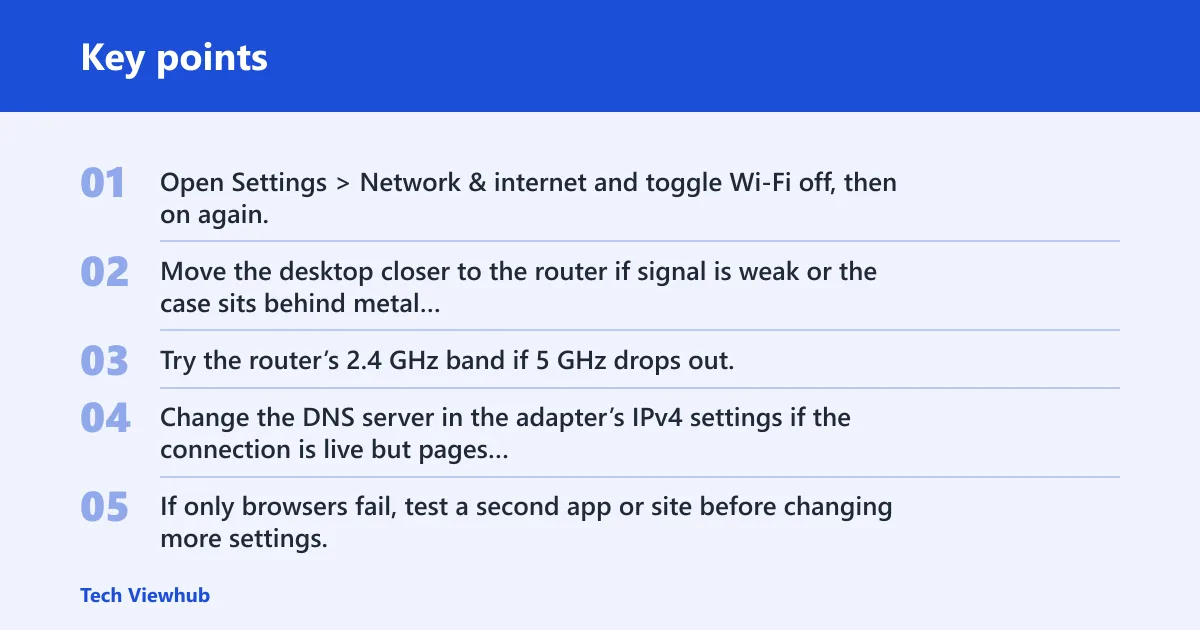
- Open Settings > Network & internet and toggle Wi‑Fi off, then on again.
- Move the desktop closer to the router if signal is weak or the case sits behind metal furniture; AVG notes that distance matters.
- Try the router’s 2.4 GHz band if 5 GHz drops out, or the reverse if one band fails while the other works.
- Change the DNS server in the adapter’s IPv4 settings if the connection is live but pages still fail to load.
- If only browsers fail, test a second app or site before changing more settings.
Picture a desktop in a corner office with a dual-band router two rooms away. If 2.4 GHz works and 5 GHz does not, the issue is likely range or interference, not a dead internet line.
What if my desktop PC has no wireless adapter at all?
If Windows never shows a Wi‑Fi adapter and the case has no usable USB wireless device, the desktop cannot connect wirelessly until you add hardware. Desktop PCs are stationary machines, and iFixit lists them as containing a power supply, motherboard, CPU, GPU, RAM, and hard drive; Wi‑Fi may or may not be built in. Their desktop PC page also lists repairability as 9 out of 10, which helps when you need to install or replace an adapter.
1. Check for built-in Wi‑Fi before buying anything
- Open Device Manager and look for any wireless adapter.
- If there is no adapter and no antenna hardware, the desktop likely needs a PCIe card or USB adapter.
2. Use the right adapter type
- For a stable internal option, install a PCIe Wi‑Fi card in an open slot.
- For a fast external fix, use a USB Wi‑Fi adapter in a direct motherboard port.
- After installation, return to Device Manager and confirm Windows detects the device.
Frequently asked questions
What should I check first when Wi‑Fi stops working on a desktop computer?
Start with Device Manager, then check Ethernet, then check the router path. That order separates missing hardware from a driver fault and from an internet outage. If Ethernet works but Wi‑Fi does not, focus on the wireless adapter, its driver, and the rear antenna or USB connection.
Should I use Ethernet to troubleshoot Wi‑Fi on a desktop PC?
Yes. Plug in Ethernet and see whether the desktop reaches websites. If it does, the router and ISP path are likely working, and the wireless side is the problem. If Ethernet also fails, check the router lights, modem status, and the provider connection before changing Wi‑Fi settings.
Can bad Wi‑Fi drivers stop a desktop PC from connecting?
Yes. A broken driver can hide the adapter, disable it, or leave it visible but unusable. Open Device Manager, right-click the wireless adapter, and use Uninstall device followed by a restart or Scan for hardware changes. Then update the driver if Windows still shows an error.
Why does Wi‑Fi work on other devices but not my desktop PC?
That pattern usually means the router is fine and the desktop has a local fault: bad driver, dead adapter, loose antenna, or a saved profile problem. Check whether the desktop gets an IP address, then forget and reconnect to the network. If that fails, reset the network stack.
How do I fix desktop Wi‑Fi after a Windows update or driver issue?
Open Device Manager, roll back or update the wireless driver, and then run Settings > Network & internet > Advanced network settings > Network reset if the adapter still misbehaves. After a reset, reconnect to Wi‑Fi and re-enter the password, because saved networks are removed.