Why Is Windows 11 So Slow on Startup?
Windows 11 often feels slow at startup because the delay happens in one of three places: pre-login boot, post-login sign-in items, or storage speed, and the fix depends on which stage is slow. If you check the wrong layer, you waste time disabling apps that were never the bottleneck. This guide shows how to isolate the delay, read the clues, and match each symptom to the likely cause.
Identify which startup stage is slow
A slow startup is not one problem. It can be a long pause before the logo, a delay between the logo and the sign-in screen, or a long wait after you enter your password before the desktop appears. Those stages point to different causes, so timing matters more than guessing.

Start with the stage, not the symptom
If the delay happens before the Windows logo, look first at firmware, device detection, or storage initialization. If it hangs at the logo or before sign-in, the system may be dealing with a slow drive, a boot setting, or a repair issue. If the desktop is the last slow step, startup apps and background tasks move higher on the list.
Startup bottleneck triage table
| Phase | Common symptom | Most likely cause | First test to run | What would make this worse on HDD vs SSD |
|---|---|---|---|---|
| Power on to logo | Black screen for a long time before any brand logo appears | BIOS/UEFI boot order, slow device detection, or firmware delay | Enter BIOS/UEFI and check boot order, USB devices, and fast-boot related settings | An HDD can add its own spin-up delay, but firmware checks and old boot order issues often dominate here |
| Logo to sign-in | Windows logo appears, then the screen sits on the spinning dots for a long time | Storage speed, file checks, or a driver/service that loads before sign-in | Compare boot time with external devices removed, then check whether the system drive is an HDD, SATA SSD, or NVMe SSD | An HDD is usually much slower here; NVMe SSDs are listed at 10–20 seconds, SATA SSDs at 15–40 seconds, and HDDs at 1–3 minutes |
| Sign-in to desktop | Password entry is quick, then the desktop takes a long time to become usable | Startup apps, background services, update tasks, or low RAM pressure | Open Task Manager and inspect CPU, RAM, Disk, and Network usage, then review the Startup apps tab | An HDD makes post-login loading feel worse because each app reads files more slowly, especially when many apps launch at once |
That table matters because a healthy Windows PC should boot within 10–60 seconds after pressing the power button. Older PCs with low RAM or older CPUs may take 2+ minutes to start, so the machine’s age and storage type matter before you change software settings.
Say your laptop reaches the Windows logo in about 15 seconds, but the desktop does not appear for another minute. That is usually not a firmware problem. It is more often a sign that startup apps, updates, or background work are holding the sign-in stage open.
Is Fast Startup causing the delay?
Fast Startup is a Windows power-saving boot feature that can reduce boot time, and it is enabled by default on most modern installations. It can help on some systems, but it can also create boot problems in dual-boot setups or on machines that already have storage and driver issues.
Where to turn it on or off
You can change Fast Startup in Control Panel > Power Options. If the system behaves oddly after shutdown, or if it boots slowly only after a full power-off, check this setting early because it controls how Windows writes and restores boot state.
When it helps, and when it does not
Fast Startup can shave time from cold boot on some systems. It does not fix a weak drive, a crowded startup list, or a firmware delay. On a dual-boot PC, it may also leave the other operating system with boot or disk-state problems, so it is not a universal win.
A common first-timer mistake is turning Fast Startup back on because the menu says “faster,” then assuming every delay must be fixed. If the machine is already using an SSD, the real bottleneck may be elsewhere, and Fast Startup may only change how the next shutdown behaves.
Which startup apps slow login?
Startup apps often slow the period after sign-in, not the pre-login boot itself. Windows loads them after the account opens, which means the desktop can appear late, the taskbar may lag, or the system can feel busy for several minutes even when the boot screen was short.
Find the Startup apps tab in Task Manager
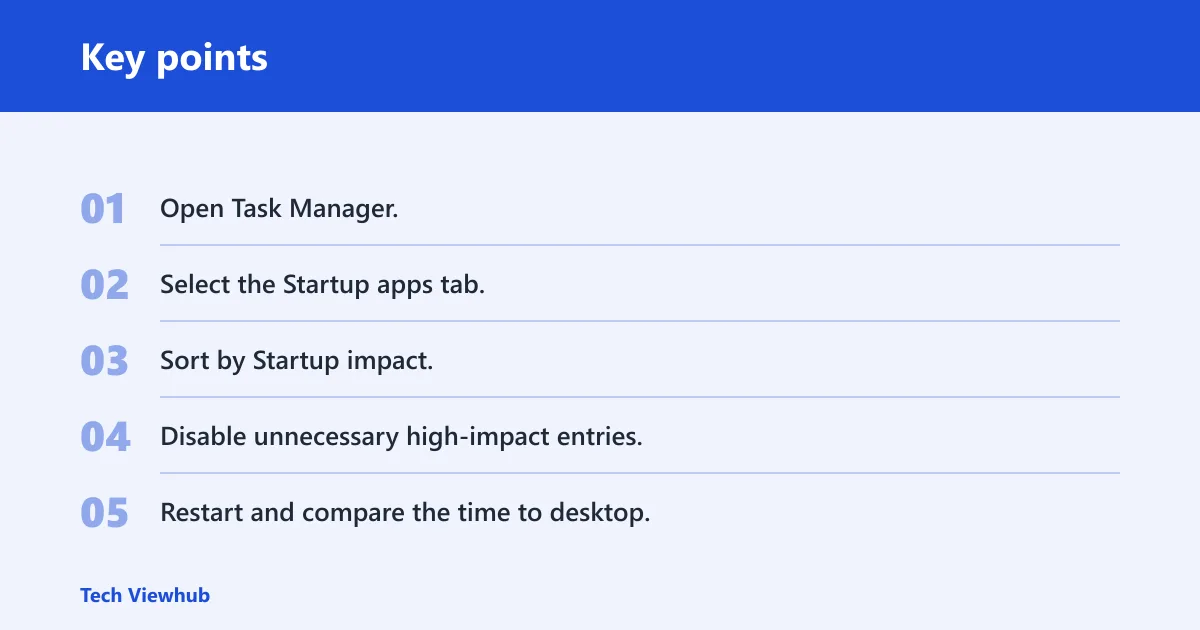
Open Task Manager and go to the Startup apps tab. The list shows what launches with Windows, and the Startup impact column helps you spot high-cost entries. Disable unnecessary high-impact apps first, especially ones you do not need every session.
Use a quick filter, not a blind purge
Leave security tools, hardware support apps, and anything required for your keyboard, touchpad, or storage controller alone unless you know what the entry does. Focus on chat apps, updaters, launchers, and vendor add-ons that do not need to start with Windows.
- Open Task Manager.
- Select the Startup apps tab.
- Sort by Startup impact.
- Disable unnecessary high-impact entries.
- Restart and compare the time to desktop.
Can startup apps alone make Windows 11 feel slow after login? Yes, they can, especially when several high-impact programs launch together and compete for CPU, RAM, disk, and network access. They rarely explain a long pause before the logo, though, so match the symptom to the stage before you blame them for everything.
What should you check after sign-in?
If the desktop appears late, use Task Manager to see what is still busy after login. High CPU, RAM, Disk, or Network use can point to update tasks, sync clients, antivirus scans, cloud indexing, or a program that is loading too much data at once.
Read the pressure points in Task Manager
Open the Processes tab and look for sustained pressure on CPU, RAM, Disk, and Network. A system that is using a lot of disk right after sign-in often feels frozen even if the boot itself was normal. That makes the post-login phase look slow when the real issue is background load.
Clear space with Disk Cleanup
Disk Cleanup is a built-in Windows utility that can help remove temporary files and some old Windows update files from the C drive. Low free space can slow startup, so this is a practical early step when the system drive is crowded. It is especially useful if Windows updates have piled up over time.
Suppose a PC has 18 GB free on the C drive, launches a cloud sync tool, and then spends two minutes after sign-in indexing files and unpacking updates. That delay is different from a 90-second wait before the logo, and it needs different fixes.
When does storage hardware matter most?
Storage type is a major factor in startup time. NVMe SSD boot times are listed at 10–20 seconds, SATA SSD boot times at 15–40 seconds, and HDD boot times at 1–3 minutes. HDDs are typically much slower than SSDs, and that difference shows up most clearly during boot and app loading.
Know the signs of a storage-bound startup
Repeated stalls at the logo, long delays before sign-in, or a system that becomes slow at every disk-heavy step often point to storage as the bottleneck. If the machine feels much faster once it finally loads, but boot and login are consistently dragged out, the drive type deserves attention.
When to worry about drive health
Start worrying when slow boot is paired with repeated freezes, read errors, disappearing drives, warnings from the system, or obvious disk trouble in Windows. A slowdown that gets worse over time, especially on an older HDD, can point to failing hardware rather than simple clutter.
How much does an HDD slow Windows 11 startup? Often a lot. Compared with SSDs, an HDD can stretch startup from seconds into one to three minutes, and that gap grows more obvious when Windows also loads several apps, updates, or sign-in services at once.
How do firmware and repair tools help?
Firmware and repair tools matter when the problem appears before Windows is fully in control. BIOS/UEFI boot settings can delay POST and hardware initialization, and Windows RE can help you enter Safe Mode or turn on boot logging when you need a cleaner view of what is loading.

Check BIOS/UEFI boot settings
Look for boot order problems, unused boot devices, and settings that slow hardware initialization. A USB drive, network boot option, or old secondary drive can add needless delay before Windows even begins loading. This is one of the first places to check when the logo appears late.
Use Windows Security for a full scan
If startup suddenly gets worse, or if you notice strange behavior along with the delay, run a full scan for viruses and malware in Windows Security. Malware can cause slow startup, and a sudden change is more suspicious than a long-standing slow boot on an old HDD.
Open Windows RE startup settings
Microsoft Support’s path is Troubleshoot > Advanced options > Startup Settings > Restart. Safe Mode starts Windows in a basic state with limited files and drivers, which helps you see whether the delay comes from a third-party app, a driver, or normal Windows loading. Boot logging can help confirm what is starting.
What should you check first if Windows 11 boots slowly after an update? First, decide whether the delay is only on the first boot after the update or whether it keeps happening. A one-time slow boot can be normal after patching, but a persistent delay points back to startup apps, storage, firmware settings, or a damaged update.
Frequently asked questions
Why is Windows 11 so slow on startup?
Windows 11 startup is usually slow because the delay is in one of three places: pre-login boot, sign-in loading, or storage speed. The stage tells you where to look. Before the logo points to firmware or hardware detection, while a slow desktop usually points to startup apps or background tasks.
Why is Windows 11 so slow to start up?
If startup is slow every time, check whether the system is using an HDD, whether Fast Startup is behaving badly, and whether too many apps launch after sign-in. A healthy Windows PC should boot within 10–60 seconds, so a regular delay beyond that deserves stage-by-stage troubleshooting.
Why is Windows 11 so slow to boot up?
Slow boot-up often means the pause happens before sign-in, which puts firmware, BIOS/UEFI boot order, storage initialization, and drive health near the top of the list. If the logo appears late or the screen sits on spinning dots for too long, compare the boot path with the storage type first.
Why is my computer so slow on startup Windows 11?
If the machine is slow only after you sign in, startup apps and background load are likely involved. Open Task Manager, check CPU, RAM, Disk, and Network use, then review the Startup apps tab and the Startup impact column. If it is slow before login, look elsewhere first.
What should I check first if Windows 11 boots slowly after an update?
First, separate a normal first-boot-after-update delay from a persistent problem. If the slowdown clears after one restart, it may be update work finishing in the background. If it continues, check Startup apps, Disk Cleanup space on C:, Fast Startup, and then move to Safe Mode or storage checks.
When should I worry about failing SSD or HDD health?
Worry when slow startup comes with repeated stalls, read errors, missing drives, or a boot delay that gets worse over time. Persistent issues on an older HDD are especially concerning because HDDs already boot much slower than SSDs. A drive that suddenly becomes erratic needs attention before it fails completely.
Can startup apps alone make Windows 11 feel slow after login?
Yes. Too many startup programs can slow the desktop phase even when the pre-login boot is normal. Task Manager’s Startup apps tab shows which entries have high impact, and disabling unnecessary ones often shortens the wait after sign-in. That said, startup apps do not explain every slow boot.