What Is a Good Budget Monitor for Video Editing?
A good budget monitor for video editing is often a 27-inch IPS display with 1440p resolution, and features like sRGB coverage, 10-bit support or 8-bit+FRC, and a fully adjustable stand are commonly worth looking for. That combination gives you usable workspace and dependable color for most YouTube and freelance edits. Pick a low-cost 1080p TN panel or an oversaturated wide-gamut screen without color control, and your edits can look soft, clipped, or different on other devices. This guide explains which specs matter, which ones do not, and which budget picks fit common editing workflows and desk setups.
This guide is part of our Budget monitors: how to choose the right one series.
Panel type and resolution: what matters for editing
A good budget editing monitor gives you enough screen space to manage timelines, enough color accuracy to judge skin tones and neutral grays, and a panel that stays consistent when you move your head. Refresh rate matters far less than resolution, gamut, and panel behavior for this job.
Why panel type matters more than refresh rate
For editing, IPS is usually the safest budget panel type because it keeps color and brightness steadier across wider viewing angles than TN. That matters when you are checking a timeline, scopes, and a preview window from slightly different positions. Contrast is usually weaker than on VA, and IPS glow can show in dark rooms, so look for a panel with decent black levels rather than only a logo.
By contrast, 120Hz or 144Hz does little for export quality or color judgment. A 60Hz panel is the baseline, and 75Hz or higher is a nice extra for general desktop smoothness, not a main buying reason.
How size and resolution affect timeline work
Screen size and resolution decide how much of your timeline you can see without constant zooming. A 24-inch 1080p panel is compact and easy to fit on a small desk, but its pixel density and workspace can feel tight for long edits. A 27-inch 1440p panel is often a strong middle ground because text stays readable while leaving more room for bins, preview windows, and the timeline.
4K UHD can give more detail and workspace, but it also raises GPU load and may make text and interface scaling more awkward on a lower-budget setup. On a 27-inch screen, 4K is sharp; on 32 inches, it can feel more comfortable for large timelines and side-by-side panels.
What to treat as must-have versus nice-to-have
Must-haves are IPS, HDMI and DisplayPort, a screen size that fits your desk, and color support that matches your delivery work. Nice-to-have items include 75Hz refresh, USB-C with power delivery, and a stand that rotates or pivots. Factory calibration helps, but it does not replace a later calibration step if color matters.
Say your desk is narrow and your edits are mostly 1080p YouTube cuts. A 24-inch 1080p IPS monitor can work, but you may prefer a 27-inch 1440p panel if you want room for timelines and effects without constantly shrinking interface panels.
Editing monitor decision table
| Workflow | Recommended size | Resolution | Panel type | Color space target | Minimum connectivity | Common compromise to accept |
|---|---|---|---|---|---|---|
| 1080p editing | 24-inch to 27-inch | 1080p or 1440p | IPS | sRGB / Rec.709 | HDMI and DisplayPort | Use a 1080p panel if desk space is tight |
| 4K editing | 27-inch to 32-inch | 4K UHD | IPS | Rec.709 for SDR; DCI-P3 only if the workflow calls for it | DisplayPort, HDMI 2.0 or better | Expect scaling and GPU load tradeoffs |
| Color-sensitive social video | 27-inch | 1440p or 4K UHD | IPS | sRGB / Rec.709, with controlled wide-gamut only if you can manage it | HDMI, DisplayPort, optional USB-C | Wide gamut can oversaturate unmanaged apps |
| Laptop-based editing | 27-inch | 1440p or 4K UHD | IPS | sRGB / Rec.709 | USB-C with power delivery, plus HDMI | USB-C docks may add cost |
Is IPS important for video editing?
Yes. IPS is usually the default budget choice for editing because it gives wider viewing angles and steadier color than TN, which matters when you are judging footage, overlays, and skin tones. It is not perfect, but it is usually the best low-cost starting point for color-aware work.
Why IPS is the default budget choice
Budget IPS panels tend to keep saturation and brightness more stable when you lean back or shift your seat. That helps when you compare scopes and the image at the same time. It also makes dual-monitor setups easier, since you are less likely to see one display shift color just because it sits a little off-center.
Where IPS still falls short
IPS glow can appear in dark scenes, and contrast is usually lower than on VA. Black crush can still happen on poor tunings, where near-black shadows collapse into one block of gray. Those issues matter if you grade dark footage, so check reviews for contrast behavior, not only the panel label.
When to skip TN and VA
Skip TN if your work depends on color judgment. It can be fast and low cost, but its narrow viewing angles make it a weak fit for editing. VA can offer better contrast, yet some budget VA panels shift gamma off-axis, which can make shadows and midtones harder to trust.
What size monitor is best for editing?
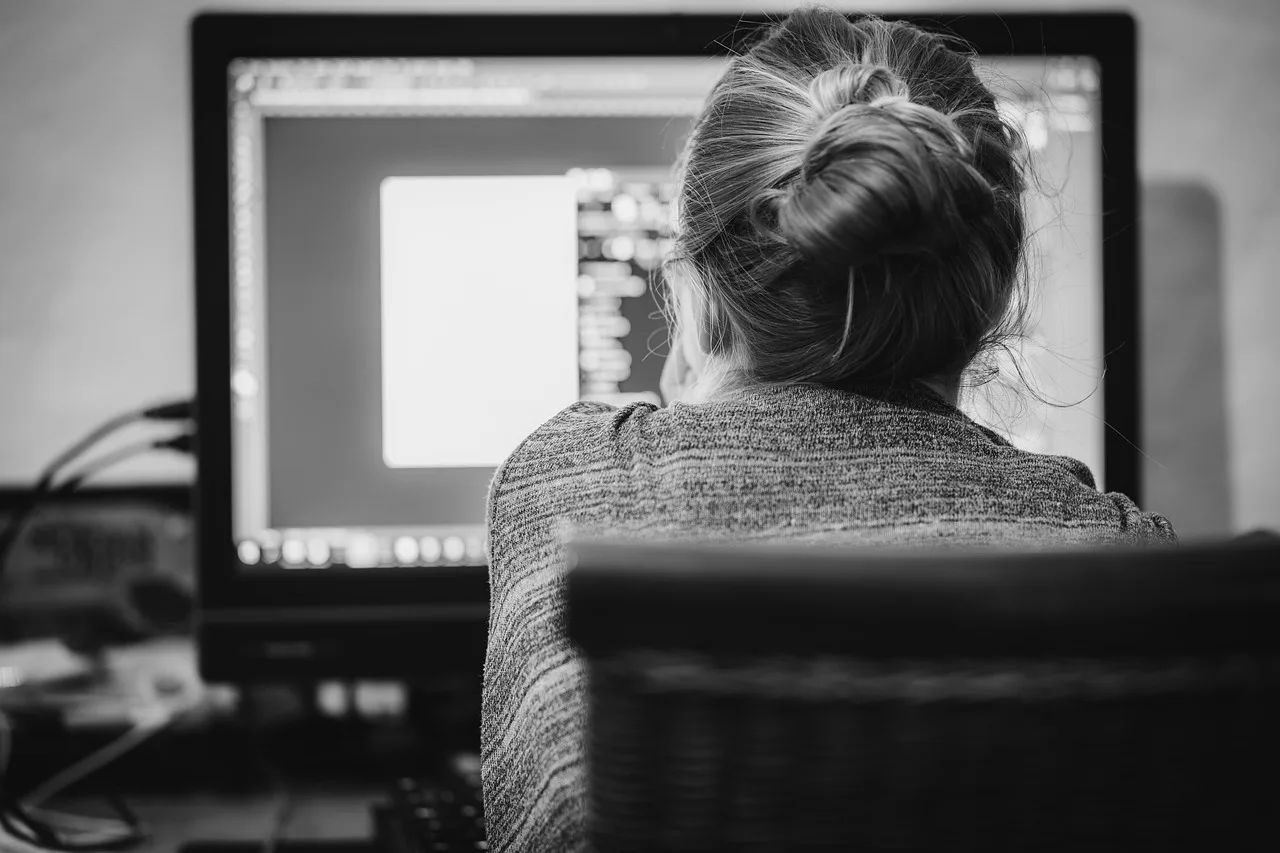
The best size depends on desk space, timeline length, and how close you sit. For many budget editors, 27 inches is a practical size because it balances workspace and pixel density. Twenty-four inches suits tight desks and basic 1080p projects, while 32 inches works best when paired with 4K or a more spacious setup.
24-inch for tight desks and 1080p timelines
A 24-inch monitor is easier to place on small desks and usually looks fine at 1080p because the interface remains readable. The tradeoff is workspace. Tool panels, timeline tracks, and a large preview can crowd each other, so you may spend more time hiding panels than editing.
27-inch as the most practical middle ground
At 27 inches, 1440p is the sweet spot for many budget buyers. The screen is large enough for bins, preview, and timeline, but not so large that text scaling becomes a headache. This is the size many editors can use all day without feeling boxed in or forced into constant zooming.
32-inch for more workspace and higher-resolution panels
Thirty-two inches gives you the most physical workspace, but it tends to make the most sense with 4K UHD. At 1440p, the image can look less crisp at normal desk distance. If you want large interface panels, side-by-side clip comparison, or room for color scopes, 32 inches can be a strong option.
Suppose you edit on a 13-inch laptop and attach a monitor only at your desk. A 27-inch 1440p display can be the easiest jump in comfort, because it gives you more room without demanding the scaling and GPU headroom that a 4K screen can ask for.
Do you need 4K for video editing on a budget?
No. You do not need 4K for budget editing, and 1440p is often the smarter buy. 4K is worth the extra cost when you want more workspace, sharper text, or a closer match to 4K delivery, but it also raises GPU load and can create scaling issues on modest systems.
When 1440p is the smarter buy
1440p gives a clear step up from 1080p without the full burden of 4K. For many freelance and hobby workflows, it is enough for a comfortable timeline, sharp interface text, and manageable system demands. That is why a 27-inch 1440p IPS monitor is so common in budget editing setups.
When 4K is worth the extra cost
Choose 4K if you regularly edit 4K footage, need more on-screen detail, or want a monitor that remains sharp at 32 inches. It also helps if you use side-by-side panels, color scopes, and large preview windows. Just make sure your graphics hardware can drive it well.
How scaling and GPU load change the decision
On many operating systems, 4K at 27 inches can need scaling so text does not become tiny. That scaling can be fine, but it adds another setting to manage. In editing software, a 4K display can also increase GPU and memory pressure, especially with multiple streams or effects.
Color accuracy and gamut basics
For SDR video, sRGB and Rec.709 are commonly the main targets. They are closely related, and for most YouTube and delivery work, a monitor that covers them well is more useful than one that advertises a wider gamut without control. DCI-P3 matters more when your workflow is built around wide-gamut delivery or HDR-aware grading.
sRGB and Rec.709 for SDR delivery
sRGB is the common target for web content, and Rec.709 is the standard reference for HDTV and many SDR video workflows. For budget editing, a monitor with near-full sRGB coverage and a reasonable Rec.709 mode is usually the safest choice. That helps keep colors from looking too hot or too flat.
Where DCI-P3 matters
DCI-P3 matters when you work with wide-gamut content or need more saturated color in a controlled pipeline. On budget monitors, a wide-gamut panel can look impressive on paper, but unmanaged apps may oversaturate reds and greens. If you do not have color-managed software or a proper preset, wide gamut can create errors.
Factory calibration, Delta E, and recalibration
Factory calibration helps, but it is not a guarantee. Delta E is a way to describe color error, and lower numbers are better. Many budget monitors ship close enough for general use, yet they still benefit from calibration after purchase, especially if you care about skin tones, neutral grays, or matching another screen.
Connectivity, HDR, and ergonomics to check
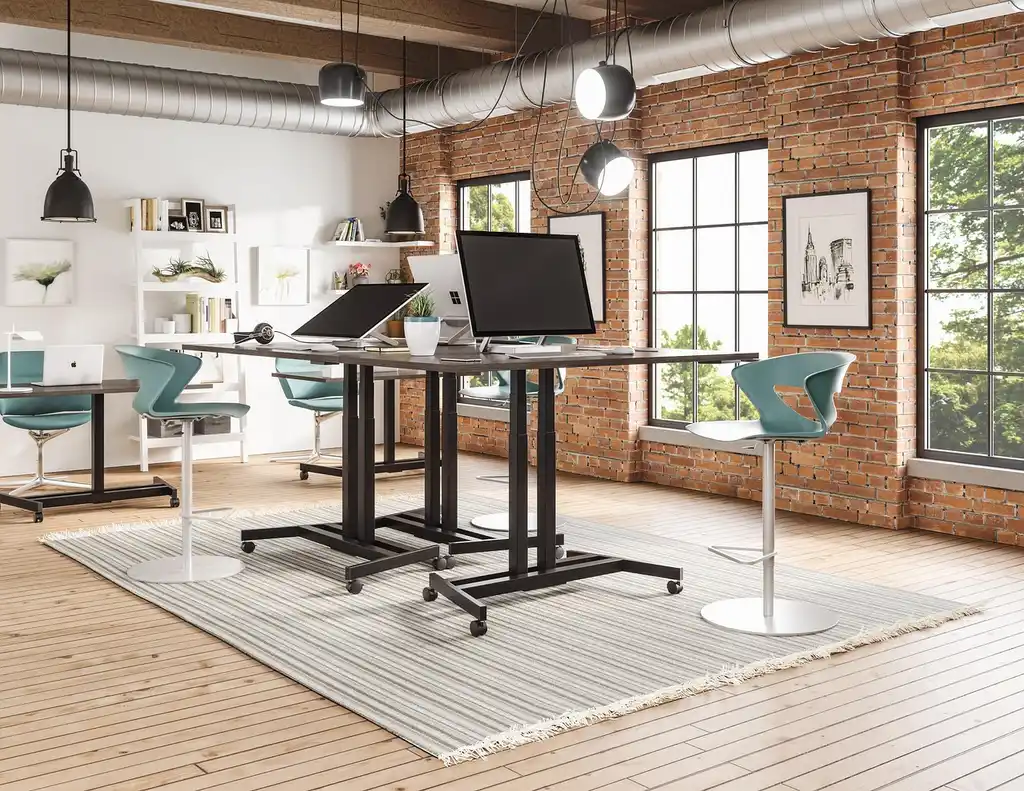
Do not ignore the practical parts. A monitor can have solid color specs and still cost more than expected once you add a dock, an arm, or a new cable. HDMI and DisplayPort are the baseline, USB-C is helpful for laptop workflows, and stand adjustability can save both comfort and money.
HDMI, DisplayPort, and USB-C basics
HDMI and DisplayPort are the minimum connections to check for desktop editing. DisplayPort is often the easier choice for PC users, while HDMI remains common across consoles, laptops, and media gear. USB-C with power delivery is useful if you edit from a laptop and want one cable for video and charging, but it can raise the monitor price.
What to expect from HDR10 on budget monitors
HDR10 on a budget monitor is often more of a label than a real feature. True HDR needs high peak brightness, strong contrast, and local dimming that budget screens rarely provide well. A monitor with an HDR logo may still look only slightly different from SDR, so do not buy on the logo alone.
Stand adjustment and VESA mounting
A fully adjustable stand should move for height, tilt, and ideally pivot. That matters for long editing sessions and for matching eye level to the top of the screen. VESA mount support is worth checking too, because a separate arm can improve desk space and may solve a poor stock stand, though it adds cost.
- Match the screen to your main timeline format first: 1080p, 1440p, or 4K.
- Choose IPS if color work matters, and avoid TN for editing.
- Prioritize sRGB and Rec.709 for SDR delivery.
- Check whether your system can handle 4K scaling and GPU load.
- Confirm HDMI, DisplayPort, and USB-C needs before buying.
- Count stand or VESA costs in the total price.
Frequently asked questions
What is a good budget monitor for video editing?
A good budget monitor for video editing is usually a 27-inch IPS panel with 1440p resolution, full or near-full sRGB coverage, and a fully adjustable stand. That mix fits most SDR YouTube and freelance work without the scaling and GPU demands that can come with a cheap 4K screen.
Which size monitor is best for video editing?
For most people, 27 inches is the best size because it balances desk use, timeline comfort, and pixel density. A 24-inch screen works on smaller desks and for 1080p projects, while 32 inches is better when you want more room and can support 4K or a larger setup.
What color accuracy should a budget editing monitor have?
Look for strong sRGB and Rec.709 coverage, factory calibration if available, and a low Delta E claim that is backed by independent reviews when possible. Even then, you may still need calibration after purchase. Wide-gamut panels need careful control or they can oversaturate SDR work.
Can I use a gaming monitor for video editing?
Yes, if the gaming monitor has an IPS panel, good sRGB coverage, and sensible factory tuning. Many gaming screens are fine for editing, but high refresh rate should not outweigh color accuracy, stand quality, or proper connectivity. Avoid gaming models that chase speed while ignoring color control.