How Much Storage Should a Backup Drive Have?
Buy a backup drive at least about 2× your current used data for a full local backup, or closer to 3× if you want version history and room for monthly growth. Too small, and old versions disappear or backups fail as storage grows. This guide gives a simple formula that turns used space, growth, and backup style into one exact drive size.
How much backup storage do you need?
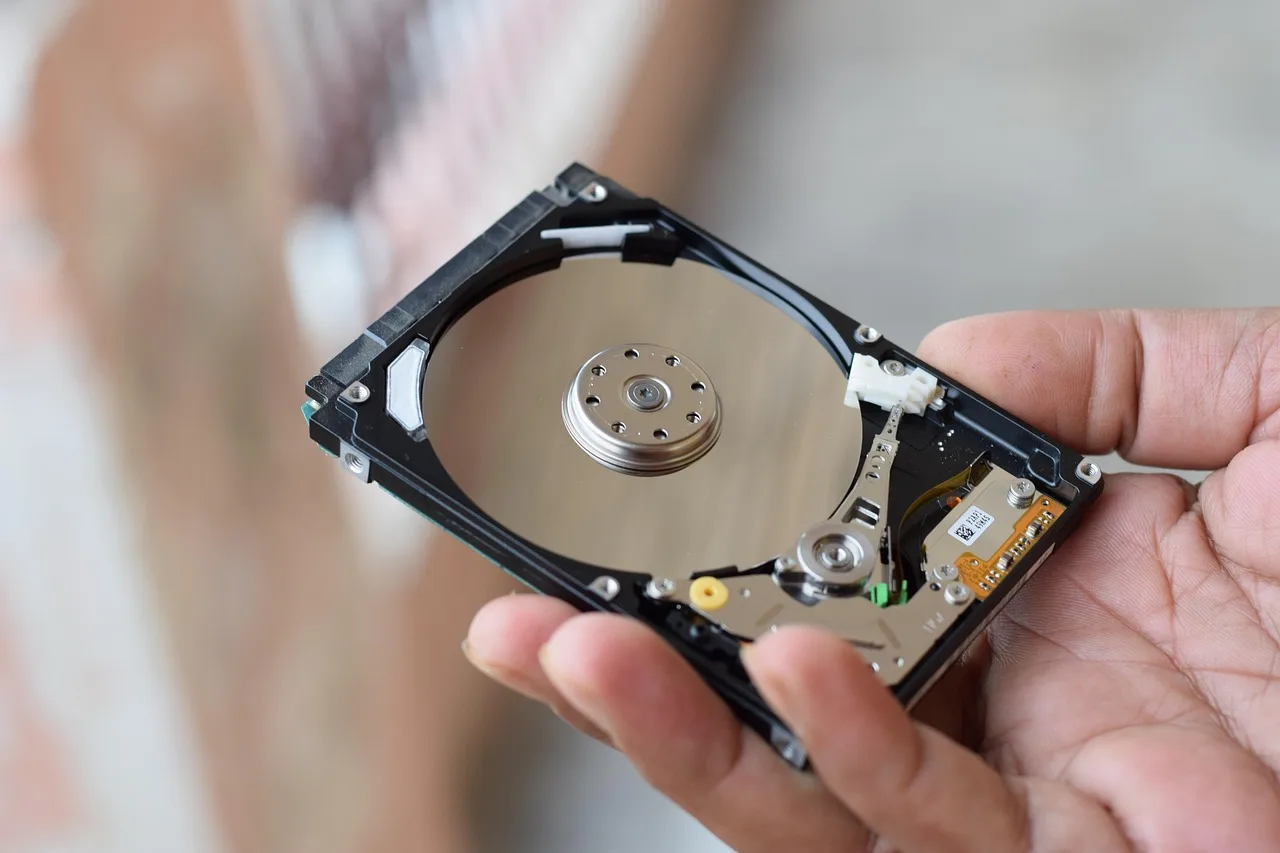
Start with the data you actually use, not the label on the internal drive. A 2TB laptop with about 650GB used needs much less backup space than a 1TB laptop that is nearly full at 900GB. Then add room for growth, because the answer changes the moment new files arrive.
A practical sizing method is simple: used data + expected growth + version history + free-space headroom. Tusk recommends multiplying monthly new data by retention months and copy count, and it notes that a standard 3-2-1 setup uses 3 copies. Tusk also says two copies is the floor.
Start with used space, not drive label
The internal drive size is only the ceiling. What matters is how much of it is already occupied. A computer with 825GB total storage does not offer 825GB to back up, and GamesRadar says usable PS5 storage starts at 667.2GB after system space. The label and the usable amount are not the same thing.
Add room for future growth
If your files grow by 50GB a month, a backup that fits today may fall short in a year. For a basic file backup, add at least 6 to 12 months of growth headroom. For image-based backups or versioned backups, add more, because each new backup set can keep older states too.
Say your desktop has 700GB used, and you add about 100GB of new files every month. A plain single-copy backup may need around 1TB to 2TB of usable space, but a versioned backup with several months of history can push the practical choice into 4TB territory.
Choose a target based on backup style
A file backup of documents and selected media needs less space than a full-disk image. A full-disk image copies the whole drive structure, so it needs more room for each run and more headroom for future runs. Cloud backup adds offsite protection, but its retention rules and subscription pricing can change how much history you keep.
Usable space versus advertised capacity
Advertised capacity is not the same as usable space. Drives are sold in decimal TB, while operating systems often show different numbers because of GB versus GiB math, plus formatting and system overhead. A drive that looks like 1TB on the box will always present less usable space after setup.
GB and GiB are not the same
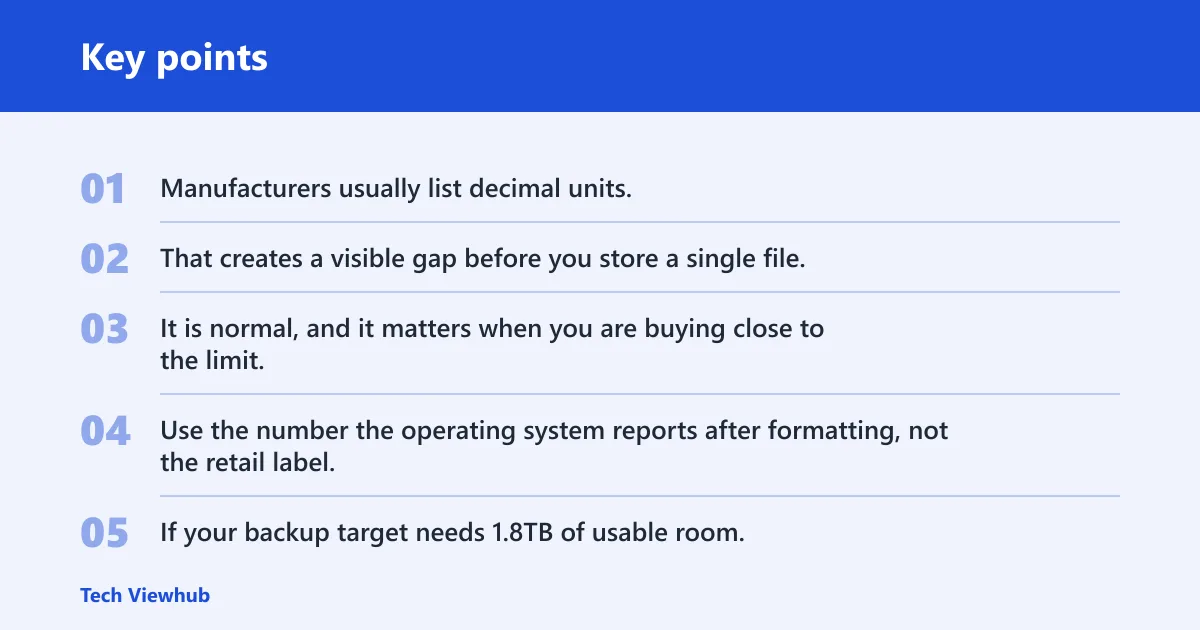
Manufacturers usually list decimal units, while many operating systems report binary units. That creates a visible gap before you store a single file. It is normal, and it matters when you are buying close to the limit.
Use the number the operating system reports after formatting, not the retail label, when you size a backup drive. If your backup target needs 1.8TB of usable room, a “2TB” drive may be fine for a simple file copy, but it can be too tight once you add snapshots or version history.
Formatting and system overhead reduce usable space
Every backup drive also loses some capacity to formatting and file system overhead. External HDDs and SSDs both face this reduction. Leave free space on top of your calculated need so the backup software can create new versions, verify files, and handle future growth without running the drive nearly full.
UpdraftPlus says up to two-thirds free space may be needed to create a backup, and it also says the very short answer can be twice as much free space as already used. That is a strong warning for people who plan to fill a drive to the brim. Backup jobs need margin.
Backup sizing by data type
Different users need very different storage. Document-heavy systems are compact. Photo libraries are larger. Video work can jump from “enough” to “not enough” very quickly. The right answer depends on the kind of data you protect and how much history you keep.
Document-heavy systems
If your files are mostly documents, spreadsheets, and browser data, a 1TB or 2TB backup drive can be enough for many systems. The main driver is not raw capacity but how much growth you expect and whether you keep several versions. For a simple home PC, this is the easiest category to size.
Photo-heavy systems
Photos change the math. A wedding photographer can produce roughly 170GB per event, according to Tusk. That means a few shoots can consume the same space that would hold years of documents. For photo libraries, a 2TB drive may be a starting point, not an endpoint.
Picture a mirrorless camera archive that grows by 250GB each month. A 1TB backup drive can look generous on day one and cramped after a few seasonal projects. In that case, 4TB is often the safer practical tier because it leaves room for versions and a growing catalog.
Video-heavy systems
Video users should assume much larger storage needs. The same source says 4K ProRes 422 HQ can be about 398GB per hour, and it can reach 3.2TB over 8 hours. That means a single shoot can fill a 4TB drive faster than many people expect. For this workload, 8TB is often a more realistic baseline.
Backup drive sizing table
The table below maps common source sizes and usage patterns to practical backup-drive tiers. It includes room for version history, and it separates photo and video-heavy use where the numbers change fast. Treat the “recommended size” column as usable-space guidance, not the exact printed label on the box.
| Source drive used space | Typical usage pattern | Recommended backup drive | With version history headroom | Photo/video-heavy recommendation |
|---|---|---|---|---|
| 250GB | Documents, email, light app data | 1TB | 1TB to 2TB | 2TB |
| 500GB | Typical home PC, mixed files | 1TB to 2TB | 2TB | 2TB to 4TB |
| 750GB | Large document set, some media | 2TB | 2TB to 4TB | 4TB |
| 1TB | Mixed personal files, game storage, photos | 2TB | 4TB | 4TB to 8TB |
| 2TB | Heavy photo library, mixed media | 4TB | 4TB to 8TB | 8TB |
| 4TB | Large media archive, growing library | 8TB | 8TB to 16TB | 16TB |
This table assumes a local backup with some headroom, not a bare minimum copy. If you want multiple restore points, move one tier up. If your files grow by more than about 10% to 20% per year, move up sooner.
Should your backup drive be bigger than your internal drive?
Often, yes. If you back up only files and keep little or no history, the backup drive can match or slightly exceed the used space on the internal drive. If you want version history, multiple copies, or a full-disk image, a larger drive is the safer choice. Capacity pressure shows up fast.
When a same-size drive is enough
A same-size drive can work when the internal drive is only partially full and you back up a selected folder set. For example, a 2TB internal drive with 600GB used may back up comfortably to a 1TB or 2TB drive if you are copying only current files and not keeping many versions.
When a larger drive is the safer choice
Choose a larger drive when you want versioned backups, image backups, or room for the next year of growth. That is especially true for laptops with a small internal SSD that is nearly full, or for desktops storing media projects. More headroom reduces the chance that backup jobs fail as the source fills up.
How multiple copies change the answer
Tusk’s example of 400GB per month producing 14.4TB across three copies shows why copy count matters. A single local backup may fit on a modest drive, but a 3-2-1 plan changes the total storage picture. The offsite copy does not have to sit on the same drive, but it still needs its own space somewhere.
Backup drive types and capacity tradeoffs
The best drive type depends on what you value most. External HDDs are the low-cost choice for large backups and archives. External SSDs cost more per terabyte, but they restore faster and travel better. Cloud backup gives an offsite copy and version retention, but it adds monthly or yearly subscription cost.
External HDD for low cost per TB
For most large local backups, external HDDs are the practical default. They usually offer larger capacities for less money per terabyte, which matters when you want 4TB, 8TB, or 16TB. That makes them a strong choice for home backups, media archives, and long-term storage.
External SSD for faster restores and portable backups
An external SSD makes sense when restore speed and portability matter more than raw capacity per dollar. It is a better fit for frequent travel, working files, or a smaller backup set that you move between locations. It is usually not the best buy for multi-terabyte archives.
Cloud backup for offsite copies and version retention
Cloud backup is useful as the offsite piece of a 3-2-1 setup. Wirecutter explicitly recommends an external hard drive at home and another backup outside home, and it says backup services keep multiple versions of files. That version history is useful, but it also uses space and may be limited by plan rules.
3-2-1 backup rule and version history
A solid home setup uses 3 copies of your data, 2 media types, and 1 offsite copy. The local backup is for fast restores. The offsite copy protects you from theft, fire, or another event that affects the whole location. If you skip the offsite copy, you do not have full disaster protection.
Three copies, two media types, one offsite
The 3-2-1 rule does not mean buying three identical drives. It means keeping one working copy, one local backup copy, and one copy somewhere else. That can be an external HDD plus cloud backup, or two local devices plus an offsite copy in another location.
How versioned backups use more space
Version history keeps older file states, which is useful after accidental deletion or file corruption. But every retained version consumes storage. The more versions you keep, the more headroom you need. That is why a 1TB source with many retained snapshots may need a 2TB or 4TB backup target.
Why full-disk images need extra headroom
Full-disk images capture the system more completely than file backups, so they need more space per backup set. They are useful when you want fast bare-metal recovery, but they are not the lightest storage option. If you use imaging software, plan for the image plus space for future images and verification.
- Check the used space on the source drive.
- Add expected monthly growth for the next 6 to 12 months.
- Add space for version history if you want older restore points.
- Choose a drive tier with free-space headroom left over.
- For offsite protection, add a second copy in another location.
Frequently asked questions
What size backup drive do I need?
Pick the drive size from your used data, not from the internal drive label. A 500GB source with light document use may fit on 1TB, while a 1TB photo library often belongs on 2TB or 4TB. If you want many restore points, move up one tier.
How much storage should a backup drive have?
A backup drive should have enough usable space for the current data set, plus growth, plus some free space left after the first backup finishes. As a rule, do not buy right at the edge. If the math lands near a full drive, choose the next size up.
How much storage does an external hard drive have?
External hard drives commonly come in 1TB, 2TB, 4TB, 8TB, and 16TB sizes. The usable amount is always lower than the label after formatting and system overhead. If you need a precise backup target, size it from usable space, not the box number.
Should my backup drive be bigger than my internal drive?
It should be bigger when you want version history, image backups, or extra room for future growth. If your internal drive is mostly empty and you only back up select files, a smaller backup drive can work. The safer choice is usually one tier larger.
Do I need more space for versioned backups?
Yes. Versioned backups keep older copies of files, so they consume more storage than a single mirror copy. The more versions you keep, the more headroom you need. For many home users, that means stepping from a 1TB or 2TB drive to 4TB.