
What Is a Good Budget Monitor for Working From Home?
For many home offices, a 24-inch 1080p IPS monitor is often a strong budget pick. Choose 27-inch 1440p only if your desk is around 28 inches deep or more and you want extra spreadsheet space. Wrong size or port choices lead to cramped text, extra scrolling, and adapter costs. This guide covers the best budget monitor by desk depth, work type, and HDMI or USB-C connection needs.
Choosing the right screen size for your desk

The best budget monitor for working from home is usually a 24-inch 1080p IPS model for compact desks, or a 27-inch 1440p IPS model if you have enough depth for comfortable viewing. The right choice depends on desk depth, task mix, and whether you need USB-C or can rely on HDMI or DisplayPort.
For viewing comfort, larger screens generally need more distance. HP recommends roughly 65–80 cm viewing distance for 27-inch monitors and notes that many standard desks are about 60 cm deep, which helps explain why 27-inch screens can feel close on shallow setups. For office use, VESA also defines ergonomic display positioning around comfortable viewing angle and distance in its display ergonomics guidance, while common VESA mount patterns such as 100×100 mm are widely used for arms and wall mounts.
For a quick size comparison, see our 24-inch vs 27-inch monitor guide and our home office desk-depth planning guide.
Why 27 inches is the default sweet spot
For most people, 27-inch gives enough room for side-by-side windows without forcing a move to a larger desk. At 1440p, text stays sharper than on 1080p at the same size, so spreadsheets, documents, and browser tabs are easier to read. That is why 27-inch 1440p is the best all-around budget target when the desk depth allows it. Dell, HP, and many major display makers position 27-inch QHD as a strong general-purpose work size, and it aligns well with common 65–80 cm viewing-distance guidance.
When a 24-inch or 32-inch screen is better
For compact desks, HP recommends a 24-inch 1080p monitor. That size suits lighter work, such as email, writing, and single-app use, where you sit closer and do not need as much horizontal space. It is also the safer choice when a laptop sits beside the monitor on a crowded desk.
The same source says a 32-inch 1440p or 4K monitor suits spreadsheet-heavy work and coding. It gives more room for long rows, side panels, and multiple columns, but it needs deeper desk space and a farther viewing distance. On a shallow desk, a 32-inch panel can feel too large before it feels useful.
Who is this monitor for?
This guide is for remote workers who want a cheap monitor for daily office tasks, especially if they work from a laptop and care about text clarity more than color grading or gaming extras. It fits people who need a better second screen for email, documents, spreadsheets, or split-screen browser work.
It is less useful for anyone who wants a large creative display first, or who already has a deep desk and can justify a higher-cost 4K panel. A gaming monitor can still fit this group if it has an IPS panel, a usable stand, and the right ports.
Small desks and laptop setups
If your desk is close to 60 cm deep and you keep a laptop on one side, a 24-inch 1080p monitor is usually the cleaner buy. It leaves room for the keyboard, mouse, and laptop without pushing the screen too close to your eyes.
Spreadsheet-heavy work and side-by-side windows
If you spend the day in spreadsheets, finance tools, or long documents with multiple windows open, a 27-inch 1440p monitor is usually the better balance. A 32-inch screen becomes more attractive only when the desk is deep enough to keep the larger panel at a comfortable distance.
Light office tasks versus all-day document work
For email, chat, and single-document work, 24-inch is often enough. For all-day office work with frequent window switching, 27-inch usually feels better. For dense spreadsheet work, 32-inch gives more room, but it asks for more desk depth and a better stand.
What size should you buy?
Buy the size that matches your viewing distance first. A 24-inch monitor suits smaller desks and lighter tasks. A 27-inch monitor is the home office sweet spot for most users. A 32-inch monitor is best when you need more on-screen room and have the space to sit farther back.
24-inch for compact desks and single-app work
24-inch is the practical choice when desk space is tight. It works well for writing, email, browser work, and one main app at a time. The same source recommends 24-inch 1080p for compact desks, and that pairing keeps text readable without turning a small workspace into screen overload.
27-inch for most home offices
27-inch is usually the safest default because it balances size, clarity, and desk fit. At 1440p, it gives better pixel density than 1080p on the same panel size, so text looks cleaner. If you want a single monitor that can handle work, calls, and split windows, start here.
32-inch for deeper desks and bigger workspaces
32-inch is a better pick when the desk is deep and the work is data-heavy. The same source says 32-inch 1440p or 4K suits spreadsheet-heavy work and coding. On a shallow desk, though, the larger screen can force uncomfortable head movement and make the top edge feel too high.
What resolution should you buy?
Resolution matters because it affects pixel density, and pixel density affects text clarity. 1080p is acceptable on 24-inch screens, less ideal on 27-inch and up, and often too coarse if you sit close. 1440p is the budget sweet spot for 27-inch. 4K is the better choice when you want more detail, more workspace, and a sharper 27-inch or 32-inch panel, and your budget can handle it.
When 1080p is enough
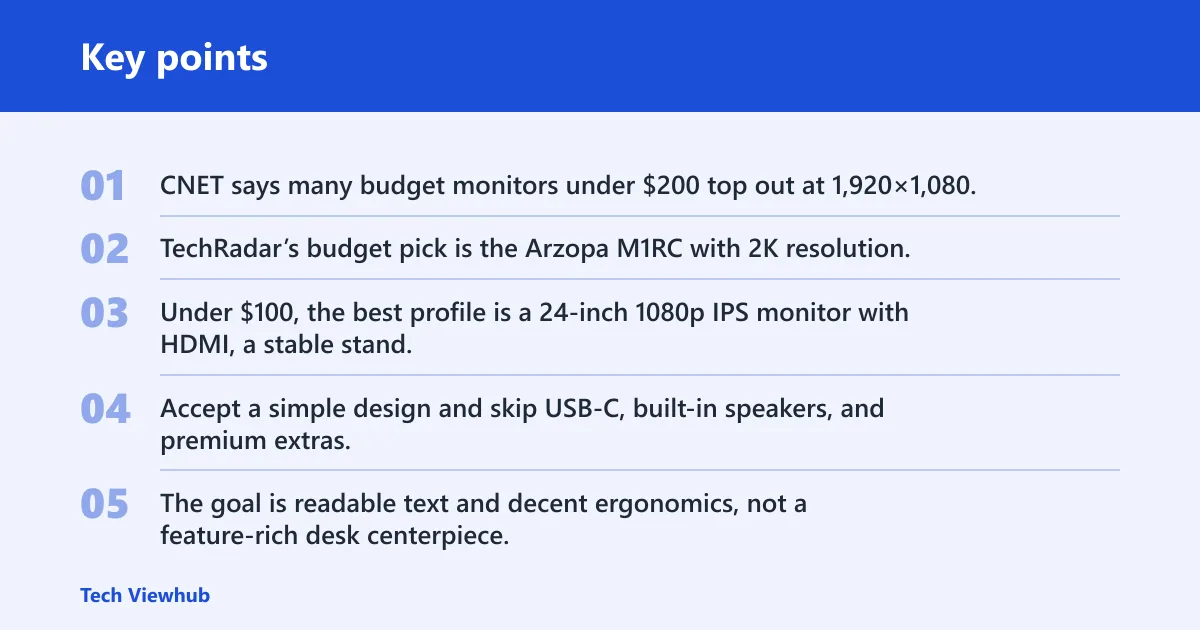
1080p Full HD is still a sensible office choice on 24-inch monitors. CNET says many budget monitors under $200 top out at 1,920×1,080 resolution, which is why this remains the default low-cost option. On 27-inch screens, however, 1080p looks less sharp and can make text and UI elements feel rougher. It can still be acceptable if you sit farther back, use scaling wisely, or want the lowest possible cost on a secondary desk screen.
Why 1440p is the budget sweet spot for 27-inch
A 27-inch monitor at 1440p is the best balance for many home office users because it improves text clarity without pushing the budget as far as 4K. It also gives more workspace for side-by-side windows, which is useful for document work and light spreadsheet use. Display makers and major review labs consistently treat 27-inch QHD as the practical step up from 24-inch FHD for office productivity.
When 4K makes sense and when it does not
4K is the better choice when you want more detail, more workspace, or a sharper 27-inch or 32-inch panel and your budget can handle it. It is not the default budget move, because scaling can become a Mac or Windows setup step, and the price jump can crowd out better stand or port choices.
A common first-timer mistake is buying a 27-inch 4K screen for basic email and browser work, then discovering that the system scaling needs tuning before text feels comfortable. The panel is fine. The mismatch is the problem.
How deep should your desk be?
Desk depth should guide the buy before size or resolution does. Shallow desks usually work best with 24-inch screens, while 27-inch models are a better fit once you have enough room to sit back and keep the panel from feeling crowded. Deep desks make 32-inch options more realistic, especially for spreadsheet work.
For setup planning, see our home office desk-depth planning guide and our monitor arm and VESA setup guide.
| Desk depth | Primary task | Preferred size | Ideal resolution | Panel type | Must-have ports |
|---|---|---|---|---|---|
| 50–55 cm | Email and writing | 24-inch | 1080p Full HD | IPS | HDMI, DisplayPort |
| 55–60 cm | General office work | 24-inch | 1080p Full HD | IPS | HDMI, optional USB-C |
| 60 cm | Light multitasking | 27-inch | 1440p QHD | IPS | HDMI, DisplayPort |
| 60–65 cm | Side-by-side windows | 27-inch | 1440p QHD | IPS | USB-C, HDMI |
| 65–70 cm | Documents and browsing | 27-inch | 1440p QHD or 4K | IPS | USB-C with power delivery |
| 70–75 cm | Spreadsheet work | 32-inch | 1440p QHD or 4K | IPS or VA | DisplayPort, USB-C if laptop-based |
| 75–80 cm | Spreadsheet-heavy work | 32-inch | 4K | IPS | USB-C, HDMI, DisplayPort |
| 80 cm or more | Mixed office and media | 32-inch | 4K | IPS | USB-C with power delivery |
| Any shallow desk | Single-app work | 24-inch | 1080p Full HD | IPS | HDMI |
What features matter most in a cheap work monitor?
Focus on stand adjustment, panel type, and ports before chasing extra features. A monitor with poor ergonomics is a weaker buy even if the panel itself is fine. Height adjustment, tilt, swivel, and pivot usually matter more than a small jump in refresh rate or a glossy spec sheet.
Panel type: IPS versus VA
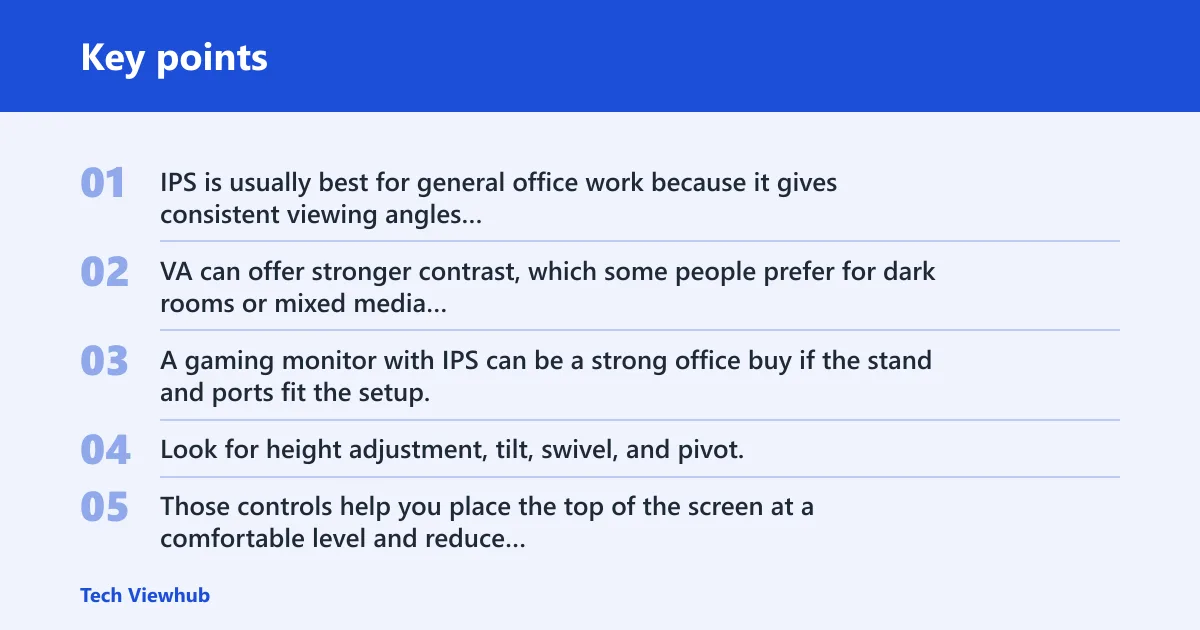
IPS is usually best for general office work because it gives consistent viewing angles and steady text clarity. VA can offer stronger contrast, which some people prefer for dark rooms or mixed media use, but it is not usually the first choice for work where you sit in front of the screen all day. A gaming monitor with IPS can be a strong office buy if the stand and ports fit the setup.
Ergonomic stand and VESA mount support
Look for height adjustment, tilt, swivel, and pivot. Those controls help you place the top of the screen at a comfortable level and reduce neck strain. If the bundled stand is poor, VESA mount support matters; 100×100 mm is a common pattern and can make arm or wall mounting easier. VESA’s mount interface standards are the baseline to check before buying an arm or bracket.
For setup help, see our monitor arm and VESA setup guide.
USB-C and laptop connection needs
USB-C is worth paying for if you want a single-cable laptop connection, power delivery, and a cleaner desk. It is most useful for remote workers who dock a laptop every day. If the monitor lacks USB-C, check that it still has HDMI or DisplayPort and that your laptop can connect without extra adapters.
USB-C is not always worth the premium if you only use a desktop PC, if your laptop already has a dock, or if the monitor’s USB-C port lacks meaningful power delivery. In those cases, a better stand, sharper panel, or larger size often delivers more value.
Mac users should pay close attention to scaling and port needs. A 27-inch 4K screen can look very sharp, but the scaling mode needs to suit the way macOS displays text. If the laptop only has USB-C or Thunderbolt, make sure the monitor supports the right input and enough power delivery for the machine.
For more connection advice, see our USB-C monitor guide.
Eye-care features
Flicker-free backlighting and a blue light filter can improve comfort, but they are not magic fixes. Good lighting, a sensible viewing distance, and a usable stand still matter more. Treat eye-care labels as comfort features, not a substitute for the right size or resolution. Major monitor makers such as Dell, ASUS, and BenQ routinely list flicker-free backlighting as an office comfort feature, and display review labs often recommend it as a useful but secondary spec.
Is 24-inch or 27-inch better for office work?
For most office work, 27-inch is better if your desk is deep enough and you want more room for side-by-side windows. For compact desks, 24-inch is easier to fit and usually feels better at closer range. The better size is the one that matches your desk depth and viewing distance.
HP’s guidance points the same way: 24-inch for compact desks, 27-inch as the home office sweet spot, and 32-inch for deeper desks and heavier spreadsheet work. That order matters more than a raw diagonal measurement.
Is a curved monitor good for working from home?
A curved monitor can be fine for working from home, but it is optional rather than necessary. Curvature can feel pleasant on larger screens, yet it does little to fix bad desk depth, weak stands, or poor text clarity. For most office buyers, flat IPS models are the safer and more flexible choice.
Curved screens make more sense when the panel is large and the viewing distance is generous. On a small desk, a curve is rarely the main reason a monitor feels more comfortable.
What should you skip under each budget?
Budget limits should change what you give up first. Under $100, under $150, and under $200 each push you toward different tradeoffs. The mistake is buying the wrong compromise for your desk and then paying extra later for adapters, a stand, or a replacement screen.
| Budget tier | What to skip first | Why to skip it | What to keep |
|---|---|---|---|
| Under $100 | 4K, USB-C, curved design | These features usually eat the budget while sacrificing stand quality or panel clarity | IPS or decent VA, HDMI, stable stand |
| Under $150 | 4K, premium speakers, extra USB hubs | They add cost without helping text clarity or desk comfort as much as size and stand quality | 24-inch 1080p or 27-inch 1440p if discounted, height adjustment if possible |
| Under $200 | 4K unless you need it, flashy gamer styling | At this tier, stand ergonomics and USB-C matter more than cosmetic extras | 27-inch 1440p IPS, or a 32-inch if the desk is deep enough |
TechRadar’s budget pick is the Arzopa M1RC with 2K resolution, while PCWorld names the Acer Vero B247Y G as its best budget home office monitor.
Best monitor profile under $100
Accept a simple design and skip USB-C, built-in speakers, and premium extras. The goal is readable text and decent ergonomics, not a feature-rich desk centerpiece.
Best monitor profile under $150
Demand IPS, at least HDMI, and height adjustment if you can get it. The main compromise here is usually stand quality or the absence of USB-C.
Best monitor profile under $200
If you find USB-C at this price, treat it as a bonus rather than a must-have. Keep the focus on text clarity, ergonomics, and a clean desk setup.
When 27-inch 1080p is still acceptable
27-inch 1080p is still acceptable when the monitor is a secondary display, when you sit farther back, or when budget matters more than sharpness. It can also work for simple office tasks and older laptops if the price difference to 1440p is large. The compromise is softer text and less refined UI detail.
When USB-C is not worth paying
USB-C is not worth paying for when you use a desktop tower, already have a dock, or only need one HDMI connection for a laptop. It is also less valuable if the monitor’s USB-C port delivers weak power or the price jump forces you to accept a worse panel or stand. In that case, spend on ergonomics first.
What are the pros and cons?
Pros
- 24-inch 1080p fits compact desks and simple office work.
- 27-inch 1440p is the best balance for most home offices.
- 32-inch helps with spreadsheets and larger window layouts.
- IPS panels work well for general office use.
- USB-C can cut cable clutter for laptop users.
Cons
- 1080p looks less sharp on 27-inch and larger screens.
- 4K can add scaling setup work and cost.
- Poor stands cause neck and shoulder strain.
- Curved screens are often unnecessary for office tasks.
- USB-C and full ergonomic stands can raise the price quickly.
Frequently asked questions
What is a good budget monitor for working from home?
Match the screen to desk depth, then check stand adjustment and ports before buying.
What size monitor is best for working from home?
For most home offices, 27-inch is the best all-around size because it balances readability, multitasking space, and desk fit. Choose 24-inch if your desk is compact or you mainly work in one app. Choose 32-inch only when you have deeper desk space and a larger workload.
Do I need 1080p or 1440p for a budget home office monitor?
Use 1080p on 24-inch monitors, where it is still a practical fit for text and office apps. Choose 1440p on 27-inch monitors if you want better text clarity and more workspace. On 27-inch and up, 1080p is less ideal.
Can I use a gaming monitor for working from home?
Yes, if it has an IPS panel, a good stand, and the right ports. Many gaming monitors offer useful ergonomic features and fast panels, but ignore flashy styling and high refresh rates if they force you to give up better text clarity, USB-C, or height adjustment.


