Why Is My Windows 11 Laptop So Slow on Battery Power?
If your Windows 11 laptop is slower only on battery, first check for normal power-saving throttling. If the drop is larger than that, battery wear, power mode, or firmware is the likely cause. Ignoring it can waste battery, trigger needless parts swaps, and hide a battery that no longer holds full output. This guide shows how to separate expected slowdowns from faults with Windows 11, battery-health, and hardware checks.
Why it slows on battery
Unplugging usually changes CPU boost behavior, GPU limits, screen brightness, and background activity at once. That is normal on many laptops. It becomes a fault when the machine is far slower than its own on-battery baseline, shuts down early, or shows a drop that does not match the chosen power mode.
What changes when you unplug
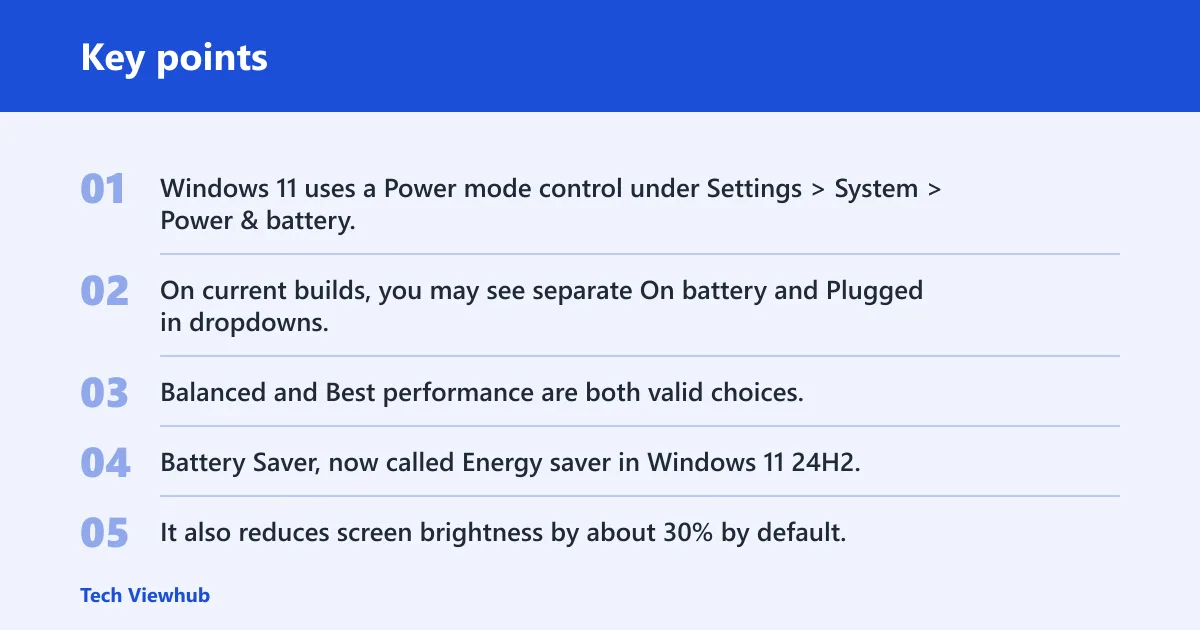
Windows 11 uses a Power mode control under Settings > System > Power & battery. On current builds, you may see separate On battery and Plugged in dropdowns. Balanced and Best performance are both valid choices, and Best power efficiency leans harder toward runtime than speed.
Battery Saver, now called Energy saver in Windows 11 24H2, can activate automatically when charge falls below about 20% by default. It also reduces screen brightness by about 30% by default, and it can pause syncing and restrict background activity. That alone can feel like a slowdown.
When slowdown is normal
A modest drop in app launch speed, browser tab response, or export time is common. CPU power limits lower boost clocks to save energy and heat, so a laptop may feel less eager on battery even when nothing is broken.
When it points to a fault
Suspect a fault if the machine falls far below its usual on-battery speed, the battery percentage jumps around, the laptop powers off at 30% to 40%, or a gaming model behaves as if the GPU is hard-capped. Those clues point beyond normal power saving.
What you’ll need
- Windows 11 Settings
- Task Manager
- Command Prompt or Windows Terminal
- Power cable and charger
- A few minutes with the laptop idle and under light use
Battery slowdown diagnosis matrix
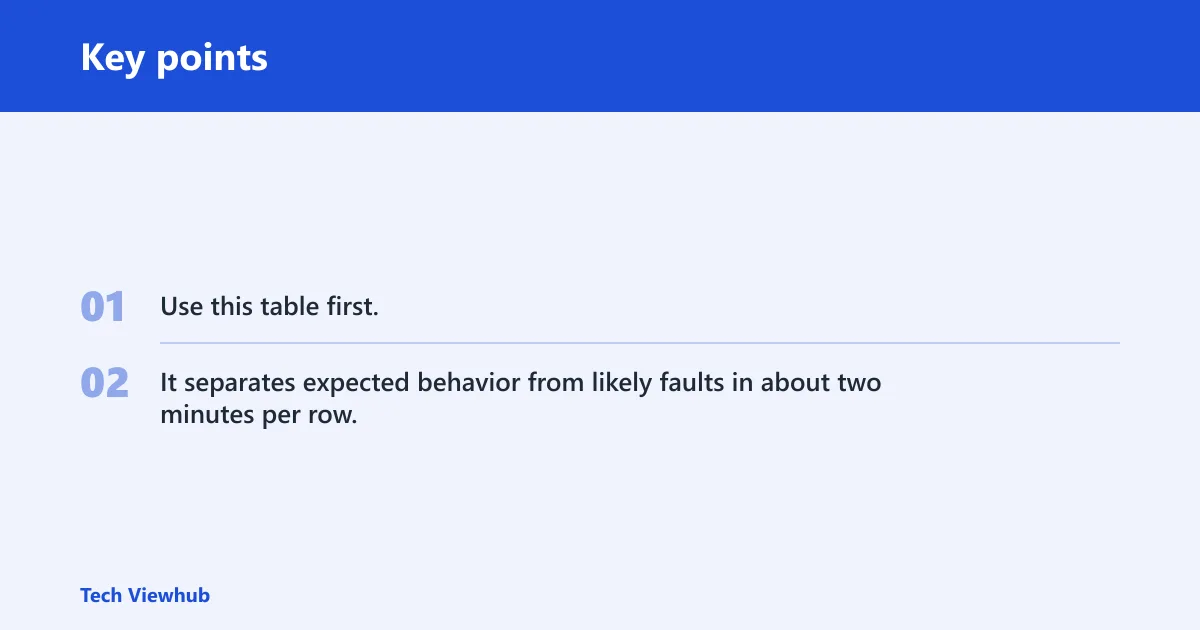
Use this table first. It separates expected behavior from likely faults in about two minutes per row.
| Symptom | Likely cause | How to confirm in 2 minutes | Next step |
|---|---|---|---|
| Speed drops a little only on battery | Normal power throttling | Open Settings > System > Power & battery and compare On battery to Plugged in power mode | Choose Balanced or Best performance on battery if runtime allows |
| Big slowdown near low charge | Energy saver active | Check whether charge is below 20% and whether Energy saver is on | Raise charge above 20% or change Energy saver settings |
| Rapid drops, jumps, or shutdowns at 30% to 40% | Worn battery | Run powercfg /batteryreport and compare design capacity with full charge capacity | Plan for battery replacement |
| Gaming laptop gets much slower on battery | GPU cap on gaming laptops | Open Task Manager and check GPU usage while unplugged | Use AC power for heavy games or render tasks |
| Slowdown comes with heat and loud fans | Thermal throttling | Feel for hot vents and check whether airflow is blocked | Clean vents and restore airflow |
How do you check the cause?
Start with Windows power settings, then separate app load from hardware limits. Task Manager can reveal CPU, memory, disk, and GPU bottlenecks. If that does not explain it, battery health data and heat checks usually do.
- Open Settings > System > Power & battery and note the current Power mode.
- Check whether Energy saver is on, and whether the battery is below 20%.
- Open Task Manager and check the Processes tab for CPU, Memory, Disk, and GPU use.
- Open the Startup apps tab and disable anything that should not run at sign-in.
- Run powercfg /batteryreport in Command Prompt or Windows Terminal, then compare design capacity with full charge capacity.
Suppose a 15-inch laptop feels fine on AC power but much slower on battery, and Task Manager shows a web browser using most CPU while disk is quiet. That points to software load plus battery-side limits, not a dead machine. A different result, such as low CPU use but weak battery capacity, points elsewhere.
Step 1: Open Power & battery
Go to Settings > System > Power & battery. Check whether the On battery choice is set to Best power efficiency, Balanced, or Best performance. Current builds can show separate choices for battery and plugged-in operation, so the unplugged setting matters.
Step 2: Check Energy saver and Power mode
Energy saver can turn on automatically at 20% by default in Windows 11 24H2. If the screen seems dimmer too, that is expected because brightness reduction is part of the mode. Change the setting if you need more speed at the cost of shorter runtime.
Step 3: Inspect Task Manager
Use Task Manager to separate a power-limit issue from a background-app issue. If CPU sits high, something is busy. If Disk is high, storage can be the bottleneck. If GPU rises on battery and the machine is a gaming model, the graphics path may be capped.
Step 4: Run a battery report
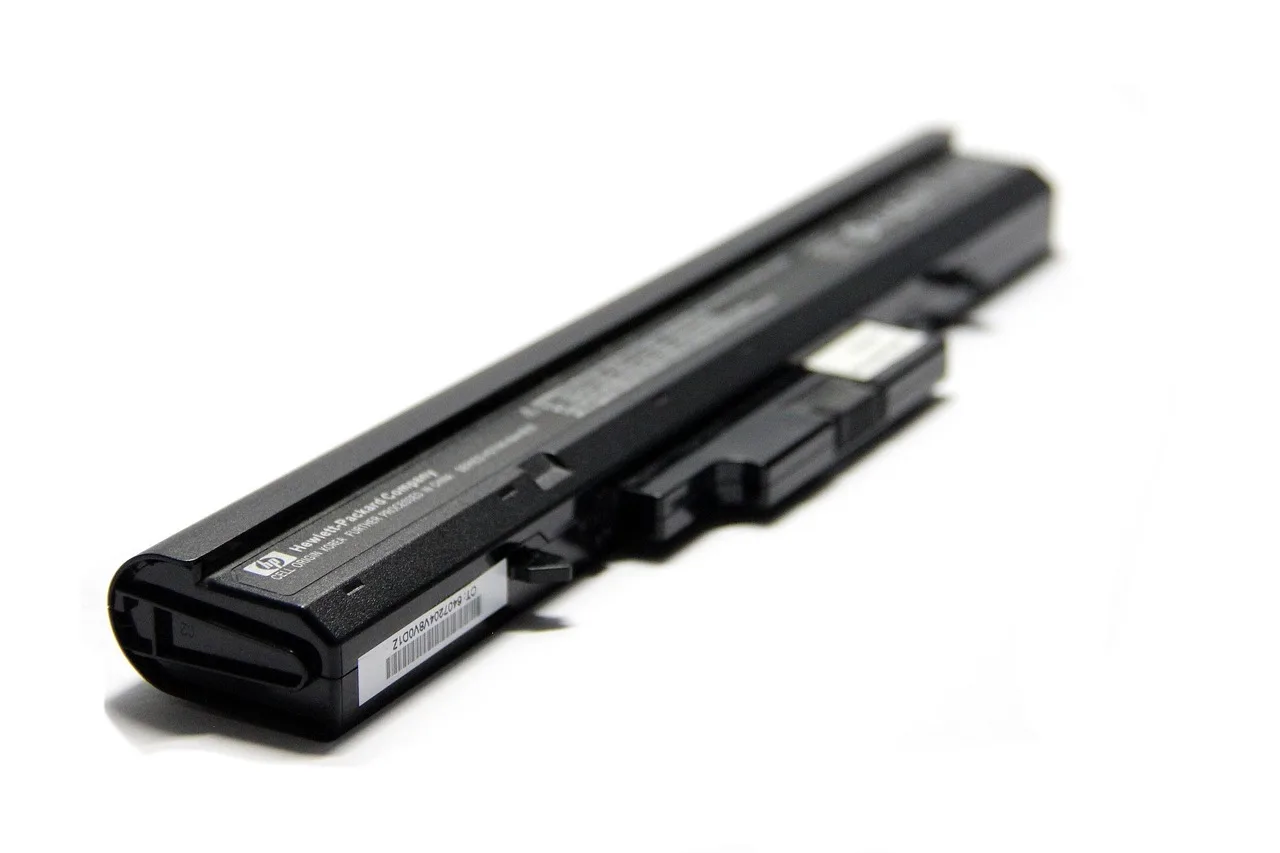
Use powercfg /batteryreport to compare design capacity with full charge capacity. A large gap means the battery no longer stores as much energy as it once did. If the report also lines up with sudden percentage jumps or shutdowns at 30% to 40%, wear is more likely.
How do you stop Windows 11 from slowing down?
You usually cannot remove all on-battery slowdown, but you can narrow the gap. Start with the least invasive setting changes, then move to drivers and firmware if the laptop still feels much slower than expected.
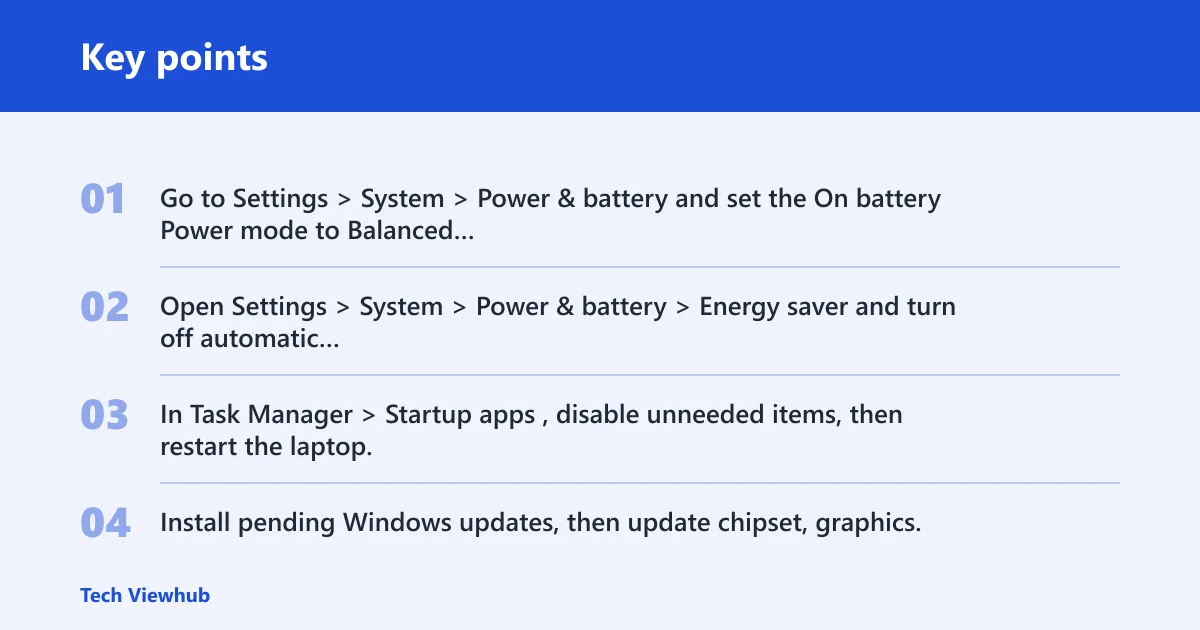
- Go to Settings > System > Power & battery and set the On battery Power mode to Balanced or Best performance.
- Open Settings > System > Power & battery > Energy saver and turn off automatic activation if you need more speed above 20% charge.
- In Task Manager > Startup apps, disable unneeded items, then restart the laptop.
- Install pending Windows updates, then update chipset, graphics, and firmware drivers from the laptop maker.
Best performance does drain the battery faster on Windows 11. That is the tradeoff. If you choose it on battery, expect shorter runtime and more heat, not a free speed boost.
A common first-timer mistake is treating a dimmer screen as a CPU problem. If Energy saver cuts brightness by 30%, the laptop can feel slower even when the processor is behaving normally. Raise brightness, then recheck app response before changing deeper settings.
Why is my gaming laptop slower on battery?
Gaming laptops often slow down more on battery than office models because battery power cannot supply desktop-adapter wattage. The CPU and GPU both get tighter limits, so the machine may protect runtime by cutting clocks hard. On some NVIDIA laptops, Battery Boost-style behavior adds another cap.
CPU power limits on battery
The processor often drops to lower power states when unplugged, and boost behavior is reduced. That protects battery life and keeps heat down, but it also lowers short-burst speed. A high-end chip can still feel much slower if the firmware is set conservatively.
GPU caps and Battery Boost
If the slowdown appears mainly in games, check GPU usage and power mode first. Some systems cap frame rate or graphics power on battery. That is common, and it is often a design choice rather than a failure.
Why the charger matters
A charger mismatch can make a laptop behave as if it is on restricted power even while plugged in. Use the correct adapter for the model. If the system performs normally only with the original charger, that points to power delivery, not Windows alone.
Common mistakes
- Confusing brightness cuts with true slowdown: check Energy saver before changing performance settings.
- Reading battery health too literally: compare design capacity and full charge capacity, then match that to symptoms.
- Skipping heat checks: blocked vents and dust can trigger thermal throttling on battery and AC.
- Assuming a restart fixes worn cells: a battery that shuts down at 30% to 40% usually needs replacement, not another reboot.
- Ignoring storage load: keep at least 15-20% of drive space free, because low free space and a hard drive can both slow Windows 11 down.
Picture a gaming laptop with an RTX-class GPU that feels fine on the desktop but slows in a match as soon as it is unplugged. If Task Manager shows the GPU dropping hard while the charger is absent, that is expected battery-side limiting. A battery report and the right power mode confirm whether the cap is normal or excessive.
Frequently asked questions
Why is my Windows 11 laptop fast when plugged in but slow on battery?
Windows and firmware often lower CPU boost, GPU power, and background activity on battery. Check Settings > System > Power & battery first, then Task Manager. If the slow path is much worse than the plugged-in path, run powercfg /batteryreport to check battery wear.
Is it normal for a laptop to slow down on battery power?
Yes. A moderate drop is common because battery mode trades speed for runtime and heat control. If the slowdown is dramatic, or the battery percentage jumps, the issue is more likely wear, thermal throttling, or a restrictive power setting rather than normal behavior.
How do I stop Windows 11 from throttling performance on battery?
Go to Settings > System > Power & battery and set On battery to Balanced or Best performance. Then check Energy saver and Startup apps. If the laptop still slows hard, update chipset, graphics, and BIOS or firmware from the manufacturer.
Can a worn battery make a laptop slower on battery?
Yes. A battery with a large gap between design capacity and full charge capacity can sag under load, which makes throttling more aggressive. Shutdowns at 30% to 40% and sudden percentage jumps are stronger warning signs than a simple lower runtime.
Why does my processor speed drop when I unplug my laptop?
That drop is usually a power-management choice. Windows 11 can lower CPU power states on battery, and Battery Saver or Energy saver can cut CPU speed by up to 50%. Check the current Power mode in Settings > System > Power & battery.
What should I check before blaming Windows for battery slowdown?
Check the charger, battery health, heat, storage space, and Task Manager first. A hard drive can be a major cause of slowness compared with an SSD, and keeping at least 15-20% of drive space free helps. Then compare the on-battery and plugged-in power modes.