
Can I Use Any Docking Station for My Laptop?
No. Only docking stations that match your laptop’s connector, support its video and data features, and supply enough power will work properly. Using the wrong dock can leave you with no display, slow ports, or a battery that still drains while plugged in. This guide breaks compatibility into connector, capabilities, and power so you can tell what will work, what might work, and what definitely will not.
What works: a dock that matches the laptop’s exact port standard, display mode, and power needs. What might work: a dock that fits the connector but still needs a compatibility check for video, charging, or OS limits. What won’t: a USB-C-shaped dock on a USB-C data-only port, a Thunderbolt dock on a plain USB-C port, or any dock that exceeds the laptop’s supported monitor or power profile.
What a docking station does
A docking station is hardware that attaches to a laptop computer and turns one connection into several. It can add USB-A ports, USB-C ports, HDMI, Ethernet, and display outputs, which reduces cable swapping at a desk and makes wired networking easier. Video output is one of the main reasons people buy docking stations.
HP describes a dock as replacing cable tangles with one connection, and that is the practical goal for most buyers. The catch is that the laptop controls what the dock can actually do, so the dock’s marketing label matters less than the host port on the laptop.
Can I use any docking station with your laptop?
No. Compatibility starts with three checks: the connector, the features that connector supports, and the amount of power the dock can supply. Two USB-C ports can look identical and still behave differently, because one may carry data only while another also supports display output or charging.
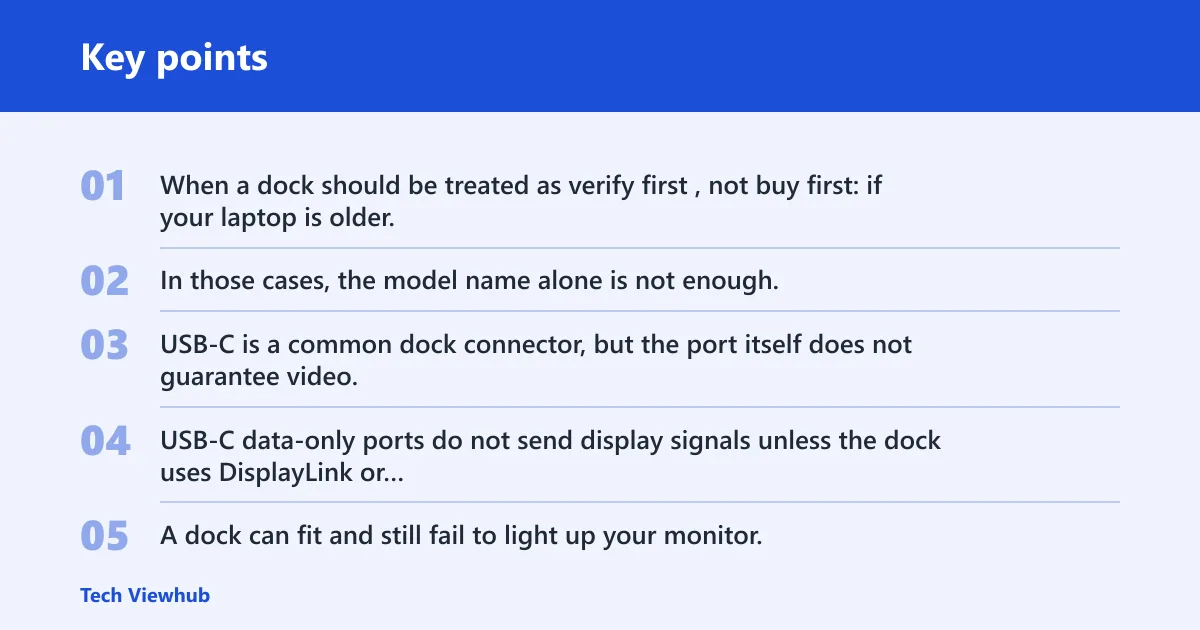
When a dock should be treated as verify first, not buy first: if your laptop is older, if you need more than one external monitor, if you plan to charge the laptop through the dock, or if the dock’s listing says it needs a specific host standard. In those cases, the model name alone is not enough.
Why identical-looking USB-C ports can behave differently
USB-C is a common dock connector, but the port itself does not guarantee video. USB-C data-only ports do not send display signals unless the dock uses DisplayLink or the laptop’s port supports DisplayPort Alt Mode. A dock can fit and still fail to light up your monitor.
Thunderbolt ports can look like conventional USB-C ports, which adds another layer of confusion. A USB-C shape does not tell you whether the port is USB-C data only, USB-C with video, or Thunderbolt. Thunderbolt is not interchangeable with plain USB-C unless the laptop and dock both support the same Thunderbolt standard.
Connector types that decide compatibility
Most laptops have either a USB or a Thunderbolt port. USB-C docks are the common modern option, but Thunderbolt 3 and Thunderbolt 4 docks are higher-bandwidth options, and compatibility can vary by laptop and port type. Thunderbolt docks only work with certain models, and a dock may not work effectively without the matching Thunderbolt port.
USB 3.0 docking stations are an older option that may work with non-USB-C laptops. They can be useful for basic expansion, but they usually offer fewer display and data capabilities than Thunderbolt docks. Some new docks also use a USB-C extended cable to connect to the laptop, which still depends on the host port’s support.
Will it drive your monitors?
Display support is separate from connector fit. A dock may connect, charge, and still fail to drive the monitor you want if the laptop does not support the required display mode or if the dock exceeds the laptop’s display limits. Single-monitor support is easier to satisfy than dual-monitor support.
Single display versus dual display support
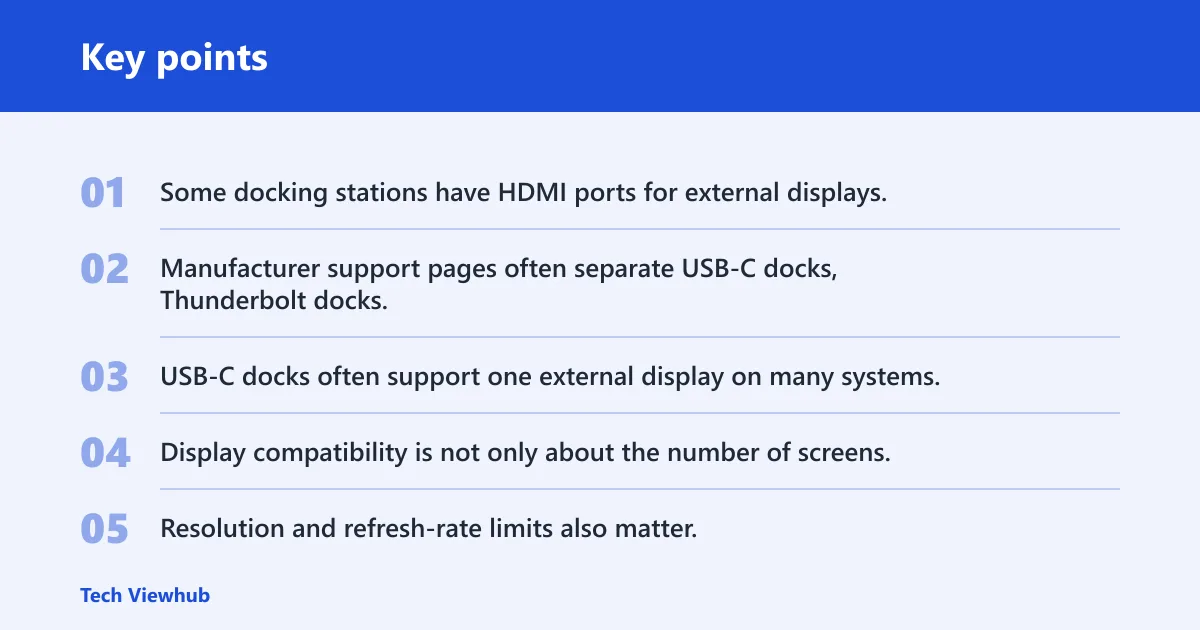
Some docking stations have HDMI ports for external displays, but the number of monitors they support depends on the host connection and the operating system. Manufacturer support pages often separate USB-C docks, Thunderbolt docks, and OS-specific behavior because the same dock can behave differently on different laptops.
That difference matters. USB-C docks often support one external display on many systems, while dual displays are more dependent on the laptop’s USB-C video support, the dock’s design, and the operating system.
Resolution and refresh-rate limits
Display compatibility is not only about the number of screens. Resolution and refresh-rate limits also matter, especially if you want dual 4K-class displays, a 120Hz panel, or mixed monitor sizes. A dock may support the monitors physically but not at the refresh rate you expect.
Say your laptop has USB-C with video support and you want two monitors, one 4K panel for documents and one 1080p display for chat. That can work on some docks and operating systems, but the exact combination should be checked against the manufacturer’s matrix before purchase.
Windows versus macOS multi-monitor behavior
Windows and macOS can handle multi-monitor docks differently. Some docks that depend on Windows MST behavior are a poor match for macOS, which has different external display limits and routing rules. If you use a Mac, check the dock’s macOS support page instead of assuming a Windows result will carry over.
macOS multi-monitor limits depend on the exact Mac model, chip, and macOS version, so a dock that works on one Mac may not match another. Linux compatibility can differ too, especially for display profiles and advanced dock features. If the dock must work across operating systems, verify the exact laptop and OS version listed by the manufacturer.
Will a USB-C dock charge your laptop?
Sometimes, but not always at the level you need. Power Delivery is the feature that lets a dock charge a laptop over the same connection used for data and video, but wattage matters. A dock can charge a laptop slowly, intermittently, or not at all if the laptop needs more power than the dock provides.
Power delivery wattage and what it means
Charging support is not binary. A dock may supply enough power for idle work, then fall short when the laptop is under load, the battery is low, or multiple peripherals are attached. In that case, the laptop can stay connected and still drain battery while plugged in. (Microsoft Learn)
That is why charging claims should be checked against the laptop’s adapter rating, not just the dock’s connector shape. If the dock advertises Power Delivery, look at the wattage the dock can output and compare it with the laptop’s required input.
Why some laptops need more power than a dock can supply
Thin-and-light laptops often do well on a dock’s charging output. Larger laptops, gaming systems, and workstations may need more wattage than many docks provide. If the dock cannot meet the laptop’s demand, the machine may charge slowly or only when idle.
A common first-timer mistake is buying a USB-C dock for a high-power laptop because the connector fits. The port fits. The power budget does not. In that case, the dock may still be useful for ports and displays, but it is not a reliable single-cable charger.
Dock compatibility table
| Laptop port type | Dock standard | Display support | Charging support | Verdict |
|---|---|---|---|---|
| USB-C without video | USB-C dock | Usually no external display over the dock unless the dock uses DisplayLink | May charge if the port and dock support Power Delivery | Avoid for video; verify for charging only |
| USB-C with DisplayPort Alt Mode | USB-C dock | Yes, if the dock and laptop compatibility matrix list the exact pairing | Often yes, subject to wattage limits | Buy if the manufacturer matrix confirms the pair |
| Thunderbolt 3 | Thunderbolt 3 dock | Strong multi-monitor support only when the laptop’s Thunderbolt support matches the dock’s standard | Usually yes, but wattage still matters | Buy only with exact model confirmation |
| Thunderbolt 4 | Thunderbolt 4 dock | Strong support for dual-display workflows, subject to the laptop’s OS and port limits | Usually yes, but check laptop power needs | Buy with exact model confirmation |
| USB 3.0 | USB 3.0 docking station | Basic external display support, usually lower capability than Thunderbolt | May charge some systems through a separate path, but not all | Verify before buying |
| Proprietary laptop docks | Brand-specific dock | Can be strong, but only on supported laptop families | Often designed for matching systems | Avoid unless your model is on the support list |
What should you check before buying?
Start with the manufacturer compatibility matrix or support page for both the laptop and the dock. That is more reliable than generic “universal docking station” claims, because universal often means broad compatibility, not compatibility with every host standard and every operating system.
Then check the ports you need for keyboards, mice, drives, Ethernet, and monitors. A dock with too few USB-A ports or the wrong monitor outputs may solve one problem and create another. If one dock must work with different laptops, the safe path is to confirm each laptop-dock pairing before purchase.
If you are comparing USB-C versus Thunderbolt, checking DisplayPort Alt Mode, or confirming the exact ports on a laptop, use the relevant port-spec guide, the Thunderbolt guide, and the dock-compatibility checklist on the site before you buy.
Quick compatibility checklist before buying
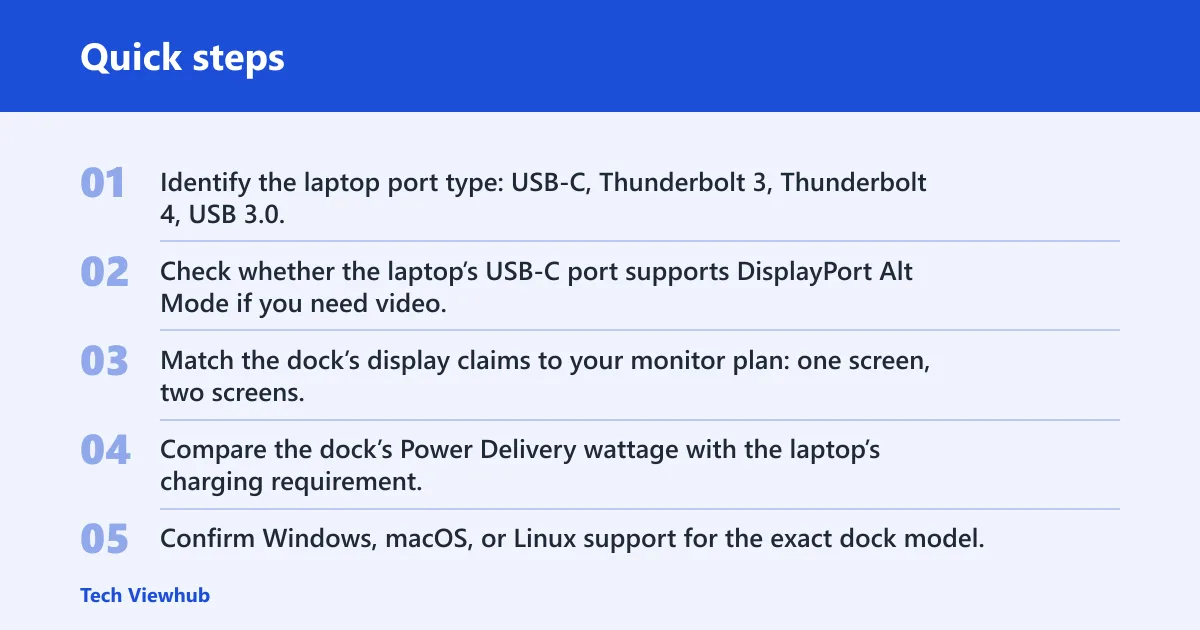
- Identify the laptop port type: USB-C, Thunderbolt 3, Thunderbolt 4, USB 3.0, or a proprietary dock connector.
- Check whether the laptop’s USB-C port supports DisplayPort Alt Mode if you need video.
- Match the dock’s display claims to your monitor plan: one screen, two screens, or mixed resolutions.
- Compare the dock’s Power Delivery wattage with the laptop’s charging requirement.
- Confirm Windows, macOS, or Linux support for the exact dock model.
- Review the manufacturer compatibility matrix for your exact laptop model.
Suppose you have a Dell laptop with a USB-C port, a 27-inch 4K monitor, and a wired keyboard, mouse, and Ethernet connection. That setup may work with a USB-C dock if the port supports video and the dock provides enough power, but the exact answer should come from Dell’s compatibility matrix for that laptop model and the dock model you want.
A common first-timer mistake is assuming a dock labeled “universal” will work with every machine in a home office. One laptop may need DisplayPort Alt Mode, another may need Thunderbolt, and a third may only get basic charging. The label is a starting point, not a promise.
Frequently asked questions
Can I use any docking station for my laptop?
No. You need a dock that matches the laptop’s connector, supports the video mode you need, and supplies enough power. A dock can fit a USB-C port and still fail to provide display output or reliable charging if the laptop does not support the right standards.
Can I use any docking station with my Dell laptop?
Not automatically. Check Dell’s compatibility matrix for your exact laptop model, then verify the dock model, the USB-C or Thunderbolt standard, display support, and Power Delivery wattage. A close connector match is not enough if the matrix does not list the pairing.
Can I use any docking station with my HP laptop?
No, not without checking. HP separates USB-C and Thunderbolt docks into different capability tiers, and those tiers are not interchangeable for every HP laptop. Confirm whether your system supports USB-C with DisplayPort Alt Mode, then check the dock’s display and power requirements on HP’s support page.
Does my laptop have to be open to use a docking station?
Usually no. Many laptops can run with the lid closed while docked if the system, firmware, and power settings allow it. The dock is not the issue; sleep, wake, and external display settings are. Some laptops behave differently when closed, so verify your OS settings.
What port do I need for a docking station?
For most modern docks, USB-C or Thunderbolt is the main port to look for. For video over USB-C, the port often needs DisplayPort Alt Mode. Older USB 3.0 docks may work with non-USB-C laptops, but they usually offer fewer display and data options.
Will a USB-C dock charge my laptop?
It might, but only if the dock and laptop both support Power Delivery and the wattage is sufficient. A dock can power a laptop at idle and still be short under load. Compare the dock’s output rating with the laptop’s required charging input before you buy.
Can one docking station work with different laptops?
Sometimes. A dock can work across multiple laptops if they share the needed connector standards, video support, and power profile. The trouble starts when one machine is USB-C data only, another needs Thunderbolt, and a third needs more wattage than the dock can provide.