
What Is a Laptop Docking Station, and Do You Need One?
A laptop docking station is a hub that lets one cable connect power, displays, networking, and peripherals; you need one only if your laptop and workflow need that kind of single-cable desk setup. Buy the wrong dock, and you can lose display support, charging, or wake-from-sleep reliability. This guide explains dock types, USB-C and Thunderbolt compatibility, port limits, and a simple way to tell whether your laptop actually needs one.
How docks differ from hubs and what they connect
A laptop docking station is a desk-based connection point for monitors, wired networking, storage, keyboards, mice, and sometimes laptop charging. It is built for a portable-to-desktop transition, so you can sit down, connect one cable, and work with less cable clutter.
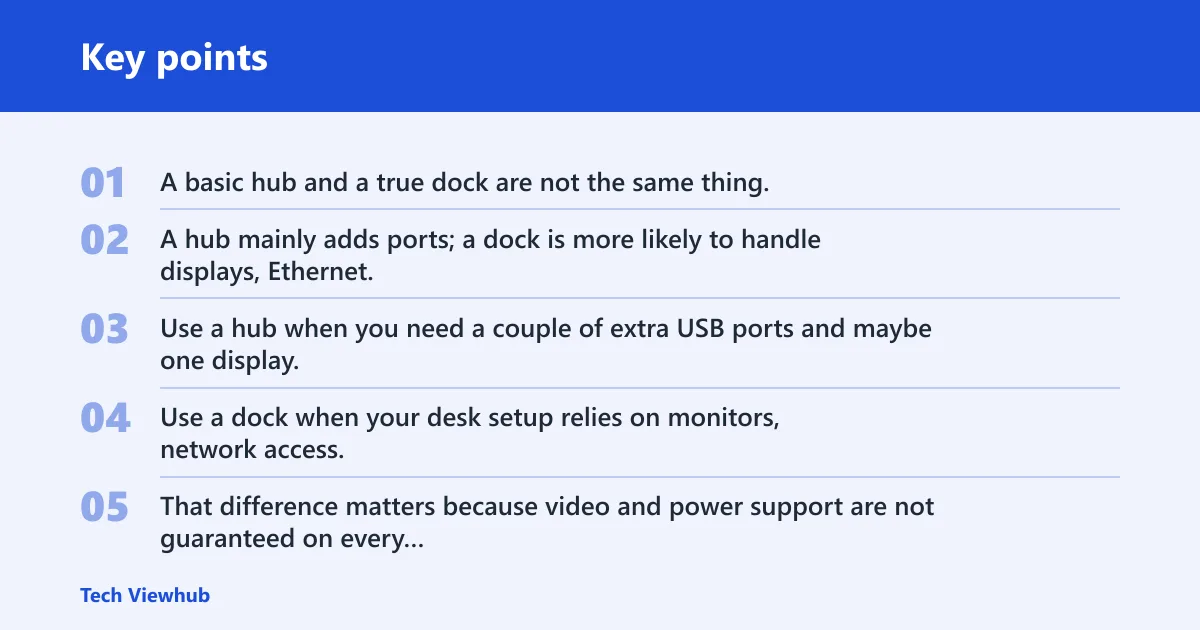
A basic hub and a true dock are not the same thing. A hub mainly adds ports; a dock is more likely to handle displays, Ethernet, and power delivery through one connection to the laptop.
How a dock differs from a basic hub
Use a hub when you need a couple of extra USB ports and maybe one display. Use a dock when your desk setup relies on monitors, network access, and charging through the same connection. That difference matters because video and power support are not guaranteed on every laptop port.
What a dock connects to on your desk
A dock can connect your laptop to HDMI or DisplayPort monitors, a wired Ethernet network, USB-A accessories, and charging power. Some models also add card readers or extra USB-C ports for storage and peripherals. HP notes that basic docking stations may provide a power supply and ports, while more advanced ones may include room for additional monitors and extra USB-C ports.
Why charging and video support matter
Charging and display output are the two features that most often decide whether a dock is useful. If your laptop cannot charge over USB-C, or if its USB-C port does not send video, a dock may not solve the problem you bought it for.
Do you need one?
You need a docking station if your desk setup uses multiple peripherals and you want one connection to handle monitors, charging, Ethernet, and USB-A. If you only need a mouse, a keyboard, and one extra port or two, a USB-C hub may be enough.
The right choice comes down to what your laptop port supports and how many devices you connect each day. A dock is worth it when you repeatedly plug and unplug the same gear, especially for a home office or hybrid setup.
Signs a dock is worth it
Choose a dock if you regularly connect two or more monitors, use a wired network, charge from the desk, or keep older USB-A accessories plugged in. It also helps when you want to keep the laptop closed on a stand and work like a desktop.
When a USB-C hub is enough
A hub is enough when your laptop already has the ports you need and your setup is simple: one monitor, a charger, and a small number of accessories. It is also the better fit for light travel because it is usually smaller and easier to carry.
When you should skip a dock
Skip a dock if your laptop has no USB-C video support, your charger must stay separate, or your monitor setup is too demanding for the laptop’s graphics output. In that case, a dock can add cost without fixing the real bottleneck.
Does your laptop support a dock?
Support starts with the laptop port, not the dock box. A USB-C port can carry data, display, and charging, but not every USB-C port supports all three, and not every laptop supports the same power level or monitor count.

Start with port shape, then verify port capability. A USB-C connector only tells you the plug shape; it does not confirm data speed, DisplayPort Alt Mode, USB Power Delivery input, or Thunderbolt support. Those details determine whether the dock will charge the laptop, drive a display, or both.
USB-C data, video, and charging support
USB-C is the common single-cable connection standard for docks, but laptop support varies. One USB-C port may support data only, another may support data and video, and another may also support charging. Check the laptop spec for display output and power input, not just the port shape.
For video, the key phrase to look for is USB-C DisplayPort Alt Mode. If the laptop does not support Alt Mode, a standard USB-C dock may still provide USB ports and Ethernet, but external display output is unlikely to work without a separate graphics path or a DisplayLink-based dock.
Thunderbolt support and why it matters
Thunderbolt is the safer choice for demanding docks because it usually carries higher bandwidth for multiple displays and faster peripherals. For dock compatibility, the important check is Thunderbolt version support on the laptop, because Thunderbolt 3, 4, and 5 are not interchangeable in every setup and do not all guarantee the same monitor mix.
Thunderbolt 5 is the newest high-bandwidth option, but it should be treated as an emerging premium standard rather than a universal requirement. A dock that advertises Thunderbolt 5 still has to match the laptop’s own Thunderbolt version and display support to work as expected.
Laptop limits that can block dock features
Three common failure cases cause most dock complaints: unsupported video over USB-C, weak power delivery, and missing driver support. Display limits can also come from the laptop itself, especially on systems that only support one external display or lower refresh rates through a given port.
Another common limitation is GPU and platform bandwidth. Some laptops can power a dock and still fail to drive multiple external displays because the integrated graphics, discrete graphics routing, or USB-C controller only exposes a limited number of display streams.
For that reason, a dock with strong specs does not override a weak laptop path. If the notebook only supports one external display natively, the second screen may require a DisplayLink dock or may not be supported at all, depending on the system and driver stack.
Say your 14-inch laptop has one USB-C port that charges the machine but does not support video output. A dock can still charge it, yet the monitor stays dark because the laptop never sends a display signal through that port.
What ports and features should you expect?
Dock port layout should match the gear you already own. USB-C and Thunderbolt are the main laptop connections, while HDMI, DisplayPort, Ethernet, and USB-A determine what you can plug in at the desk.
USB-C, Thunderbolt, and legacy USB-A
USB-C is the most common dock connection because one cable can carry data, video, and charging. Thunderbolt docks sit at the high end and are the better match for multi-monitor and high-bandwidth setups. USB-A still matters because many keyboards, mice, dongles, and external drives still use it.
HDMI and DisplayPort outputs
HDMI and DisplayPort are the common monitor outputs on docks. Availability varies by model, and a dock may offer one standard but not the other. DisplayPort matters when you need broad monitor support or a 4K connection and the dock does not provide HDMI.
Ethernet and power delivery
Ethernet gives you a wired network port for stable work-from-home use, and some docks support speeds up to about 10 GbE. Power delivery means the dock sends charging power to the laptop through the same cable, and the output is measured in watts. Some laptops charge cleanly through a dock; others still need the original charger because the dock’s wattage is too low.
Real dock examples
The CalDigit TS5 Plus supports up to three 4K displays, includes 10 GbE Ethernet, provides 140 watts on its host USB-C port, has five USB-A 3.2 Gen 2 ports at 10 Gbps, and includes one DisplayPort 2.1 connection. The Belkin Connect USB-C 11-in-1 Pro GaN Dock offers 96-watt power delivery and can support up to three 4K displays at a time.
Docking station decision table
Use this checklist by starting with the laptop port type, then matching your display count, charging need, Ethernet need, and USB-A need. The recommended dock class is the smallest one that fits all of your answers.
| Laptop port type | Monitor count | Charging need | Ethernet need | Legacy USB-A need | Recommended dock class |
|---|---|---|---|---|---|
| USB-C with data only | 1 monitor | No | No | 1 to 2 ports | Yes — basic hub, because you only need simple expansion and the laptop does not need dock-level features |
| USB-C with video output | 1 to 2 monitors | Yes | Yes | 2 or more ports | Yes — USB-C dock, because the port can carry display plus power and supports a fuller desk setup |
| Thunderbolt | 2 to 3 monitors | Yes | Yes | 2 or more ports | Yes — Thunderbolt dock, because higher bandwidth is usually the safest fit for multiple displays and fast peripherals |
| USB-C without video support | Any external monitor | Yes or no | Optional | Any | No — skip until laptop display support is confirmed, because the port may charge but not output video |
| USB-C with video output | 3 monitors | Yes | Yes | 3 or more ports | Yes — Thunderbolt dock or high-end USB-C dock, because triple-monitor setups usually need more bandwidth and tighter compatibility checking |
- Check whether the laptop supports video over USB-C or Thunderbolt.
- Count the monitors you want to connect, then note the target resolution and refresh rate.
- Confirm whether you need charging through the dock and how many watts the laptop expects.
- Decide whether you need wired Ethernet for stable networking.
- Count your USB-A accessories so you do not run out of ports.
- Choose the smallest dock class that satisfies every yes in your checklist.
How many monitors can it support?
The answer depends on both the dock and the laptop. A dock may list dual- or triple-monitor support, but the laptop must also output enough video bandwidth for the chosen resolution, refresh rate, and cable type.
Dual-monitor setups
Dual monitors are the most common dock use case. Many USB-C docks can handle two displays if the laptop supports it, but 4K at higher refresh rates may reduce the number of displays you can run at once.
Triple-monitor limits
Triple-monitor support usually pushes you into a higher-end dock and a more capable laptop connection. CalDigit lists support for up to three 4K displays on the TS5 Plus, and Belkin lists support for up to three 4K displays on its USB-C 11-in-1 Pro GaN Dock. That does not mean every laptop can drive all three.
If the dock depends on DisplayLink rather than native video alt mode or Thunderbolt, triple-monitor compatibility may also depend on operating system support and driver behavior. That is a common reason a dock works on paper but behaves differently on a particular laptop.
Resolution and refresh-rate tradeoffs
Higher resolution and higher refresh rates consume more bandwidth. If you want two 4K displays, or one 4K display with a fast refresh rate, the dock and laptop both need enough headroom. DisplayPort 2.1 on a dock can help, but the laptop-side limit still applies.
Suppose a creator wants one 4K monitor at 60 Hz and one 1440p display for tools and timelines. A dock that handles two displays may still fail if the laptop only supports a single external display over USB-C.
How to choose the right dock
Choose the dock around the weakest link in the setup: laptop port support, charging wattage, display output, and accessory count. The best dock for your desk is the one that matches those limits without forcing extra adapters.

Home office and hybrid work setups
For home office and hybrid work, start with a USB-C dock or Thunderbolt dock if you need one-cable connection, Ethernet, and at least one external monitor. If you want the desk to feel permanent, favor a dock with enough USB-A ports for keyboard, mouse, headset, and storage.
Workflow-wise, a single-monitor office user can usually stop at a USB-C dock with charging and Ethernet. That setup is simple, fast to connect, and avoids paying for monitor bandwidth you will not use.
Student and travel-friendly setups
For students and frequent travelers, a USB-C hub is often enough unless you return to the same desk every day with a monitor and charger. Keep the setup simple if you only need a screen, a flash drive, and a charger in one place.
For a student traveler, portability usually matters more than a full dock. The better buy is often the smallest adapter that covers classroom presentations, charging, and file transfers instead of a desk dock with monitor-heavy features.
Creator setups with more demanding displays
For creators, the dock needs to fit the display chain first. If you work with two or three monitors, high refresh rates, or large files on external storage, Thunderbolt is usually the cleaner choice because it gives more bandwidth and fewer bottlenecks than a basic USB-C hub.
A creator with high-resolution displays should prioritize the laptop’s external display limit before shopping by brand or port count. If the laptop cannot support the desired resolution and monitor mix, even a premium dock will not eliminate the bottleneck.
Frequently asked questions
What is a laptop docking station?
A laptop docking station is a desk connection point that can bring power, displays, Ethernet, and USB peripherals onto one cable. It is most useful when you want a laptop to behave like a desktop at the same workstation every day.
Do I need a laptop docking station?
You need one if you regularly use external monitors, a wired network, charging from the desk, and several peripherals at once. If your setup is light and you only need a few extra ports, a smaller USB-C hub may be the better fit.
Does my laptop support a docking station?
Check the laptop spec for USB-C or Thunderbolt support, then verify whether that port carries data, video, and charging. If the laptop does not support display output or power input over that port, a dock may not provide the features you expect.
Do docking stations work with all laptops?
No. A dock may physically connect, but the laptop still has to support the needed functions. Video output, power delivery, and even sleep or wake behavior can fail if the laptop lacks support or needs a specific driver setup.
Can a docking station power my laptop?
Sometimes. Power delivery depends on the dock model and the wattage it supplies, and the laptop must accept charging through that port. If the dock provides less power than the laptop expects, you may still need the original charger.
How many monitors can a docking station support?
That depends on both the dock and the laptop. Some docks support two displays, while others support three 4K displays, but the laptop’s video output limit, cable type, and refresh-rate target can reduce that number in practice.