How Much Should You Budget for a Laptop?
Budget about $600 to $1,000 for most people, about $300 to $500 for basic school or web use, and about $1,000 to $1,800 for coding, creative work, or light gaming. Spend too little and you usually get slow performance, short battery life, or a laptop you replace sooner. This guide breaks down price bands, the specs that matter, and the hidden costs that change your real total.
What really drives laptop costs
A practical laptop budget is the price of the machine plus the items you need on day one. For many buyers, that means the laptop itself, a bag or sleeve, and sometimes extra storage, a mouse, or a dock. If you plan for only the sticker price, you can end up short on the exact things that make the laptop usable.
Price matters, but the use case matters more. A student who mainly uses a browser and documents can stay near the low end. A coder, office worker with many tabs, or creator who edits media should plan for more RAM, more storage, and a better screen. Those upgrades cost money up front, and they also reduce replacement risk.
What changes the budget fastest?
The fastest budget changes usually come from RAM, storage, screen quality, repairability, and the platform you choose. An SSD is the floor, not a luxury. For work and school, 8GB RAM is the practical minimum, while 16GB is the safer target for heavier multitasking and coding. A 512GB SSD costs more than 256GB, and OLED panels usually push the total higher than IPS. Consumer Reports’ current buying guidance also emphasizes enough RAM and SSD storage over gimmicks, while current retailer listings show how quickly those upgrades change price at the shelf.
Processor generation also matters. An Intel Core Ultra or Core i5, Ryzen 5, or Apple M-series chip can be a smart target, but older generations of the same label can feel very different in speed and battery life. Compare the generation, not only the name. In the same budget band, ports and repairability can also change value: a laptop with USB-C plus USB-A, HDMI, and an easy-to-service SSD can be worth more than a thinner model that needs immediate dongles.
Laptop budget ranges explained
Many laptop prices are grouped into four practical bands: under about $400, about $400-$800, about $800-$1,500, and above about $1,500. Cheap laptops are priced at $200-$400, mid-range laptops are priced at $500-$900, and premium laptops start at $1,000+. A decent laptop typically costs $500-$800, which is why that band gets mentioned so often.

Under $400: basic machines and Chromebooks
Under $400, you are usually looking at entry-level Windows laptops or Chromebooks. Chromebooks are priced at roughly $150-$400 at major retailers such as Best Buy and Amazon, and they make the most sense for browser-based work, school portals, email, streaming, and cloud documents. WIRED recommends Chromebooks over bottom-tier Windows laptops for a few hundred dollars, and that advice fits this band.
This range works for very light use. It is a poor fit for heavy multitasking, large local files, or software that expects a full Windows or macOS app environment. Battery life can be decent in some models, but screen quality and storage space are often limited. A 4GB RAM laptop with eMMC storage should generally be avoided unless the workload is extremely basic and browser-only.
$400-$800: the mainstream sweet spot
This is the best range for most buyers. You can find better keyboards, stronger processors, 8GB or 16GB RAM options, and a much higher chance of getting an SSD with enough space to avoid constant cleanup. It is also where many buyers stop underbuying without paying for features they will never use.
CNET says it is possible to find a decent laptop for less than $1,000, and that aligns with this band. Current retailer pricing and school procurement pages often place usable student and office laptops right here, especially when the target spec is 8GB RAM, 256GB to 512GB SSD, and a 1080p display. For work use, 300+ nits and 1080p are better practical floors than lower-resolution panels.
$800-$1,500: better screens, speed, and build quality
This band fits buyers who want a better display, longer battery life, quieter operation, or stronger all-around performance. You are more likely to see 16GB RAM as standard, 512GB storage, better chassis materials, and displays that make long work sessions easier on the eyes.
This is also the range where paying for a premium-feeling laptop starts to make more sense. The same source says $1,000 is an important price point for premium-feeling laptops, and many good options exist below $1,000 too. That makes this band the crossover point between practical and polished. If you split time between office work and creative tasks, this is often where a better screen, more ports, and repairable storage move from nice-to-have to worthwhile.
Above $1,500: premium and creator-focused models
Above $1,500, you are usually paying for top-tier build quality, brighter or more color-accurate screens, thinner designs, longer battery life, or more raw power. This range often makes sense for creative users, frequent travelers who value battery life and weight, or buyers who want a machine to last for years without compromise.
Gaming laptops also live partly in this territory. Gaming laptops are priced at $1,200-$2,500+, which reflects stronger graphics hardware, larger cooling systems, and the extra power needed for demanding titles. If you are buying at this level, the screen, thermals, and port selection matter as much as the processor name.
Which laptop type fits your budget?
Choose the platform before you compare specs in detail. Chromebooks fit the lowest budgets and browser-first use. Windows laptops give you the broadest app support across cheap to premium models. MacBooks start higher, but they fit buyers who want macOS and are willing to pay for that ecosystem.
Chromebooks for browser-based use
Chromebooks are the easiest fit for very light budgets and simple tasks. They make the most sense if you live in a browser, use web apps, or mostly rely on cloud storage. For that kind of work, you can save a lot versus buying a Windows machine with specs you do not need.
If your software list includes specialized Windows desktop apps, local creative tools, or niche school programs, a Chromebook can become the wrong budget choice. It may be cheaper at the checkout, but more expensive if you have to replace it later.
Windows laptops for the widest app support
Windows laptops cover the broadest range of prices and uses, from basic school machines to premium notebooks. Windows 11 availability matters if you want current support and modern app compatibility. For buyers who need flexibility, this is the safest default platform.
Windows is also where budget decisions matter most. A low-priced Windows laptop can be fine, but the bottom tier often cuts corners on RAM, storage, screen quality, and ports. That is why many buyers do better stepping up one price band instead of chasing the absolute lowest sticker price. If you are comparing student models, this student laptop comparison is the best context for deciding when Windows is worth the extra spend.
MacBooks for macOS buyers and higher starting prices
MacBooks are the premium-and-mainstream option for people who want macOS, Apple software integration, and a tighter hardware-software package. Entry-level MacBooks start above the budget Windows and Chromebook tiers, so they are rarely the low-cost answer.
The value case is different here. A MacBook can make sense if you will use it for years, want strong battery life, and already rely on Apple services or devices. The higher starting price is part of the budget, not an afterthought.
What specs should your budget cover?
Your budget should cover the parts that affect daily use first: RAM, storage, processor class, and display. The safe baseline is 8GB RAM and an SSD, with 16GB RAM becoming the new standard for heavy multitasking. A good processor example is Intel i5 or Core Ultra, Ryzen 5, or Apple M-series.
RAM: 8GB minimum, 16GB for heavier multitasking
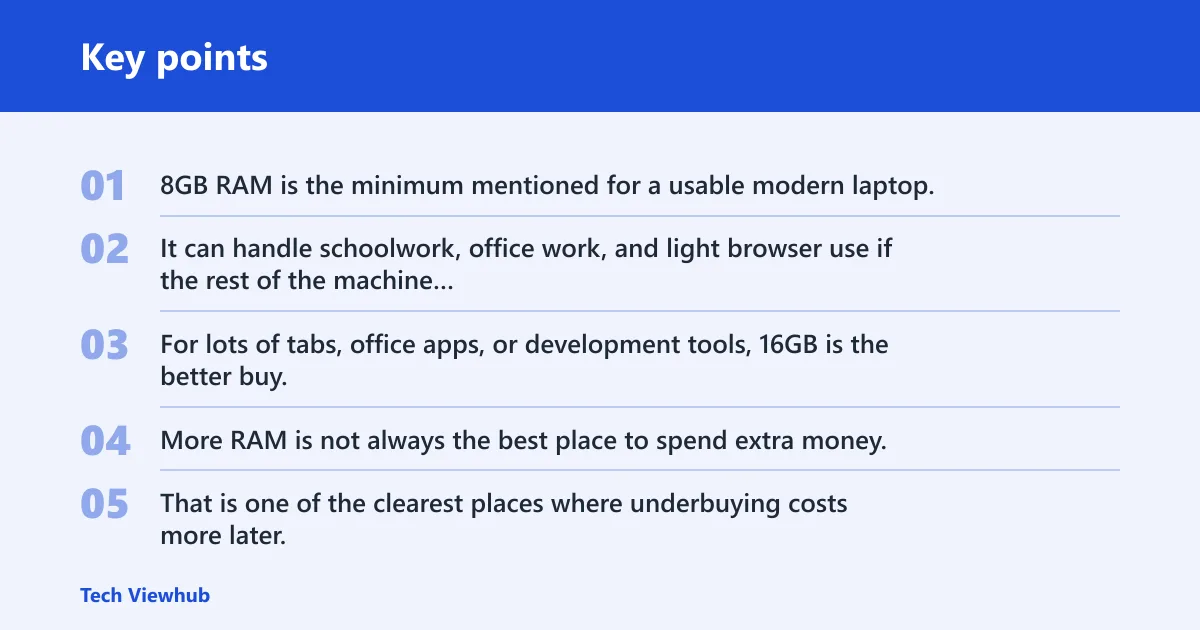
8GB RAM is the minimum mentioned for a usable modern laptop. It can handle schoolwork, office work, and light browser use if the rest of the machine is balanced. For lots of tabs, office apps, or development tools, 16GB is the better buy.
More RAM is not always the best place to spend extra money, but too little RAM causes slowdowns fast. That is one of the clearest places where underbuying costs more later. For coding, 16GB should be treated as the practical floor; for creative work, 16GB is the baseline and 32GB can be worth it if projects are large.
Storage: why SSDs are the floor
Buy an SSD. Without one, a laptop can feel slow even if the processor looks fine on paper. A 256GB SSD can work for light use, but 512GB gives you more room for updates, documents, photos, and apps without constant cleanup.
For buyers who keep many files locally, 256GB can fill quickly. If you expect to keep the laptop for years, 512GB usually buys more breathing room and less annoyance. That matters for resale too, since fuller or cramped storage can reduce appeal later. In school and office workflows, 512GB also leaves room for temporary files, project folders, and operating-system updates without forcing constant pruning.
Processor class: why generation matters
Intel i5, Core Ultra, Ryzen 5, and Apple M-series chips are all sensible targets, but the generation matters as much as the label. A newer midrange chip can be better than an older higher-tier part, especially for battery life and general responsiveness.
For buyers choosing between similar-looking models, the newer generation often gives better long-term value than a small bump in storage or a slightly larger screen. That is especially true if you plan to keep the laptop for three to five years.
Display and battery life: where spending pays off
Full HD or better should be the floor for most buyers. For work, 300+ nits and 1080p are better practical baselines than dimmer, lower-resolution panels. Screen size is a tradeoff: smaller models travel more easily, while larger ones can be better for spreadsheets, editing, and long reading sessions. OLED can be worth the extra money for color and contrast, while IPS often gives better value at lower prices.
Battery life also changes the budget. Light users can accept less, while students and mobile workers usually benefit from better endurance. Some budget models have surprisingly long battery life, but that usually comes with tradeoffs in screen quality or performance.
Laptop budget calculator
| Buyer profile | Recommended base-machine budget | Estimated add-on cost range | Recommended total budget | Target specs | Likely hidden add-ons | Best place to spend the next $100 | Lowest acceptable spec floor |
|---|---|---|---|---|---|---|---|
| Student | $350-$650 | $50-$150 | $450-$750 | 8GB RAM, 256GB SSD, Full HD screen, Chromebook or Windows laptop | Sleeve, charger backup, cloud storage | Move from 8GB to 16GB RAM, or from a dim panel to a 1080p screen | 8GB RAM, SSD, browser-first or Windows 11 support |
| Office worker | $550-$900 | $75-$150 | $650-$1,000 | 16GB RAM, 512GB SSD, Intel i5/Core Ultra or Ryzen 5, Full HD or better | Mouse, dock or adapter, bag | Prioritize 16GB RAM or a better keyboard and port selection | 8GB RAM, SSD, reliable keyboard, current OS support |
| Coder | $800-$1,300 | $100-$250 | $900-$1,500 | 16GB RAM, 512GB SSD, newer Intel i5/Core Ultra, Ryzen 5, or Apple M-series | External monitor, keyboard, mouse, cloud backup | Spend on 16GB to 32GB RAM, then a brighter 1080p or better display | 16GB RAM preferred, SSD, strong CPU generation |
| Creative user | $1,000-$1,800 | $150-$400 | $1,200-$2,000+ | 16GB RAM or more, 512GB SSD or larger, stronger display, better color | External storage, color-calibrated display needs, peripherals | Spend on the display, then storage and RAM before chasing raw CPU numbers | 16GB RAM, SSD, high-quality screen, capable processor |
Hidden laptop costs to include
Hidden costs can change the real budget by a meaningful amount. Common extras include chargers, port adapters, sleeves or bags, mice, keyboards, cloud storage, and protection plans. If your laptop has fewer ports, a dongle or dock may be necessary on day one.
Chargers, dongles, and port adapters
Some laptops ship with only the basics, and some rely on USB-C connections that may require adapters for older accessories. If you need HDMI, USB-A, or Ethernet, plan for the adapter before you buy. That is a small cost compared with buying the wrong model.
Sleeves, bags, mice, and keyboards
A sleeve or bag is not optional if you carry the laptop often. A mouse can also be worth it for office work or editing, and a full-size keyboard can help if the built-in one feels cramped. These are not luxury add-ons when they affect daily comfort.
Software, cloud storage, and protection plans
Some buyers need paid software or extra cloud storage right away, especially for school or work accounts that exceed free limits. Protection plans are a judgment call, but they matter more on thin, premium, or hard-to-repair laptops. The repair risk should be part of the budget, not ignored until later.
Say your laptop budget is $700 and your school requires a specific desktop app that only runs on Windows. A Chromebook may look cheaper, but the software requirement makes it the wrong buy. In that case, spending more on the correct platform is cheaper than replacing the laptop early.
When upgrades are worth paying
Pay more for upgrades that reduce friction every day: 16GB RAM if you multitask, 512GB storage if you keep files local, and a better screen if you stare at it for hours. Skip upgrades that do not match your actual workload. A faster chip you never fully use is wasted budget.
How much should you budget by use case?
Use case should set the ceiling and the floor. School and office work can stay in the mainstream zone. Coding benefits from more RAM and a stronger processor. Creative work and gaming usually need a much larger budget because display quality, graphics power, and storage matter more.

School and student use
For school, many buyers can stay in the $300-$750 range if the work is mainly browser-based, documents, and video calls. A Chromebook can work well at the low end. If the school requires Windows software, move into the mainstream Windows range instead.
Battery life matters here because students often move between classes, libraries, and home. A lighter laptop can also be easier to carry, so you may want to spend a little more on portability rather than raw speed.
Office work and everyday productivity
Office work usually fits best in the about $600-$1,000 range. That budget gives you enough room for 16GB RAM, an SSD, a good keyboard, and a screen that is easier to live with all day. For spreadsheets, email, meetings, and many tabs, this is the sweet spot.
A common first-timer mistake is buying the cheapest Windows laptop available and then adding a dock, a mouse, and extra storage later. That often pushes the total close to what a better-built laptop would have cost at the start.
Coding and development
Coding usually deserves $900-$1,500 if you want a laptop that can handle IDEs, containers, browsers, and background tools without bogging down. 16GB RAM is the safer target, and a newer processor generation matters because development workloads keep many things open at once.
If you plan to use an external monitor, keyboard, and mouse, include those costs in the total. That setup can improve comfort and productivity, but it is part of the real purchase. For a simple desk setup, the monitor often deserves the next $100 before a faster CPU does, because a larger, higher-quality screen improves every hour of use.
Creative work and gaming
Creative work often needs more budget for display quality, storage, and sustained performance. Gaming usually needs even more because of the graphics load. The $1,200-$2,500+ gaming range exists for a reason: power costs money, and so does cooling it.
For creators, a better panel can matter more than the largest CPU number on the page. For gamers, a thin premium chassis may look attractive, but it can run hotter or louder than a machine built for that load.
How to avoid overspending or underbuying
Start with the next three to five years, not one task. Then put money first into the parts that affect daily use: RAM, SSD capacity, screen quality, and battery life. After that, decide whether the extra cost really changes your experience or only the spec sheet.
- Pick the platform first: Chromebook, Windows, or MacBook.
- Set the budget by use case, not by sale price.
- Choose 8GB RAM at minimum, or 16GB for heavier multitasking.
- Require an SSD, then decide between 256GB and 512GB.
- Check the processor generation, not only the model name.
- Add the real extras: bag, mouse, adapter, software, and storage.
Suppose you are comparing two laptops at the same sticker price. One has 16GB RAM and a 512GB SSD, while the other has 8GB RAM, 256GB storage, and a prettier lid. The first is usually the smarter budget because it will age better, sell better, and frustrate you less.
Frequently asked questions
How much should a good laptop cost?
A good laptop typically costs $500-$800. That range usually gets you a decent processor, 8GB or 16GB RAM, an SSD, and a display that is usable for long sessions. The same source says it is possible to find a decent laptop for less than $1,000, which fits this range well.
How much should a laptop cost?
Most buyers should expect to spend about $600 to $1,000 for a well-balanced laptop. If your needs are basic, $300 to $500 can work. If you need coding, creative tools, or gaming, plan for $1,000 to $1,800 or more once you include the machine and necessary extras.
When buying a laptop, what should I budget?
Budget for the laptop plus the accessories and upgrades you need. At minimum, include a sleeve or bag if you carry it, and budget for a mouse, adapter, cloud storage, or software if your work requires them. That total is usually more useful than the sticker price alone.
How much for a good laptop?
For most buyers, “good” starts around $500 and becomes much easier to find by $800. In that zone, you can usually get SSD storage, at least 8GB RAM, and a better balance of speed and battery life. If you multitask heavily, aim closer to 16GB RAM.
How much money does a laptop cost?
Your use case should decide which band makes sense.
What should I budget for a premium laptop vs a budget laptop?
A budget laptop usually needs a smaller total budget, but it may need more compromises on screen quality, storage, and long-term comfort. A premium laptop costs more up front, often starting at $1,000+, but it usually brings better build quality, better displays, and lower repair risk over time.