How to Fix a Slow Windows 11 Startup
Start with the stage that slows Windows 11: if the delay happens before sign-in, check Fast Startup, update firmware, and trim startup services; if the desktop appears first, focus on startup apps, Windows Update, and system file repair. A bad fix order wastes time and can hide storage problems until the PC gets worse. This guide shows how to sort pre-login, post-login, and hardware-health delays, then fix each one in the right order. Windows Update helps keep the system current, and SFC and DISM can repair corrupted Windows files.
What you’ll need
Use built-in Windows tools first so you can tell whether the slowdown is caused by startup apps, update work, damaged system files, low disk space, or a storage problem.
- Task Manager for the Startup apps tab and Startup impact sorting
- Control Panel for Power Options and Fast Startup
- Windows Update in Settings
- Event Viewer for repeated boot delays
- Command Prompt or Windows Terminal opened as administrator
- SFC and DISM commands
- A drive health tool or the SSD/HDD maker’s utility
- Enough free space on the C drive to install updates and create temp files
Slow startup triage table
Use the timing of the delay before you change settings. A healthy Windows startup varies by hardware, storage type, and update state, so treat repeated slowdowns as a diagnosis problem rather than chasing a single “normal” number. What matters most is where the delay happens: before sign-in, at sign-in, or after the desktop loads.
| Symptom timing | Likely cause | Best first fix |
|---|---|---|
| Before sign-in | Boot-path delay, Fast Startup conflict, firmware, drive delay | Test Fast Startup in Control Panel, then check drive health |
| At sign-in | Startup apps, profile load, high-impact background apps | Task Manager > Startup apps, sorted by Startup impact |
| After desktop loads | Windows Update work, corrupted system files, background services | Check Windows Update, then run SFC and DISM |
How do you fix a slow Windows 11 startup?
Start with startup apps and Fast Startup, then move to Windows Update, SFC/DISM, storage health, and drivers. If the problem changes after a reboot, write down the stage of the delay before trying the next fix.
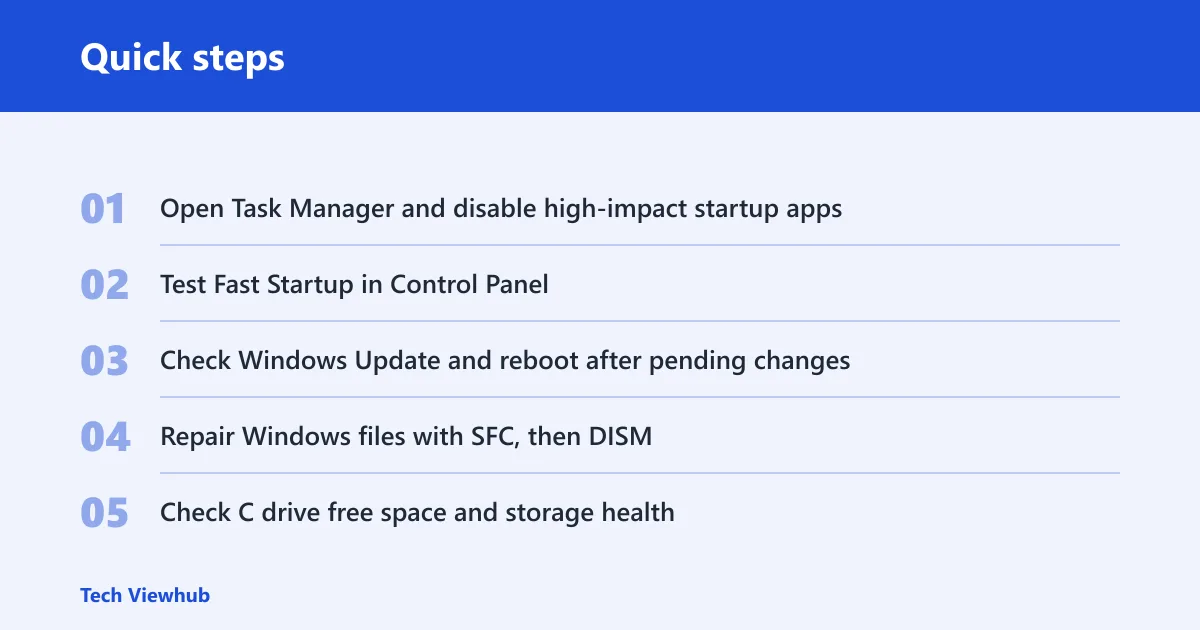
- Open Task Manager and disable high-impact startup apps. Press Ctrl + Shift + Esc, open Startup apps, sort by Startup impact, then turn off apps you do not need at sign-in. This often fixes a slow login screen fast.
- Test Fast Startup in Control Panel. Go to Control Panel > Hardware and Sound > Power Options > Choose what the power button does, then open Change settings that are currently unavailable and toggle Turn on fast startup. Fast Startup uses a hybrid shutdown, and it may help or cause boot issues depending on the PC and setup.
- Check Windows Update and reboot after pending changes. Open Settings > Windows Update, install any pending updates, then restart. Pending quality updates, drivers, or a stuck reboot cycle can leave extra work at boot.
- Repair Windows files with SFC, then DISM. Open an elevated terminal and run
sfc /scannow. If it finds damage or keeps failing, runDISM /Online /Cleanup-Image /RestoreHealth, then repeatsfc /scannow. - Check C drive free space and storage health. Keep enough room for temp files, updates, cache, and virtual memory. If the system drive is nearly full, the boot process can slow down. If the PC still crawls, inspect the drive with a health tool or the maker’s utility.
- Update storage controller and chipset drivers before graphics drivers. Use Device Manager to update, roll back, or remove the driver if boot problems started after a driver change. Storage and chipset faults affect boot timing more directly than display drivers.
- Scan for malware and use a clean boot if needed. Run a full security scan with your installed antivirus or Microsoft Defender. If the delay remains, open msconfig, use the Services tab, hide Microsoft services, disable the rest, and reboot so you can isolate third-party services and startup items.
If your PC shows the spinning dots for 40 seconds before the login box appears, then signs in quickly, the delay is happening before sign-in. In that case, Fast Startup, drive health, and firmware belong near the top of the list. If the login box appears quickly, but the desktop takes another minute to become usable, the delay is happening after sign-in and points more toward startup apps, Windows Update work, or damaged system files.
Which tool should you use?
Use the symptom to pick the tool. Repeating delays at the same point are easier to diagnose when you match them to the right Windows utility first, instead of opening every repair tool in sequence.
| Common symptom | Exact tool to use |
|---|---|
| Startup takes long before sign-in | Control Panel > Power Options |
| Sign-in is slow and the desktop is late | Task Manager > Startup apps |
| Delay repeats after every boot | Event Viewer |
| Files or Windows components may be damaged | SFC, then DISM |
| Delay started after a recent update | Windows Update |
| Boot seems tied to disk activity or warnings | Drive health check |
Should you change Fast Startup?
Yes, but test it one way at a time. Fast Startup can help some systems boot faster, yet it can also trigger unexplained boot problems, dual-boot issues, driver compatibility trouble, or odd behavior after firmware updates. Because it changes how shutdown and startup work, it is worth testing early when the slowdown begins before sign-in.
When Fast Startup may help
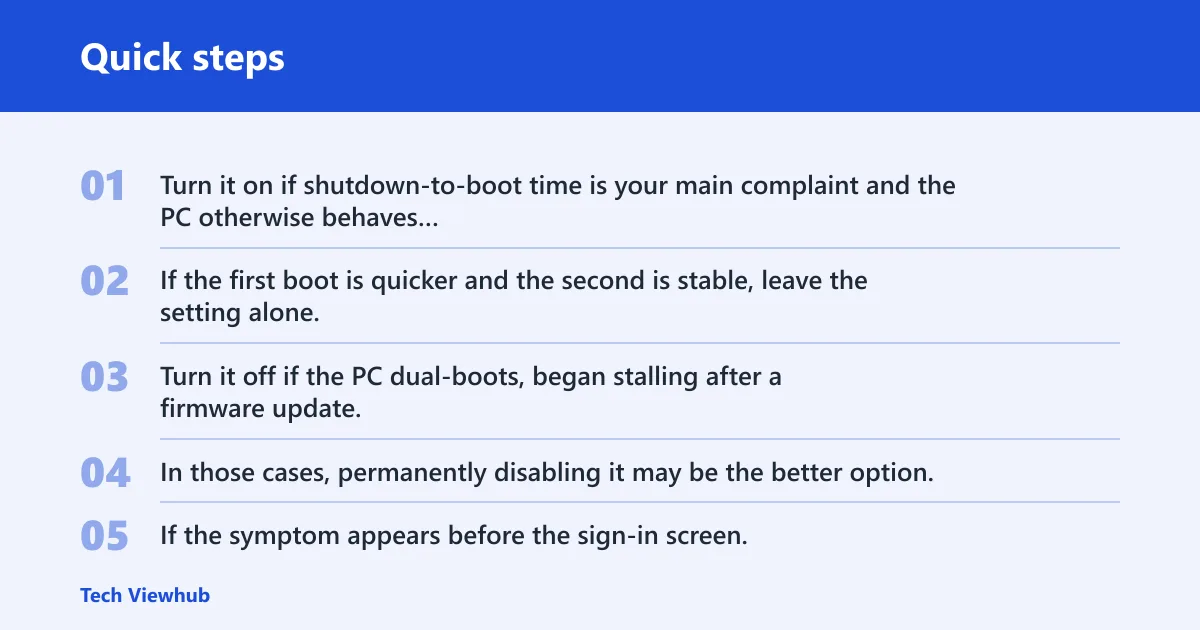
Turn it on if shutdown-to-boot time is your main complaint and the PC otherwise behaves normally. Then reboot twice and compare the timing. If the first boot is quicker and the second is stable, leave the setting alone.
When Fast Startup may cause trouble
Turn it off if the PC dual-boots, began stalling after a firmware update, or shows boot quirks that do not match app load times. In those cases, permanently disabling it may be the better option. If the symptom appears before the sign-in screen, this is one of the first settings to rule in or out.
How to test one change at a time
Use one toggle, then one reboot cycle, then recheck the same symptom. If the boot still hangs, revert that change before trying the next step. That keeps the diagnosis readable.
When is hardware the cause?
Storage is the first hardware suspect when startup time moves from slow to erratic, especially on older HDD-based systems. A failing SSD or HDD can create extremely slow startup, and low C drive space can make the problem worse by blocking temp files, updates, cache, and virtual memory. Firmware or controller issues can also sit in the path, so do not assume every long boot is just an app problem.
Signs that point to a failing SSD or HDD
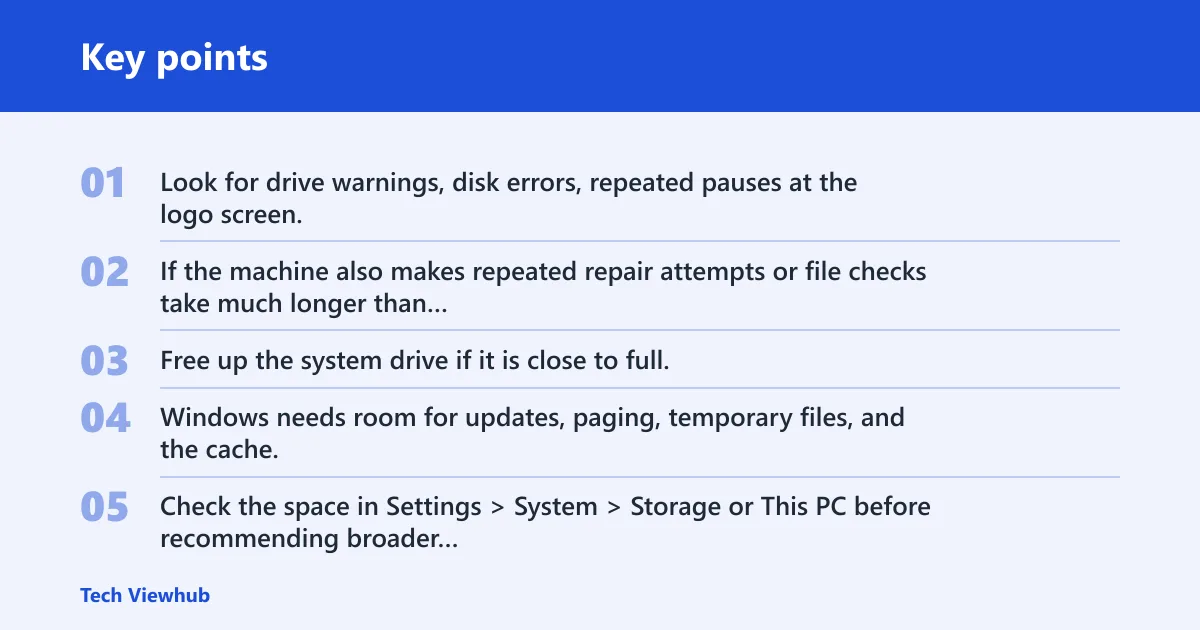
Look for drive warnings, disk errors, repeated pauses at the logo screen, or a boot time that worsens over weeks. If the machine also makes repeated repair attempts or file checks take much longer than usual, stop chasing app settings and inspect the drive first.
When low free space becomes a bottleneck
Free up the system drive if it is close to full. Windows needs room for updates, paging, temporary files, and the cache. Check the space in Settings > System > Storage or This PC before recommending broader cleanup.
When to suspect firmware or controller issues
If the slowdown begins after a BIOS or UEFI change, or after a storage-related driver update, review the storage controller and chipset drivers before graphics drivers. A bad setting can make a healthy drive look slow. If Event Viewer shows repeated device or disk warnings at boot, that pattern points more toward storage or firmware than toward a startup app.
Common mistakes
A slow boot is often misread as one problem when it is really two. Avoid these traps so you do not waste time on the wrong layer.
- Changing many settings at once: test one fix, reboot, then measure the same stage again.
- Blaming apps for a pre-sign-in delay: that usually points to Fast Startup, firmware, or storage.
- Running repairs before checking disk health: a failing SSD or HDD can make every repair look ineffective.
- Ignoring C drive space: Windows needs room for updates, cache, temp work, and virtual memory.
- Updating graphics drivers first: storage controller and chipset drivers are the better first check for boot-related lag.
Frequently asked questions
Why is Windows 11 slow to boot?
The usual split is pre-sign-in delay, sign-in delay, or post-desktop lag. That point in the boot path tells you where to start. Check Fast Startup and storage health first for pre-sign-in stalls, then startup apps and Windows Update for delays after the desktop appears.
How do I disable startup apps in Windows 11?
Open Task Manager, select Startup apps, then sort by Startup impact. Turn off entries you do not need at sign-in. Leave security software on unless another repair step tells you to disable it, and check the boot time after the next restart.
How much free space should I keep on my Windows 11 drive?
Keep enough space for updates, temporary files, cache, and virtual memory to work without pressure. Check Settings > System > Storage or This PC before deeper cleanup so you know whether storage pressure is part of the slowdown.
What should I update first when Windows 11 startup is slow?
Start with Windows Update, then storage controller and chipset drivers if the delay still looks hardware-related. If the problem began after a firmware change, review Fast Startup too. Graphics drivers come later unless the delay is tied to display initialization.
How do I check if my SSD or HDD is causing slow boot?
Check for drive warnings, disk errors, and a boot delay that grows over time. If the system hangs before sign-in or pauses at the logo screen, the drive deserves attention before app cleanup. A drive health tool is the right first check.
Do I need to reinstall Windows if startup is still slow?
Usually not at first. Run SFC, then DISM, check Windows Update, and verify storage health before you reset or reinstall. Reinstalling too early can hide a drive problem and waste time if the real fault is hardware.