Why Is My Monitor Not Detected with HDMI?
Your monitor usually fails to detect HDMI because one part of the signal path breaks: the monitor input is wrong, the cable or adapter cannot carry video, Windows lacks the right driver, or the laptop port does not send video. If you skip the weak link, you can waste time on fixes that cannot work and lose an external screen for work or gaming. This guide traces each layer so you can pin down the fault and fix it fast.
What you’ll need
- HDMI cable
- Monitor with an HDMI input
- Windows PC or laptop
- Optional second HDMI cable for a swap test
- Optional USB-C to HDMI adapter or dock for laptop testing
- Optional spare monitor for isolation testing
📊 A Surface USB4 Dock supports dual 4K monitors at 60Hz. Source: Microsoft.
Why is my monitor not detecting HDMI?
The quickest way to sort this out is to check whether the monitor shows no signal or whether Windows does not list the display at all. Those are different faults. One points to cable, input, port, or adapter trouble. The other points to Windows, drivers, or laptop video routing.
Picture a 27-inch monitor that powers on and says No HDMI signal. That means the panel has power, but the video path is broken before the monitor can lock onto a signal. If Windows also never shows a second display, the fault may sit higher in the chain.
Separate the failure layer first
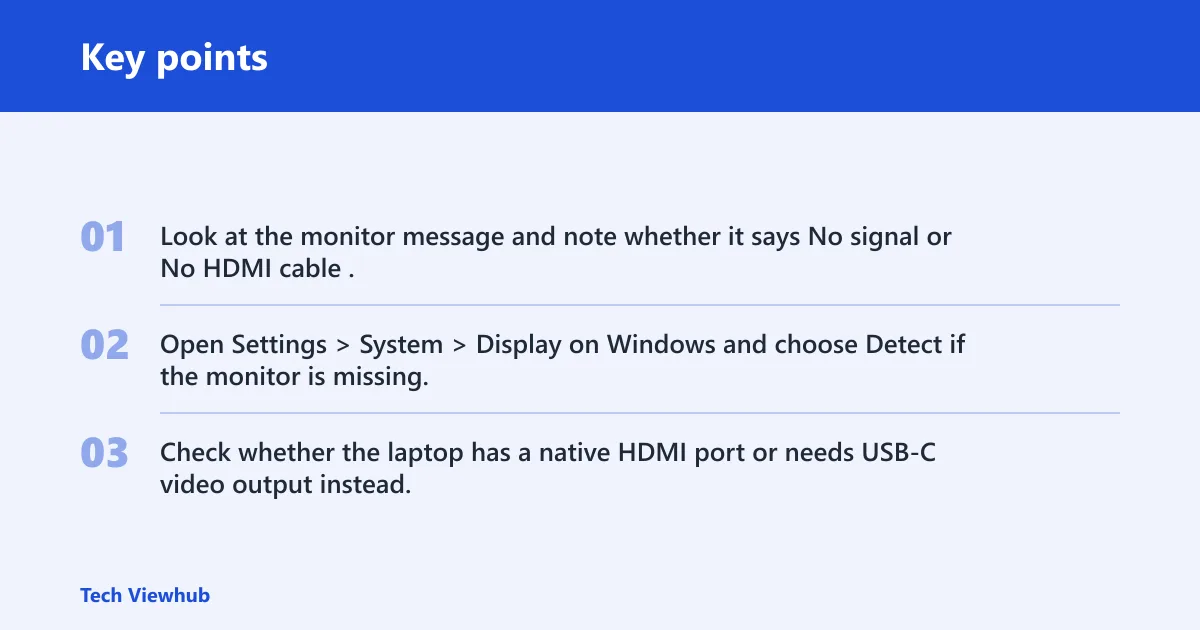
- Look at the monitor message and note whether it says No signal or No HDMI cable.
- Open Settings > System > Display on Windows and choose Detect if the monitor is missing.
- Check whether the laptop has a native HDMI port or needs USB-C video output instead.
Why does the monitor say no signal?
No signal usually means the monitor is on the right power path, but it is not receiving usable video. The most common causes are a loose HDMI cable, the wrong monitor input source, a damaged port, or a cable that cannot carry the resolution or refresh rate you asked for.
Put simply, a monitor can be powered on and still wait forever for video if the input source does not match the active port. In most cases, the cause is plain.
Check the cable, input, and port in order
- Push the HDMI cable in firmly at both ends until it seats fully.
- Press the monitor Input button or open its menu and select the exact HDMI input in use.
- Inspect both HDMI ends for bent pins, dirt, or a blocked port.
- Swap to another HDMI cable if the monitor still says no signal.
- Try another HDMI port on the monitor or the computer if one exists.
Start with the basics
Basic checks still fix many failures, but only when you test them in order. A loose cable is a first place to look, and the monitor may be on the wrong input. After that, a power cycle clears many glitches.
Run the fastest reset path
- Disconnect the HDMI cable from the monitor and the computer.
- Turn the monitor off, unplug it, and wait 60 seconds. (Wikihow)
- Restart the computer.
- Reconnect the HDMI cable at both ends.
- Use the monitor controls to select the matching HDMI input.
If a laptop is connected to an external display through HDMI and the monitor still shows no signal after a restart, stop there. Reseating the cable and selecting the HDMI input are the next checks. If those do nothing, the next step is a different cable or a different port.
Why won’t Windows detect the display?
If the monitor works but Windows does not list it, the problem is likely above the cable and input layer. Open Settings > System > Display and select Detect. If the display still does not appear, Windows may need a driver refresh, a rollback, or a clean reinstall.
Check Windows detection and drivers
- Go to Settings > System > Display and select Detect.
- Open Device Manager > Display adapters and confirm the graphics device is listed.
- If the issue started after an update, roll back the display adapter driver from its properties page.
- If rollback is unavailable or fails, uninstall the display adapter and restart the PC so Windows reinstalls it.
- Run Windows Update and install any graphics or optional driver updates offered there.
Some failures trace back to a recent Windows update, not the monitor itself. If the display disappeared right after a reboot or update, rollback is often the better first move than another driver install. If the driver looks current but unstable, a clean reinstall is the next test.
Adapter, dock, and laptop checks
Newer laptops often route video through USB-C instead of HDMI, and some USB-C ports can send video straight to a monitor. That means the adapter or dock can be the weak link even when the cable and monitor are fine. A USB-C to HDMI adapter must support video output, not only charging or data.
Test the laptop output path
- Confirm the laptop port supports video out, especially if HDMI is absent.
- Bypass the dock and connect the monitor directly to the laptop with a known-good cable or adapter.
- Try a different USB-C to HDMI adapter if the first one only charges or transfers files.
- Test with another monitor to isolate whether the issue sits with the laptop, adapter, dock, or display.
Some laptops also route video through specific GPUs or ports. A disabled dGPU output, a hybrid-graphics switch, or a non-video USB-C port can make a connected display look dead even though the connector fits. If one side port works and another does not, treat that as a routing clue, not a cable problem.
HDMI monitor troubleshooting matrix
| Setup | Symptom | Likely cause | One-minute verification | Replacement or test needed | Escalation path |
|---|---|---|---|---|---|
| Direct HDMI | Monitor says no signal | Wrong input, loose cable, bent pin, dirty or damaged port | Check the monitor input and reseat both ends | Second HDMI cable or another monitor port | Test the cable on another monitor, then test the computer on another display |
| Direct HDMI | Black screen after setting 4K or high refresh | HDMI version or bandwidth mismatch | Lower resolution or refresh in Settings > System > Display > Advanced display | Higher-bandwidth cable, port, or adapter | Use a known capable port and retest at a lower rate first |
| USB-C to HDMI adapter | Monitor says no HDMI cable or no signal | Adapter does not support video output | Check the adapter label and reconnect directly to the laptop | Video-capable USB-C to HDMI adapter | Bypass the adapter and test native video out if available |
| Docking station | Display works direct, fails through dock | Dock firmware, port limit, or power/data-only path | Disconnect the dock and connect direct to the laptop | Another dock port or another monitor | Test a different USB-C port on the laptop or a different dock |
Common mistakes
The most common mistake is assuming every HDMI failure has the same cause. It does not. A monitor that says no signal is not the same problem as a display missing from Windows, and a dock failure is not the same as a bad cable.
- Checking the cable before the monitor input source.
- Using an adapter that carries power or data but not video.
- Skipping driver rollback after a problem begins right after an update.
- Ignoring cable, adapter, or port limits with 4K or high-refresh setups.
If that didn’t work
If the monitor still will not connect after the basics, move down the ladder and change only one variable at a time. That keeps you from replacing three parts when one test would have identified the fault.
Escalate one layer at a time
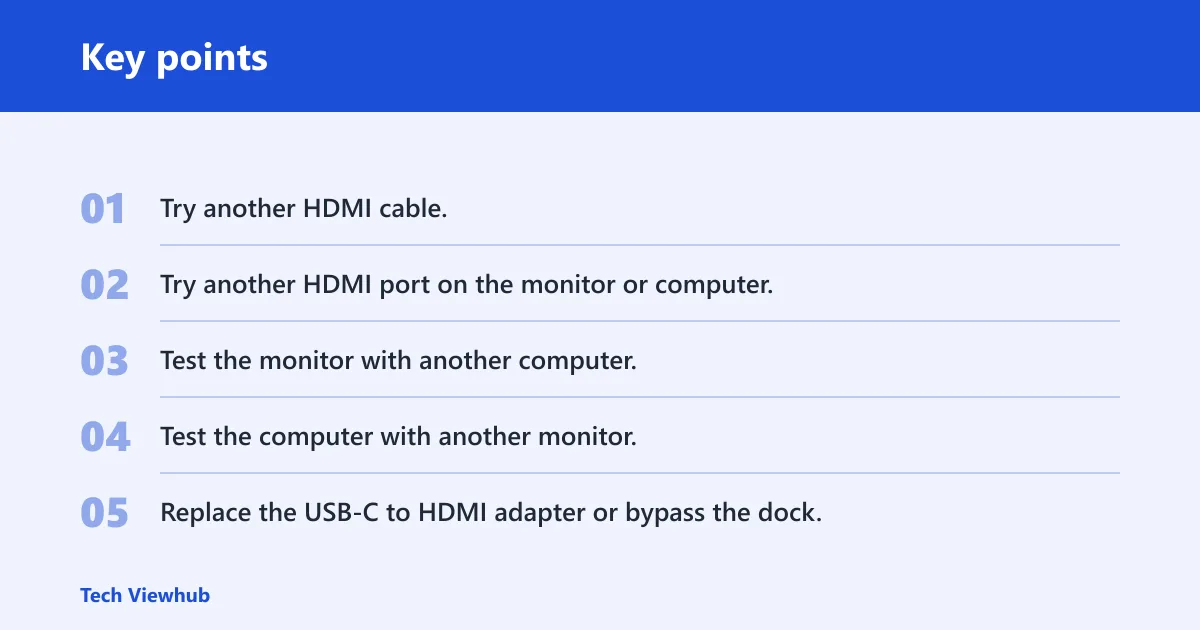
- Try another HDMI cable.
- Try another HDMI port on the monitor or computer.
- Test the monitor with another computer.
- Test the computer with another monitor.
- Replace the USB-C to HDMI adapter or bypass the dock.
- Rollback or reinstall the graphics driver if the failure began after an update.
Wait 60 seconds after unplugging cables before retesting if the monitor seems stuck in the wrong state. That pause can clear residual power and signal-handshake problems. If the display still fails after that, the likely fault is no longer a simple seating issue.
Frequently asked questions
Why is my monitor not working with HDMI?
Start with Settings > System > Display > Detect, then verify the monitor input source and cable seating. If the screen still shows no signal, check for bent pins, another HDMI port, or a different cable. On laptops, also confirm the port actually outputs video.
Why is my monitor not detecting my laptop HDMI?
Some laptops do not send video through every port, even when the connector fits. Use the laptop’s direct video output if it has one, or test a USB-C port that supports video. If Windows does not list the monitor, check Device Manager > Display adapters next.
Why does my monitor say no HDMI signal from your device?
That message usually points to a video path problem between the device and the monitor. Reseat the HDMI cable, select the correct input, and lower the display rate in Settings > System > Display > Advanced display if the setup uses 4K or high refresh. A bandwidth mismatch can stop handshake.
Why does my monitor say no HDMI cable?
The monitor is not sensing a valid connection on that input. Check whether the plug is fully seated, whether the cable is damaged, and whether the HDMI port is blocked or dirty. Then try a different cable or another HDMI port if the monitor offers one.
Why won’t my monitor detect HDMI?
Use the ladder in order: confirm the monitor input, reseat both ends, power cycle the monitor for 60 seconds, then run Settings > System > Display > Detect. If the monitor still does not appear, reinstall or roll back the graphics driver and test with another monitor.
Why is my screen not working with HDMI?
That usually means one layer in the connection path is failing, not the full setup. A direct HDMI cable, a USB-C to HDMI adapter, and a dock each have different failure points. Test direct to the laptop first, then add the dock or adapter back only after the direct path works.