Backup Drive vs Recovery Drive: What’s the Difference?
Use a backup drive for file copies you can restore after deletion, corruption, or ransomware. Use a recovery drive only to boot Windows repair tools after startup fails. Keep both if you want file recovery and system rescue. Using the wrong one can leave you with missing files or a PC that will not start, with no repair path. This guide explains what each Windows tool does, which failure it solves, and when a combined setup makes sense.
| Decision factor | Backup drive | recovery drive | Winner |
|---|---|---|---|
| Main job | Stores restorable copies of files, or a full system image on an external drive | Boots Windows recovery tools when the PC will not start | Backup drive for file protection; recovery drive for startup repair |
| What it preserves | File History preserves personal files; Windows Backup can also save settings, themes, installed apps, and Wi‑Fi info | Contains WinRE, not your files or installed apps | Backup drive |
| Minimum media | External drive or network location; system images fit best on an external hard drive | At least 16 GB USB storage | Tie |
| Setup impact | Does not erase the destination if configured normally | Completely erases the USB during creation | Backup drive |
| Best for | Deletion, ransomware, migration, and full restore plans | Dead boot, BitLocker prompts, and repair access | Tie |
Backup drive vs recovery drive
The difference is simple: a backup drive protects your data, while a recovery drive helps Windows start repair tasks. A backup can hold files, settings, or a full system image. A recovery drive is a bootable USB that contains the Windows Recovery Environment, so it fixes a broken startup path, not your data.
Microsoft groups Recovery Drive under recovery, not backup. That matches the practical split: one tool restores access to Windows tools, the other restores content. If you need both file protection and a way back from a boot failure, you need both categories.
What each tool actually saves
A recovery drive does not back up personal files, installed applications, or custom settings. It contains WinRE, which gives you troubleshooting, reset, and repair options. That makes it useful when Windows will not load, but useless as a copy of your documents or app installs.
By contrast, File History automatically backs up personal files such as documents, photos, and videos to an external drive or network location. Windows Backup can include files, themes, settings, installed apps, and Wi‑Fi information, and it stores selected folders in OneDrive through a Microsoft account. A system image goes further and captures the OS, installed programs, user data, registry entries, boot files, and directories. (Microsoft Support)
Backup drive decision matrix
This matrix maps common failure cases to the tool that actually solves the problem. Match the failure to the recovery method, then check the smallest storage or media type that makes that method possible. A small USB rescue stick and a larger backup drive do very different jobs.
| Failure scenario | Correct tool | Why this tool fits | Minimum storage or media needed |
|---|---|---|---|
| Won’t boot | recovery drive | WinRE can run startup repair, reset, and other boot repair steps | At least 16 GB USB |
| Accidental deletion | File History | File History keeps versions of personal files you can restore | External drive or network location |
| Ransomware | File History | Versioned file backups give you a clean copy after encryption or tampering | External drive or network location |
| Dead drive | system image | A system image can restore the full system to replacement hardware or a new disk | External hard drive, DVD, or network location |
| Broken Windows update | recovery drive | WinRE offers repair and rollback-type recovery paths when update damage blocks startup | At least 16 GB USB |
| New PC migration | Windows Backup | It can carry files, settings, themes, installed apps, and Wi‑Fi info to a new device | Microsoft account plus cloud sync |
| BitLocker lockout | recovery drive | WinRE gives you a repair path when the machine reaches a recovery prompt instead of the desktop | At least 16 GB USB |
| Corrupted app install | system image | A full image restores the OS and installed programs together | External hard drive, DVD, or network location |
Why the matrix splits the tools this way
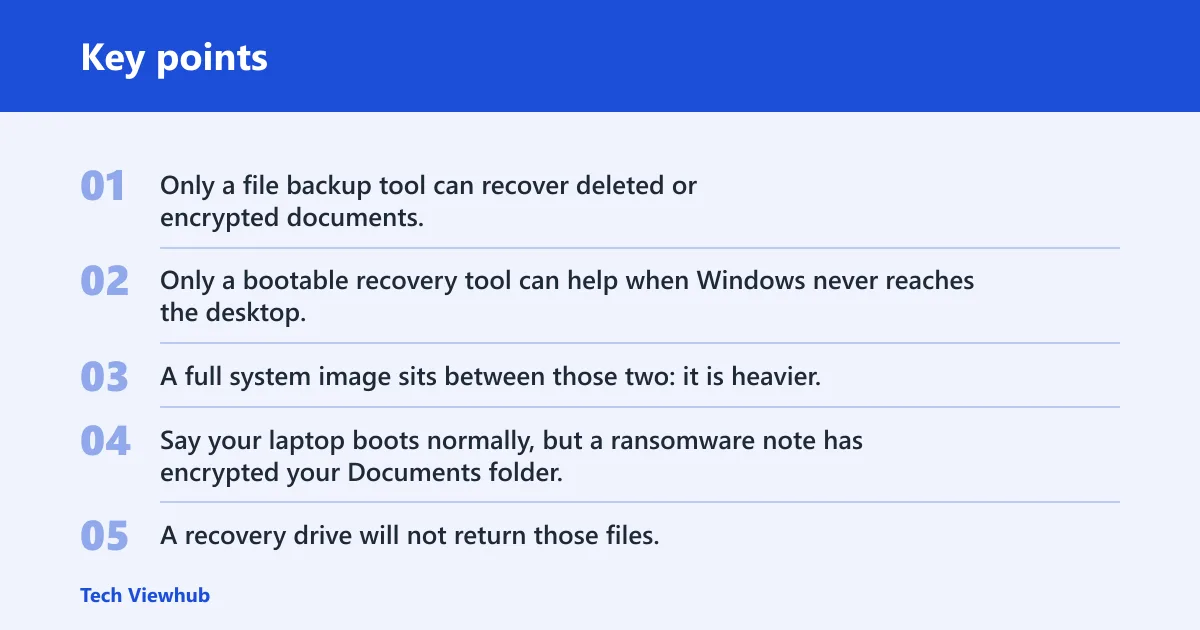
Only a file backup tool can recover deleted or encrypted documents. Only a bootable recovery tool can help when Windows never reaches the desktop. A full system image sits between those two: it is heavier, but it can bring back the operating system, apps, and user data together.
Say your laptop boots normally, but a ransomware note has encrypted your Documents folder. A recovery drive will not return those files. File History or Windows Backup is the better answer, because the problem is file damage, not startup failure.
Suppose the SSD dies overnight and the PC stops at a black screen. File History can still protect documents you backed up earlier, but it will not rebuild Windows itself. That is where a system image or a fresh installation path from recovery media matters.
Which tool fixes which failure?
Use the failure you actually have as the filter. If the PC cannot boot, start with recovery media. If the machine runs but files are gone or changed, use a file backup. If the entire installation is damaged, a system image is the closest thing to a full restore.

Recovery drive scenarios
A recovery drive is the right tool when Windows will not start, when a broken update blocks boot, or when BitLocker stops the machine before the desktop appears. It contains WinRE, so it is built for troubleshooting and recovery rather than data retrieval. (Microsoft Support)
It can also help when the internal drive has failed enough that Windows can no longer load. What it cannot do is put back your documents, photos, or installed apps. If those matter, you still need a separate backup plan.
File History scenarios
File History fits accidental deletion, overwritten files, and ransomware because it tracks versions of personal files. It stores backups on an external drive or network location, so the backup copy is separate from the PC. That separation matters when the computer itself is still usable but the files are not.
This is the better choice for people who care most about documents, pictures, and videos. It is lighter than a full image, and it focuses on the content most users actually need back after a mistake or attack.
Windows Backup scenarios
Windows Backup is the better fit for moving to a new device. It can include files, themes, settings, installed apps, and Wi‑Fi information, which makes setup on the next PC less repetitive. It is cloud-based through a Microsoft account, so it is aimed at device transfer rather than boot repair.
That makes it useful for laptop owners who replace hardware often, and for home users who want a simple sync path for selected folders. It does not replace a local recovery drive, because cloud backup will not help if the machine will not start at all.
System image scenarios
A system image is the right tool when you want a full restore of the system drive. It captures the OS, apps, registry, boot files, and user data, so it can rebuild a damaged installation more completely than file backup alone. Use it when the whole setup matters, not just the documents.
It is also the strongest option for replacing a dead drive or undoing a bad app or driver change that has damaged the Windows installation. Backup and Restore (Windows 7) may still create system images in Windows 10 and Windows 11, so that legacy tool can still be useful.
How much storage do you need?
The storage gap is the biggest practical difference between these tools. A recovery drive needs only a 16 GB USB stick, while file and system backups need a larger destination that can hold ongoing data. That is why a small rescue USB and a separate external hard drive often make sense together.
Recovery drive size and erase warning
Microsoft says a recovery drive uses a USB drive of at least 16 GB. Creating it completely erases the USB drive, so do not reuse a stick that holds files you care about. The media is meant to sit ready for emergency boot use, not for everyday storage.
External drive size for File History and system images
File History and system images are better suited to an external hard drive. File History needs a destination that can hold repeated versions of personal files, and system images need enough space for the full system drive content. An external hard drive also stays separate from the PC, which helps if the internal drive fails.
When DVD or network storage makes sense
DVD or network storage can work for a system image when that is the setup available, because Microsoft lists both as valid destinations. In practice, an external hard drive is usually the cleaner choice for most Windows users because it is easier to refresh and keep off the PC.
Choose Backup drive if… / Choose recovery drive if…
Choose a backup drive if your main concern is getting files back after deletion, ransomware, or a dead drive. Choose a recovery drive if your main concern is getting Windows to start repair tools after the PC fails to boot. Most people who care about both problems need both tools, not one substitute for the other.
Choose Backup drive if…
- You need copies of documents, photos, or videos.
- You are migrating to a new PC and want files, settings, apps, and Wi‑Fi info carried over.
- You want a full system image for a complete restore after a major failure.
- You need ongoing protection from deletion or ransomware.
Choose recovery drive if…
- The PC will not boot and you need access to WinRE.
- You want a USB-based repair tool for startup problems or BitLocker prompts.
- You need a reset path after a broken Windows update.
- You want a small emergency rescue stick, separate from your file backups.
How often should you remake each one?
Recreate a recovery drive after major Windows changes, because the old one may lag behind the current recovery environment. Backups need regular refreshes for a different reason: they protect changing files and settings. One tool ages with Windows itself; the other ages with your data.
Recovery drive refresh cadence
It is a common rule of thumb to make a new recovery drive after a feature update, a major upgrade, or a significant hardware change. A stale recovery USB can still boot in some cases, but it may miss newer repair tools or driver support. If you depend on it for startup rescue, periodic rebuilds are worth the time.
Backup refresh cadence
File History works best when it runs automatically, because documents and photos change often. Windows Backup also benefits from periodic updates so new settings and apps are captured before a migration. A system image does not need daily rebuilding, but it should be refreshed after major software changes or before risky maintenance.
What is the difference between a backup drive and a recovery drive?
A backup drive stores recoverable copies of your files, settings, or even a full system image. A recovery drive is a bootable USB that contains WinRE and helps Windows repair or reset itself when startup fails. They solve different problems, and one does not replace the other.
Does a recovery drive save personal files?
No. A recovery drive does not back up personal files, installed applications, or custom settings. Its job is to boot the Windows Recovery Environment so you can troubleshoot, repair, or reinstall Windows. If your files matter, you still need File History, Windows Backup, or a system image.
Can I use the same USB for backup and recovery?
You can physically reuse the same USB at different times, but it is a poor setup. Creating a recovery drive erases the USB, so anything stored on it is lost. A separate external drive is the better backup destination, while a dedicated USB stick is cleaner for recovery.
How big does a recovery drive need to be?
Microsoft says a recovery drive needs at least 16 GB of USB storage. That minimum covers the bootable recovery environment, not your files. If the stick is smaller, or if it contains data you need to keep, it is not a good candidate for recovery media.
Do I need an external hard drive for Windows backups?
For File History and system images, yes, an external hard drive is the best practical destination. File History stores versions of personal files on an external drive or network location, and system images are commonly stored on an external hard drive, DVD, or network location. The key is keeping the copy separate from the PC.
What happens if my only backup is a recovery drive?
You can repair or reinstall Windows, but you will not get your personal files, installed apps, or custom settings back from that USB. If the internal drive fails or files are deleted, the recovery drive does not contain them. That is why a recovery-only setup leaves a major gap.
Should I create a system image or a recovery drive first?
Start with a recovery drive if the PC is your only machine and you need a way back into Windows repair tools. Add a system image next if you want full restore capability after a dead drive or broken installation. A recovery drive gets you to the tools; a system image restores the machine.
What does Windows Backup include compared with File History?
File History backs up personal files such as documents, photos, and videos. Windows Backup goes broader and can include files, themes, settings, installed apps, and Wi‑Fi information, with selected folders stored in OneDrive through a Microsoft account. File History is file-focused; Windows Backup is migration-focused.
How often should I remake a recovery drive?
Remake it after major Windows changes, especially feature updates or hardware changes. A recovery drive can go stale because it is tied to the recovery environment available when it was created. If you rely on it for boot rescue, refreshing it periodically is a sensible habit.
Can a recovery drive restore Windows after a hard drive failure?
It can help you start the repair process on a replacement drive, but it does not contain your system image or your files. After a dead drive, the recovery drive is a boot tool, not the restore copy itself. For a full return to the old setup, you need a system image or a clean reinstall plus backups.