Why Is Windows Update Taking So Long on Windows 11?
If the screen has shown no change for about 2 hours, treat the update as stuck. Stopping too early can break a normal install; waiting too long can leave a stalled update holding up a restart and security fixes. This guide splits the process into normal, stalled, and bottleneck stages so you know what to check next.
What makes Windows 11 updates seem slow
Windows 11 updates usually do several jobs in order: download, verify, install, reboot, and finish after startup. The part you see on screen may be only one stage, so a long wait does not always mean trouble. Delay can come from Microsoft’s servers, your network, the device’s storage, or background work on the PC.
The update phases you may not see
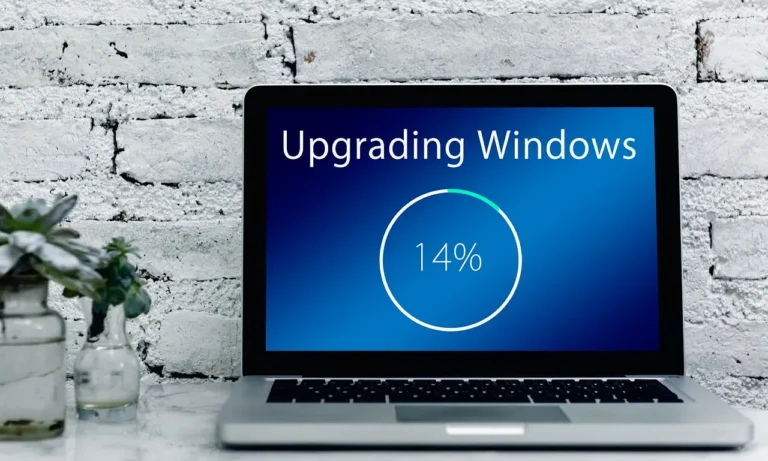
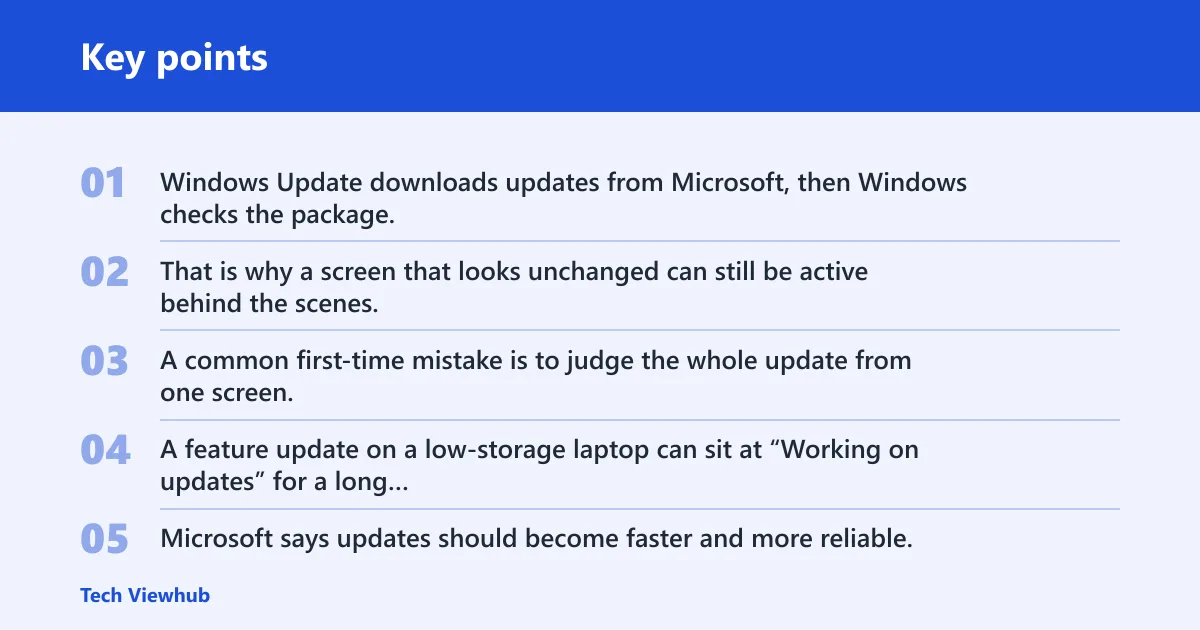
Windows Update downloads updates from Microsoft, then Windows checks the package, unpacks it, installs it, reboots, and finishes setup after the desktop returns. Some stages show a percentage. Others do not. That is why a screen that looks unchanged can still be active behind the scenes.
A common first-time mistake is to judge the whole update from one screen. A feature update on a low-storage laptop can sit at “Working on updates” for a long stretch while disk activity stays high. The visible step is only part of the job.
Why newer updates can still take longer
Microsoft says updates should become faster and more reliable, and it also plans to cut forced reboots to once a month. Even so, Windows 11 updates can still take hours on slower PCs, on systems with limited free storage, or when the network is weak. A pause feature may also be available for an indeterminate time, which can change when an update lands.
What normal variation looks like
There is no fixed clock for every Windows 11 update. A small quality update may finish quickly on a fast PC. A feature update, a system with an older drive, or a machine running antivirus scans and file sync at the same time can take much longer. A slow internet connection is one common cause, but it is only one of several.
Suppose a desktop starts a cumulative update while OneDrive is syncing a large photo folder and Windows Search is indexing a new drive. The update may look slow even though the system is busy doing three things at once. That is different from a true freeze.
How long should a Windows 11 update take?
Most Windows 11 updates should not be judged by one minute count alone. On a fast connection and a healthy system, the download and install may move quickly. On older hardware, slow drives, or low free storage, the same update can take much longer without anything being broken.
Fast vs slow connections
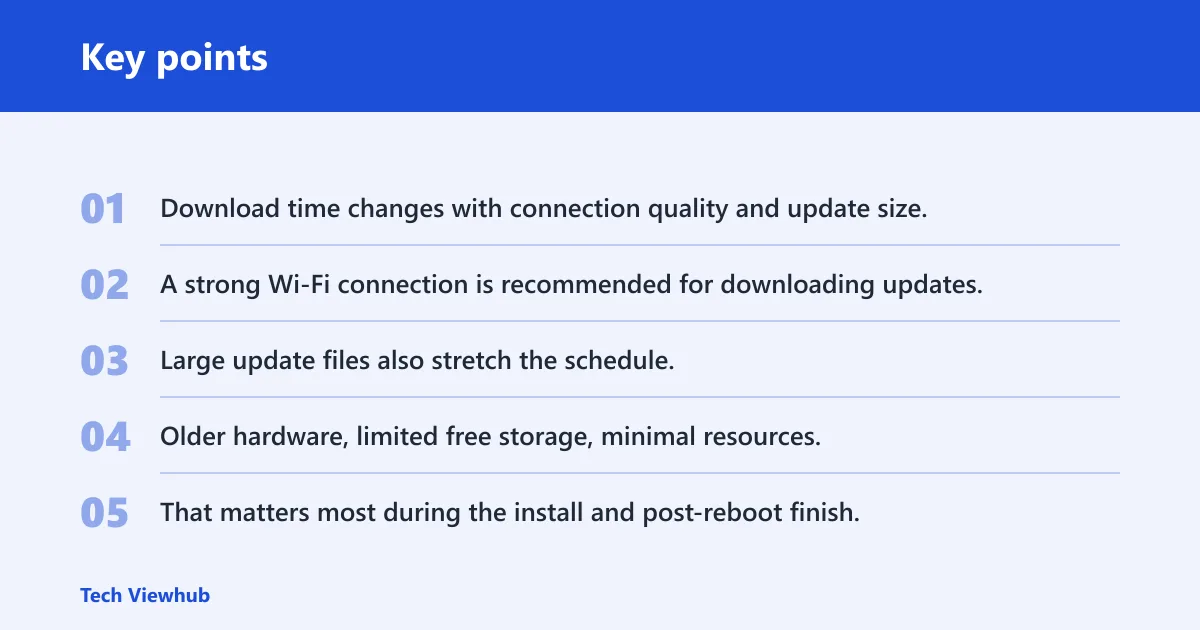
Download time changes with connection quality and update size. A strong Wi-Fi connection is recommended for downloading updates, while a slow internet connection can make downloading and installing updates much slower. Large update files also stretch the schedule, especially if the device has to pause for verification and unpacking.
Older PCs and low-storage systems
Older hardware, limited free storage, minimal resources, or a slow drive can lengthen update time. That matters most during the install and post-reboot finish, where Windows may need space to unpack files and rewrite system components. If storage is tight, the update may crawl or stop before completion.
When hours can still be normal
Hours can still be normal when the update is large, the device is under load, or the PC is older. The key is whether there is evidence of work. A changing percentage, disk activity, or a reboot sequence in progress points to a live update. A flat screen with no system activity is more concerning.
On a modern laptop, a feature update may move from download to restart without much fuss. On a five-year-old desktop with a nearly full SSD, the same update can spend most of its time unpacking and writing files. Different machines produce different wait times.
Is Windows 11 actually stuck?
Windows 11 is more likely stalled when progress stops for a long time and the system shows little sign of work. If the percentage keeps moving, the device is still processing the update. If there is no percentage, use Task Manager and the drive light to judge whether the system is busy or frozen.
Percentages that keep moving
If the percentage changes every so often, the update is usually still active. The movement may be slow, and pauses of several minutes can happen during verification or file replacement. That is normal if the system still shows background activity.
No percentage, but active disk work
When there is no visible percentage, open Task Manager and check CPU and disk usage. High disk activity, moderate CPU use, or repeated update-related background tasks suggest the device is still working. That is a healthy sign, even if the screen looks unchanged.
Signs of a true freeze
A true freeze usually shows several signs at once: no percentage change for about 2 hours, little or no disk activity, no CPU movement, and no sign of reboot progress. If the device is also unable to reach Microsoft’s update servers, the issue may be the network stack, the Windows Update service, or a corrupted cache rather than the update itself.
Windows 11 update delay triage
| Symptom | Likely cause | What to check first | Safe action | When to escalate |
|---|---|---|---|---|
| Download delay | Slow internet or large update files | Wi-Fi signal and connection speed | Leave it running on a stable network | If the download stays flat for 2 hours |
| Install delay | Older hardware, slow drive, low free storage | Task Manager and available disk space | Wait if disk activity is still high | If there is no activity for 2 hours |
| Reboot delay | Post-reboot finishing or driver setup | Screen changes and drive activity | Keep the PC powered on | If reboot progress never resumes |
| Checking for updates… | wuauserv hung, cache problem, or network issue | Windows Update service status | Restart the service first | If the check stays frozen after restart |
| No percentage movement | Stalled install or background load masking progress | CPU, disk, and update-related tasks | Wait if the system is active | If the system is idle and unchanged |
| High disk activity | Normal unpacking, antivirus scan, file sync, or indexing | Task Manager process list | Keep the PC plugged in and wait | If activity lasts far longer than expected |
| VPN interference | VPN filters or misroutes Microsoft traffic | Whether a VPN is connected | Disconnect the VPN and retry the check | If update checks fail even without the VPN |
| Cache corruption | SoftwareDistribution cache is damaged or incomplete | Whether downloads or checks repeat endlessly | Clear the cache after stopping the service | If the same failure returns after cache reset |
What to check before you restart anything
Before you interrupt anything, look for signs that Windows is still working. Task Manager, storage space, background load, Wi-Fi quality, and VPN status often explain a long wait. If those checks show active work, the safest move is still to wait.
Task Manager signals
Open Task Manager and check whether CPU or disk activity is moving. Windows Update may not use much CPU, but it often needs steady disk access. Antivirus scans, cloud sync tools, and indexing can add extra load and make the update appear slower than it is.
Look for background tasks that touch files heavily. File sync services, search indexing, and third-party security tools can compete with update installation. That competition matters more on older PCs and on devices with slow drives.
Storage and background load
Check free space before you retry a failed update. Low storage can stop update completion. If the drive is almost full, clear space first rather than forcing retries. That matters especially on compact SSDs where one large package can eat the remaining margin.
Wi-Fi, VPN, and update servers
Windows Update needs to reach Microsoft servers. A weak connection, a filtered network, or a VPN can block or slow that path. VPNs can interfere with update checks, misroute traffic, or filter the connections Windows needs. If a VPN is active, disconnect it and try the update check again.
Fix a stalled update check
If the update appears stuck at checking, downloading, or failing to start again, fix the service and cache before trying more disruptive steps. Start with the Windows Update service, then move to the cache, then the network stack if the device still cannot reach Microsoft.
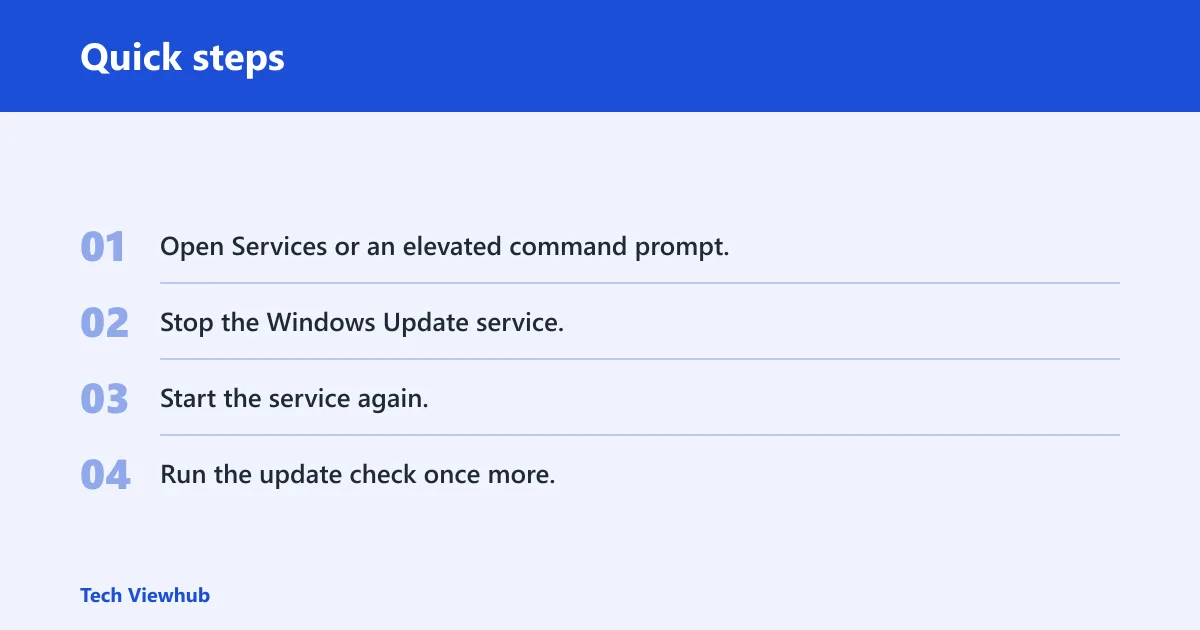
Restart the Windows Update service
The Windows Update service, wuauserv, handles update checks in the background. It can become stuck or unresponsive. Restarting it from Services or the command line often clears a dead check without affecting a healthy install that is already in progress.
- Open Services or an elevated command prompt.
- Stop the Windows Update service.
- Start the service again.
- Run the update check once more.
Clear the SoftwareDistribution cache
The SoftwareDistribution folder stores the local Windows Update cache and database. If it becomes corrupted, Windows may not check or download properly. Clearing it forces Windows to rebuild the cache and can fix repeated failures or a check that never moves past the same point.
Only do this after stopping the update service. If the system is already in the middle of a real install, do not disrupt it. The goal is to fix a broken check, not to interrupt a healthy update.
Reset the network stack if needed
If the service and cache do not help, the network stack may be the issue. Resetting it can clear connectivity problems that block Microsoft update servers. Use this step when the device can browse some sites but still cannot complete Windows Update.
That is the point to inspect DNS, proxy settings, and VPN software as well. A network problem can look like a Windows problem, and the symptom is often the same: the check spins with no result.
Frequently asked questions
How long windows 11 update take
Windows 11 updates can take a few minutes on a fast, clean system or much longer on older hardware, slow drives, or low-storage devices. A 30 to 90 minute wait is often normal. If there is no visible progress change for about 2 hours, treat it as likely stuck.
How long update windows 11
The time depends on what phase is running. Download time depends on your connection and package size. Install time depends on system speed and free space. Reboot and finishing can add more delay. If Task Manager still shows activity, a long wait may still be normal.
How long does win 11 update take?
A Windows 11 update can be quick on a fast PC and slow on a machine with limited resources. Large updates, background antivirus scans, file sync, and indexing can extend the wait. If the percentage is moving or disk activity stays high, the update is probably still working.
Windows 11 update taking too long what should I do
First, check whether progress is still moving, then open Task Manager and look for disk or CPU activity. If the device is busy, wait. If it is idle and unchanged for about 2 hours, restart the Windows Update service, clear the cache, and check the network stack.
When should I worry that a Windows 11 update is stuck?
Worry when there is no percentage change, no disk activity, and no sign of reboot progress for about 2 hours. Also worry if the update check stays on “Checking for updates…” after a service restart. That pattern points to a stall, not normal installation work.
Can I safely stop a Windows 11 update that seems frozen?
Only stop it if you have strong signs that it is truly frozen, such as no activity for about 2 hours and no progress at all. Interrupting a legitimate system update can break Windows and may force repair or reinstallation. When in doubt, check Task Manager first.