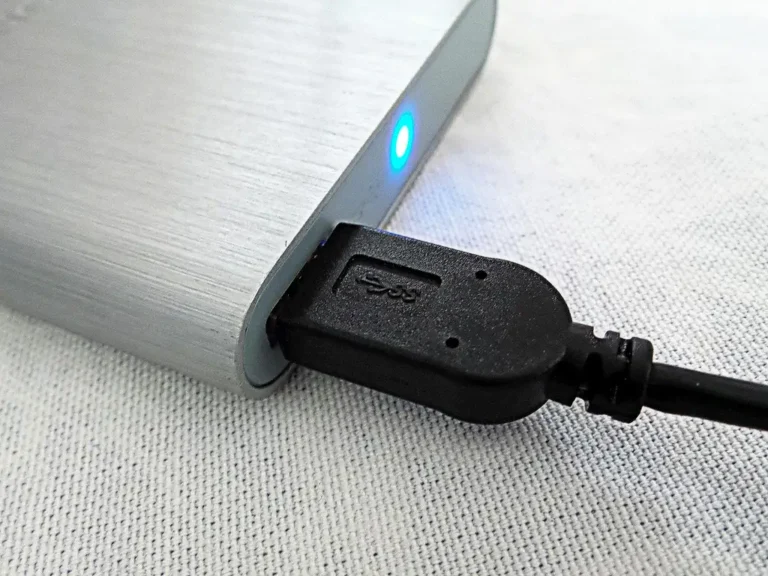
External SSD vs Internal SSD: What’s the Real Difference?
An external SSD and an internal SSD can use the same NAND, but the connection path sets the limit: PCIe/NVMe inside a PC can reach far higher speeds than USB, and a USB 3.2 Gen 2 drive usually tops out around 1,000 MB/s. Pick the wrong one, and you may overpay for speed you cannot use or end up with slow backups and load times. This guide compares speed, portability, compatibility, reliability, and the connection limits that matter in real use.
| Decision factor | External SSD | internal SSD | Winner |
|---|---|---|---|
| Connection path | USB, USB-C, Thunderbolt, or USB4 through a cable and enclosure | Direct to the motherboard through PCIe or SATA | internal SSD |
| Latency and consistency | Depends on host port, cable, enclosure controller, and thermal state | Usually lower latency and steadier behavior under load | internal SSD |
| Peak speed potential | Can be very fast on Thunderbolt 3/4 or USB4 | Highest ceiling, especially with NVMe | internal SSD |
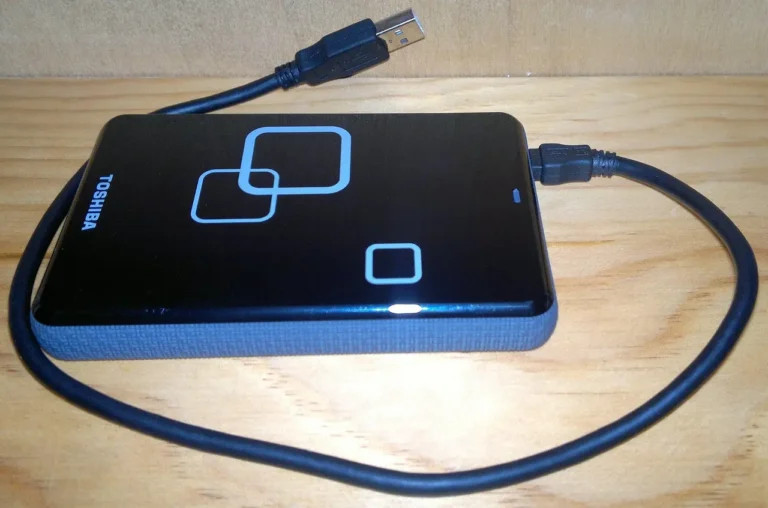
| Portability | Easy to move between devices | Fixed inside one system | External SSD |
| Upgrade flexibility | Useful when a laptop has limited internal upgrade options | Best when the system has an open slot or bay | tie |
| Disconnect risk | Higher, because a cable or port can be bumped or enter a sleep state poorly | Very low once installed | internal SSD |
Connection path and port requirements
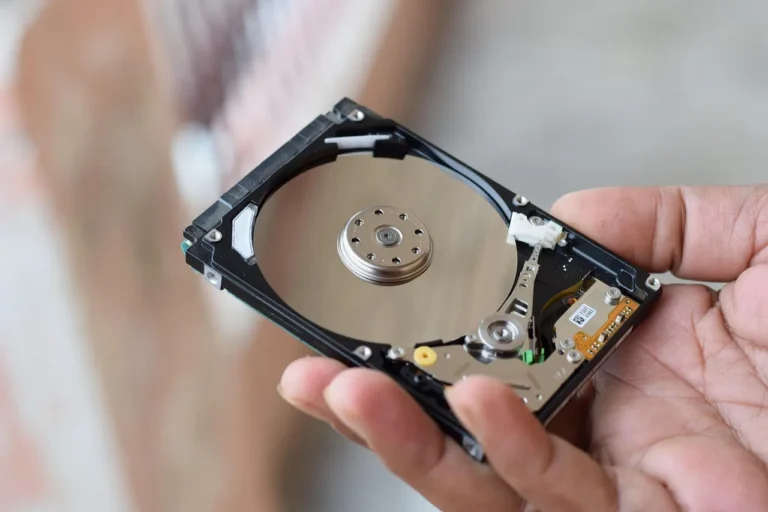
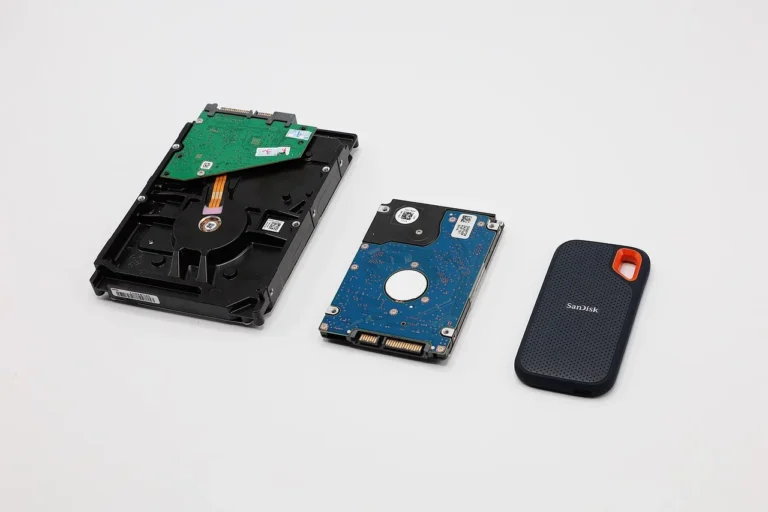
The main difference is simple: an internal SSD connects directly to the motherboard, while an external SSD connects over USB, USB-C, or Thunderbolt. That path changes speed, latency, thermal behavior, and how often the drive is limited by the rest of the system instead of the NAND itself.

What the interface ladder means
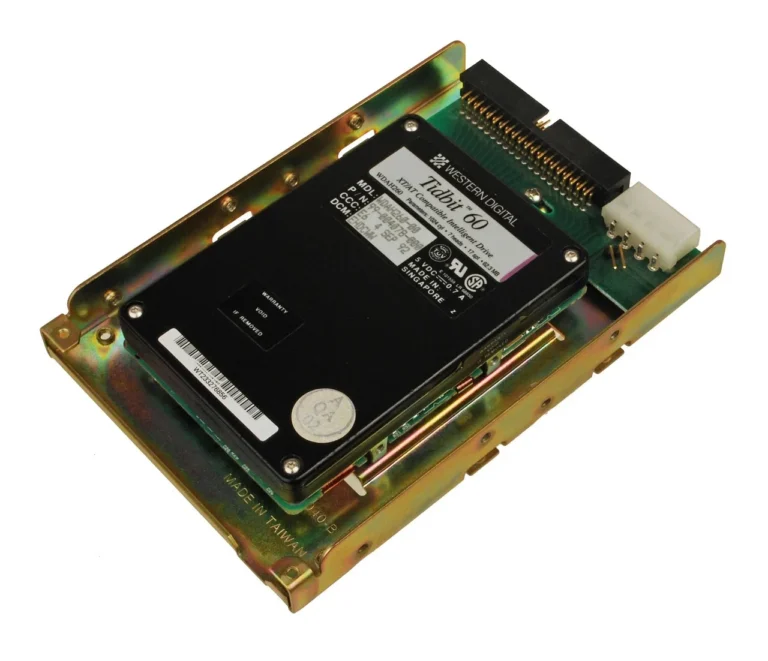
SATA III is the older ceiling. Internal SATA SSDs top out around 550 MB/s, which is why some 2.5-inch drives and slower external setups feel similar. NVMe changes the picture because it uses PCIe; internal NVMe drives can reach up to 7,000 MB/s on PCIe 4.0, and PCIe 5.0 internal SSDs exceed 10,000 MB/s.
On the external side, USB 3.2 Gen 2 is a 10 Gbps interface and can deliver around 1,000 MB/s in real use. USB 3.2 Gen 2×2 is a 20 Gbps interface and can reach about 2,500 MB/s. Thunderbolt 3 and 4 use 40 Gbps bandwidth and can reach about 5,000 MB/s, while USB4 also offers 40 Gbps bandwidth for external SSDs.
Peak speed is not the whole story
Published throughput numbers usually describe large sequential transfers. That helps when you copy a huge video file, but it does not fully describe boot time, game launch behavior, photo catalog response, or how a scratch disk feels under mixed reads and writes.
A drive can post a strong benchmark and still feel slower if its latency is higher or if sustained writes fall off after the cache fills. That is why the same SSD controller can behave differently in an enclosure than it does on a motherboard slot.
Thermals and disconnect risk
External enclosures add another heat source. Small aluminum shells can get warm during long writes, and thermal throttling can cut sustained performance even when the headline interface looks strong.
There is also a practical reliability gap. A bumped cable, a sleep/wake mismatch, or a weak port can interrupt an external drive at the wrong moment, while an internal SSD is far less exposed to that kind of failure.
Can an external SSD be as fast as an internal NVMe SSD?
Yes, for bursts, and sometimes close enough for one workflow. A Thunderbolt 3/4 or USB4 external SSD can approach internal NVMe territory for large sequential transfers, but it usually still faces more overhead, more variables, and more chances to lose speed under sustained load.

When the gap gets small
Thunderbolt 3 and 4 use 40 Gbps bandwidth, and Thunderbolt external SSDs can reach about 5,000 MB/s. That is fast enough to challenge many mainstream internal drives in ordinary file copies, especially when the internal drive is not a top-tier model.
USB4 can do similar work if the enclosure and host both support the right mode. The catch is that support and controller quality matter. A strong USB4 enclosure on a weak port will not perform like a strong one on a capable port.
Why some external drives still feel slower
Same-speed illusions are common. Two drives can post similar peak numbers, yet the external one still feels behind because latency is higher, queue behavior is less favorable, or sustained writes drop sooner as the enclosure heats up.
Say your laptop has a USB 3.2 Gen 2 port and you plug in a “1,000 MB/s” portable SSD. File copies may look quick at first, but the drive can still feel behind an internal NVMe boot disk when launching apps or opening a large photo catalog.
Where USB 3.2 Gen 2 and SATA stop
USB 3.2 Gen 2 is often the practical ceiling for many laptops and desktops, and around 1,000 MB/s is a good expectation for real use. That is still fast, but it does not match a strong internal NVMe path, and it is only a little above the old SATA ceiling.
A common misconception is that any external SSD is “NVMe fast.” It is not. A USB 3.0 external SSD can run around 600 MB/s in a constrained setup, which puts it in the same broad class as SATA and well below fast PCIe-based internal storage.
Which SSD is better for gaming, internal or external?
For a gaming PC, internal SSD is usually the better choice for the boot drive and the games you launch most often. External SSD is still useful for library storage, transfers, and moving games between systems, but the internal path usually gives lower latency and fewer bottlenecks during load-heavy work.

Boot drive and game load performance
Games are not limited by raw sequential speed alone. Shader work, asset streaming, and small file access all reward lower latency and better direct access through the motherboard path. That is why internal NVMe is the safer pick for the operating system and primary game installs.
On a gaming PC, the typical bottleneck is not only the drive. The game engine, CPU decompression, and GPU asset handling can all matter, but a fast internal SSD gives those systems a better starting point than a USB-connected drive.
External storage still has a role
External SSD is practical for game libraries you do not play every day, especially when you want to move a large install to another PC without opening the case. It is also useful when you are short on internal bays or when a laptop gaming setup needs a portable library.
Picture a 2 TB external drive holding older titles while your internal NVMe keeps current multiplayer games and the operating system. That split keeps the fastest path for daily use and uses the portable drive where its speed is less likely to be the bottleneck.
Video editing scratch disk: internal or external?
For active editing, internal NVMe is usually the safer default. A scratch disk sees repeated reads and writes, and active project files benefit from lower latency and steadier sustained performance. An external SSD can work well too, but only if the interface, cable, and enclosure are up to the job.
When internal NVMe is the safer choice
If you are working with heavy timelines, cache files, or multicam footage, internal NVMe is the cleanest option because the drive sits directly on the motherboard path. That reduces the number of parts that can slow down the edit or interrupt the workflow.
For many laptops, this is the difference between a smooth cache drive and one that throttles during long exports. PCIe-based storage is also less exposed to accidental disconnects during a busy session.
When external can still make sense
USB 3.2 Gen 2×2 is a 20 Gbps interface and can reach about 2,500 MB/s, which is enough for some editing workflows. It is most sensible when the host supports it and the external drive is used for project storage or moderate scratch use, not the heaviest real-time work.
Thunderbolt or USB4 is a stronger external choice for editors who need portability between a desktop and a laptop. Even then, enclosure heat and cable quality still matter, and the drive may not stay at peak speed through long writes.
SSD decision matrix
| Use case | Right SSD type | Minimum interface needed | Expected bottleneck |
|---|---|---|---|
| Boot drive | internal SSD | NVMe over PCIe, or SATA III if the system is limited | Platform boot path and random access, not just peak transfer rate |
| Gaming library | internal SSD | NVMe preferred; SATA III acceptable for older titles | Load latency and game asset streaming |
| Video editing scratch disk | internal SSD | NVMe over PCIe; Thunderbolt 3/4 or USB4 only if external is required | Sustained writes, heat, and controller behavior |
| Backup target | External SSD | USB 3.2 Gen 2 is enough for most backup jobs | Host port speed and whether the backup runs long enough to heat the enclosure |
| Travel drive | External SSD | USB 3.2 Gen 2 for broad compatibility; Thunderbolt or USB4 if the host supports it | Port compatibility and cable reliability across devices |
| Laptop upgrade alternative | External SSD | USB 3.2 Gen 2 at minimum; Thunderbolt or USB4 if you need near-internal speed | Port availability and the laptop’s internal upgrade limits |
Portability, compatibility, and upgrade limits
External SSD wins when you need to move the same data across a desktop, a laptop, and maybe a second machine without opening anything. That is useful for travel, field work, handoff between systems, and backup copies that you want to keep physically separate from the main PC.
When a laptop changes the answer
Many laptops have limited internal upgrade options. If the machine has one open M.2 slot, you may still prefer an internal NVMe upgrade for the operating system, but if the slot is full or inaccessible, an external SSD becomes the practical expansion path.
Can you use an external SSD instead of upgrading your laptop? Sometimes, yes. If the bottleneck is storage capacity rather than CPU or memory, a fast external drive can buy time and space without a teardown. It will not replace a faster processor or more RAM.
What to check before buying external storage
- Check the host port first. USB 3.2 Gen 2, USB 3.2 Gen 2×2, Thunderbolt 3/4, and USB4 do not deliver the same results.
- Match the cable to the port. A weak or mismatched cable can prevent the drive from reaching its rated mode.
- Check enclosure support. The controller inside the enclosure can cap performance even when the SSD inside is capable of more.
- Plan for heat. Long writes can slow down compact enclosures.
- Use internal SSD for anything that cannot tolerate a disconnect.
Choose External SSD if… / Choose internal SSD if…
Choose External SSD if you need portable storage for backups, transfers, or a travel drive; your laptop lacks an open internal slot; or you want one fast drive that can move between devices. It is the better fit when convenience and cross-device use matter more than the lowest latency.
Choose internal SSD if you want the best boot-drive behavior, the fastest game loads, or the most dependable scratch-disk performance. It is also the better choice when you need sustained write speed, low latency, and less risk from cable, port, or sleep/wake problems.
For a gaming PC, internal usually wins for the system drive and active games. For a laptop with limited upgrade room, external can be the right stopgap or companion drive, especially when the port supports Thunderbolt or USB4.
Frequently asked questions
Is an external SSD slower than an internal SSD?
Not always, but it often is for real workflows. An external SSD can be very fast on Thunderbolt 3/4 or USB4, yet it still depends on the host port, cable, enclosure controller, and heat. Internal SSDs usually have lower latency and steadier sustained performance.
Does an external SSD work well for video editing?
It can, if the workflow is matched to the interface. USB 3.2 Gen 2×2 may be enough for some projects, and Thunderbolt or USB4 is better for heavier work. For demanding scratch use, internal NVMe remains the safer and more consistent option.
What connection speed do I need for a fast external SSD?
USB 3.2 Gen 2 is often the minimum worth considering for a strong general-purpose external SSD, with around 1,000 MB/s in real use. For higher-end work, USB 3.2 Gen 2×2, Thunderbolt 3/4, or USB4 can raise the ceiling, but only if your host supports them.
Are external SSDs worth it if I need portability?
Yes, when portability is the priority. External SSDs are the easiest way to move large files between devices, keep backups separate, or carry a project drive for a laptop workflow. Just do not treat portability as a replacement for the lower latency and reliability of an internal system drive.