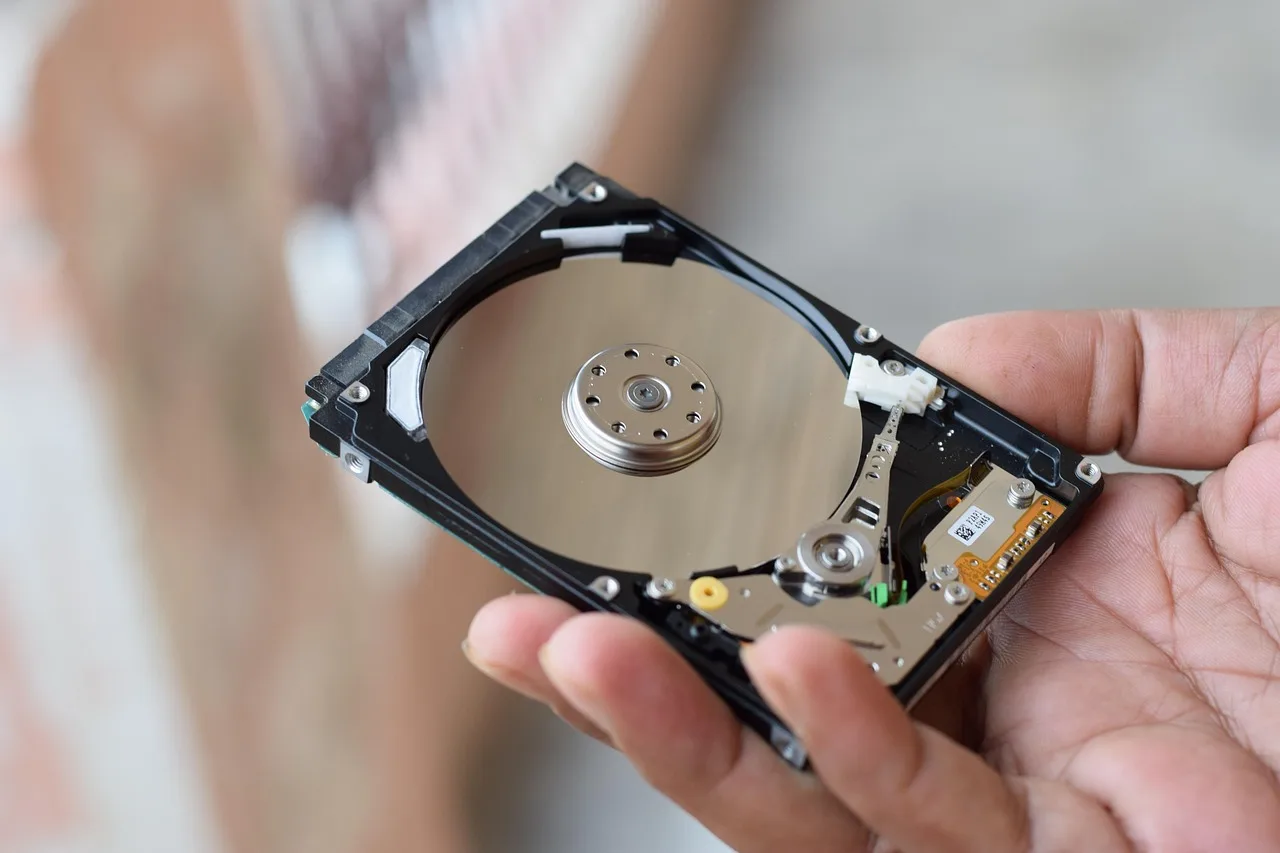
External SSD vs HDD for Backup Drives: Which Should You Buy?
Buy an SSD if you back up daily or need quick restores; buy an HDD if you archive lots of data, back up weekly or monthly, and want the lowest cost per terabyte. Pick the wrong one, and backups can lag behind your schedule or restores can crawl when you need them most. This guide compares SSDs and HDDs by backup cadence, restore time, capacity, compatibility, and price.
| Decision factor | External SSD | HDD for backup drives | Winner |
|---|---|---|---|
| Cost per TB | Higher cost per terabyte | Lower cost per terabyte | HDD for backup drives |
| Restore speed | Fast reads and fast file transfers | Slower transfers, slower full restores | External SSD |
| Portability and shock risk | No moving parts; better shock resistance | Mechanical parts; more vulnerable to shock | External SSD |
| Capacity for the money | Good for smaller or mid-size backup sets | Usually larger capacities at lower cost | HDD for backup drives |
| Best fit for frequent restores | Better for laptops, travel, and urgent recovery | Better for infrequent access and bulk retention | External SSD |
What matters most for backup drives
The best backup drive is the one you will keep using, and that usually comes down to restore time, backup window, and capacity. SSDs move data faster and are easier to carry; HDDs cost less per TB and make more sense as the backup set grows. For home users, the right answer depends less on raw speed and more on how often you back up and how fast you need the data back.
Restore time matters more than raw transfer speed
Backups are not only about saving files. They are also about getting files back when a laptop fails, a drive is corrupted, or you need to move to a new machine. SSDs can cut file transfer time and speed booting from backup, so they matter most when the restore has to finish quickly.
That matters even more for full-system restores. If you are copying hundreds of gigabytes back onto a machine, the drive that finishes sooner gets you working again sooner.
Capacity still decides many backup choices
Capacity is measured in TB, and the right size depends on full backups plus versioned backups. A 1 TB drive may fit a single laptop with moderate data, while 2 TB generally gives more room for versions and growth. Once you start backing up photo libraries or video projects, the storage target grows fast.
That is where HDDs keep their edge. HDDs are usually larger in capacity and less expensive than SSDs, so they make more sense when retention matters more than quick restores.
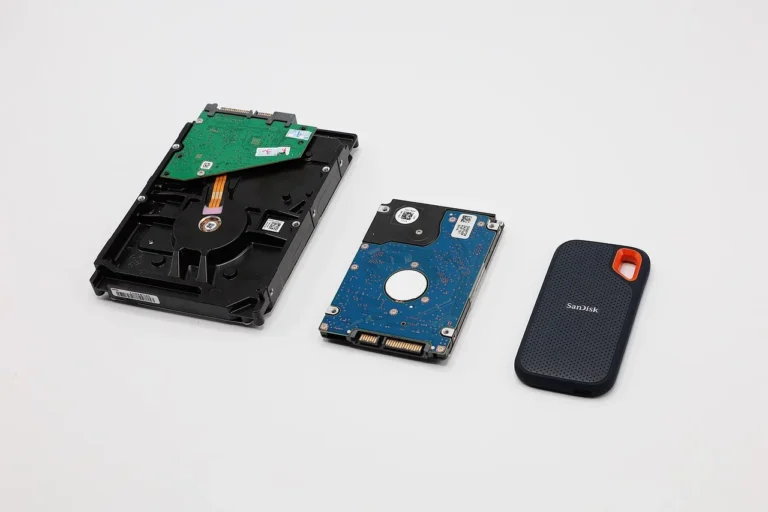
External SSD and HDD for backup drives side by side
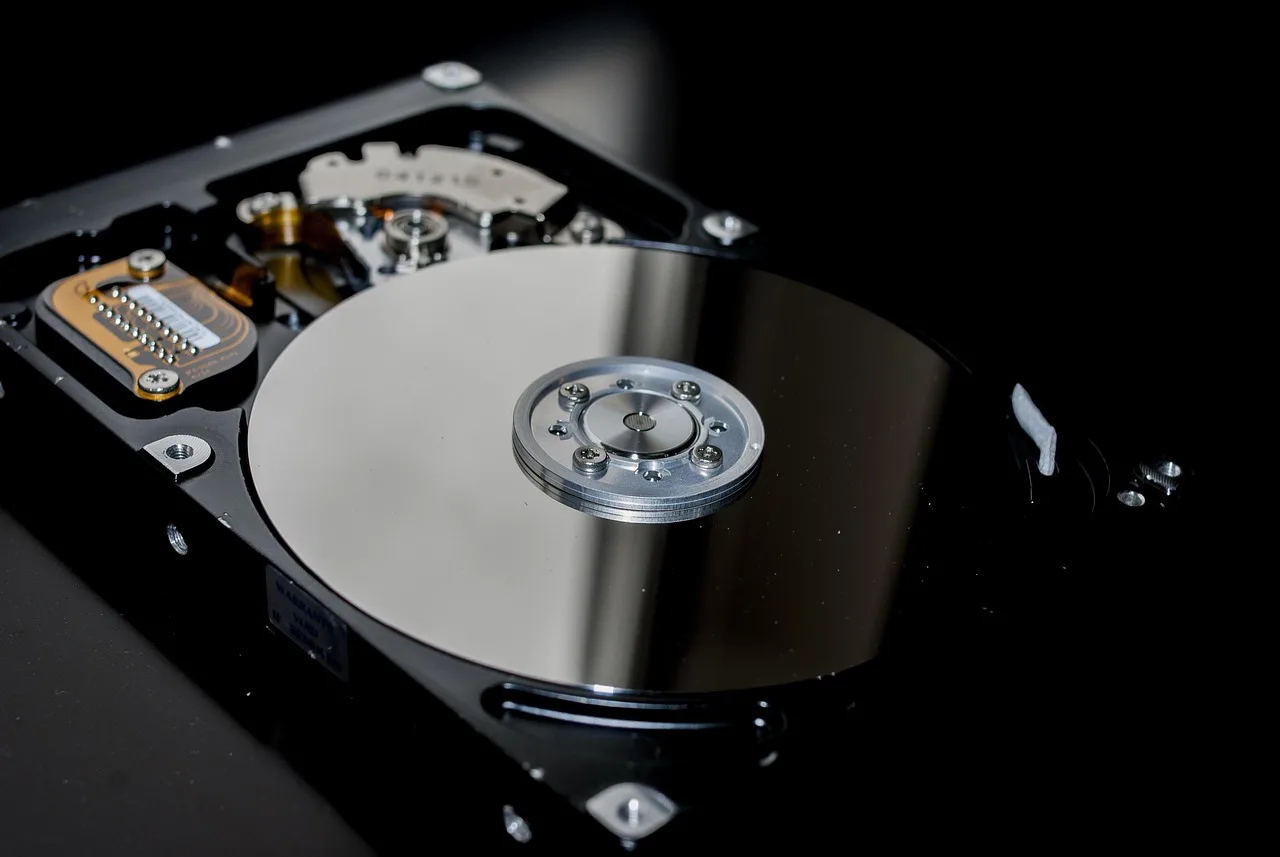
External SSDs use flash memory and have no moving parts. HDDs use mechanical parts, including a spinning disk and read/write head. Both can work as external drives, but they fit different backup habits.
External SSD
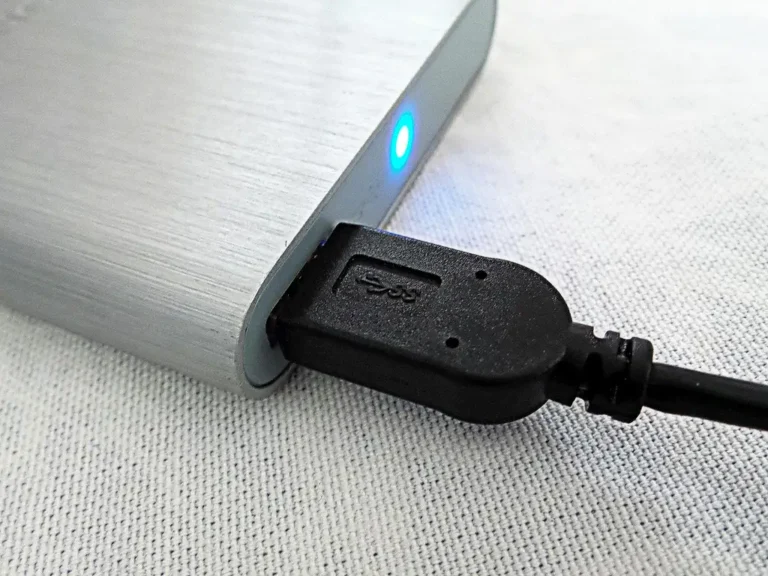
An external SSD is a better match when the drive travels with a laptop or gets used often. It usually connects over USB-C and may use either a SATA-based enclosure or a native NVMe enclosure. Portable external drives are often SSDs, and rugged portable models are a common pick for everyday use and fast transfers.
Inside many external SSDs, SATA SSDs are the least expensive SSD type. Backblaze notes that SATA SSDs often use a 2.5-inch form factor and are limited to 600 MB/s, while NVMe drives can deliver sustained read-write speeds of 4.0 GB/s. That gap matters when you want the fastest possible backup and restore cycle.
HDD for backup drives
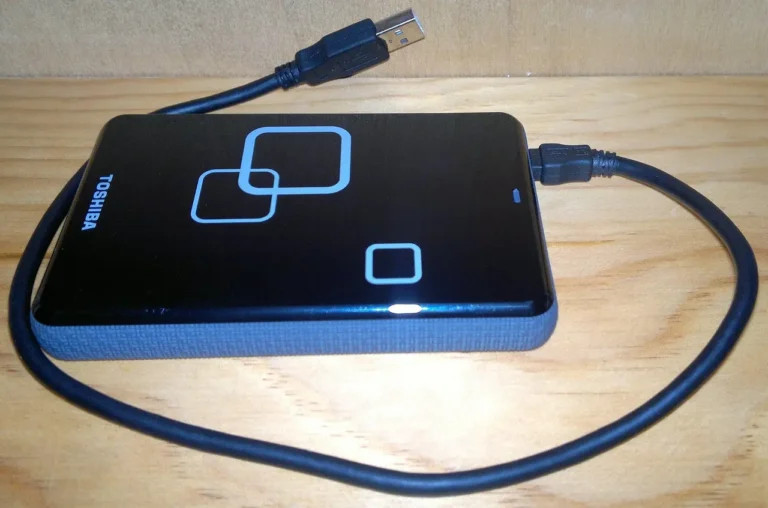
An HDD is still a solid backup choice when the main goal is to hold more data for less money. It uses spinning platters and a read/write head, so it is generally slower than an SSD and more vulnerable to physical shock. The tradeoff is capacity: HDDs are often the practical answer for media libraries and bulk backups.
PCMag notes that the old HDD advantage was price, but that gap has shrunk. Even so, HDDs still win on lower cost per TB, especially at larger sizes.
SATA SSD vs NVMe SSD in external enclosures
Not every SSD is the same. SATA SSDs are common in lower-cost external drives, and they are fast enough for many backup jobs. NVMe SSDs are better for high-speed workloads, but they are usually pricier than SATA SSDs and often make the most sense when restore speed is the main goal.
If your backup drive only needs to move data once a day or once a week, a SATA SSD is often the more practical buy. If you need the fastest possible recovery or frequent large transfers, NVMe is the stronger option.
Should I buy an external SSD or HDD for backups?
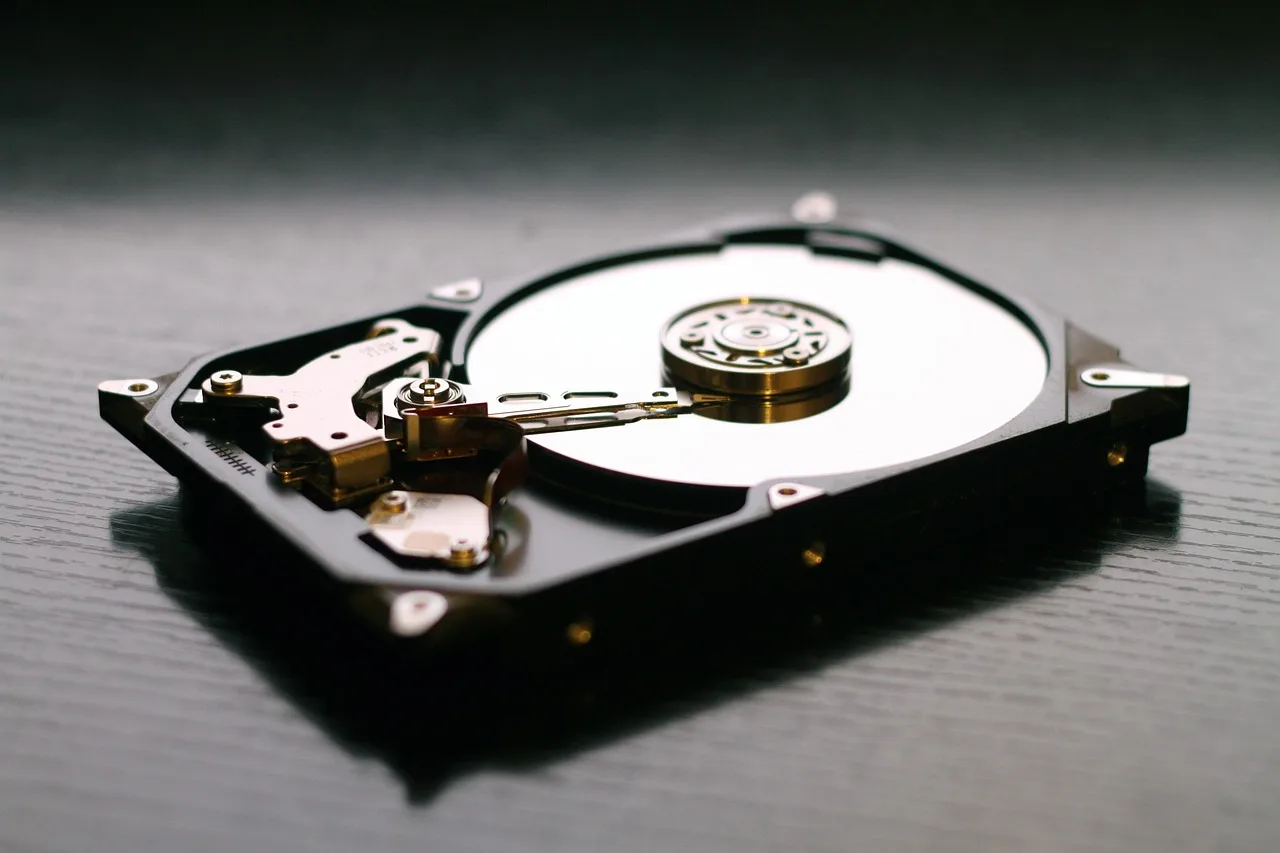
Buy an external SSD if you back up often, move the drive around, or want the quickest restores. Buy an HDD if you need the lowest cost per TB and you are backing up large amounts of data on a slower schedule. For many homes, the best setup is both: SSD for the active laptop backup and HDD for the long-term archive.
Buy SSD when backup speed and travel matter
If the backup drive rides in a backpack, shock resistance matters. SSDs have no moving parts, so they are generally more durable against shock than HDDs. That makes them a better fit for people who unplug the drive often or carry it between home and work.
Say your laptop has a 512 GB system drive and you want a backup that finishes quickly every night. An external SSD keeps the backup window short and makes restoration less painful if the laptop stops booting.
Buy HDD when price per TB matters most
If you are backing up a large desktop with photos, videos, and old project folders, the math often favors an HDD. The lower cost per TB lets you buy more space for the same budget, which helps with version history and long retention. That is especially useful when you do not need fast restores every day.
Suppose your media folder alone keeps growing by hundreds of gigabytes a year. A larger HDD is usually easier to justify than a premium SSD, because it leaves room for future backups without forcing a smaller retention window.
Many buyers should use both
Using both types splits the job cleanly. An SSD handles the working backup of a laptop or main PC, while an HDD stores a second copy, an offline archive, or older versions. That setup reduces the chance that one drive choice becomes the weak point.
This also fits the backup habit problem. The drive you access most should be the easier one to restore from; the drive you rarely touch can be the cheaper one with more capacity.
What matters more: speed or capacity?
Capacity matters more when the backup has to hold everything you own, including multiple versions. Speed matters more when the backup must finish during a short window or when you need a fast restore after a failure. For most people, the answer changes by use case, not by brand or interface.
Backup window for daily and weekly backups
If you back up daily, the drive needs to finish quickly enough that you do not skip it. SSDs are better here because they shorten the time spent copying changed files. Weekly backups can work on either drive type, but the slower the drive, the more likely a large backup gets postponed.
Restore speed for emergencies
Restore speed becomes the bigger issue when the backup is the only path back to a working machine. Faster drives reduce the time you spend waiting during a rebuild or migration. That is one reason SSDs are a strong choice for laptop backups and other emergency recovery jobs.
Full backups versus versioned backups
A full backup copies the entire drive set; a versioned backup keeps old copies too. Versioned backups eat capacity fast, especially with photos and video. If you need multiple restore points, HDDs often give you more breathing room for the money.
Is an SSD better than an HDD for Time Machine backups?
Yes, an SSD is usually better for Time Machine if you want faster restores and a snappier backup cycle. Time Machine works with external drives on Mac, but the right format and enough capacity still matter. An HDD can still be the better pick when you want more space for less money and do not need rapid restores.
Time Machine format and compatibility
Time Machine works with external drives, but the drive must be formatted correctly for macOS use. Capacity planning matters too, because Time Machine keeps older versions and can fill a drive faster than a simple manual copy. A larger HDD is often the easier answer for very large Mac libraries.
Fast restore behavior for Macs
When a Mac needs a restore, waiting on the backup drive is the last thing you want. SSDs shorten that wait, which is useful after disk failure or when moving to a new Mac. That is why many portable backup drives are SSDs rather than HDDs.
When an HDD still makes sense for Mac backups
If your Mac holds a large photo catalog, video edits, or an archive of old documents, the cheaper TB count on an HDD can be more useful than speed. A desktop Mac that stays in one place also reduces the shock concern that hurts HDDs on the move. In that case, a high-capacity HDD remains a practical Time Machine drive.
Capacity, cost, and file type
Backup drive capacity should match the size of the data you need to protect, not just the size of the current system drive. A 1 TB backup may fit one laptop, but a photo library or video folder can push you toward 2 TB or more. If the data set keeps growing, storage cost starts steering the decision.
1 TB versus 2 TB versus larger capacities
A 1 TB external SSD is often enough for a typical laptop backup with room for current versions. A 2 TB drive gives more headroom for full backups plus older snapshots. Once you reach larger capacities, HDDs usually become the less expensive path for keeping multiple generations of data.
Photo and video libraries need more room
Photos and video files are where HDDs often make the most sense. They need more capacity, and restores are usually less urgent than on a work laptop. If you only access those files during recovery or migration, slower transfer speed is easier to accept.
How cost per TB changes the choice
The practical cost difference can be simple to think about: a buyer choosing 1 TB may pay more for an SSD to get speed and shock resistance, while a buyer choosing 2 TB or more often sees the HDD price become easier to justify. The same source notes that the old HDD price lead has shrunk, but HDDs still remain cheaper per TB.
Backup drive decision matrix
This matrix weighs the five buyer situations that matter most: backup frequency, restore urgency, portability, and capacity pressure. Scores run from 1 to 5, with 5 being better for that criterion. The pick in each row matches the use case, not just the cheapest or fastest option.
| Buyer scenario | External SSD | HDD for backup drives | Best-fit recommendation |
|---|---|---|---|
| Everyday laptop backup | Cost per TB: 2; restore speed: 5; portability: 5; shock risk: 5 | Cost per TB: 5; restore speed: 2; portability: 2; shock risk: 2 | External SSD |
| Large photo library | Cost per TB: 2; restore speed: 5; portability: 4; shock risk: 5 | Cost per TB: 5; restore speed: 3; portability: 2; shock risk: 2 | HDD for backup drives |
| Time Machine | Cost per TB: 2; restore speed: 5; portability: 5; shock risk: 5 | Cost per TB: 5; restore speed: 3; portability: 2; shock risk: 2 | External SSD |
| Offline archival backup | Cost per TB: 2; restore speed: 4; portability: 5; shock risk: 5 | Cost per TB: 5; restore speed: 2; portability: 2; shock risk: 2 | HDD for backup drives |
| Fast-restore emergency backup | Cost per TB: 2; restore speed: 5; portability: 5; shock risk: 5 | Cost per TB: 5; restore speed: 2; portability: 2; shock risk: 2 | External SSD |
Everyday laptop backups favor an SSD because they happen often and need to stay quick. A small delay can turn into missed backups, which is the opposite of what you want from a routine safeguard.
Large photo libraries often swing the other way. The restore is less urgent, but the data set is large and keeps growing, so an HDD gives you more room for versions without pushing the budget too far.
Offline archival backups are a good fit for HDDs when the drive sits on a shelf most of the time. If the drive is not traveling, shock risk drops in importance and capacity takes the lead.
Fast-restore emergency backups should be on an SSD whenever possible. The whole point is to get the machine back into service quickly, and SSDs are better at that job.
Choose External SSD if… / Choose HDD for backup drives if…
Choose External SSD if you back up a laptop every day, move the drive around, or want the fastest possible restore after a failure. It also makes sense for Time Machine when speed matters more than maximum capacity. If the backup drive is part of your recovery plan, speed and shock resistance matter a lot.
Choose HDD for backup drives if you need the lowest cost per TB, want room for a large photo or video archive, or back up only once a week or month. It is the better storage buy when capacity beats speed. For a stationary archive, the slower drive is often the smarter one.
If your budget allows, a mixed setup is the most flexible answer. Use an SSD for the current backup and an HDD for bulk storage or an offline copy. That pairing covers both restore urgency and long-term retention.
Frequently asked questions
Are external SSDs more reliable than HDDs for backup?
They are usually better against physical shock because SSDs have no moving parts. That makes them a stronger choice for travel and frequent unplugging. For long-term retention, reliability also depends on how you store the drive and whether you keep more than one backup copy.
Is a hard drive still good for backup storage?
Yes. An HDD is still a good backup drive when you need a lot of capacity at a lower price. It is especially useful for media libraries, older files, and backups that do not need frequent restores. It is less suited to travel and quick recovery.
What matters more for a backup drive: speed or capacity?
It depends on the job. Speed matters more for daily backups and emergency restores, while capacity matters more for large libraries and versioned backups. If you cannot store the data you need, the faster drive does not solve the problem.
Can I use both an SSD and HDD for backup?
Yes, and that is often the best answer. Use an SSD for the active backup you may need to restore quickly, and use an HDD for larger archives or a second copy kept offline. That split gives you speed where it matters and capacity where it counts.