External SSD vs USB Flash Drive: Which Should You Buy?
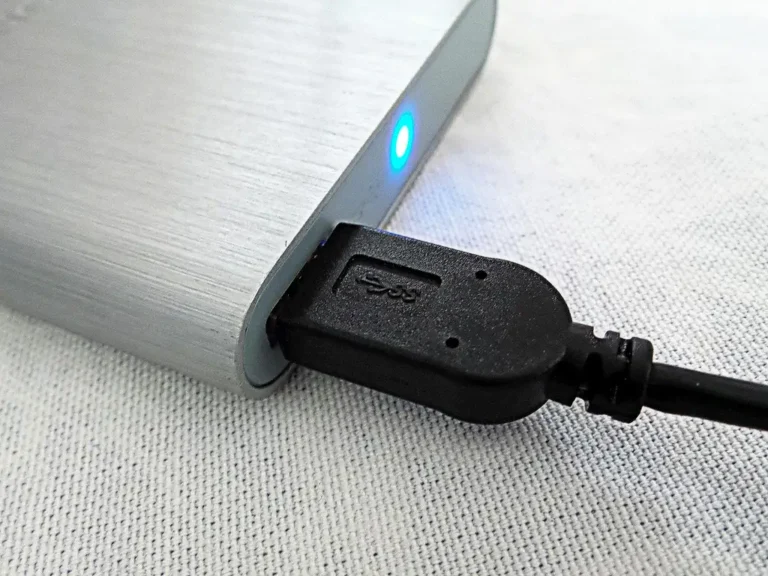
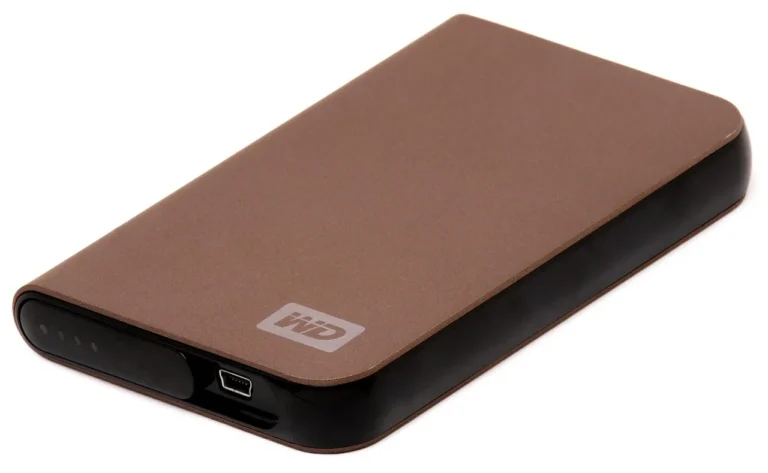
Buy a USB flash drive for small, occasional transfers and device compatibility. If you move large folders, game installs, or backup jobs that need steady write speed, pick an external SSD. Choosing the wrong drive wastes time, slows transfers, and raises the risk of flaky long writes or failed backup copies. This guide compares speed, endurance, port limits, and risk so you can buy for the workload, not the label.
| Factor | External SSD | USB flash drive | Winner |
|---|---|---|---|
| Large file transfers | Built for sustained copies of big folders, video, games, and backups. | Fine for short handoffs, but small controllers and cache can slow long writes. | External SSD |
| Port speed ceiling | Benefits from 5 Gbps, 10 Gbps, 20 Gbps, and Thunderbolt ports. | Also limited by the port, but the drive itself often tops out lower. | External SSD |
| Small, occasional jobs | Works, but is usually more drive than you need. | Ideal for documents, installers, and quick file handoff. | USB flash drive |
| Fake-capacity risk | Lower risk from reputable brands, though bad products still exist. | Higher risk on suspiciously cheap high-capacity models. | External SSD |
| Endurance and sustained writes | Often publishes terabytes written and handles repeated writes better. | Most sticks do not publish endurance data and can slow under heat. | External SSD |
| Convenience and size | Still portable, but usually larger than a tiny stick. | Small, pocketable, and easy to keep with keys or a laptop bag. | USB flash drive |
What each drive type
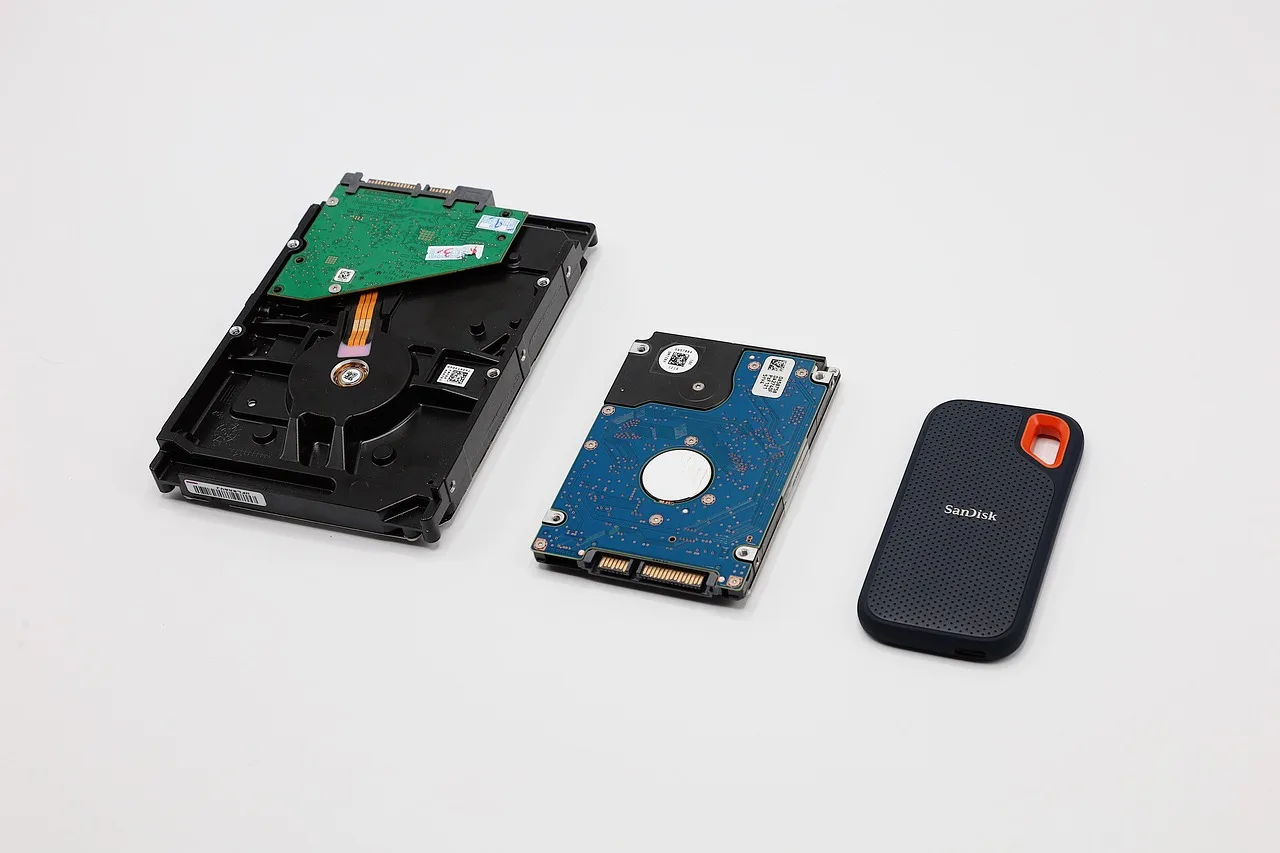
An external SSD and a USB flash drive both use flash memory, but they are built differently. A USB flash drive usually combines one flash chip and a small controller, while a portable SSD uses NAND flash with a controller that can spread work across more memory paths, which helps with sustained performance.
Why controller design matters
That design difference is why the label alone does not tell you how a drive will behave. A flash drive may post a strong peak number, then slow down once its write cache fills. A portable SSD is more likely to hold its speed through a long copy job.
Where each one fits best
USB flash drives fit documents, bootable media, quick file handoff, and compatibility tasks. External SSDs fit large files, active projects, game libraries, and repeated backups. If the job is rare and small, a stick is enough; if the job is large or repeated, the SSD is the safer buy.
How speed changes by port
Your laptop port can cap the drive before the drive itself runs out of headroom. USB 3.2 Gen 1 is a 5 Gbps interface with a real ceiling of about 450 MB/s, USB 3.2 Gen 2 is a 10 Gbps interface that typically tops out around 1,000 MB/s, USB 3.2 Gen 2×2 can reach about 2,000 MB/s, and USB4 or Thunderbolt can reach about 3,700 MB/s.
USB 3.2 Gen 1 and Gen 2
USB 3.2 Gen 1 is still common on older laptops and desktops, so it often becomes the bottleneck. That matters most if you buy a fast external SSD but plug it into a slower port. USB 3.2 Gen 2 is the sweet spot for many portable SSDs.
USB 3.2 Gen 2×2 and Thunderbolt
USB 3.2 Gen 2×2 only helps if the computer supports the same standard. Thunderbolt 3 and 4 are mostly relevant for very fast workflows. If your port mix is mostly 5 Gbps, spending for a much faster drive rarely changes day-to-day results.
Why burst speed can mislead you
Box speed usually reflects a short burst, not a full copy job. Once write cache fills, a small drive can slow hard, especially during large transfers or long backups. That is why the advertised maximum is not enough for buying decisions.
Which workloads expose the slowdown?
Anything that writes a lot at once exposes the gap: game installs, 50GB video folders, image backups, and disk images. Say your 5GB office folder copies fast on a cheap stick. The same drive may become much slower when you move a 50GB project archive right after it.
A common first-timer mistake is buying a very small, very fast-looking stick for a backup job. The copy starts quickly, then the rate drops after the cache fills and the remaining transfer drags on. That is exactly the kind of workload where an external SSD earns its price.
Which drive should you buy?
Use the size of the files, the transfer frequency, and the port on the computer to make the call. For one short copy or a few small files, a USB flash drive is enough. Once copies are larger than a few gigabytes or happen often, an external SSD is the better fit.
| File size | Transfer frequency | Device port | Travel risk | Recommended device class | Why |
|---|---|---|---|---|---|
| 5GB office files | Occasional | Any USB port | Low | USB flash drive | Small, infrequent transfers do not justify a larger drive. |
| 50GB video folders | Frequent | USB 3.2 Gen 2 or better | Medium | External SSD | Sustained writes and big folders are where SSDs save real time. |
| Game libraries | Repeated installs and moves | USB 3.2 Gen 2 or Thunderbolt | Medium | External SSD | Games stress random access and repeated writes more than a simple stick can handle well. |
| Bootable recovery media | Rare | Any USB port | Low | USB flash drive | A small, compatible stick is the right tool for installers and rescue media. |
5GB office files
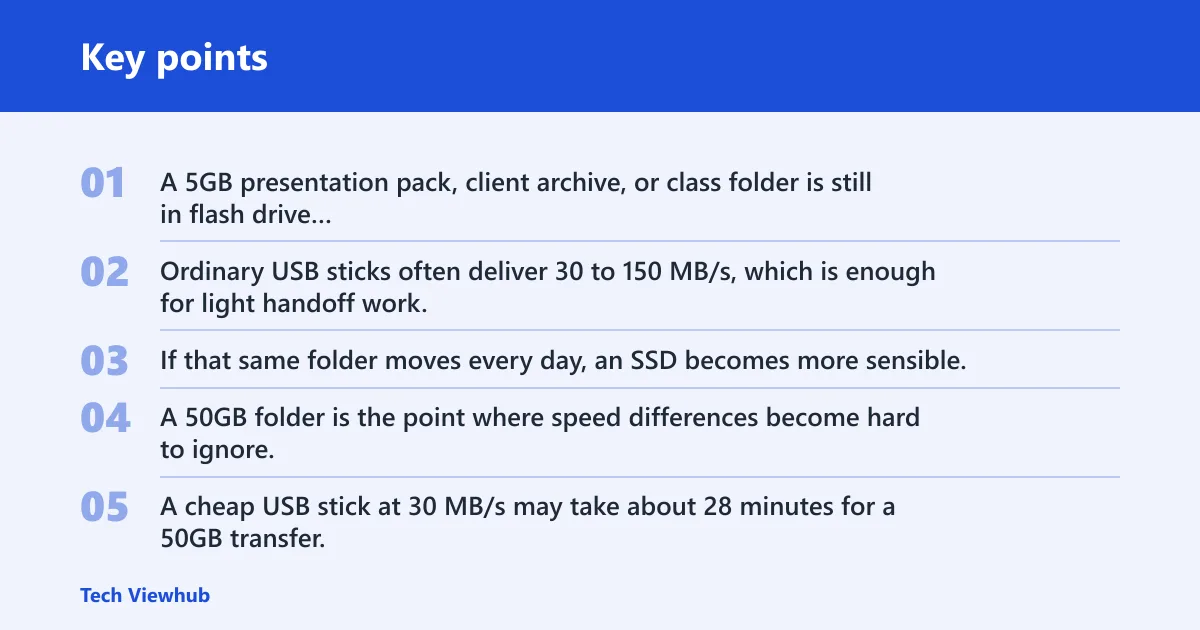
A 5GB presentation pack, client archive, or class folder is still in flash drive territory if the transfer is occasional. Ordinary USB sticks often deliver 30 to 150 MB/s, which is enough for light handoff work. If that same folder moves every day, an SSD becomes more sensible.
50GB video folders
A 50GB folder is the point where speed differences become hard to ignore. A cheap USB stick at 30 MB/s may take about 28 minutes for a 50GB transfer. A good USB stick at 100 MB/s may take roughly 8 minutes, while a normal portable SSD on a 10 Gbps port can do 50GB in about a minute.
Game libraries
Game libraries are a bad fit for weak sticks because they combine large files, repeated updates, and long installs. A portable SSD on USB 3.2 Gen 2 is the better buy, especially when you want faster load times and fewer slowdowns during large game moves. A premium USB stick can be fast on paper, but sustained behavior still matters.
Bootable recovery media
Recovery installers and bootable tools do not need SSD-class performance. They need compatibility and reliability with firmware and operating system tools. That makes a USB flash drive the better tool, especially when it stays in a drawer until needed.
Should I buy an external SSD or a USB flash drive?
Buy an external SSD when your files are large, your transfers are frequent, or your work creates sustained writes. Buy a USB flash drive when you mainly move documents, installers, or small folders and want the smallest, simplest option. If you are unsure, the deciding question is whether the job is one short copy or many long ones.

Say your laptop has only a 5 Gbps port and you mostly move 2GB folders. A USB flash drive is enough. Suppose you regularly copy 80GB of video or backup data to the same machine. The external SSD is the better buy, even if the port limits it to the speed of that interface.
Simple decision rule
- Pick a USB flash drive if the files are small, the transfers are occasional, and the drive is for compatibility or rescue work.
- Pick an external SSD if the files are large, the transfers repeat often, or the job must keep a steady write rate.
- If your computer has only USB 3.2 Gen 1, do not pay for a top-end drive unless you plan to upgrade the port later.
- If you need to trust the full capacity, avoid suspiciously cheap high-capacity sticks.
Do cheap USB sticks really store the capacity they claim?
Sometimes they do not. Fake-capacity flash drives are a real risk, especially on suspiciously cheap high-capacity models. The danger is simple: the drive reports a larger size than it can actually store, so old data gets overwritten or corrupted when you cross the real limit.
How to verify capacity
Use a full fill-and-read-back test before trusting a new stick. H2testw, FakeFlashTest, and ValiDrive are common tools for checking true capacity. The test takes time, but it is the only practical way to confirm that the drive can really hold what it claims.
Endurance and wear
Portable SSDs often publish endurance ratings, usually expressed as terabytes written. A 1TB portable SSD can be good for a few hundred terabytes written, while most USB sticks do not publish a comparable figure. That makes SSDs easier to judge for repeated use, especially when heat and sustained writes are part of the workload.
When is a USB flash drive enough instead of an external SSD?
A USB flash drive is enough when the job is light, the files are small, or the drive mostly exists for compatibility. It is also the better choice when you want a bootable installer or a recovery tool that fits in a pocket and is easy to replace.
Documents and quick handoff
For a few documents, photos, or a small work packet, the extra speed of an SSD rarely changes much. A flash drive is simpler and usually cheaper. In that use case, portability matters more than peak throughput.
Compatibility and recovery tasks
Some devices, firmware updaters, and rescue tools expect a basic USB stick. That is where a flash drive is still the right buy. If the task is not performance-sensitive, there is no reason to pay for more hardware.
When size matters more than speed
USB sticks are usually the smaller option, and that can matter if the drive stays attached to a laptop or travels in a tiny pouch. Real USB stick capacities commonly run from 32GB to 512GB, with real 1TB models existing. That range is enough for many utility jobs.
Is a portable SSD faster than a USB stick in real use?
Yes, in most real workloads. Entry-level external SSDs can reach 400-550 MB/s, mid-range models can reach 800-1,050 MB/s, and premium USB sticks can also quote very high numbers. The difference is that SSDs are more likely to sustain speed after the cache fills, which matters on big jobs.
Real-world speed versus headline speed
A premium USB stick can look impressive in a short benchmark, but the drive may not hold that pace through a long copy. A portable SSD is built to maintain performance more consistently, especially on a 10 Gbps port. That makes it the better choice for repeated transfers and active storage use.
How much faster is an external SSD for large file transfers?
For large transfers, the gap can be very large. A normal portable SSD on a 10 Gbps port can move 50GB in about a minute. By comparison, a cheap stick at 30 MB/s may take about 28 minutes, and a good 100 MB/s stick may take roughly 8 minutes.
The exact result still depends on the host port. USB 3.2 Gen 1 can hold a fast drive to about 450 MB/s real-world ceiling, while USB 3.2 Gen 2 is the better match for many SSDs. If the port is slow, the faster drive cannot show its full ability.
Will a fast external SSD still be limited by my laptop port?
Yes. The port is often the ceiling, not the drive. The same drive can perform much better on USB 3.2 Gen 2 or Thunderbolt.
How to match the drive to the port
If the machine has mainly 5 Gbps ports, an entry-level external SSD is usually the sensible match. If it has USB 3.2 Gen 2, that is the sweet spot for many portable SSDs. If it has USB 3.2 Gen 2×2 or Thunderbolt, then high-end drives make more sense.
Which drive is better for gaming, backups, and travel?
For gaming, backing up large folders, and moving data on the road, an external SSD usually wins. For travel convenience, a USB flash drive wins only when the job is small and the drive needs to stay tiny. The right choice changes by task, not by category name.
Gaming
Game libraries benefit from the steadier behavior of an SSD. Installs, patches, and repeated moves all favor sustained performance. A USB flash drive is acceptable for a single small game or a launcher installer, not for a large library.
Backups
Backups punish weak write speed and poor sustained performance. If the job is a one-time copy of a few documents, a stick is fine. If the backup is multi-gigabyte and repeated, choose an external SSD and keep an eye on the port speed.
Travel
For travel, a flash drive is the easiest choice when the data set is light and compatibility matters. If you need to move large media folders, keep project files, or carry a working game library, the external SSD is worth the extra size.
Choose External SSD if… / Choose USB flash drive if…
Choose External SSD if you move 50GB folders, install or back up large data often, need steadier long writes, or want published endurance figures. Choose USB flash drive if you mostly handle documents, bootable installers, quick handoff tasks, or other small jobs where compatibility and compact size matter more than speed.
- Choose External SSD if your transfers are frequent.
- Choose External SSD if your files are large enough to fill a write cache.
- Choose USB flash drive if you need a simple rescue or installer stick.
- Choose USB flash drive if the drive is for occasional, low-risk use.