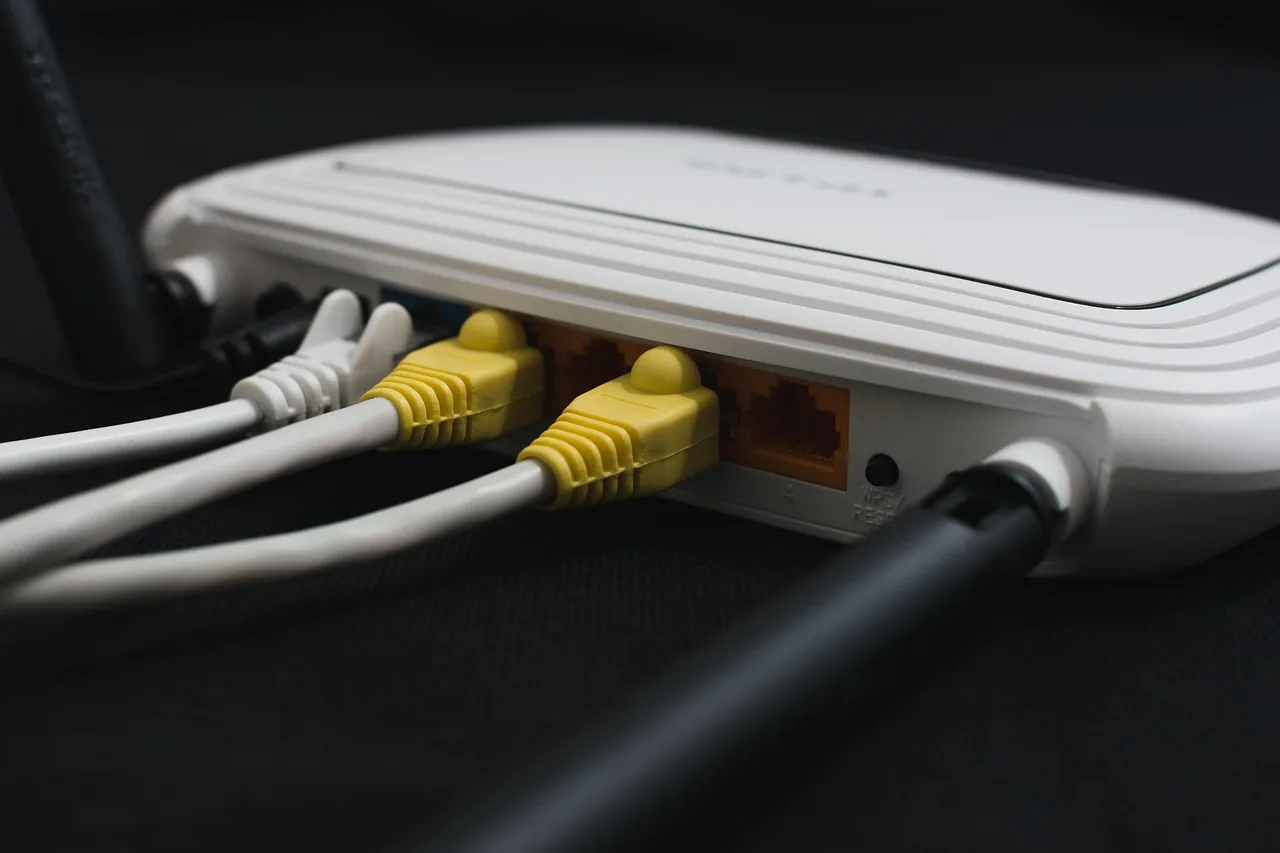
How do I know if my router has Wi‑Fi 6?
Check the router’s label, admin page, or model number for “Wi‑Fi 6” or “802.11ax”; if none of those show ax, it is not Wi‑Fi 6. Misreading the badge can send you to the wrong purchase, the wrong fix, or a feature you already paid for. This guide shows the three fastest checks and the common lookalikes that fool people.
This guide is part of our Wi‑Fi 6 routers: how to choose the right one series.
Check labels, admin pages, and spec sheets for Wi-Fi 6
The fastest reliable check is the model number. Then confirm it on the manufacturer’s support page, because the label and admin page can be shortened or partly hidden. Wi‑Fi 6 is the consumer label for 802.11ax, the 6th version of the 802.11 standard, and the Wi‑Fi Alliance certification mark can help, but it should not be your only check.
Router verification checklist
| Check method | Where to look | What exact string to confirm | Time needed | Common false positives |
|---|---|---|---|---|
| Router label | Sticker on the bottom, back, or original box | “Wi‑Fi 6,” “802.11ax,” or a Wi‑Fi 6 certification mark | 30 seconds | “AX” in the model name, marketing text about faster Wi‑Fi, or a box for a different SKU |
| Admin page | Wireless settings, status, or advanced radio page | “802.11ax,” “Wi‑Fi 6,” or a mode that lists ax for one or more bands | 1-3 minutes | “802.11ac” on a different band, a client device connection shown as Wi‑Fi 6, or a generic “wireless” label |
| Manufacturer spec sheet | Support page for the exact model number | “802.11ax” in the wireless standard field | 1-2 minutes | Searching by model family instead of exact hardware variant, or using a retailer listing instead of the maker’s spec sheet |
Use those three checks in that order. The label is fastest, the admin page is useful as a cross-check, and the manufacturer page is the safest final answer.
What should the label or box say?
Look for “Wi‑Fi 6” or “802.11ax” on the router itself, the packaging, or the quick-start card. A Wi‑Fi 6-certified device logo can also appear, but it confirms certification, not speed. If the only clue is “AX” in the product name, keep going and verify the exact model on the support page.
Watch for AX in the name
AX in a model name often points to Wi‑Fi 6, but it is not proof by itself. Manufacturers sometimes use AX as part of a series name, and some product families contain multiple SKUs with different radios or regional variants. The exact model number matters more than the branding.
Say your box says “AX1800” and the router sticker says “Model X.” That looks promising, but it still does not prove 802.11ax until the support page for that exact model says so. The same family name can cover different hardware revisions.
Find the Wi‑Fi Alliance mark
The Wi‑Fi Alliance is the group that certifies Wi‑Fi devices and keeps the naming program consistent, which is why many consumer products say Wi‑Fi 6 instead of 802.11ax. A certification mark on the box or spec sheet is useful, but it should sit next to the model number check, not replace it.
The logo tells you the device passed that certification program. It does not tell you whether every band, every SKU, or every firmware build on the shelf matches the same wireless standard.
How do I check the router admin page?
Open the router’s admin page, then look for the wireless standard or radio mode in the status or wireless settings screen. This is often where 802.11ax appears if the router supports it. If the page only shows a client connection, confirm you are reading the router’s own radio settings, not a phone or laptop entry.
Find the router IP address
Try the sticker first, because many routers print the admin address there. If not, common local addresses often include 192.168.0.1 or 192.168.1.1, but the exact one can vary by brand and setup. You can also check the connected network details on a phone, laptop, or tablet to find the gateway address.
Sign in and open wireless settings
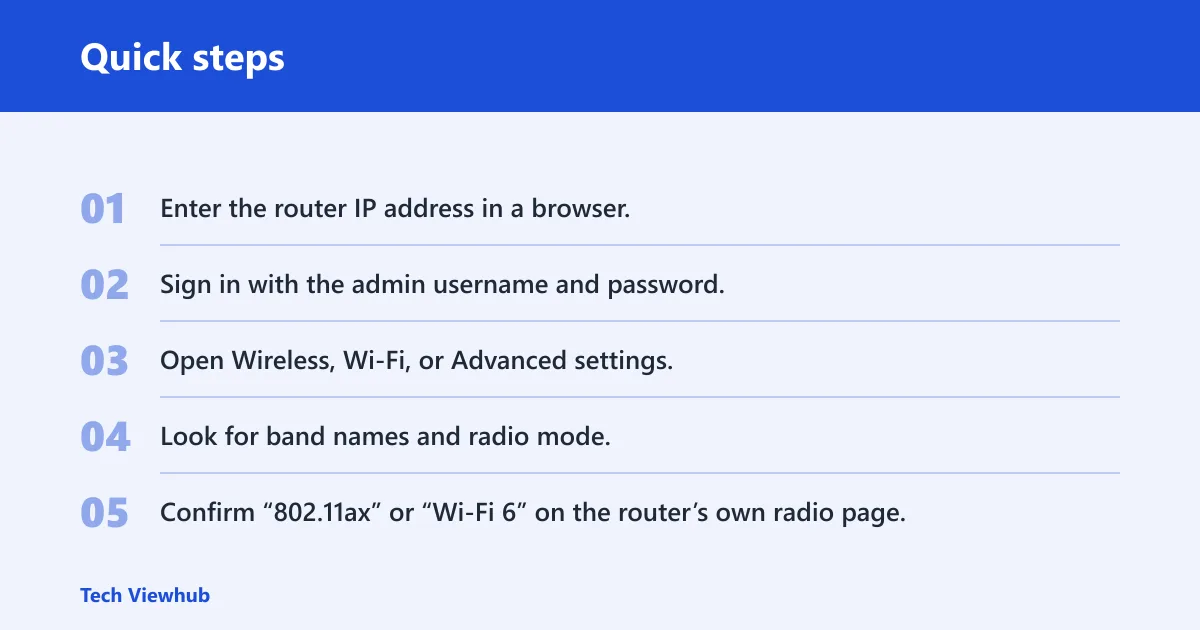
- Enter the router IP address in a browser.
- Sign in with the admin username and password.
- Open Wireless, Wi‑Fi, or Advanced settings.
- Look for band names and radio mode.
- Confirm “802.11ax” or “Wi‑Fi 6” on the router’s own radio page.
Keep an eye on dual-band and mesh screens. One band can show 802.11ax while another still shows 802.11ac, and that does not mean the whole device is the same generation across every radio. Check each band if the page separates them.
Confirm the standard or mode shown for each band
Many admin pages list 2.4 GHz and 5 GHz separately. If both show 802.11ax, that is a strong sign the router is Wi‑Fi 6. If one band shows 802.11ac, the device may be a mixed-mode router, or the screen may be showing a legacy mode that the router is currently using.
Suppose a mesh system lists Wi‑Fi 6 on the main node but leaves a satellite on a different screen. That is common. The system can still be Wi‑Fi 6, but the exact hardware for each unit should match the support page before you treat the whole kit as certified.
Is my router Wi‑Fi 6 or Wi‑Fi 5?
Use 802.11ax for Wi‑Fi 6 and 802.11ac for Wi‑Fi 5. That is the cleanest comparison. If the support page says 802.11ac, it is Wi‑Fi 5. If it says 802.11ax, it is Wi‑Fi 6. If the wording is mixed, confirm the exact SKU because the model family alone can hide differences.
Check the exact SKU, not just the family name
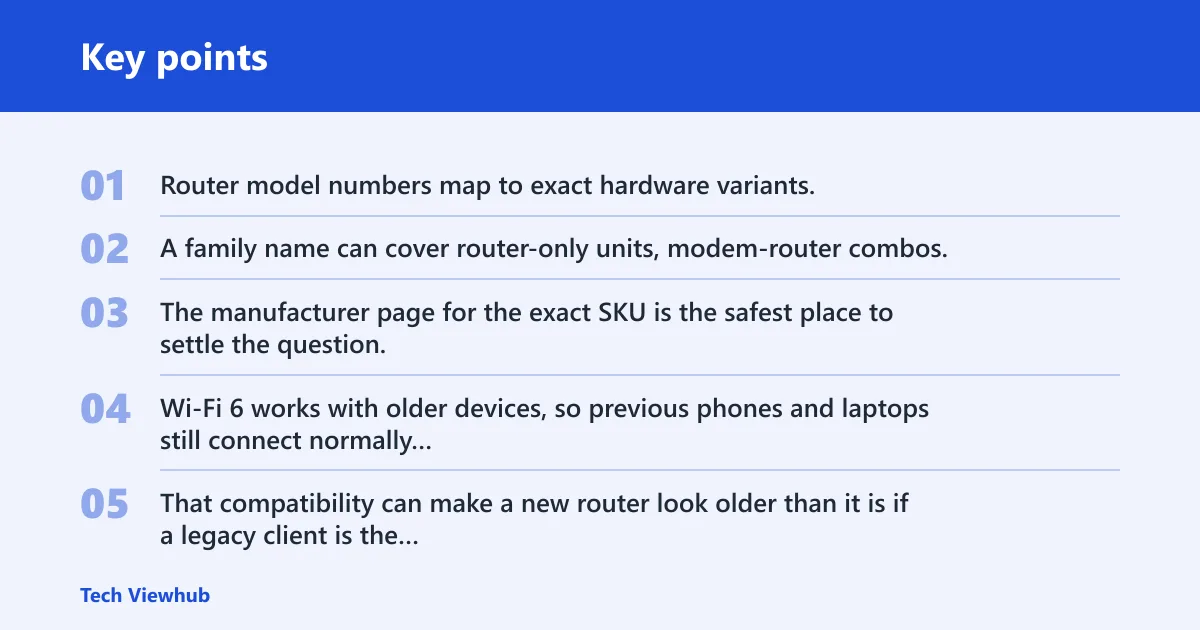
Router model numbers map to exact hardware variants. A family name can cover router-only units, modem-router combos, and ISP-branded gateways that look alike but do not share the same wireless radio. The manufacturer page for the exact SKU is the safest place to settle the question.
Wi‑Fi 6 works with older devices, so previous phones and laptops still connect normally on a Wi‑Fi 6 router. That compatibility can make a new router look older than it is if a legacy client is the only device visible on the network page.
Check for mixed wording on dual-band and mesh systems
Some systems advertise AX in marketing while using 802.11ac in one part of the setup screen. Others show “Wi‑Fi 6 ready” or “AX support” on a box, but the actual hardware page lists 802.11ac for the unit you bought. Treat vague language as a prompt to verify the exact model number.
A common first-timer mistake is checking the modem in a gateway unit instead of the Wi‑Fi router section. Another is reading a mesh app screen that shows the connected client’s link type and assuming it is the router’s wireless generation. Those are different things.
Why the wrong device can fool you
Router support and client support are separate. A phone or laptop can connect over Wi‑Fi 6 only if both ends support it, and older devices still work on a Wi‑Fi 6 router. That is why the same network can include a mix of Wi‑Fi 6 and Wi‑Fi 5 connections at the same time.
Separate router support from client support
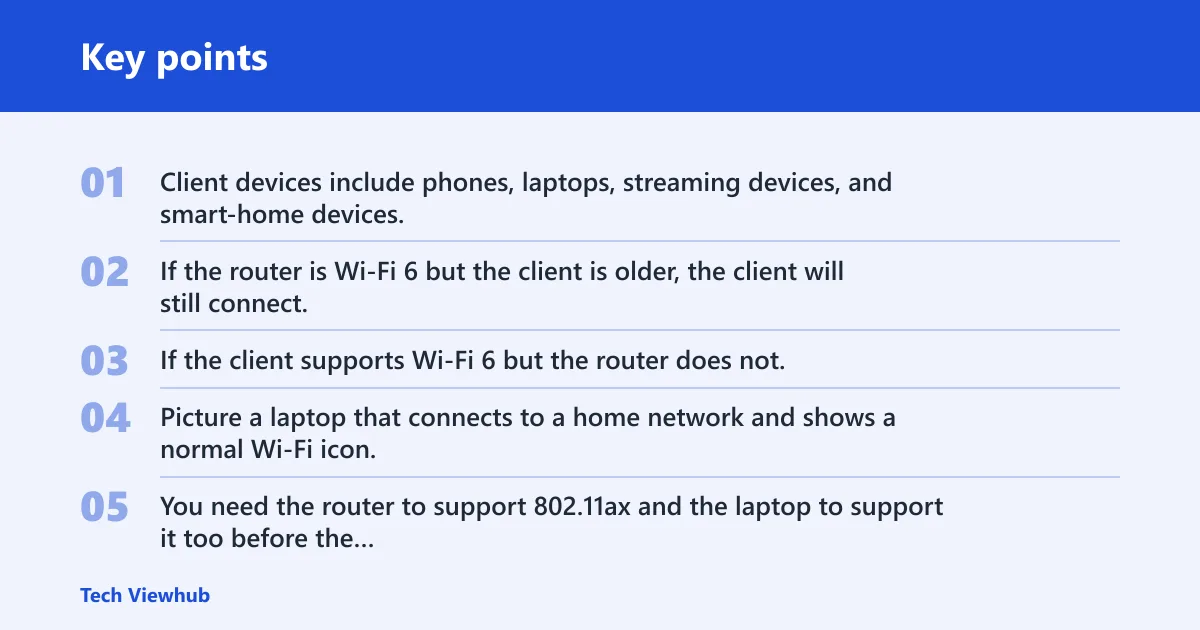
Client devices include phones, laptops, streaming devices, and smart-home devices. If the router is Wi‑Fi 6 but the client is older, the client will still connect, just without Wi‑Fi 6 benefits. If the client supports Wi‑Fi 6 but the router does not, the client will fall back to the router’s older standard.
Picture a laptop that connects to a home network and shows a normal Wi‑Fi icon. That alone does not prove Wi‑Fi 6. You need the router to support 802.11ax and the laptop to support it too before the connection can use the newer standard.
Watch for ISP gateways and modem-router combos
ISPs often supply gateway units that combine a modem and a router in one box. The label may describe the gateway model, not the Wi‑Fi radio standard, and the admin page may show the gateway name first. Check the wireless section, then match the exact model on the manufacturer or ISP support page.
Mesh systems create another trap. The main node, a satellite, and the modem may all sit near each other, but only one of them is the router you need to verify. Use the model number printed on the specific Wi‑Fi node you are checking.
How can I check my router settings to see what Wi‑Fi version it supports?
Log into the router’s admin page and look under wireless or advanced settings for 802.11ax, Wi‑Fi 6, or a radio mode that includes ax. If the page only lists 802.11ac, the router is Wi‑Fi 5. Use the settings page as a cross-check, then confirm the exact model on the support page.
Which setting names matter?
Common labels include Wireless Mode, Radio Mode, Standard, or Network Mode. Some interfaces also show the band name, such as 2.4 GHz or 5 GHz, next to the standard. The important part is the standard string, not the marketing language around it.
How do I know if my phone or laptop is connecting on Wi‑Fi 6?
Check the device’s network details, not just the Wi‑Fi icon. On many phones and laptops, the status page shows the link standard, frequency band, or negotiated connection mode. If it reports Wi‑Fi 6 or 802.11ax, the client is connecting with that standard, but the router must support it too.
Older devices can still connect to a Wi‑Fi 6 router normally. They just use their own supported standard, often Wi‑Fi 5 or earlier. That is expected behavior, not a fault.
What if my router is Wi‑Fi 6 but my devices are older?
Nothing is broken. Wi‑Fi 6 works with older devices, so previous phones, laptops, streaming devices, and smart-home devices still connect normally. You only get the full benefits when both the router and the client device support Wi‑Fi 6.
That matters in mixed households. A new router can improve network efficiency overall, but an older tablet will not suddenly gain Wi‑Fi 6 support just because the router changed. The client hardware still sets the ceiling.
Does my router need a Wi‑Fi 6 logo to be Wi‑Fi 6?
No. The Wi‑Fi 6 logo or Wi‑Fi Alliance certification mark is a useful consumer check, but it is not the only one. A router can be Wi‑Fi 6 even if the sticker is missing, faded, or never printed on the retail box. The model number and manufacturer spec sheet are stronger proof.
The logo confirms certification, not internet speed. Use it as a quick clue, then verify the exact hardware with the model number and wireless standard.
What model number or label should I look for on the router?
Look for the exact model number on the sticker on the bottom or back of the router, or in the admin page under device information. That number is the safest key for manufacturer verification because it maps to one hardware variant, not a marketing family name. The support page should list 802.11ax if the router is Wi‑Fi 6.
If the label is missing, the box, ISP account page, or admin page often still shows the model number. Avoid relying on broad names like “AX router” alone, because that can describe a series rather than the unit in front of you.
How do I find my router info or IP address to check the model?
Start with the router sticker, then check the connected device’s network details for the gateway address. The admin page usually lists the model number on a status or information screen. If you are dealing with a gateway or mesh system, verify the exact node or unit you are trying to identify.
Fastest path to the admin page
- Check the router label for the IP address.
- If it is missing, look at the Wi‑Fi network details on your phone or laptop.
- Open the gateway or router address in a browser.
- Log in and read the device information page.
- Match the model number against the manufacturer support page.
Frequently asked questions
How do I know if my router has Wi-Fi 6?
Check the label, admin page, or manufacturer support page for “Wi‑Fi 6” or “802.11ax.” If the exact model number only lists 802.11ac, it is Wi‑Fi 5. The quickest reliable path is label first, then model lookup, then admin page as a cross-check.
What does the Wi-Fi 6 logo look like?
It is the Wi‑Fi Alliance certification mark with the Wi‑Fi 6 naming used on packaging or product pages. Treat it as a certification badge, not a guarantee of speed. If you cannot find the logo, use the exact model number and support page instead.
How can I check if my router supports 802.11ax?
Use the exact model number from the router label or admin page, then open the manufacturer support page for that model. Look for 802.11ax in the wireless standards field. That is the most reliable check because it identifies the exact hardware variant.
How do I tell if my phone or laptop is connecting on Wi-Fi 6?
Open the device’s Wi‑Fi details and look for the connection standard or link mode. If it says Wi‑Fi 6 or 802.11ax, the client is using that standard. If not, the device may still be connected normally on a different Wi‑Fi generation.